How To Create Email Aliases In Google Workspace
An alias looks simple, but it can save me from buying another mailbox. In Google Workspace, I use email aliases when one person needs to receive mail at support@, sales@, or billing@ without carrying a second login. If my domain isn’t...
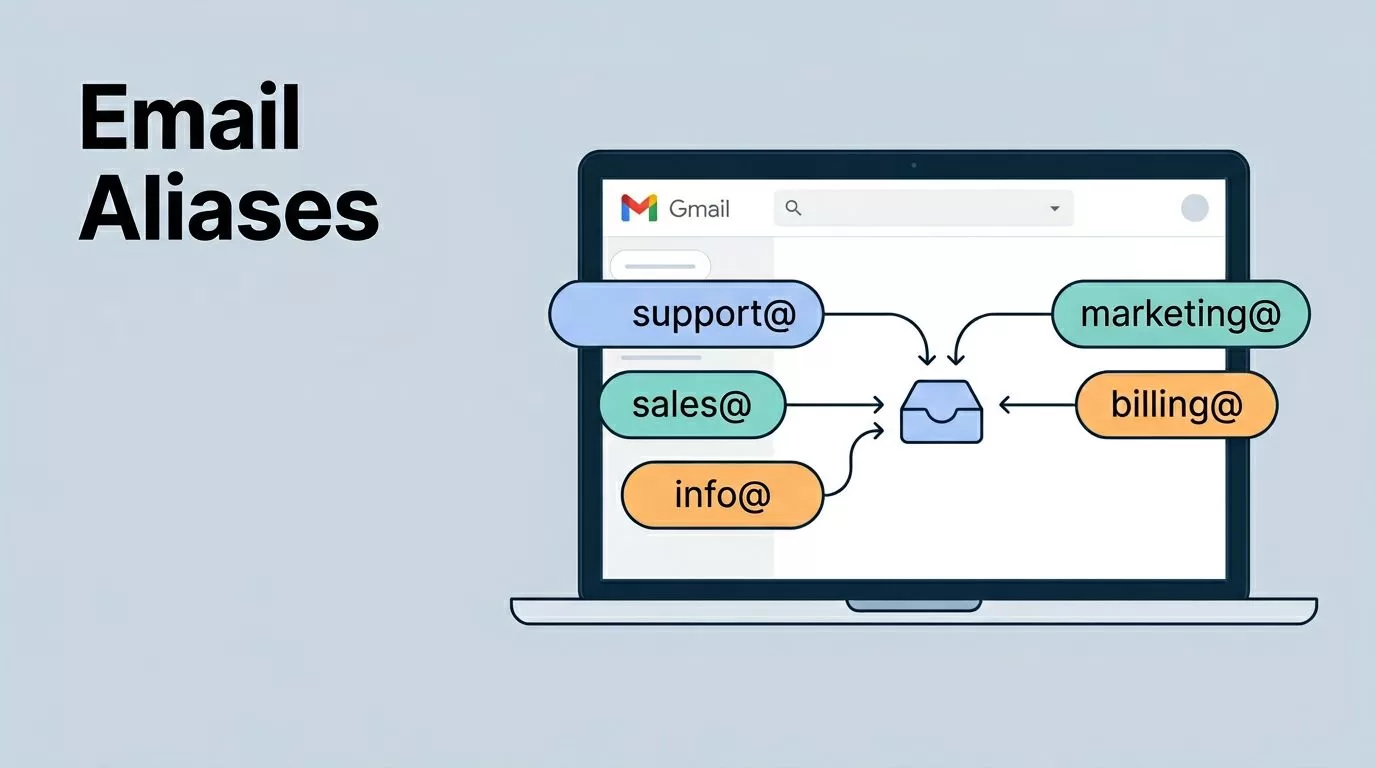
An alias looks simple, but it can save me from buying another mailbox. In Google Workspace, I use email aliases when one person needs to receive mail at support@, sales@, or billing@ without carrying a second login.
If my domain isn’t already pointed at Gmail, I fix that first with my Google Workspace email setup guide. Once mail is flowing, alias setup takes only a few minutes, but the send-from step still matters. I handle both so the address works the way people expect.
When I choose an alias instead of a new inbox
An alias is a forwarding address that lands in one user’s main inbox. That makes it perfect for a founder who owns support@ or for a bookkeeper who wants billing@ without another account. Google’s official alias help page confirms that admins can add up to 30 aliases per user at no extra cost.
I don’t use aliases when several people need to share replies. In that case, I move to a group or another shared workflow. An alias is a sign on one door. It changes the label, not the room.
An alias is not a shared inbox. It routes mail to one mailbox, and that difference trips people up fast.
How I add the alias in Google Admin console
I sign in with an admin account that can manage users. If the Add alias option is missing, my role doesn’t have the right permission.
Then I follow the same path in the current Admin console:
- I open admin.google.com and go to Directory > Users.
- I pick the user who should receive the mail.
- Under User information, I look for Add alternate emails or Email aliases.
- I click Add alias, then enter the local part, such as
support,billing, or a name. - I choose the correct domain if the account has more than one.
- I save the change, then send a test message from an outside address.
I keep the name simple because Google rejects addresses that already belong to another user, group, or alias. It also blocks bad characters. I usually see the alias quickly, but I still allow up to 24 hours before I call it broken. Google also lets me add up to 30 aliases per user, which is more than enough for most small teams.
How I let the user send from the alias in Gmail
Receiving mail is only half the job. If I want the sender line to show support@, I open Gmail in that user’s account and add the alias under Settings > Accounts and Import > Send mail as.
That extra step matters. Without it, the mailbox may still receive mail, but replies go out from the primary address. If I want the alias to feel real to customers, I also keep deliverability clean with my Google Workspace SPF, DKIM, and DMARC guide, especially when the alias faces clients or vendors.
After the alias is added, I check the From menu in a new message. If the alias doesn’t appear right away, I refresh Gmail or sign out and back in. In practice, this part is per user, not for the whole domain. I have to set it inside the mailbox that will send the mail.
The errors I check first
When an alias behaves badly, I start with the simple stuff. Most problems are boring, and that helps.
- The address is already taken. Another user, group, or alias owns it, so Google blocks it.
- The domain is wrong. I use a primary or secondary domain, not an alias domain.
- The alias name has bad characters. I stick to letters, numbers, periods, and hyphens.
- The mailbox can receive, but not send. The alias still needs the Gmail Send mail as step.
- The change looks delayed. I wait, then test again from an external inbox.
For larger rollouts, I don’t click through every user by hand. I check Google’s Directory API user aliases guide when I need script-based or bulk alias work. That saves time when I’m managing many accounts at once.
The rule I use before I roll it out
I treat aliases like labeled mail slots. The inbox stays the same, but the front door changes. That makes them ideal when one person owns the work and the team wants a cleaner address.
Before I call it done, I test receipt, test sending, and confirm the admin role has the right permissions. If the alias is for customers, I make sure the sender name looks right and the domain setup is solid. A good alias feels invisible, and that’s the point.
