How I Set Up Resource Calendars in Google Workspace
Suggested URL slug: resource-calendars-google-workspace I set up Google Workspace resource calendars by creating the resource in Admin console, filling in the room or equipment details, and sharing it with the right people. When I do those...
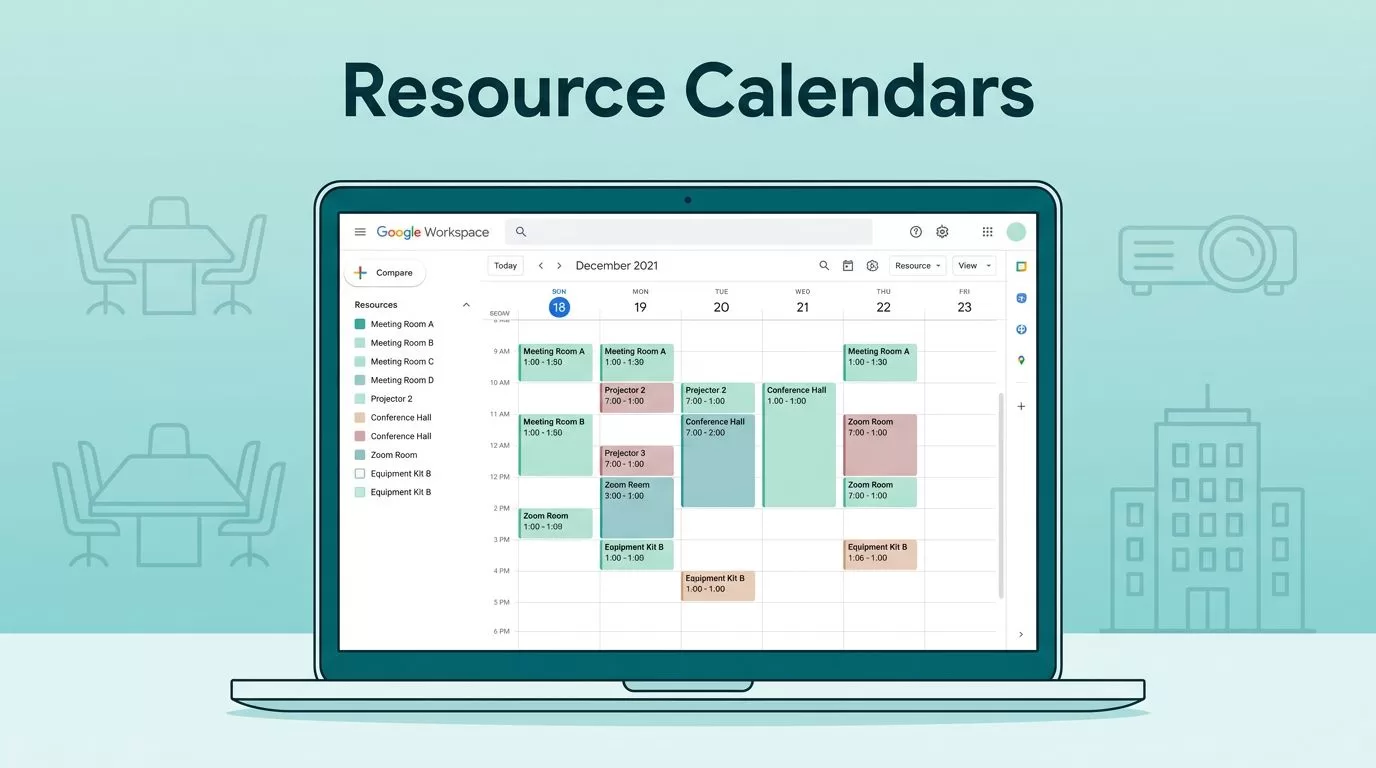
Suggested URL slug: resource-calendars-google-workspace
I set up Google Workspace resource calendars by creating the resource in Admin console, filling in the room or equipment details, and sharing it with the right people. When I do those steps in that order, bookings stay clear and I spend less time answering “is the room free?” messages.
The setup is simple once I decide who can book and who can manage the resource. After that, I test it like a normal user and fix the rough edges before anyone else sees them.
Table of Contents
- My setup flow for Google Workspace resource calendars
- The fields I fill out before I save
- How I share the calendar with the team
- Common mistakes I avoid
- Conclusion
- FAQs
My setup flow for Google Workspace resource calendars
I start in the Admin console, not in Google Calendar. As of April 2026, the path I use most often is Apps > Google Workspace > Calendar > Resources. If I need structured resources, I move to Directory > Buildings and resources > Overview > Resource management.

I keep the first setup pass short and clean:
- I click Add resource or Create new resource.
- I give the resource a clear name, like “Conference Room A”.
- I choose the right type, room, projector, car, or other equipment.
- I add a short description, building, floor, and capacity if they help.
- I save it, then test it in Calendar before I hand it to the team.
If I am also cleaning up company-wide scheduling, I keep my shared team calendar setup in Google Calendar nearby. It helps me separate a bookable asset from a team schedule.
I treat the setup like a label on a shelf. If the label is vague, the booking gets messy later.
The fields I fill out before I save
Google’s setup guide for creating buildings, features, and Calendar resources matches the way I work, because detail saves time later. I add enough information that someone can book the resource without asking me where it is.
| Field | What I enter | Why it matters |
|---|---|---|
| Name | A clear room or asset name | People find it fast |
| Type | Room, vehicle, projector, or other item | Keeps the list organized |
| Building and floor | Main office, 2nd floor, wing B | Helps people reach the right place |
| Capacity and features | 8 seats, whiteboard, Meet hardware | Cuts down bad bookings |
For larger offices, I use buildings and features more often than I used to. A tag like whiteboard, phone, or video gear makes the resource list easier to scan. That matters when the office has more than one floor or more than one kind of room.
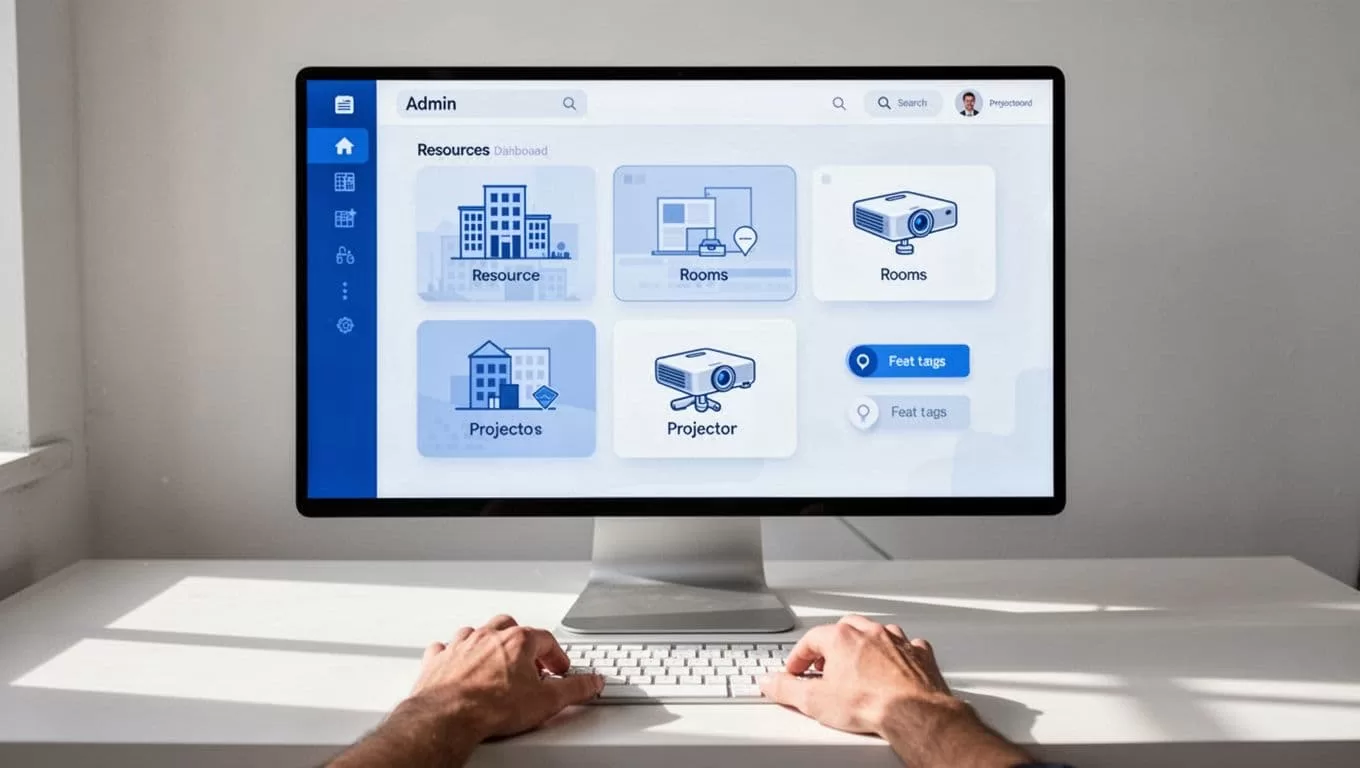
The cleanest setup is the one that leaves no guessing. If the resource name, location, and features all match, people book it faster and complain less.
How I share the calendar with the team
Once the resource exists, I move into Calendar and add it to My calendars so I can inspect it like any other calendar. Then I open Settings and sharing and decide who can see it, who can book it, and who can manage changes.
For the sharing part, I keep the rules simple:
- I share it with the whole organization only when the resource is open to everyone.
- I limit it to specific people or groups when the room or asset is sensitive.
- I give Make changes and manage sharing only to the small group that actually needs it.
- I turn on auto-accept when I want the resource to approve bookings on its own.
If I need the exact permission steps, I check Google’s share room and resource calendars help page. It keeps me from guessing when the admin menu changes.

If our office also uses Outlook or another calendar system, I read Google’s April 2026 update on booking Workspace resources from third-party calendars before I open the door wider. That matters when people outside Google Workspace need to reserve the same room.
For the broader admin picture, I keep my Google Workspace collaboration deployment notes close by. Resource calendars work better when sharing rules stay consistent across the rest of Workspace.
Common mistakes I avoid
I see the same problems over and over, and I avoid them early.
- I do not name everything “Room 1” or “Projector A”. Those names force people to guess.
- I do not give too many managers access. One or two is enough for most setups.
- I do not skip the test booking. I open Calendar, try a booking, and watch what happens.
- I do not ignore outside users if my company needs them to book rooms.
A resource calendar only works when the details and the permissions tell the same story.
If the setup feels off, I fix it before rollout. That is cheaper than cleaning up bad bookings for months.
Conclusion
Setting up resource calendars in Google Workspace is one of those tasks that pays off every day. Once I create the resource, add the right details, and lock down sharing, the calendar starts doing quiet work for me.
The best setups are simple to read and hard to break. If someone can find the right room, book it once, and move on, I know the calendar is doing its job.
FAQs
Do I need super admin access to create resource calendars?
Usually, yes. I use admin rights to create and manage the resource, then I can hand day-to-day control to a resource manager if needed.
What is the difference between a resource calendar and a shared team calendar?
A resource calendar is for a bookable asset, like a room or projector. A shared team calendar is for people, deadlines, and team events.
Can people outside Google Workspace book a resource?
Yes, in supported setups. I turn that on only when the company needs outside users to reserve the same resource.
Why do buildings and features matter so much?
They make the list easier to search and the bookings easier to trust. When I tag a room correctly, users spend less time asking for help.
