How I Set Up a Google Workspace Shared Inbox for Small Teams
The best shared inbox is the one your team can use without debating it every morning. When I set up Google Workspace shared inbox access for a small team, I start with one question: do we need a real team queue, or do we just need a few peo...
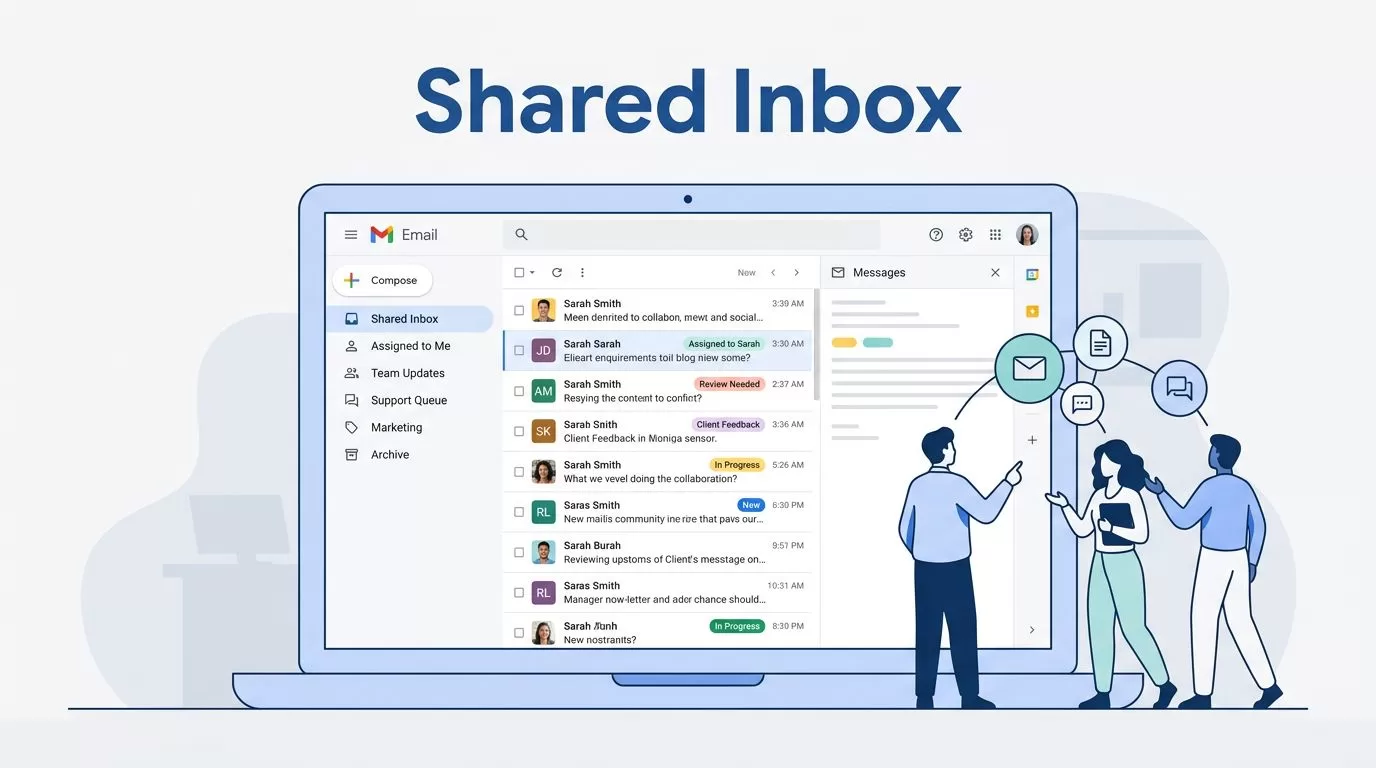
The best shared inbox is the one your team can use without debating it every morning. When I set up Google Workspace shared inbox access for a small team, I start with one question: do we need a real team queue, or do we just need a few people in the same mailbox?
That answer changes the setup. Google Groups, delegated Gmail, and simple aliases all solve different problems, and mixing them up usually creates the mess you were trying to avoid.
Table of contents
- Choosing the right inbox model
- How I set it up in Google Workspace
- Roles and permissions that keep ownership clear
- A workflow that stops reply collisions
- Common setup problems and fixes
- Best practices for small teams
- FAQs
Choosing the right inbox model
Here is the simplest way I sort the options.
| Option | Best for | How it feels | Main tradeoff |
|---|---|---|---|
| Google Groups collaborative inbox | Small support or admin teams that share messages | Shared queue with assignments and status | Fewer Gmail-style tools |
| Delegated Gmail access | One mailbox managed by one or two trusted people | Full Gmail inbox with labels, filters, and search | Needs tighter control |
| Email alias | Simple routing to one inbox | Mail lands in one person’s mailbox | No shared ownership |
When I need a true team queue, I choose Google Groups. When I need full mailbox control, I use delegated Gmail. If I only need an extra address, I keep it as an alias and save the extra setup.
That is the point where a lot of teams save time. If you’re still weighing aliases against shared inboxes, I’ve broken down the trade-offs in my guide to Google Workspace email aliases vs shared inboxes.
For a plain-English comparison of the three paths, I also like how to create a shared mailbox in Google Workspace. It lays out the same decision in a simple way.

A shared inbox works best when everyone agrees on who owns the next reply.
How I set it up in Google Workspace
I start with the mailbox type, then I build the access rules around it. Google’s own shared inbox setup guide is the best place to confirm the current Admin console flow.
- Pick the address and purpose first.
I name the inbox for the job, not the person. Support, billing, and info all need different rules. - Create the shared address or group.
If my Admin console shows the shared email address option, I set it up there. If I want a team queue, I create a Google Group instead. - Add only the people who need access.
I keep the first version small. A tiny inbox with three active users is easier to control than a big one with vague ownership. - Turn on Collaborative Inbox features when using Google Groups.
Google’s Collaborative Inbox settings let people take, assign, and finish conversations. That matters more than most teams think. - Use delegated Gmail only when the team needs a full mailbox.
Delegated access feels like one Gmail account with more than one set of hands. I use it when someone needs labels, filters, search, and the full mailbox view. - Test the flow before going live.
I send three test emails from outside the domain, then I check delivery, reply behavior, and who sees the thread. If a test feels awkward, real customers will feel it too.

If I can’t explain the setup in one sentence, I know the structure is too loose.
Roles and permissions that keep ownership clear
Permissions are where small teams either stay calm or trip over each other. I keep the role split simple.
Owners manage the setup, members handle the mail, and managers handle the handoff. That means the person who tweaks settings is not always the person who answers tickets.
If everyone can edit everything, nobody owns the reply.
In practice, I use a small rule set:
- Owners handle membership, settings, and cleanup.
- Managers assign conversations, fix mistakes, and cover gaps.
- Members reply, complete tasks, and flag issues early.
That structure works because it limits noise. Google Groups collaborative inboxes are built for this style of control, and they work best when conversation history stays on and roles stay tight. If I want to double-check the exact permission mix, I go back to Google’s Collaborative Inbox settings page.
I also avoid giving manager access to people who only need read-and-reply access. Too much power makes an inbox feel loose, and loose inboxes create duplicate work.
A workflow that stops reply collisions
A shared inbox fails when two people answer the same email at once. That usually happens because nobody owns the first move.
My fix is a short workflow that anyone can follow.
First, I assign one person to triage new messages each day. That person checks the queue, tags what matters, and decides what needs an answer now.
Next, I make people claim a thread before they reply. In Google Groups, that means taking ownership first. In delegated Gmail, that means checking who is already on the thread before hitting send.
Then I close the loop fast. If a request is done, I mark it done the same day. Loose threads pile up like receipts in a glove box.
I also keep a backup rule. If the main owner is out, one other person takes over. That one change keeps the inbox from going dark on Fridays and holidays.
When missed inquiries are the real issue, I sometimes pair the setup with better routing. My notes on catch-all email routing help when typoed addresses or old contact forms are letting leads slip through.
Common setup problems and fixes
Most shared inbox problems are not software problems. They are setup problems.
If mail lands in one person’s inbox only, I check whether I built a forwarding rule instead of a shared setup. If members cannot see conversations, I check visibility and role settings. If replies come from the wrong account, I check the send-as or delegation settings.
I also watch for duplicate handling. That happens when two people think they are the owner, or when nobody knows who is supposed to reply first. A clear triage rule fixes that faster than more software.
Before I launch, I send one email from outside the domain and ask three things: Did it arrive where I expected? Can the right people see it? Can one person reply without breaking the thread? That test catches most of the pain before customers do.
Best practices for small teams
For a small team, I keep the rules plain.
- Use one inbox for one job, like support@ or billing@.
- Keep the first access group small, then add people only when needed.
- Review members once a month, because old access lingers.
- Write down who triages, who replies, and who fills in when someone is away.
- Keep aliases for routing only, not for shared work.
If I need more structure later, I add it slowly. I do not start with a heavy process and hope people follow it. I start with a clean queue, then I let the workflow grow as the team grows.
FAQs
Does Google Workspace have a true shared inbox?
Yes, but the setup path depends on how I want people to work. Google Groups collaborative inboxes handle shared ownership well, while delegated Gmail gives a full mailbox view to a few trusted users.
Should I use Google Groups or delegated Gmail?
I use Google Groups when I want a small team queue with assignment and status. I use delegated Gmail when one mailbox needs full Gmail tools, like labels, filters, and search.
Can several people reply from the same address?
Yes, if I set the inbox up correctly and define one reply rule. The key is making sure the team knows when to claim a thread and how to send from the right identity.
When do I need more than Google Workspace alone?
I look for something bigger when the team needs collision alerts, reporting, service levels, or a deeper ticket flow. At that point, the inbox is doing support desk work, and I treat it like one.
Conclusion
A good shared inbox is less about software and more about ownership. When I choose the right mailbox type, set the roles cleanly, and give the team one reply rule, the inbox stops feeling like a pile of loose papers.
For small teams, that is the real goal. The best Google Workspace shared inbox setup is the one that makes the next message obvious, the next owner clear, and the daily work easier to trust.
