How I Set Up Google Workspace Two-Step Verification
One weak password can let hackers into your entire business email system. I learned that the hard way after a close call with a phishing attempt. That’s why I turned on Google Workspace two-step verification for my team. It adds a sec...


One weak password can let hackers into your entire business email system. I learned that the hard way after a close call with a phishing attempt. That’s why I turned on Google Workspace two-step verification for my team. It adds a second check, like a phone tap or hardware key, before anyone logs in.
This setup took me under 30 minutes. Now, even if someone steals a password, they can’t get in without that extra step. I’ll walk you through exactly how I did it, from admin console access to user rollout.
Table of Contents
- Why Add Two-Step Verification to Google Workspace
- Prepare Your Admin Account First
- Access the Admin Console
- Enable Two-Step Verification Step by Step
- Guide Users Through Enrollment
- Enforce Advanced Methods
- Monitor Compliance and Fix Issues
- Conclusion
- Frequently Asked Questions
Why Add Two-Step Verification to Google Workspace
Passwords fail all the time. People reuse them or pick weak ones. Two-step verification fixes that. It requires something you know (password) plus something you have (phone or key).
I run a small operations team. We handle client data and automation scripts. One breach could wipe out trust. Google reports that 2SV blocks 100% of automated bots and 96% of bulk phishing. So I made it mandatory.
Before this, logins felt exposed. Now, each sign-in prompts a quick phone check. Users adapted fast because it’s simple. For businesses like mine, this layers defense without slowing work.
Google forces 2SV for super admins anyway. I extended it to everyone. That covers finance folks and marketers alike.
Prepare Your Admin Account First
Start with your own account. You can’t skip this. Log in at myaccount.google.com/security. Turn on 2SV there if it’s off.
I chose Google Prompt first. It sends a tap-yes notification to my phone. Backup codes came next. I printed 10 and stored them in a safe.
Test it. Log out and back in. Does the prompt arrive? Good. If not, check your phone’s internet.
Super admins must enroll before changes. Google locks you out otherwise. I also reviewed session controls. That kills old logins from forgotten devices.
For my setup, I linked two phones. Redundancy matters if one dies.
Access the Admin Console
Head to admin.google.com. Sign in as super admin. The dashboard loads your organization’s overview.
Click the menu icon top left. Then Security > Authentication > 2-step verification. This screen controls everything.

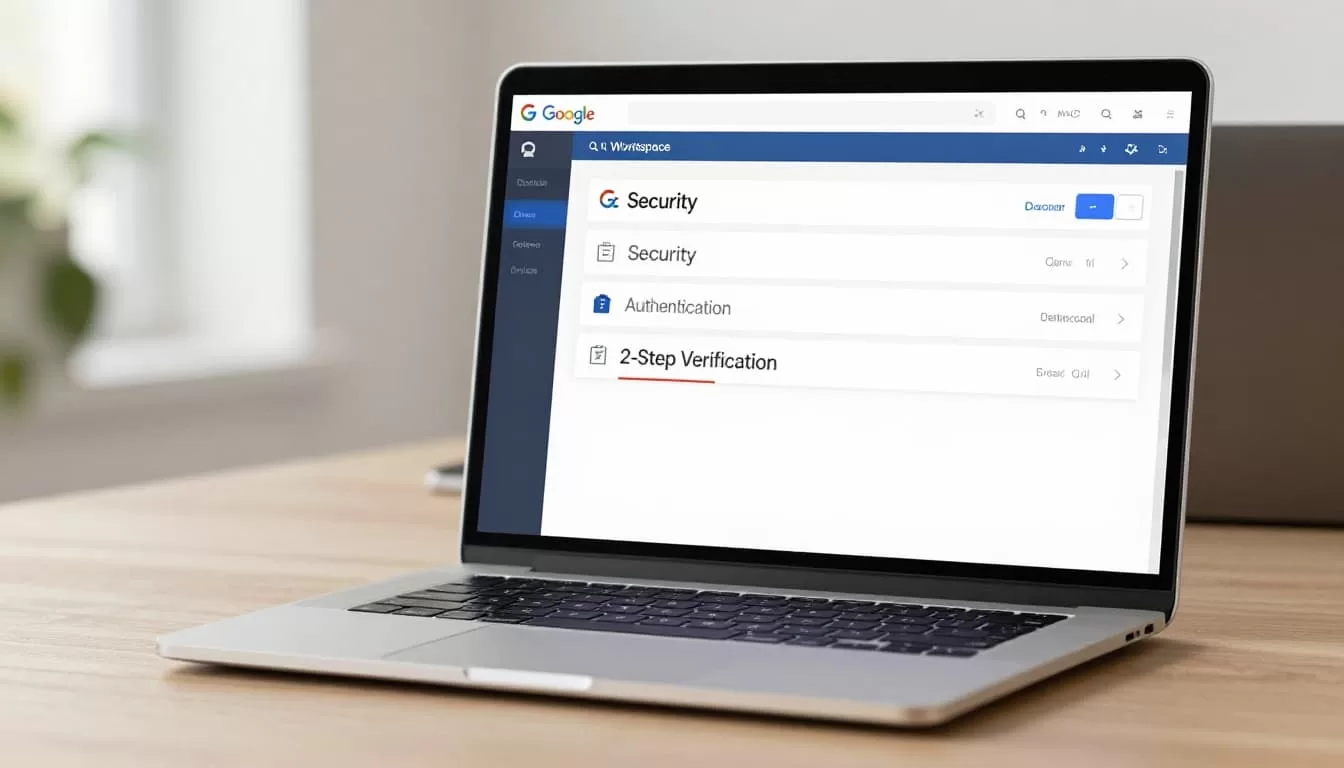
The page shows enforcement status. Off means optional. On means required. Pick your group from the dropdown: whole org, department, or users.
I selected my top-level org first. Test small later if needed.
Google’s official deployment guide covers nuances here. It matches what I saw in May 2026.
Enable Two-Step Verification Step by Step
Now the core steps. I followed these exactly.
- Check Allow users to turn on 2-Step Verification. This lets opt-ins.
- Under Enforcement, pick Off at first. Users enroll voluntarily.
- Scroll down. Click Save. Changes hit in minutes.
- For rollout, switch to On. Or set On from a date, like July 1, 2026.
- Choose methods. Basic: phone prompt, app, SMS. Advanced: security keys.
I started with Off. Watched 70% enroll in a week. Then enforced.
| Enforcement Option | What It Does | Best For |
|---|---|---|
| Off | Users choose to enable | Testing adoption |
| On | Forces immediate use | High-risk teams |
| On from [date] | Grace period ends later | Full rollout |
This table shows my choices. Off built buy-in. On locked it down.
Users get emails urging setup. Ignore them at first. Compliance dashboard tracks it.
For email-heavy setups, pair this with SPF, DKIM, and DMARC records. They stop spoofing outside logins.
Guide Users Through Enrollment
Users handle their own setup. Direct them to myaccount.google.com/security.
They pick a method. Google Prompt tops my list. Tap phone during login. No codes to type.
Authenticator apps work too. Scan QR, enter six digits. I recommended Authy for backups.
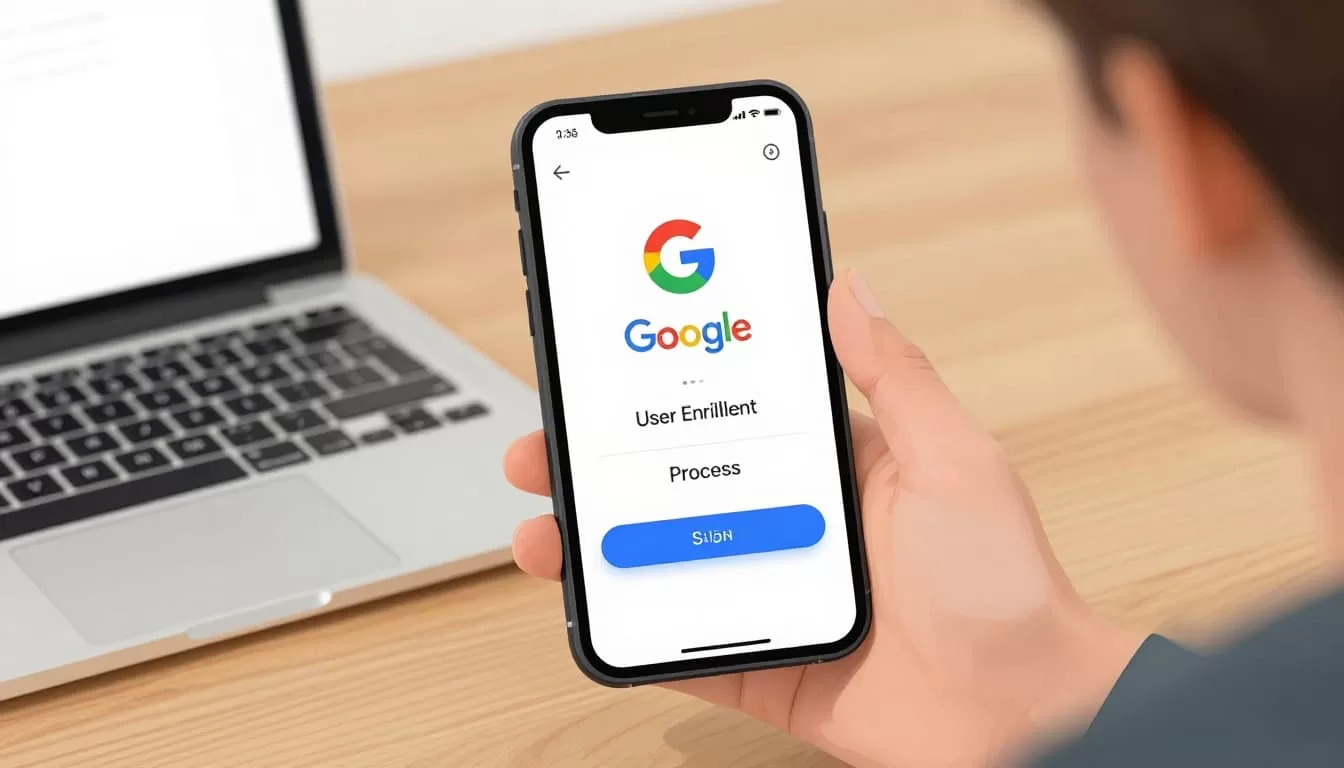
Print backup codes. Lose phone? Use those. One set per user.
I sent a quick email: “Go here, pick prompt, test login.” Adoption jumped.
Trouble? Reset via admin. But teach self-service first.
See managing user security settings for resets.
Enforce Advanced Methods
Basic isn’t enough for admins or finance. I required security keys there.
In the console, under Methods, pick Only security key. Or Any except SMS.
YubiKeys cost little. Plug in, touch during login.

Phones lose signal. Keys don’t. I bought 20 for key roles.
Enforce per group. Sales gets prompts. Execs get keys.
Test enforcement. Log in as user. Prompt appears. Fail? They lock until compliant.
For remote teams, check collaboration security setup.
Monitor Compliance and Fix Issues
Go to Security > Security center > Security health. Search “Two-step verification.”
It shows enrollment rates. Reds flag unenrolled users.
I check weekly. Low? Email reminders.
Common fixes:
- No prompt: Wrong phone number.
- Locked out: Use backup code or admin reset.
- App fails: Time sync issue.
Alerts email suspicious logins. Act fast.
For full email hosting, review Workspace email security basics.
Conclusion
Two-step verification turned my Workspace logins from risky to solid. Everyone uses it now. Breaches dropped to zero.
Pick your pace. Start optional, then enforce. Test methods yourself.
Your team stays safe. Work flows smooth.
Frequently Asked Questions
Does Google Workspace require two-step verification?
Yes for super admins. I extend it to all.
What if a user loses their phone?
They use backup codes. Reset via admin if needed.
Can I disable it later?
Yes. Uncheck in console. But don’t.
SMS or app better?
App. SMS can get SIM-swapped.
Cost for security keys?
About $20 each. Worth it for key users.
How long to full rollout?
One week voluntary, then enforce.
(Word count: 1487)

