Generate Authentic Regional Accents Using Speechify
Reading heavy text with a generic computer voice drains your patience within minutes. When you need a specific regional sound for localization, podcast production, or accessibility, standard text to speech engines fall short. You need preci...
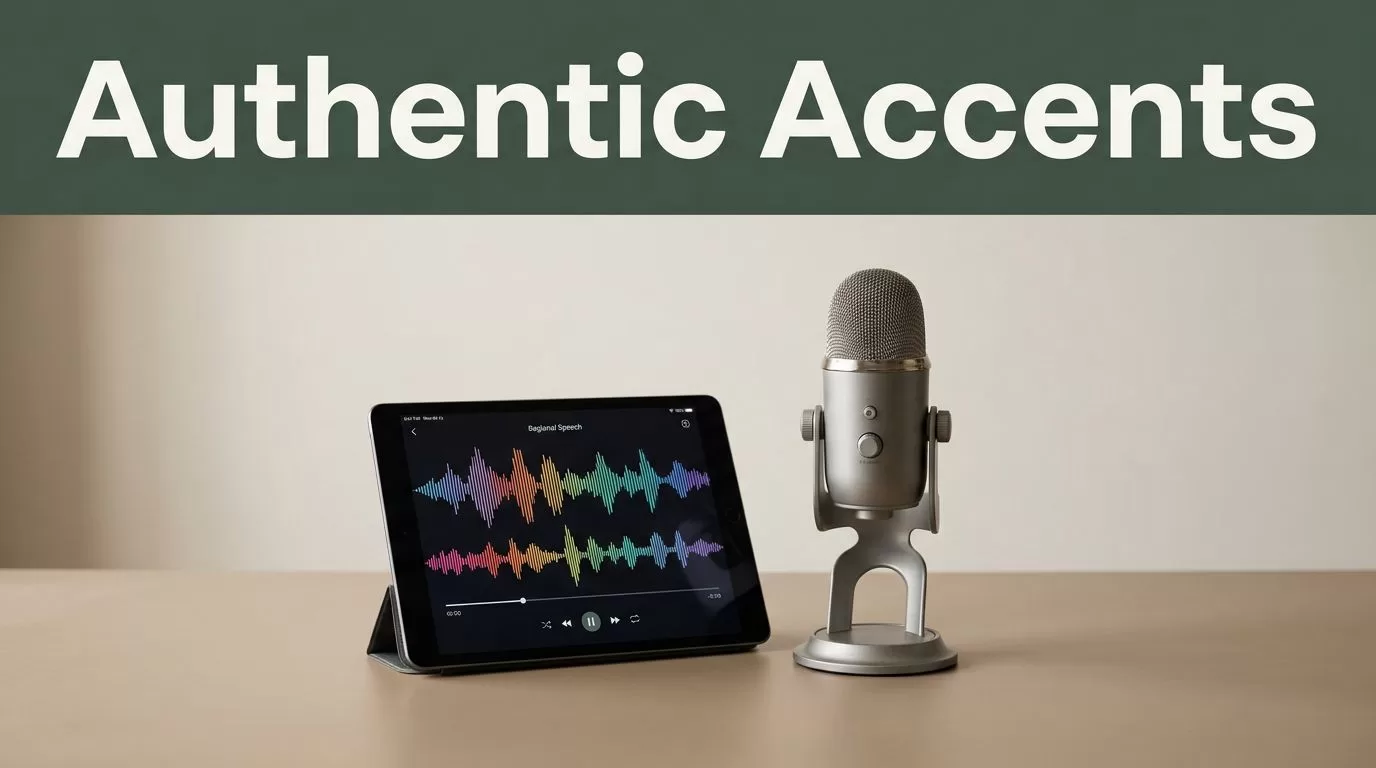
Reading heavy text with a generic computer voice drains your patience within minutes. When you need a specific regional sound for localization, podcast production, or accessibility, standard text to speech engines fall short. You need precise control over tone, regional inflection, and pronunciation. Speechify provides an expansive library of lifelike voices across dozens of languages and dialects. Setting up your audio properly ensures your content sounds authentic and engaging instead of robotic.
Key Takeaways
- Choose natural-sounding voice models that match your project requirements and respect regional linguistic nuances.
- Organize your script files into structured digital folders before importing them into your workspace to maintain a smooth workflow.
- Adjust your playback speed and pacing gradually to check pronunciation clarity and audio flow.
- Enable synchronized text highlighting to track spoken words alongside audio playback and catch awkward pauses early.
- Export your generated audio files directly into your editing software or publishing pipeline to streamline your content production.
Choosing Your Regional Accent
Getting an authentic sound starts with navigating the voice library correctly. Speechify supports numerous regional variations, including British English, Australian English, New Zealand English, and distinct U.S. regional dialects. Open your browser player or mobile app and click the voice selection icon near the play button. Search for your target language or dialect in the menu to view available voice profiles. For more context on how these tools operate, check out this guide on lifelike AI voices on Speechify.

Voice availability depends on your current subscription tier and device type. Free plans typically restrict access to a smaller subset of languages and premium voice models. Premium subscribers unlock specialized voice skins and advanced tone controls. Select a voice that fits your audience demographic rather than picking a random option from the list.
Configuring Local Accent Text To Speech Settings
Once you select your preferred regional voice, you need to configure your workspace for optimal output. Group your source documents or scripts into dedicated folders by project name to keep your workflow organized. Import your text directly into the dashboard and review the layout for formatting errors. Clean up messy line breaks or multi-column text blocks before generating audio to prevent awkward stuttering during playback.
Adjust your playback speed based on the complexity of your script. Start listening at standard speed to catch any pronunciation anomalies or unnatural pauses. If certain regional terms sound flat, try switching to a different voice profile within the same accent category. For a deeper look at managing audio pacing and voice tuning, read this breakdown on how to change the speaking tone of a voice.
Pushing synthetic voice generation past natural cadence limits ruins listener trust. Always test your generated audio with real audience members to verify that the regional dialect sounds respectful and accurate.
Script Localization and Pronunciation Tuning
Even advanced speech engines occasionally mispronounce localized slang, acronyms, or regional place names. Listen closely to your generated audio pass and flag any awkward phrasings. You can often fix pronunciation quirks by altering the spelling slightly in your source text. For example, spelling out a difficult local town name phonetically forces the engine to hit the right syllable stress.
Pacing matters just as much as word choice in regional speech. Add strategic punctuation marks like commas or em dashes (or commas and semicolons if you prefer strict punctuation control) to force natural pauses into your script. A well-placed pause gives synthetic speech the breath it needs to sound human. Test different emotional tags if your Speechify plan supports them to inject warmth, energy, or calm into the delivery.
Responsible Use of Synthetic Accents
Using a local accent text to speech model requires clear ethical boundaries. Synthetic audio should never misrepresent a real person or deceive listeners into thinking an artificial voice is a human speaker. Always disclose when audio content is AI-generated, especially in marketing campaigns, accessibility tools, or public broadcasts. Choose authentic regional voices that honor the culture and community they represent without relying on exaggerated caricatures.
Commercial distribution often requires specific licensing tiers. Review your plan details before publishing revenue-generating podcasts, corporate training videos, or YouTube voiceovers. Upgrading to a studio license ensures you have full legal clearance for commercial use and public distribution across all major platforms.
Conclusion
Producing local accent text to speech on Speechify transforms how you create localized audio content and engage global audiences. By selecting the right regional voice model, organizing your script queue, and tuning pronunciation carefully, you build professional audio tracks without a recording studio. Set up your library folders today, test your voice preferences against your script drafts, and publish clear audio that resonates with your listeners.
