How I Collect Custom Onboarding Fields in MemberSpace
The first few answers I ask for can save me hours later. When a new member signs up, I want context fast, not a long form that feels like homework. That’s why I treat MemberSpace onboarding fields like a short intake desk, not a surve...

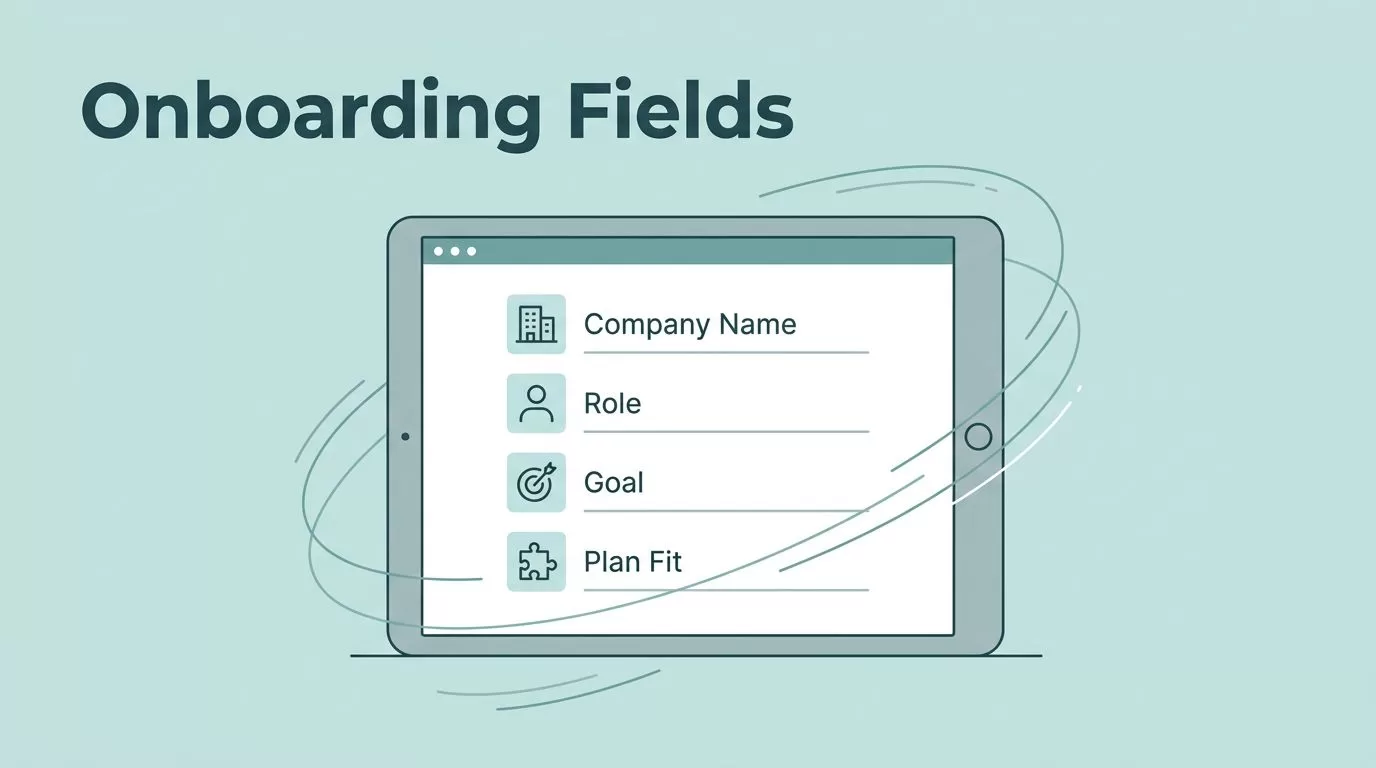
The first few answers I ask for can save me hours later. When a new member signs up, I want context fast, not a long form that feels like homework. That’s why I treat MemberSpace onboarding fields like a short intake desk, not a survey.
I use them to collect the details that change what I do next, such as company name, role, goals, plan fit, or use case. Then I keep the rest of the journey simple and move into setup with one rule: ask less, learn more.
Why I add custom onboarding fields at all
I want the member’s situation at signup. A solo creator, a sales team, and a course cohort need different welcomes. When I know the company name or role, I can spot patterns fast. That matters for support, onboarding, and product feedback.
Custom fields also keep me from guessing. If a new account says “agency” or “internal team,” I already know how to route the first few messages. If someone lands on a plan that doesn’t fit their goal, I can catch that early. The form becomes a filter, a guide, and a note-taking shortcut all at once.
It also cuts back-and-forth email. Fewer follow-ups mean a cleaner first week for me and a calmer first week for the member. That matters more than it sounds.
I ask for the smallest set of answers that changes what I do next. Everything else waits.
That rule keeps the form short and the data useful.
What I ask for, and what I skip
I pick fields that help me make a decision. Company name tells me whether the member is a business or a solo user. Role tells me whether I should talk to a founder, admin, or practitioner. Goal and use case tell me what content to surface first. Plan fit tells me whether I should expect team usage, one-to-one support, or a lighter path.
I skip anything that feels like overhead. Long questionnaires slow signups down. Sensitive data creates avoidable risk. Duplicate questions waste attention. If I already have the email address and plan name, I don’t ask for them again.
When I need a real control step, I do not hide it inside the form. I use a separate process. MemberSpace has a manual approval option for cases where access should wait for review. That keeps the signup questions focused on context, not gatekeeping.
If I can’t explain why a field exists in one sentence, I cut it.
How I set up MemberSpace onboarding fields
I follow the current dashboard labels, because they do change over time, but the workflow stays familiar. If a menu name looks different from an older screenshot, I trust the live dashboard and the current help text.
Here’s the path I use:
- I open Customize, then Signup Fields.
- I click Add Signup Fields.
- I choose the field type that matches the answer I want.
- I enter the display name the member will see.
- I add short instructions if the question needs context.
- I turn on Enable field.
- I choose whether it applies to all plans or one plan.
- I save the field with the current button shown in the dashboard.
If I want the question for everyone, I make it global. If I want it only for one offer, I make it plan-specific. That keeps the form relevant.


Plan-specific fields usually appear after the first signup form and payment step. I use that timing when a second question makes sense only after the member has started checkout.
Plan-specific questions belong later in the flow, so I save them for context that fits after checkout starts.
That one detail keeps the first screen clean.
Choosing the right field type
I match the field type to the answer I want, because the wrong format makes bad data harder to read. Short text is good for names and titles. Dropdowns are best when I want clean segments. Checkbox fields fit consent or yes/no prompts. Long text works when I need context that won’t fit in a short answer.
This is the mix I reach for most often.
| Field type | Best for | Example I use |
|---|---|---|
| Short text | Company name, role, project name | “Acme Studio” |
| Dropdown | Plan fit, team size, primary use case | “Agency client portal” |
| Checkbox | Consent, one-time yes/no choices | “Send me product updates” |
| Long text | Goals, setup notes, special requests | “I need this for a paid cohort” |
If I have to compare responses later, I favor dropdowns. They keep the data tidy and easier to sort. If I need free-form detail, I use text fields sparingly. Friendly answers are nice, but hard-to-scan answers slow me down.
For consent questions or email-list choices, I also check the current MemberSpace guidance in the member activity and data analytics view and the related help docs so I know the data will show up where I need it.
What I do with the answers after signup
I check the answers in the MemberSpace backend and look for useful patterns. If one plan keeps attracting agencies, I know the welcome path should speak to agencies. If a specific use case shows up often, I can shape the first email around that need.
I often pair those fields with setting up member onboarding emails so the welcome copy matches the answers. A company name field can guide a more direct message. A role field can change the tone. A goals field can decide which resource I send first.
When I need the answers to update a CRM, spreadsheet, or support flow, I send them through automating member data with Zapier. That keeps me from copying notes by hand and lets the rest of my stack react to the same signup data.
I also review the form itself from time to time. A field that never changes a decision doesn’t deserve a place on the form. If a question starts to feel noisy, I remove it and watch what changes.
Conclusion
The cleanest MemberSpace form asks for just enough to guide the next step. When I collect company name, role, goals, plan fit, and use case, I get better onboarding without turning signup into a chore.
I keep the workflow simple by separating context questions from approval, email, and automation. That balance makes the form useful on day one and still useful after the hundredth member signs up.

