Monitor Gas Prices Instantly With Twin.so
Fuel costs change the math behind every commute, delivery, rideshare shift, and road trip. If you want to monitor gas prices before you leave, manual searches create unnecessary delay and inconsistent results. Twin.so gives you a practical...

Fuel costs change the math behind every commute, delivery, rideshare shift, and road trip. If you want to monitor gas prices before you leave, manual searches create unnecessary delay and inconsistent results.
Twin.so gives you a practical way to automate the search. You can create a repeatable task that checks selected fuel-price sources, filters stations by location or fuel grade, and returns the information in a format you can use. The goal is simple: spend less time searching and make better fuel decisions before the vehicle moves.
WHY MANUAL GAS-PRICE CHECKS BREAK DOWN
Checking several station websites by hand looks manageable until you repeat it every day. You open multiple tabs, compare different addresses, check whether each price is current, and then calculate whether the cheaper station is worth the detour.
The process becomes harder for rideshare drivers and fleet managers. A driver may need prices near a pickup zone. A fleet manager may need several locations along a route. A budget-conscious traveler may need a reliable stop before entering a high-cost area.
A price without context isn’t enough. You need the station location, fuel grade, distance, source, and time of the check. Without those fields, a low price may belong to the wrong city, an unavailable grade, or an old listing.
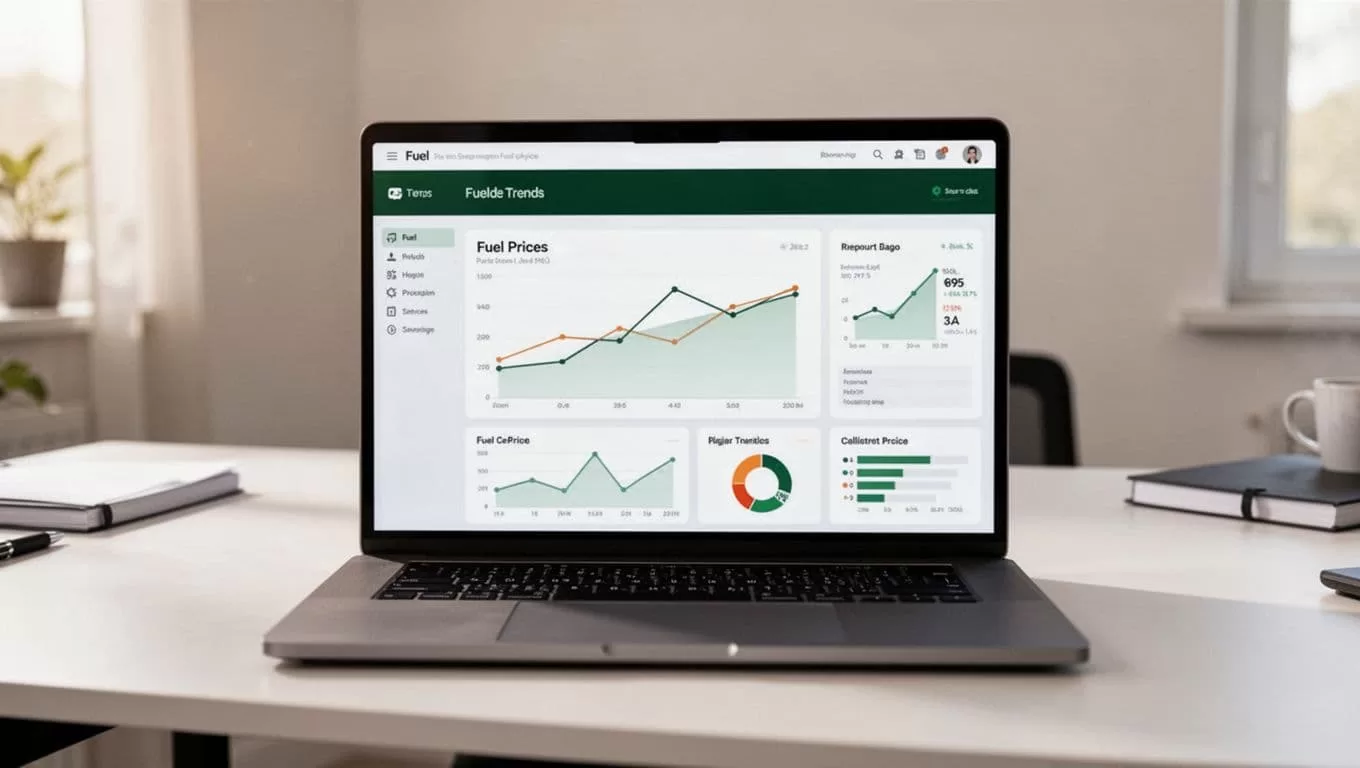
Twin.so can reduce this repeated browser work. Instead of asking an employee or driver to perform the same search, you define the task once and run it when the information matters.
For larger operations, price checks should connect to broader fuel controls. Fleet fuel systems often combine fuel spending, vehicle data, card transactions, and consumption reports. Geotab’s fuel management overview shows how fleet operators use these systems to review fuel activity and reduce waste.
HOW TO MONITOR GAS PRICES WITH TWIN.SO
Start with one narrow task. Don’t ask Twin.so to search every station in an entire state. Define a location, fuel grade, source preference, and output format.
Use a request with clear operating rules:
Check current regular gasoline prices within 10 miles of the selected destination. Return the five lowest listed prices, station names, addresses, distance, source URL, and the time checked. Exclude results without a visible update time.
The exact wording can change based on your use case. The important part is the structure. Twin.so needs to know what to search, what to ignore, and what to return.
Build the workflow in this order:
- Choose the location that matters. Use a city, ZIP code, destination, route stop, or dispatch area. A precise starting point produces more useful results than a broad regional request.
- Select the fuel grade. Regular, mid-grade, premium, and diesel prices aren’t interchangeable. Include the grade in every run so the output doesn’t mix unrelated values.
- Define the comparison rule. You can ask for the lowest listed price, the nearest station, stations within a set distance, or the best option after considering a detour.
- Set the output fields. Ask for the station name, address, price, distance, update time, and source link. Structured output is easier to review than a long paragraph.
- Run the task on demand before a trip, shift, or dispatch window. If recurring runs are available in your Twin.so workspace, use them for morning checks, route preparation, or scheduled fleet reviews.
Run the first version manually and inspect the results. Confirm that Twin.so is finding the correct stations and reading the correct price column. Then tighten the instructions.
SET THE OUTPUT BEFORE YOU TRUST THE RESULT
A useful gas-price result should look like an operating record, not a vague search summary. Ask Twin.so to return the same fields every time.
| Field | Why it matters |
|---|---|
| Station name | Identifies the location |
| Full address | Prevents city and branch mix-ups |
| Fuel grade | Keeps price comparisons accurate |
| Listed price | Provides the value for comparison |
| Distance | Shows the travel cost of reaching the station |
| Checked time | Separates current results from old listings |
| Source URL | Lets you verify the original page |
This format also helps when you move the result into a spreadsheet, team chat, dispatch note, or travel budget. You can compare today’s result with earlier checks without rebuilding the search.
Don’t ask Twin.so to hide uncertainty. If a source doesn’t show an update time, tell the workflow to label the result as “timestamp unavailable.” If two pages report different prices, return both values with their sources instead of choosing one without explanation.
LIVE FUEL DATA NEEDS A TIME AND A SOURCE
“Instant” should mean that Twin.so runs the search and returns the latest information visible on the selected source. It doesn’t mean every station is broadcasting a guaranteed live pump price.
Gas-price data can come from station listings, consumer apps, fuel-card networks, or fleet platforms. Each source has different coverage and update behavior. WEX says its WEX Connect app provides real-time fuel prices and directions. FleetSmarts offers real-time tracking for participating in-network locations. Fuelio lists nearby stations and fuel prices, while GasBuddy focuses on helping consumers find lower-priced stations.
Those differences matter. A fuel-card price may apply only to cardholders or an approved network. A public listing may cover more stations but update less consistently. A station website may show a posted price that changes before the page refreshes.
Use Twin.so to capture the source and timestamp with every result. Then apply a simple verification rule before making a costly decision:
- Treat recent, location-matched results as decision data.
- Treat missing timestamps as information that needs confirmation.
- Check the station directly when the price difference is large.
- Confirm that the listed fuel grade matches your vehicle or equipment.
- Don’t assume a listed price includes loyalty discounts or fuel-card pricing.
For fleets, price monitoring is only one part of fuel control. Fuel-management software can connect transactions, fuel cards, vehicle records, and consumption data. Fleetio’s fuel management software is designed for that broader tracking process.
Twin.so fits well before that reporting stage. It can collect current public information and prepare a clean result. Your fleet system can continue handling transactions, odometer readings, fuel economy, and compliance records.
TURN GAS PRICES INTO ROUTE AND BUDGET DECISIONS
The cheapest station isn’t always the cheapest stop. A station that saves a few cents may add several miles, extra traffic, or a long queue. Your decision should account for the price and the cost of reaching it.
Use this basic calculation:
Estimated fuel cost = planned miles divided by vehicle MPG, multiplied by fuel price
For a route comparison, calculate the expected fuel cost for each stop. Then add the cost of the detour. This gives you a better answer than sorting stations by price alone.
A driver can ask Twin.so to return stations within a defined radius of the route. A fleet manager can ask for the lowest available price near each planned stop. A rideshare worker can run the check before starting a shift and avoid searching between trips.
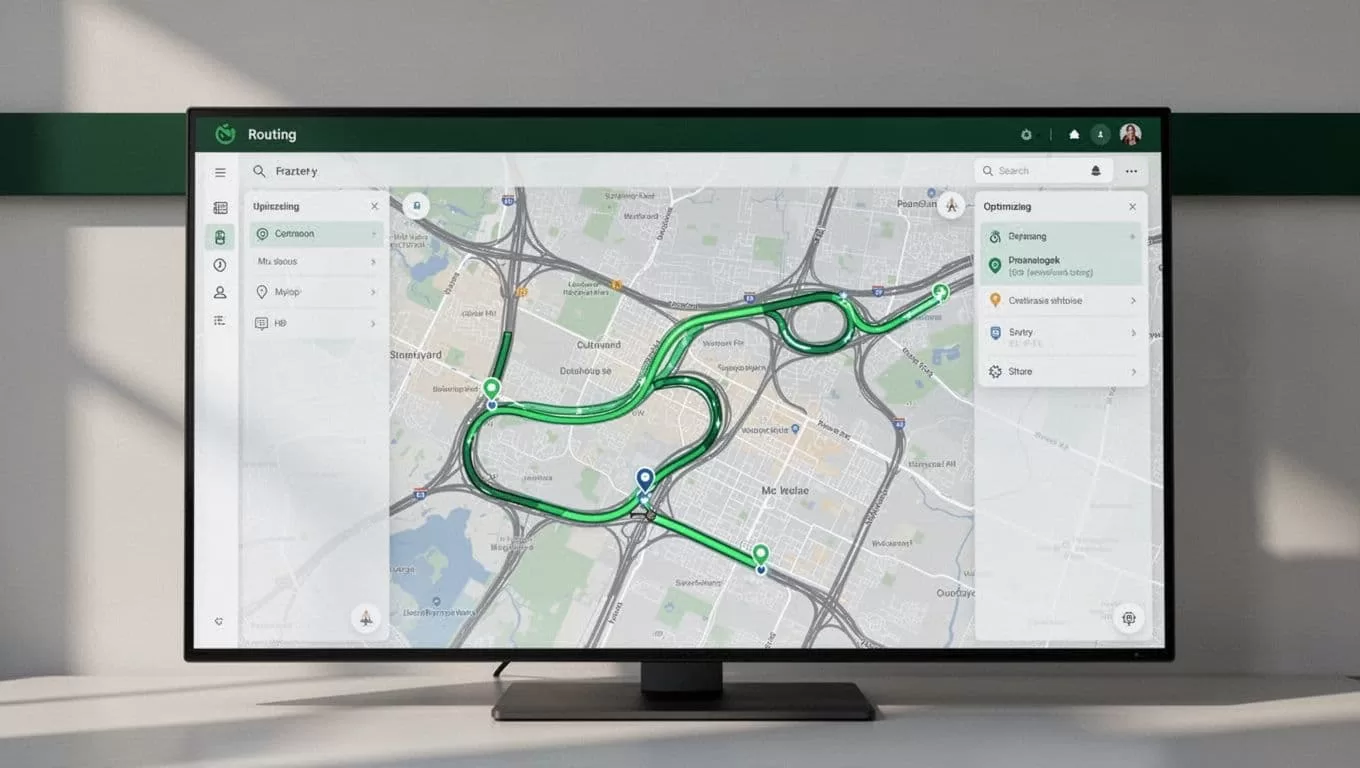
Set decision rules that match your operation:
- Use a maximum detour distance for routine refueling.
- Set a minimum price difference before choosing a farther station.
- Keep the preferred fuel grade fixed for each vehicle.
- Record the price checked before dispatch and the price paid after refueling.
- Separate public prices from fuel-card or membership prices.
Budget-conscious travelers can use the same process for long trips. Check fuel prices at several points along the route, identify expensive areas, and plan a stop before reaching them. The workflow doesn’t need to predict future prices. It only needs to give you current information early enough to make a better stop decision.
KNOW WHEN TWIN.SO IS THE RIGHT TOOL
Twin.so is a strong fit when your main problem is repeated browser research. Use it to collect station prices, compare locations, monitor selected sources, and prepare a consistent report.
It isn’t a replacement for a full fleet fuel platform. If you need fuel-card imports, vehicle-level consumption, maintenance records, IFTA reporting, or driver transaction controls, choose a system built for those functions. Autosist’s fleet fuel management tools focus on tracking fuel usage, card data, vehicle costs, and spending across a fleet.
The practical setup can use both tools. Twin.so gathers public or route-specific price information. Your fleet platform stores the actual transaction. Your spreadsheet or accounting system handles the budget. Each tool keeps a defined job.
Start with one route or one vehicle. Don’t automate a broad workflow before you know which price fields and sources your team trusts. After the first few runs, remove unused fields and add rules for missing data, duplicate stations, and outdated listings.
VERIFY THE WORKFLOW BEFORE SCALING IT
A gas-price task is only useful when its results are consistent. Test Twin.so with locations you know. Compare its output with the source page and confirm that the station address, fuel grade, and price match.
Check how the workflow handles common problems. Some pages use different layouts for mobile and desktop. Some list membership prices beside standard prices. Others show several fuel grades in one table. A clear instruction prevents the automation from selecting the wrong value.
Review the first runs before sending results to a team. Confirm that the output includes a check time and source URL. If Twin.so cannot find a current price, require it to return a clear status instead of filling the gap with an estimate.
Once the workflow is reliable, reuse it for separate locations. Keep one task for daily commuting, one for delivery routes, and one for long-distance travel. Smaller tasks are easier to audit and adjust.
CONCLUSION
You don’t need to search multiple station pages every time fuel prices affect a decision. With Twin.so, you can build a repeatable workflow that checks selected sources, returns structured results, and gives you time to compare the price against distance and route cost.
Live data still needs a timestamp, source, and fuel-grade check. Use Twin.so for on-demand price research, then connect the result to your budgeting, dispatch, or fleet process. Set up one location today and turn your next fuel check into a reliable operating routine.
