How to Use Speechify as a Multilingual Voice Generator
One document can become a listening task in one language and a voiceover in another. Speechify can support that workflow, but you must separate translation, voice selection, pronunciation, and export. The languages, voices, playback control...

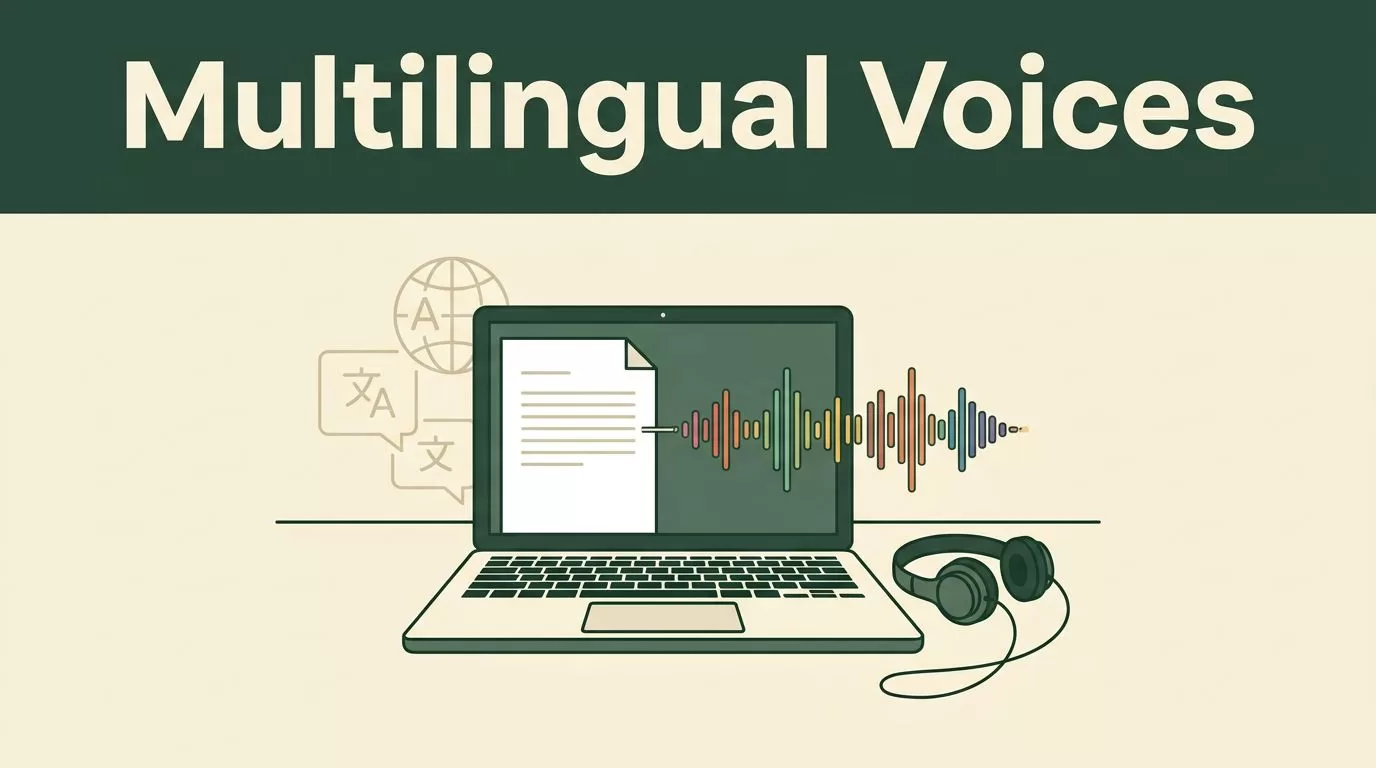
One document can become a listening task in one language and a voiceover in another. Speechify can support that workflow, but you must separate translation, voice selection, pronunciation, and export.
The languages, voices, playback controls, and export options available to you may depend on your plan, platform, and region. Check the current options inside your Speechify account before you build a production workflow.
Key Takeaways
- Speechify reads the text you provide. A language change doesn’t automatically create an accurate translation.
- Add text through documents, webpages, browser tools, pasted content, or scans.
- Test language variants, names, abbreviations, and speed before sharing audio.
- Customer-facing audio needs native-speaker review.
- Confirm text rights, voice permissions, privacy controls, and commercial-use terms before publishing.
WHAT SPEECHIFY CAN DO IN MULTIPLE LANGUAGES
A multilingual voice generator converts written content into spoken audio using voices for different languages and regions. Speechify can read supported text in multiple languages, which makes it useful for study materials, internal documents, articles, product information, and voiceover drafts.
Speechify’s text-to-speech feature speaks the content you provide. It doesn’t mean every English document will become a correct Spanish, French, German, or Japanese translation when you change the voice. If you need another language, prepare the translated text first. Then import that version and select a compatible voice.
The difference matters. Translation handles meaning. Speech synthesis handles delivery. A sentence can sound natural while still carrying the wrong meaning if the translation is poor.
Speechify supports several ways to bring content into the platform. Depending on your device and account, you may be able to use PDFs, documents, webpages, copied text, and scanned pages. The Speechify Chrome Web Store listing describes reading Google Docs, PDFs, webpages, and books aloud in 60-plus languages.


For printed material, scan quality affects the result. A clean, flat page produces better text recognition than a curved book page or a low-light photograph. Speechify’s multi-scan tutorial shows how the app can capture multiple pages for listening.
Treat the generated audio as an output that needs testing. It isn’t a substitute for translation review, editorial approval, or accessibility planning.
SET UP A MULTILINGUAL SPEECHIFY WORKFLOW
Start with the content, not the voice. Decide whether you need audio for personal listening, internal training, education, marketing, or public distribution. Each use case has different requirements for accuracy, licensing, speed, and file access.
Use this process:
- Prepare the source text. Remove navigation menus, repeated headers, broken line breaks, and unrelated footnotes. For a PDF, check whether the text is selectable. Scanned pages may need OCR before Speechify can read them correctly.
- Create the target-language version. Use an approved translation workflow if the audio will reach customers, students, or employees. Keep the source and translated text in separate files. This makes review and revision easier.
- Add the content to Speechify. Open the Speechify app, web experience, browser extension, or other available workspace. Import the file, paste the text, open the webpage, or scan the printed material.
- Select the language and voice. Open the voice or playback selector. Choose the language first, then select a voice that matches the audience and content. Some languages may include regional variants or fewer voice choices than others.
- Play a short sample. Test two or three paragraphs before processing the full document. Listen for names, acronyms, punctuation, dates, numbers, and words borrowed from another language.
- Adjust playback controls. Set a speed that supports comprehension. Fast playback may work for familiar material, but instructions and technical content often need a slower setting. Use the controls available in your account rather than assuming every platform offers the same options.
The first sample should include the hardest text in the document. Don’t test only a simple opening paragraph. A product name, legal phrase, chemical term, or long number can expose pronunciation problems early.
Speechify may display different controls on mobile, desktop, browser, and creator-focused products. A voice visible in one interface may not appear in another. Save the exact setup that passes review, including the platform, language variant, voice name, speed, and file format.
CHOOSE THE RIGHT VOICE AND CHECK EXPORT ACCESS
Voice choice affects comprehension. A low, dramatic voice may fit a story, but it can reduce clarity in an employee procedure. A calm voice with clear pronunciation is usually a better choice for training, documentation, and educational content.
Match the voice to the audience and channel. Use a consistent voice for a series of lessons, product videos, or onboarding files. Switching voices between sections can make a long project feel disconnected. If multiple languages are involved, select voices with similar pacing and tone where possible.
Pronunciation needs more attention than voice style. Add punctuation when the voice rushes through a sentence. Spell out an abbreviation if the engine reads it incorrectly. Separate a product code into smaller parts when the default reading is unclear. Re-test the edited text after every pronunciation change.
Keep a review copy of the script beside the audio. This gives editors and native speakers a direct comparison. It also prevents a later text update from creating an audio file that no longer matches the approved version.
Export access is a separate question from playback access. You may be able to listen to a file without being able to download it. Download formats, audio limits, commercial permissions, and voice tools can vary by plan, platform, and region.
If Speechify shows an Export, Download, or Share control, check the available format and usage terms before you publish. If the control isn’t visible, review your account tier and the product version you’re using. Don’t build a client delivery process around an export option you haven’t tested.
Playback confirms that Speechify can read the content. Export testing confirms that you can use the result in your actual workflow.
Speechify also has products and listings that may not provide the same features. For example, a separate Speechify voice converter listing on the Visual Studio Marketplace describes Azure AI Speech Services. Treat third-party listings and extensions as separate software. Check the publisher, permissions, supported languages, and data handling before installing them.
APPLY ACCESSIBILITY AND LOCALIZATION CHECKS
Multilingual audio is useful when it gives people another practical way to access information. It shouldn’t remove the text alternative. Keep a readable transcript, captions, or downloadable text when you publish audio for customers, students, or employees.
Use clear structure in the source document. Add headings, short paragraphs, descriptive links, and meaningful punctuation. Avoid placing a complete lesson or policy inside one large text block. Speechify can read the words, but clean formatting gives the voice better pauses and helps listeners follow the content.
Check the result with the intended audience. A bilingual employee may review a technical document, but a customer-facing message needs a native speaker who understands the local market. Ask the reviewer to check:
- Names, places, product terms, and technical vocabulary
- Formality, gender, number, and regional language differences
- Dates, currencies, measurements, phone numbers, and abbreviations
- Pauses, emphasis, sentence breaks, and overall comprehension
- Whether the wording sounds natural in the target market
Localization is more than replacing words. Spanish for Spain and Spanish for Mexico can use different vocabulary and tone. French product messaging may need different wording for France and Canada. A voice can pronounce every sentence correctly while the script still sounds foreign to local listeners.
Accessibility checks also apply to speed and audio quality. Listen at the speed your audience will use. Test headphones and laptop speakers. Avoid background music that covers consonants. For instructional material, divide long files into logical sections so listeners can return to a specific topic.
Protect personal and confidential information. Don’t upload customer records, private contracts, health information, or internal security documents unless your organization has approved the workflow and understands how the platform handles data.
Rights apply to both sides of the audio. Confirm that you can use the source text. If you use a cloned or recognizable voice, obtain permission from the voice owner. Never imitate a real person’s voice for a public or commercial project without clear authorization.
FIX COMMON SPEECHIFY MULTILINGUAL AUDIO PROBLEMS
A missing language or voice doesn’t always mean Speechify lacks support. The option may be limited by your plan, app version, operating system, location, or current product interface. Sign in on the platform you plan to use and check the available voice list there.
When pronunciation sounds wrong, edit the source instead of changing the entire voice immediately. Add punctuation, rewrite a sentence, spell out a number, or separate an acronym. Then generate a new sample.
When the audio skips content, inspect the source file. Tables, columns, footnotes, headers, and scanned text can confuse document readers. Copy the affected section into a plain-text test file. If it reads correctly there, clean the original document and import it again.
When export fails, check file length, account limits, supported formats, browser permissions, and available storage. A shorter test file can show whether the issue is the document, the voice, or the account.
When a translation sounds unnatural, send the script back for native-speaker editing. Changing the Speechify voice won’t fix incorrect meaning or awkward local phrasing.
Keep a small production log for repeat projects. Record the source version, target language, voice, speed, reviewer, approval date, and exported file name. This turns a one-off audio task into a repeatable process.
Conclusion
Speechify works best as part of a controlled multilingual audio workflow. Prepare accurate text, select the language and voice, test difficult passages, and confirm export access before you process a full project.
Keep the transcript available, use native-speaker review for public content, and verify rights for both text and voice. The right multilingual voice generator can reduce production time, but quality still depends on the material and the review process you put around it.

