How I Organize Recurring Admin Tasks in Notion
I used to scatter recurring admin work across notes, reminders, and half-finished spreadsheets. Then the same jobs kept slipping, because I had no single place to trust. Now I keep Notion recurring tasks in one database, with templates and...
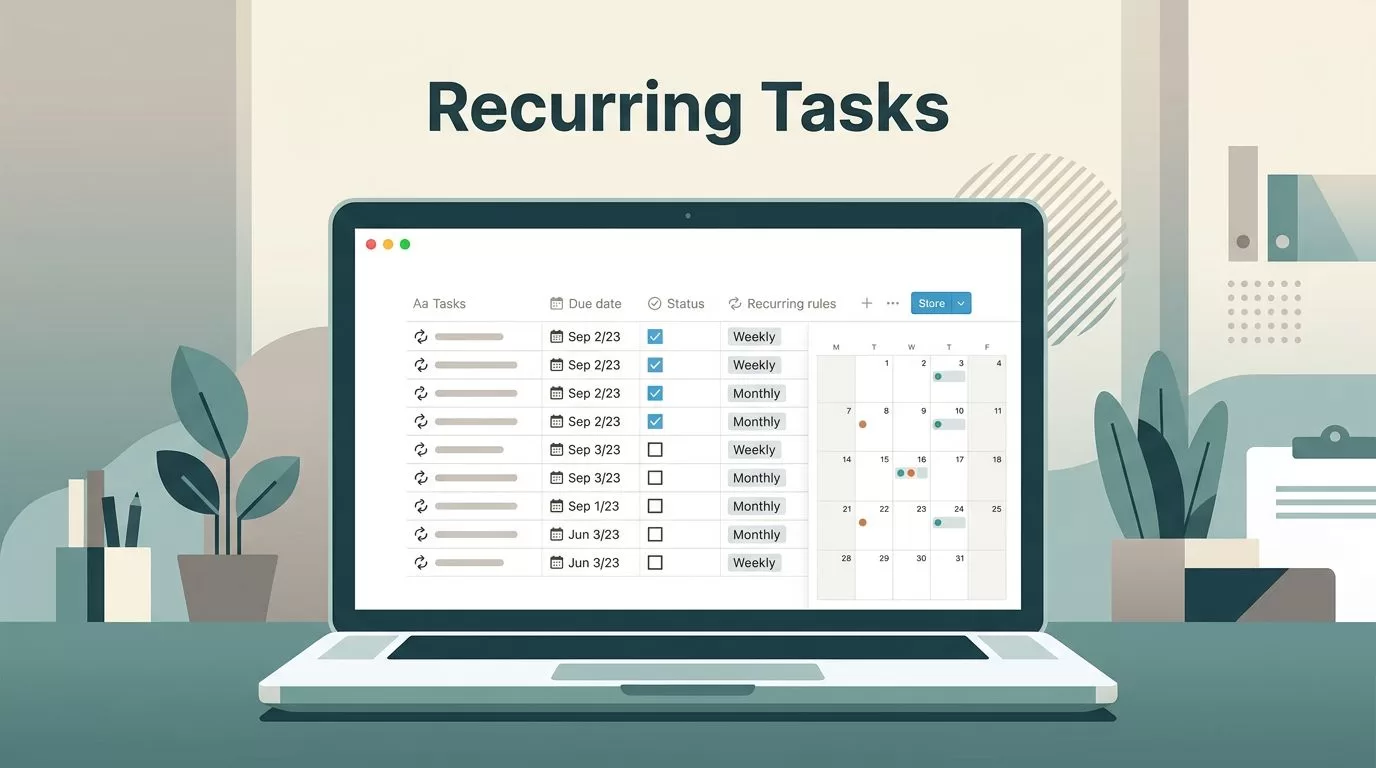
I used to scatter recurring admin work across notes, reminders, and half-finished spreadsheets. Then the same jobs kept slipping, because I had no single place to trust.
Now I keep Notion recurring tasks in one database, with templates and views that tell me what needs attention this week. That makes invoices, renewals, backups, and weekly reviews easier to repeat without starting from scratch.
I still adjust the system when Notion needs a little help, but the core stays simple. This is how I set it up.
My master database is the center of everything
I start with one database for every recurring admin task. That sounds plain, but it saves me from building five tiny systems that all drift apart.
If I need a task to repeat on a schedule, I use Notion’s own guide to repeating database templates as my baseline. The idea is simple. I create the task once, then I let the template bring it back when I need it again.
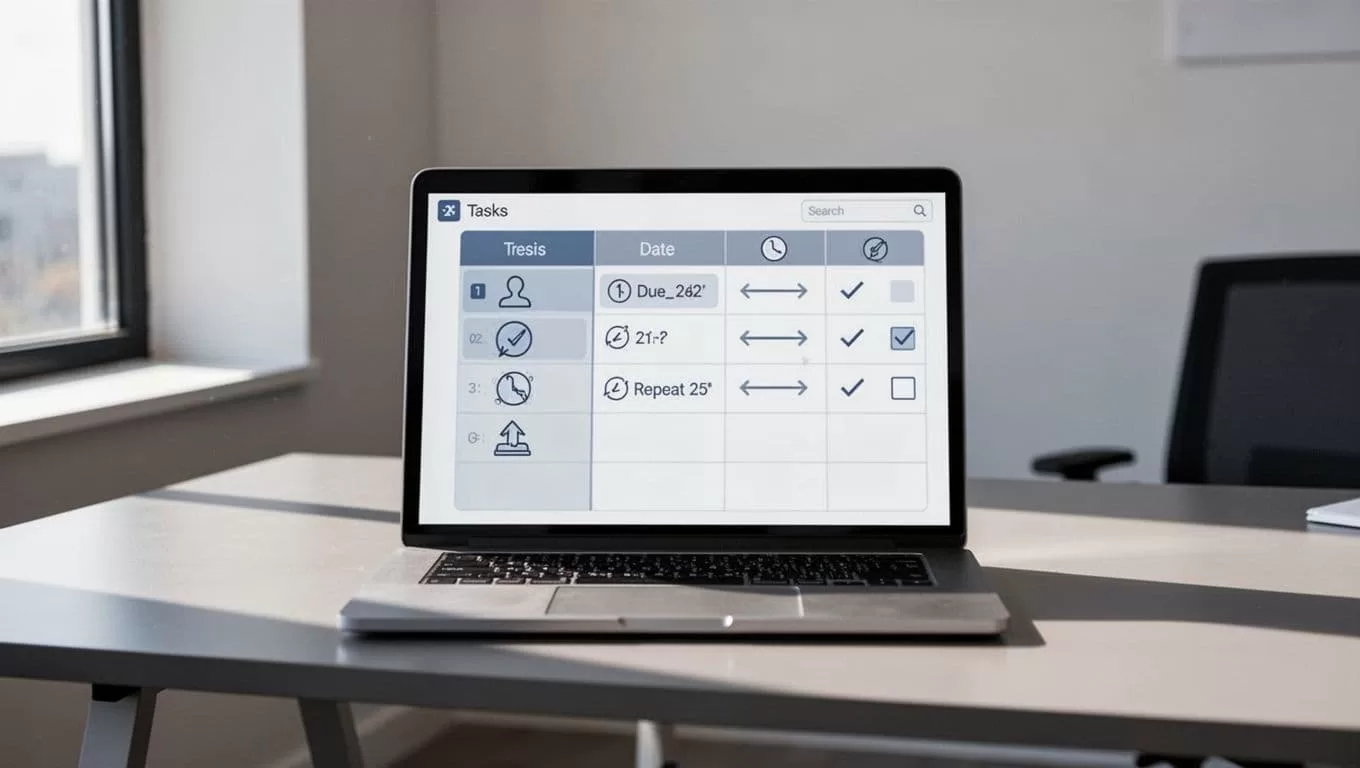
I keep the database boring on purpose. If the structure is too clever, I stop trusting it. If it is simple, I keep using it.
I want one place where I can see what is due, what is waiting, and what is already handled.
The properties I rely on for admin work
I keep the property list short. That matters, because recurring admin tasks lose value when the setup takes longer than the work.
Here is the structure I use most often:
| Property | What I use it for |
|---|---|
| Task name | The actual job, like “Send invoice” or “Check backup” |
| Due date | The next date I need to touch it |
| Status | Open, in progress, waiting, or done |
| Repeat cycle | Weekly, monthly, quarterly, or yearly |
| Category | Finance, content, ops, or maintenance |
| Owner | Me, or the person who needs to act |
| Notes | Short reminders, links, or steps |
That setup covers almost everything I do. I use it for invoicing, expense tracking, content planning, backups, renewals, and weekly reviews. For example, an invoice task gets a client name, amount, and due date. A backup task needs the system name, last check date, and a note about where I verified it.
I also keep a separate select field for urgency when a task needs more attention. That helps when a monthly renewal and a content deadline land in the same week.
Templates do the repetitive work for me
Templates are where the real savings happen. I do not want to rewrite the same checklist every time I create a task.
So I build one template for each recurring admin type. My invoicing template includes the payment follow-up steps, the usual reminder text, and a place for the amount. My expense template includes fields for receipt date, category, and file attachment. My weekly review template includes a short checklist for cash flow, deadlines, and anything stuck in waiting.
For content planning, I use a template with a draft title field, publish date, and status. For renewals, I include vendor name, cost, and cancellation deadline. For backups, I add the system name and a note that tells me how I confirmed the backup ran.
I often compare my setup with Thomas Frank’s recurring tasks guide when I want another angle on the same problem. That helps when I am deciding whether a task should repeat automatically or wait for manual review.
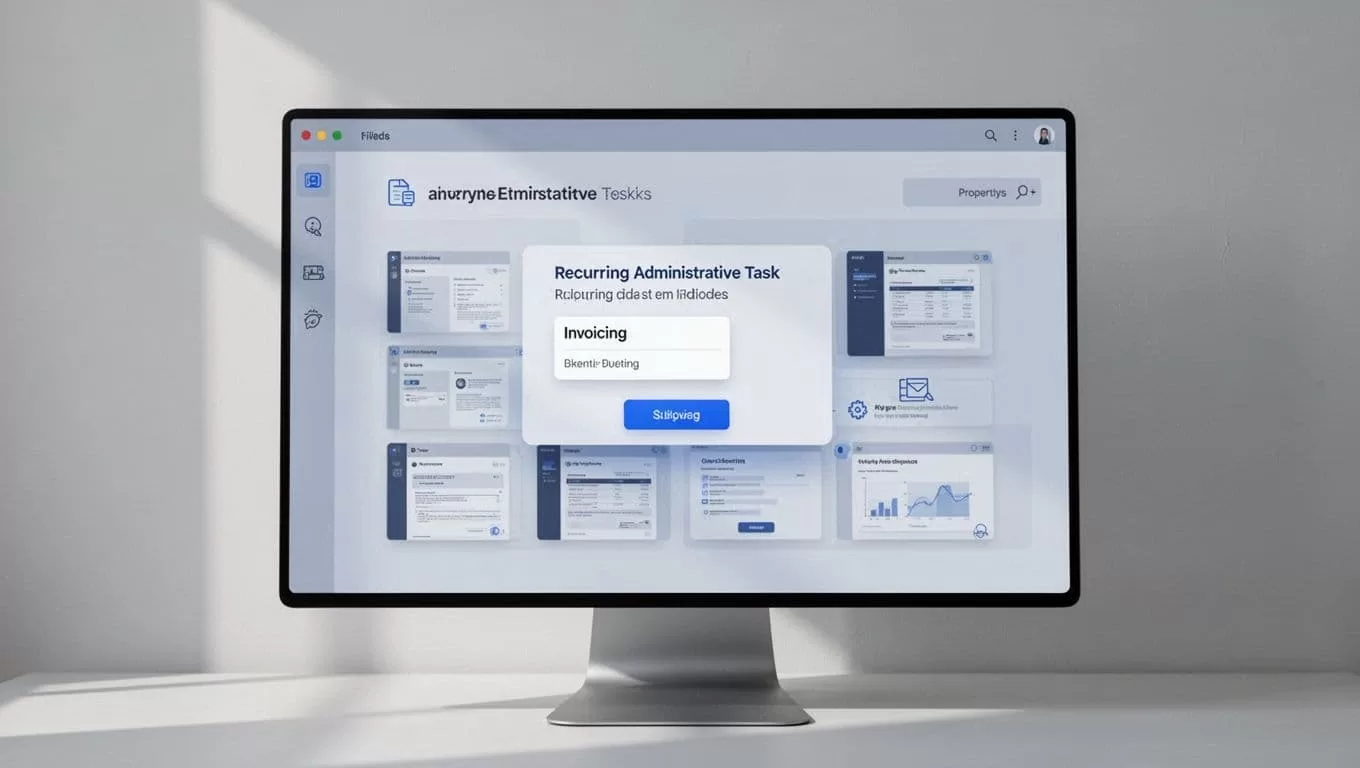
The goal is not fancy automation. The goal is a page that already feels half-finished when I open it on Monday morning.
Views keep the work visible
A database only helps if I can read it fast. That is why I split the same data into several views.
My list view is the default. It shows everything by due date, so I can see what comes next. My board view is for status changes, because it helps me move tasks from open to done without hunting through rows. My calendar view is best for renewals, publishing dates, and any task tied to a hard deadline.
I also use filtered views for specific jobs. One view shows only finance tasks. Another shows this week’s items. A third shows anything overdue. That way, I do not need to scan the whole database when I am short on time.
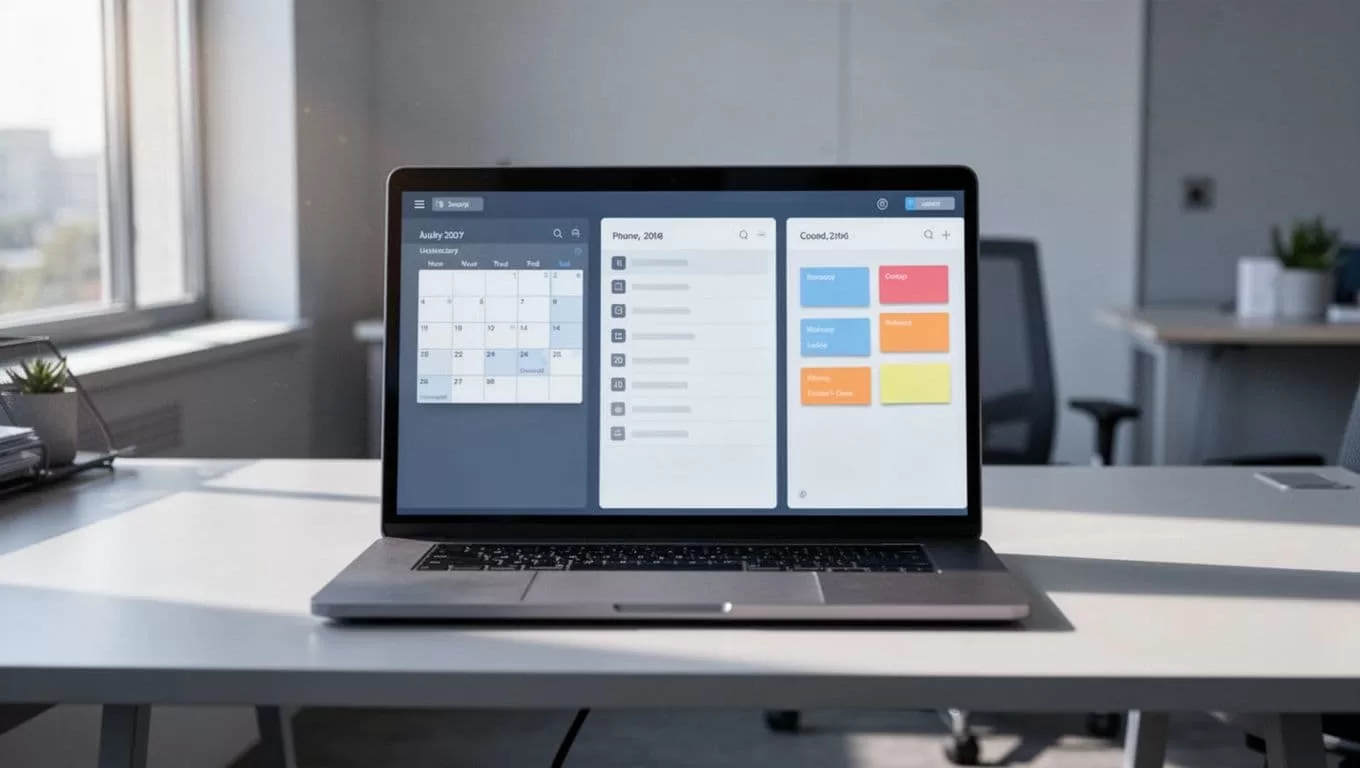
When I want inspiration for different setups, I also look at Notion recurring task templates. Seeing another layout helps me spot gaps in my own system without changing everything.
That mix of views matters more than people expect. A task can be well named and still get missed if it lives in the wrong place.
The workarounds I use when Notion needs help
Notion recurring tasks work best when I treat them as a system, not a magic switch. If a task needs to reappear after completion, I make that behavior explicit in the template or I duplicate the task on purpose.
Sometimes I use a “next due” date instead of relying on memory. Sometimes I keep a manual checklist inside the task page for work that changes each cycle. And when a task is important but not truly repetitive, I leave it as a one-off with a clear follow-up date.
That last part matters. A bad recurring setup can create clutter faster than it saves time. So I only automate the parts that stay stable, like invoices, backups, and renewals. I keep the rest flexible.
I also like to review my recurring items once a week. That keeps small jobs from turning into a pile of quiet stress.
Recurring admin work never feels glamorous, but it gets lighter when the structure is clear. I only need one database, a few good templates, and views that show me what matters now.
When that setup is tight, the next invoice, backup, or renewal stops feeling like a surprise.
