Best OCR Apps for Scanned PDFs in 2026
A scanned PDF looks finished, but it often hides the one thing I need most, usable text. If I can’t search, copy, or export the words, the file still feels like paper in a digital wrapper. That’s why I pay close attention to OCR...

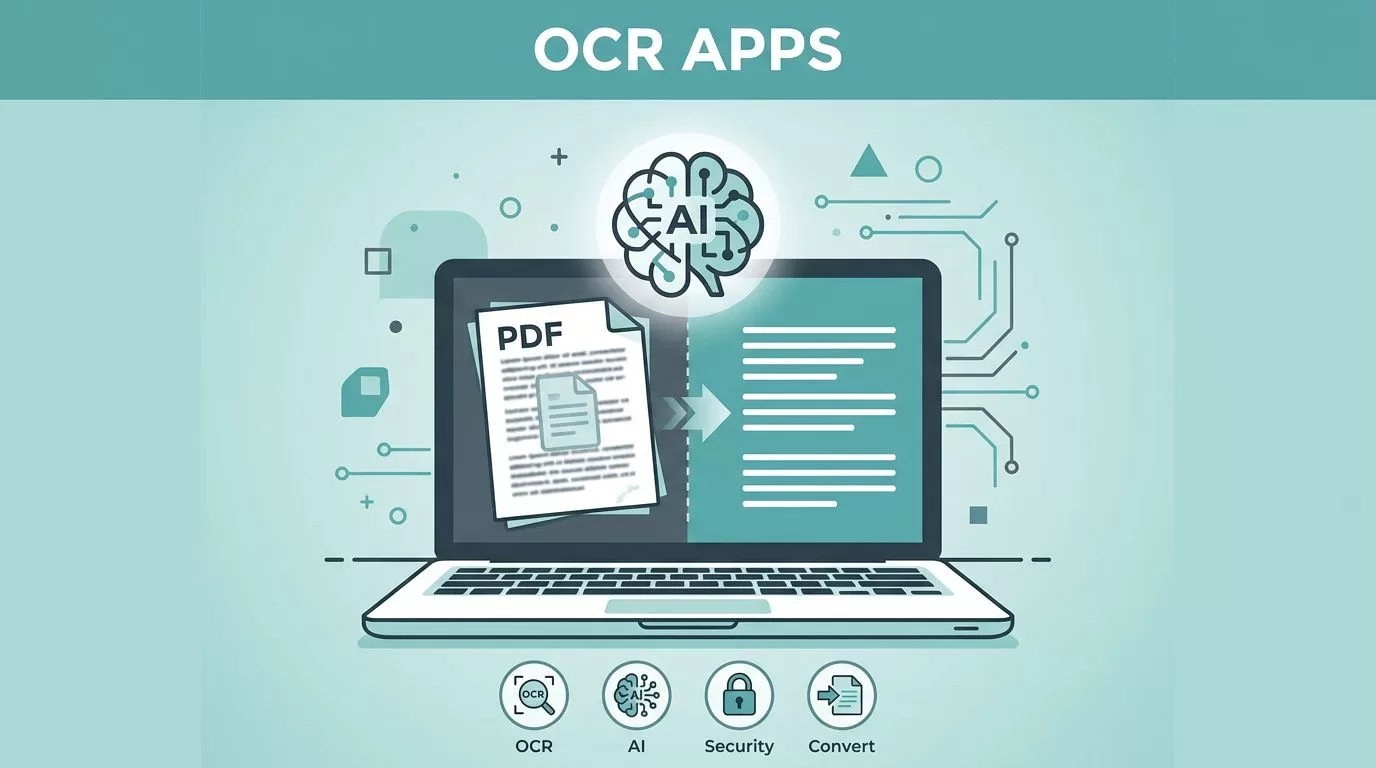
A scanned PDF looks finished, but it often hides the one thing I need most, usable text. If I can’t search, copy, or export the words, the file still feels like paper in a digital wrapper.
That’s why I pay close attention to OCR apps for PDFs in 2026. The good ones fix crooked pages, read columns without chaos, and keep sensitive files local when that matters. The best ones also know when to stop at standard OCR and when to add AI document understanding.
I’ve narrowed my shortlist to tools that still feel active, useful, and current. If the document is a resume, invoice, contract, or stack of meeting notes, I want the app to earn its place fast.
What I look for in OCR that handles scanned PDFs
A scanner is not enough. I want an app that turns a photo-like page into something I can work with.
Standard OCR reads the text on the page. AI-enhanced document understanding goes a step further, because it can spot fields, labels, tables, and patterns. That difference matters when I’m dealing with invoices or forms.
If an app turns a clean scan into scrambled text, it fails before I export anything.
I also check batch processing, because one file is never the real test. Privacy matters too, since desktop OCR can keep files offline, while cloud tools upload everything first. Then I look at language support, export options, and whether the app works better on mobile or desktop.

The OCR apps I’d shortlist in 2026
I checked current roundups like PCMag’s 2026 scanning and OCR roundup and Parsio’s OCR software guide while narrowing this list. The pattern is clear, mobile apps win on speed, desktop apps win on depth, and AI tools win when I need structured data.
| App | Platform | What it does best | Pricing vibe |
|---|---|---|---|
| ABBYY FineReader PDF | Desktop first | Best accuracy, strong layout retention | Higher-priced license |
| Adobe Acrobat Pro DC | Desktop, web, mobile companion | Reliable OCR plus review tools | Subscription |
| Adobe Scan | Mobile first | Fast capture, searchable PDFs | Free, with premium add-ons |
| Genius Scan | Mobile first | Clean scans and batch capture | Free basics, paid OCR |
| Pen to Print | Mobile | Handwriting OCR | Free tier, paid OCR features |
| Parsio | Web, API | AI extraction from business documents | Subscription or usage-based |
That mix gives me a simple rule. If I need the best page recreation, I lean desktop. If I need quick capture, I use mobile. If I need data fields, I go AI.
ABBYY FineReader PDF
ABBYY is the accuracy pick I trust when the scan is messy. It handles columns, tables, and dense pages better than most tools I test. I also like its batch processing and format-preserving export, because I don’t always want plain text.
The trade-off is cost and complexity. It feels built for serious desk work, not casual phone scanning. Best for legal teams, operations people, and anyone cleaning large archives of scanned PDFs.
Adobe Acrobat Pro DC
Acrobat Pro gives me OCR, comments, redaction, and batch actions in one place. That matters when I already work inside Adobe files and don’t want another document system. Its OCR is dependable, and the cloud flow makes sharing easy.
I don’t pick it when I need the sharpest layout recovery on ugly scans. Still, for office teams, it’s hard to beat as an all-around PDF hub. Best for teams that want OCR plus review tools in one subscription.
Adobe Scan
Adobe Scan is my phone-first option. I can point, snap, clean up the page, and save a searchable PDF in minutes. It fits receipts, notes, and signed forms well, and the base app is free.
It is less convincing with complex tables or handwriting. I use it when speed matters more than deep cleanup. Best for field work, travel, and quick scans from a phone.
Genius Scan
Genius Scan feels light, fast, and practical. I like it for batch scanning because it keeps the workflow simple. It also does a good job straightening pages and cleaning edges, which helps before OCR kicks in.
I don’t reach for it when I need heavy document editing. It is a capture tool first, OCR tool second. Best for sales reps, service teams, and people who want mobile scanning without bloat.
Pen to Print
Pen to Print is the one I try when handwriting shows up. Most OCR apps stumble there, but this one focuses on notes, forms, and scrawled pages. Printed text is fine, yet handwriting is the reason to keep it around.
I would not use it for bulk archives or complex business files. It solves a narrower problem, and it does that well. Best for students, field notebooks, and paper forms filled out by hand.
Parsio
Parsio is less about scanning and more about document automation. I use it when a scanned PDF needs to become structured data, like invoice fields, dates, or bank details. That’s where AI document understanding matters more than standard OCR.
It is not my first choice for casual reading or one-off scans. However, it shines in workflows where the output must feed a CRM or spreadsheet. If the PDFs are resumes, I move them into AI resume parsing with OCR for PDFs because the data belongs in a system, not a folder. Best for finance, ops, and automation-heavy teams.
Which OCR app I’d pick first
If I want the most accurate OCR for scanned PDFs, I start with ABBYY FineReader PDF. If I live on my phone, Adobe Scan or Genius Scan feels easier. If I need handwriting, Pen to Print is the clear specialist.
For business workflows, Parsio gives me more than text. It turns scanned pages into usable fields, which is often the real job. That’s the line I keep in mind in 2026, OCR should save time, protect layout when needed, and fit the way I already work.

