How To Organize Shared Drives By Department Without Creating Chaos
A shared drive can become a clean filing system or a digital junk pile in a week. I’ve seen both. The difference usually isn’t the software, it’s the structure. When I organize shared drives by department, I make ownership...

A shared drive can become a clean filing system or a digital junk pile in a week. I’ve seen both. The difference usually isn’t the software, it’s the structure.
When I organize shared drives by department, I make ownership clear and searching easier. I also leave room for cross-functional work, because no team works in a vacuum anymore.
Start With Department Ownership, Not Folder Names
I always begin by deciding who owns the content. That means I create one main drive, or one top-level space, for each department first. Finance owns finance files. HR owns HR files. Marketing owns marketing files.
That sounds simple, but it stops a lot of confusion later. If a file has a clear home, people spend less time guessing where it belongs. That also helps when staff leave, because the business keeps the files, not the person.
For most companies, I keep the main structure small. A drive for every team is enough. If a department has several functions, I split by function only when the work is truly different. I use the same approach I describe in my Shared Drives setup for small teams, because simple ownership scales better than clever folder tricks.
Google’s own best practices for shared drives say the same thing in plain terms, create drives with a clear purpose. I follow that rule across Google Drive, SharePoint, Dropbox, and network shares.
Build a Folder Tree That Matches Daily Work
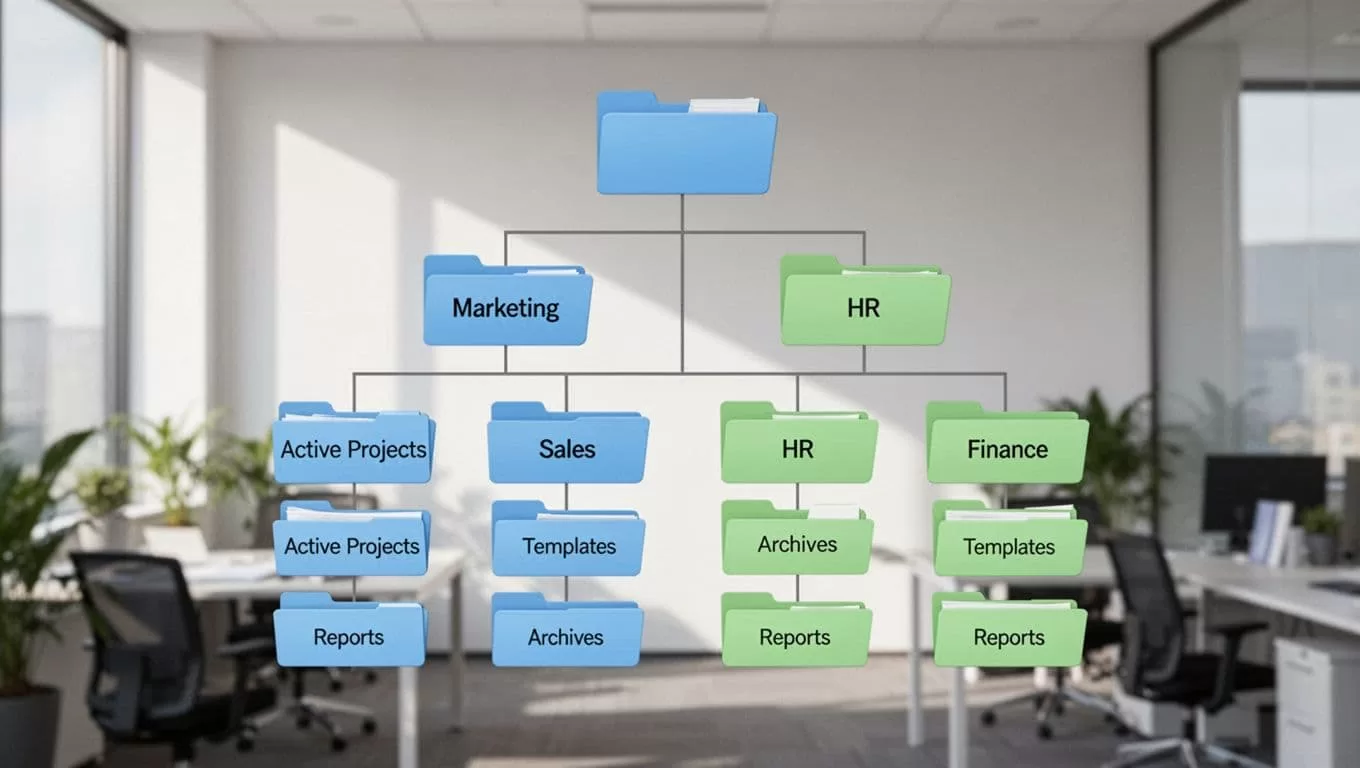
I like folder trees that mirror how people work, not how software thinks. The top level should stay plain. The second level can hold the real action.
Here’s a structure I use often:
| Department | Example folder tree |
|---|---|
| Marketing | Active Projects, Campaigns, Templates, Reports, Archive |
| Sales | Accounts, Proposals, Renewals, Pipeline, Archive |
| HR | Hiring, Policies, Employee Records, Training, Archive |
| Finance | AP-AR, Budgeting, Reporting, Taxes, Archive |
Numbers help too. I often use 01-Active, 02-Templates, and 99-Archive. That keeps folders in order across every platform.
For cross-functional work, I don’t bury shared projects inside one department drive. I create a separate project folder or a separate project drive. A launch folder might look like this:
2026 Product Launch01 Brief02 Creative03 Approvals04 Meeting Notes05 Final Assets
That way, everyone knows where the project lives. No one has to hunt through department drawers like they’re searching for a missing wrench.
Use Naming Rules That Make Search Easier
Folder names matter, but file names matter even more. I keep names short, stable, and easy to sort. I also avoid cute labels. Cute names age badly.
A naming pattern I trust looks like this:
| Item | Example | Why I use it |
|---|---|---|
| Drive name | Finance | Clear ownership |
| Folder name | 01-Active Projects | Easy sorting |
| File name | 2026-04 Payroll Run v03.xlsx | Date and version are obvious |
| Project doc | MKT-Website-Launch-2026-04-12.docx | Searchable and specific |
I use YYYY-MM-DD when date order matters. I also keep version labels boring, like v01, v02, or Approved. That beats a trail of final, final2, and final-really-final.
If I can’t tell what a file is from its name, I assume the next person can’t either.
For teams that work across departments, I add a prefix. HR-, FIN-, or OPS- makes scanning faster. I use the same logic in my Google Workspace file storage guide, because good naming helps in every shared system.
Set Permissions So People Can Work Without Breaking Things
I treat permissions like office keys. Most people need access to their room. Very few people need the master key.
I keep the permission model simple:
| Role | What I allow |
|---|---|
| Manager | Structure changes, membership changes, top-level control |
| Content manager | Add, edit, move, and organize files |
| Contributor | Add and update files |
| Viewer | Read-only access |
I assign access through groups, not individual names, whenever I can. That saves time and reduces mistakes. Department groups work well for steady access. Project groups work well for temporary collaboration.
For shared work, I create a separate project folder or project space, then give only the needed groups access. That keeps the department drive clean while still letting people work together. I use the same access logic in my Google Workspace collaboration setup for remote teams.

I also keep sensitive folders tighter than the rest. HR, payroll, and finance should never have broad access by default. Sales and marketing can usually share more freely, but even there, I set limits. A small mistake in permissions spreads fast, so I prefer narrow access first and expansion later.
Roll It Out in Small Waves
A good structure still fails if rollout feels chaotic. I like a short checklist and a slow start.
- I map the departments, projects, and file types first.
- I create the main drives or top-level folders next.
- I set naming rules before anyone uploads files.
- I build groups for each department and major project.
- I move one team at a time, starting with the most organized group.
- I review the first two weeks, then fix duplicates, broken permissions, and dead folders.
I always train people on one rule, if the business owns the file, it goes in the shared drive. Personal folders are for private drafts only. That one habit prevents a lot of mess.
I also recommend a quick cleanup after launch. Old folders, duplicate versions, and unused access groups pile up fast. If I remove them early, the drive stays useful instead of turning into a warehouse aisle with no labels.
A Clean Structure Makes Collaboration Easier
When I set up department drives well, I don’t just save space. I save time, reduce mistakes, and make handoffs smoother. That matters because people stop wasting energy on file hunts.
The best shared drive system feels calm. It has clear ownership, simple names, sensible permissions, and a place for shared work. That’s the balance I aim for every time, because clarity beats clutter in every department.
