Parts Inventory Synchronization With Twin.so
Parts inventory synchronization becomes difficult when each store keeps its own stock records. A brake pad sold at one location may still appear available online. A part transferred to another shop may remain assigned to the original store....
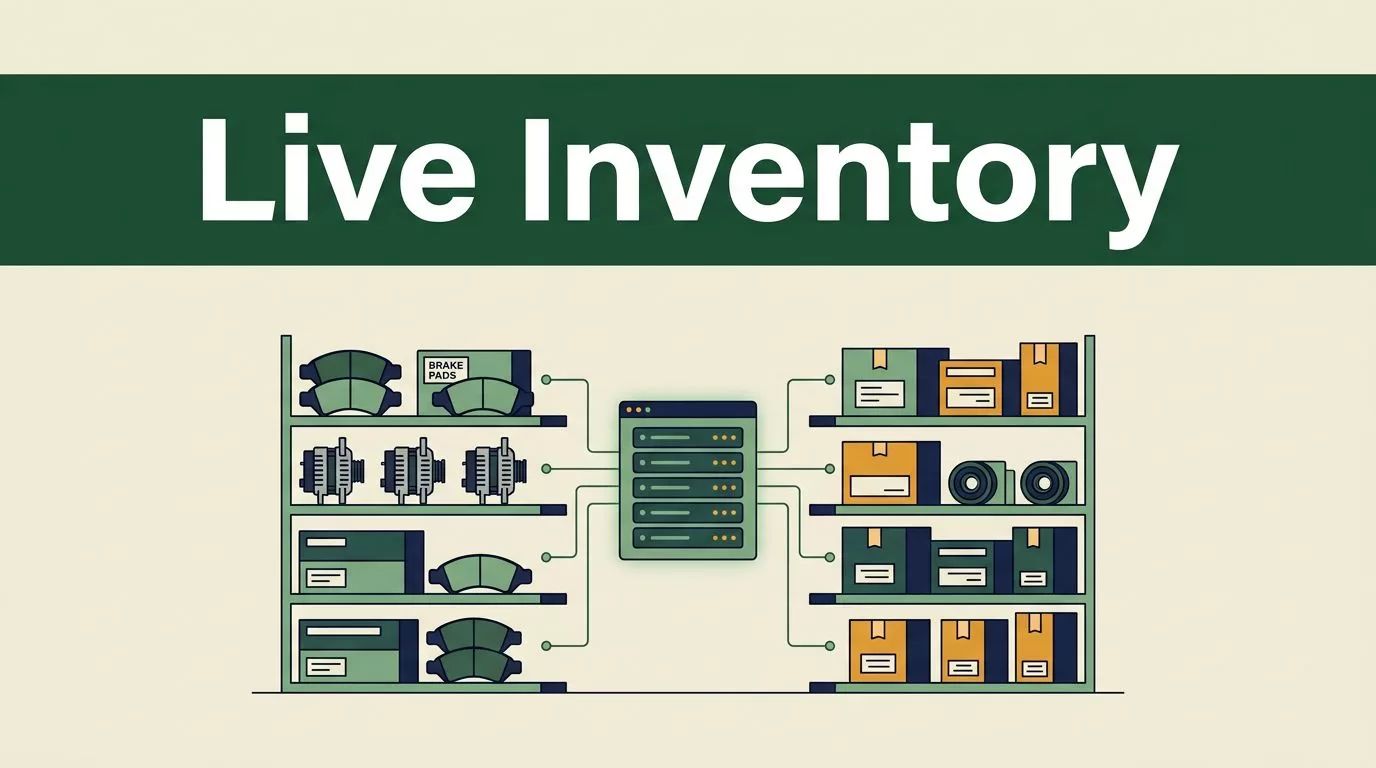
Parts inventory synchronization becomes difficult when each store keeps its own stock records. A brake pad sold at one location may still appear available online. A part transferred to another shop may remain assigned to the original store. Staff then call each other, edit spreadsheets, and place unnecessary orders.
Twin.so can act as the workflow layer that connects your shop management system, point-of-sale platform, ecommerce catalog, and store-level inventory records. The result is one operating view of stock availability, transfers, and replenishment. The setup starts with clean data and clear ownership.
Why Multi-Location Parts Data Breaks Down
Most inventory problems start with separate systems, not bad employees. Store A receives 20 alternators. Store B sells three. The warehouse spreadsheet updates at the end of the day. Your online catalog still shows the old quantity for both locations.
That delay creates four costly problems:
- Customers buy parts that are no longer available.
- Technicians wait for parts that another location has in stock.
- Managers reorder items already sitting at a nearby store.
- Employees spend hours copying changes between systems.
Small-business operators regularly debate whether Excel can handle receiving, ordering, and parts management as their operations grow. Discussions about autobody parts management in Excel show the same concern: spreadsheets can record inventory, but they don’t reliably coordinate several locations and active transactions.
The issue becomes larger when stores use different POS tools. One location may track a part by manufacturer number. Another may use an internal SKU. A third may record the same item under a shortened description. The systems cannot sync records that they don’t recognize as the same product.
A central inventory view must answer one question quickly:
Can this specific part be promised to this customer at this location right now?
That answer needs more than a quantity field. It needs the store, product identifier, reserved units, damaged units, incoming transfers, and the time of the latest update.

How parts inventory synchronization works with Twin.so
Use Twin.so to coordinate inventory events between your connected systems. Don’t begin by copying every field from every application. Start with the records that affect availability and purchasing decisions.
Choose one system as the owner of each data type. Your POS or shop management platform may own sales and receiving. A product database may own descriptions and manufacturer numbers. Twin.so then moves approved changes between systems instead of allowing several platforms to overwrite one another.
Start with these fields:
- Internal SKU and manufacturer part number
- Product description and unit of measure
- Store or warehouse location ID
- On-hand quantity
- Reserved quantity
- In-transit quantity
- Reorder point and preferred supplier
- Updated timestamp and source event ID
Your exact connectors and triggers depend on the systems connected to Twin.so. The design principle stays the same: every update needs a source, a destination, and a rule.
Match parts by stable identifiers
Descriptions are useful for employees. They are poor sync keys. “Front brake pad” could refer to several sizes, brands, or vehicle applications.
Match records by a stable SKU or manufacturer part number. Store the alternate identifiers as reference fields. Reject records with missing or conflicting identifiers instead of creating a new item automatically.
For example, a store transfer for SKU BP-4821 should update the same product record at both locations. It shouldn’t create a second record because one store calls it “Ceramic Front Pads.”
Run a catalog cleanup before activating the workflow. Merge duplicates, standardize units, and remove inactive products that still carry stock. A clean catalog prevents incorrect availability long after the initial connection.
Separate stock states
On-hand stock isn’t the same as sellable stock. A part may be physically present but already reserved for a repair order. Another unit may be damaged or held for inspection.
Track at least four states:
- On hand means the store physically has the unit.
- Reserved means a customer or work order already claims it.
- In transit means the unit left one location but hasn’t been received.
- Available means the quantity that can still be promised.
A practical calculation is available stock = on hand – reserved – unavailable units. Keep in-transit units separate until the receiving store confirms delivery.
This distinction prevents a common error. Store A has six brake pads on the shelf, but four are reserved for tomorrow’s jobs. The system should expose two available units, not six.
Build a Parts Transfer Workflow Between Stores
A transfer workflow should follow the physical movement of the part. It needs a request, reservation, dispatch, receipt, and final quantity update. Each stage should have a clear owner.
Use this sequence in Twin.so:
- A sale, work order, or stock adjustment creates an inventory event in the source system.
- Twin.so validates the SKU, location, quantity, and event timestamp.
- The workflow recalculates available stock at the affected store.
- If another store needs the part, Twin.so creates a transfer request using the approved source location.
- The source store reserves the quantity before picking it.
- Staff mark the transfer as dispatched after the part leaves the shelf.
- The receiving store confirms the quantity and marks the transfer received.
- The destination system adds the received stock and closes the transfer record.
Consider a repair shop with locations in Dallas and Fort Worth. The Fort Worth store has a vehicle waiting for two units of SKU BP-4821. Its available quantity is zero. The Dallas store has five available units.
Twin.so can create a transfer request for two units, reserve those units in Dallas, and reduce Dallas availability to three. Fort Worth should show two units as incoming, not available for immediate pickup. Once the receiving employee confirms the box, the two units become available in Fort Worth.
The transfer needs one unique ID across all systems. That ID gives staff a shared reference when a shipment is late, short, or entered twice.
Don’t let a failed connection silently create a second transfer. Use an event ID or transfer ID to make each update idempotent. If the same event arrives twice, the workflow should recognize it and avoid subtracting the quantity twice.
Use Accurate Availability to Reduce Overselling and Stockouts
Inventory synchronization matters most at the moment someone promises a part. That promise may happen at a counter, during an online checkout, through a phone call, or inside a technician’s work order.
Your availability workflow should check three conditions before confirming stock:
- The requested SKU matches an approved product record.
- The selected location has enough available quantity.
- The latest inventory update falls within your acceptable freshness window.
If the data is stale, don’t show a confident availability result. Mark the item for verification or route the request to another store with a recent count.
A multi-location parts retailer may publish combined inventory online. That can increase sales, but it also increases overselling risk. If Store A sells its last unit while the website still displays one available, the customer gets a cancellation instead of a completed order.
A synchronized workflow can reserve stock as soon as the order is accepted. It can also remove the unit from the other store’s available quantity when a transfer is created. These actions reduce duplicate promises without requiring an employee to update three systems manually.
Use reorder rules that account for network stock. A store shouldn’t purchase another 10 oil filters when the regional network has 60 available units and a transfer can arrive tomorrow.
The decision table below keeps purchasing and transfer choices separate.
| Situation | Recommended action |
|---|---|
| One store has available stock and another has a shortage | Create a transfer request |
| No store has available stock | Start the approved purchasing workflow |
| Stock exists but is reserved | Don’t promise it to a new customer |
| Quantity is negative or stale | Send the record to an exception queue |
| Transfer is dispatched but not received | Keep units in transit until confirmation |
A transfer is often cheaper and faster than an emergency purchase. Accurate data lets the manager compare both options before spending money.
Add Controls Before You Roll Out Across Every Store
Start with two locations and a limited group of fast-moving parts. Brake pads, filters, batteries, belts, and common sensors usually expose availability problems quickly. Use the pilot to test sales, receiving, adjustments, transfers, returns, and cancellations.
Define the sync direction for every field. Product descriptions may move from a central catalog to stores. Sales quantities may move from each store back to the shared inventory record. A field should not have two owners without a documented conflict rule.
Choose the update method based on the risk of delay. Use event-based updates when your connected system supports them. Use scheduled polling when it doesn’t. A repair order may need frequent updates, while supplier cost data can often run on a slower schedule.
Create an exception queue for records that need human review. Include:
- Unknown SKU or missing manufacturer number
- Duplicate transfer ID
- Negative available quantity
- Store code that doesn’t match the location list
- Receiving quantity different from the dispatch quantity
- Update older than the allowed freshness window
Don’t hide exceptions in email. Store them where an operations manager can assign, review, and close them.
Track a small set of operating metrics each week:
- Inventory accuracy by store
- Number of oversold orders
- Stockouts for active parts
- Emergency purchases
- Transfer fill rate
- Average transfer completion time
- Manual inventory corrections
- Unresolved sync exceptions
A platform such as Tekmetric’s auto parts inventory overview shows how multi-location shop operators can review inventory through a shared platform. Your Twin.so workflow can connect that kind of operational data with the other systems your business already uses.
Review the first results against your baseline. If manual corrections fall while stockouts stay flat, improve replenishment rules next. If availability improves but duplicate SKUs remain, return to catalog matching before adding more automation.
Make Twin.so Part of the Daily Inventory Process
Technology won’t fix an inventory process that has no owner. Assign one person to manage product identifiers, one person to approve transfer rules, and one person at each store to confirm receiving.
Train store staff on three rules:
- Scan or select the correct SKU.
- Record transfers when parts leave the shelf.
- Confirm receipt before making incoming stock available.
Keep the workflow visible during the first few weeks. Managers should review failed events, delayed receipts, and quantity differences every day. After the process stabilizes, move to a weekly review.
Your connected systems also need access controls. Store employees should update stock for their location. Regional managers may approve transfers across locations. Only authorized users should change reorder points, supplier mappings, or catalog identifiers.
Document what happens when Twin.so or another connected system is unavailable. Staff need a temporary process for sales, transfers, and receiving. The recovery workflow should compare offline changes against the central record before publishing updates.
This matters because a sync outage doesn’t stop physical transactions. Parts still leave shelves. Deliveries still arrive. A short recovery process prevents a temporary technical issue from becoming a permanent inventory variance.
Conclusion
Parts inventory synchronization gives multi-location operators one reliable answer about what can be sold, transferred, or reordered. Twin.so can coordinate those updates when you define stable product IDs, separate stock states, assign field ownership, and build transfer controls around real store activity.
Start with two stores and a focused parts catalog. Track overselling, stockouts, emergency purchases, manual edits, and transfer completion. Then expand the workflow after the exceptions are under control.
Explore Twin.so as the coordination layer for your parts systems. Accurate inventory data keeps the right part visible at the right store before a customer or technician has to ask.
