Podcast B-Roll Automation for Transistor.fm Shows
Podcast teams lose hours turning one finished episode into usable video. The audio is ready, but clips still need transcripts, visuals, captions, exports, reviews, and uploads. Podcast B-roll automation fixes the handoff. You connect each T...
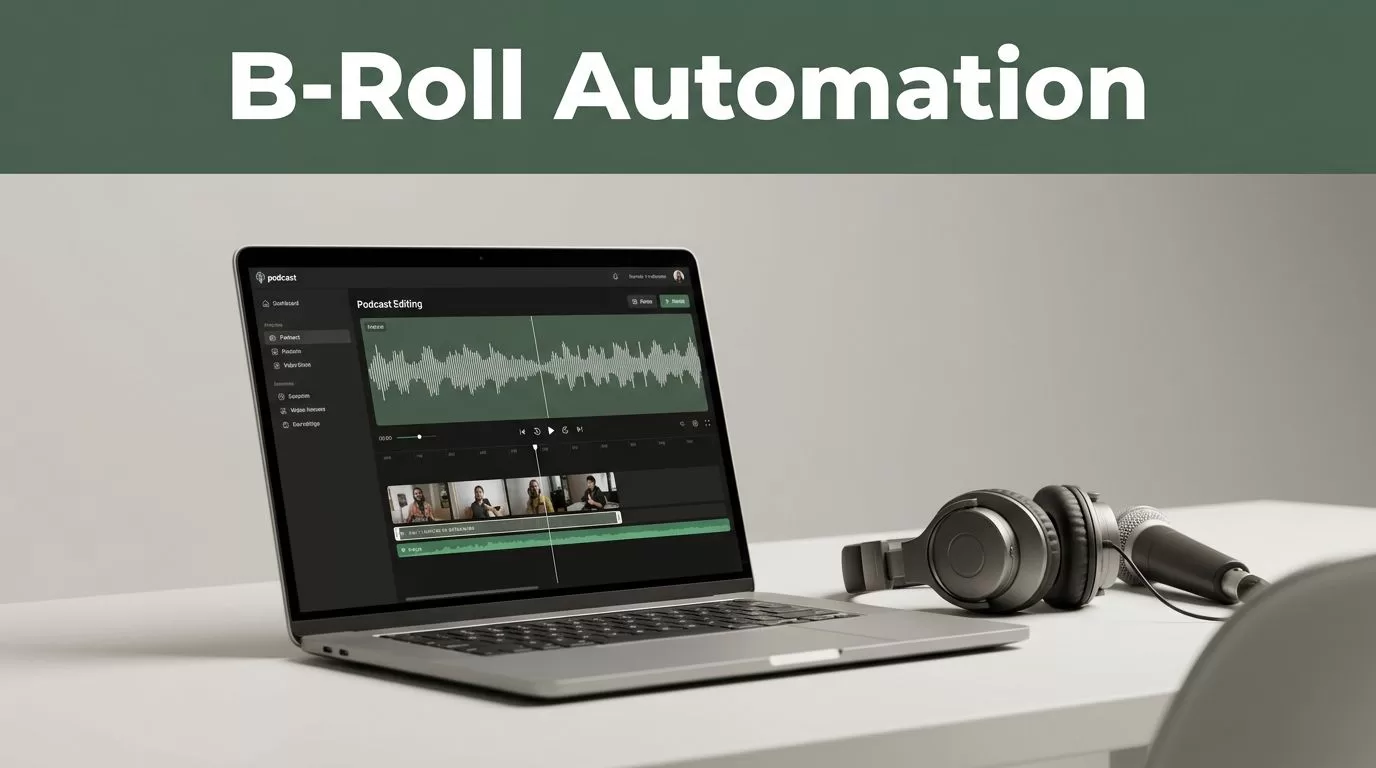
Podcast teams lose hours turning one finished episode into usable video. The audio is ready, but clips still need transcripts, visuals, captions, exports, reviews, and uploads.
Podcast B-roll automation fixes the handoff. You connect each Transistor.fm show to a repeatable production system that creates video assets without mixing feeds, brands, guests, or publishing rules.
The system works best when automation handles repetitive production and people approve anything public-facing.
Key Takeaways
- Use the Transistor RSS feed or API as the episode trigger.
- Store show-level rules for branding, formats, destinations, and review status.
- Generate B-roll from approved footage, not random web downloads.
- Add manual review for names, claims, guest permissions, captions, and sensitive topics.
- Track every asset against an episode ID, version, owner, and rights status.
Start With a Clean Transistor.fm Episode Workflow
Transistor.fm should be the source of truth for published episodes. Each show has its own feed, episode records, audio enclosure URL, and publishing history. Your automation needs to identify the show and episode before it creates anything.
You can use the Transistor API documentation to build a direct connection. A scheduled workflow can also check each public RSS feed for new episode GUIDs. RSS polling is slower than an event trigger, but it is reliable and easy to monitor.
Do not trigger production when an episode is still being edited. Trigger only after the episode is live in Transistor and the final audio is available. This prevents clips from using an early file that later gets replaced.
A multi-show network needs a configuration record for every podcast. Keep these fields in Airtable, Google Sheets, Notion, or a database:
| Field | Example use |
|---|---|
| Show ID | Identifies the correct Transistor.fm show |
| RSS feed URL | Checks for newly published episodes |
| Brand profile | Defines fonts, colors, logo, and caption style |
| Output formats | Selects 16:9, 9:16, or square video |
| B-roll library | Limits footage to approved sources |
| Destinations | Maps assets to YouTube, LinkedIn, or social channels |
| Review policy | Sets automatic publishing or human approval |
| Rights status | Records guest, music, and footage permissions |
The workflow then follows a fixed path:
- Detect a new episode by its GUID.
- Confirm the episode belongs to an approved show.
- Download or reference the final audio file.
- Create a timestamped transcript.
- Select short segments using rules for length and topic.
- Match each segment with approved B-roll.
- Render the required video formats.
- Send assets to review or publish them automatically.
- Store the final URLs and status against the episode record.
The GUID matters. It stops the same episode from producing duplicate clips when the RSS feed is checked again. If the audio changes, compare the enclosure URL or audio hash and create a new version instead of overwriting the old files.
For teams that prefer a low-code setup, review the current Transistor integrations on Zapier. If the available trigger does not match your workflow, use a scheduled RSS or API check in Make, Zapier, or a small server job.
Automation should create a predictable queue, not bypass publishing controls.
Build B-Roll Rules Before You Generate Video
A video generator cannot decide what your brand is allowed to show. It can place footage on a timeline. Your team must define the rules first.
Create one brand profile per show. Include the preferred opening layout, caption position, logo treatment, background colors, aspect ratios, maximum clip length, and approved destinations. A business interview show may need restrained footage and clear captions. A consumer show may use faster cuts and more visual variety.
Keep B-roll in a controlled library. Use footage your company owns or has licensed for the intended channels. Store the source, license type, permitted platforms, expiry date, and attribution requirements with each file.
A useful asset record contains:
- File name and storage path
- Visual category, such as office, software, finance, or travel
- Show or network approval
- License owner and expiration date
- Allowed commercial uses
- Orientation and resolution
- Date added and reviewer
Automation should match transcript topics to these categories. If the speaker discusses customer onboarding, the system can select approved footage tagged “onboarding” or “team workflow.” It should not search the open web and download the first relevant-looking video.
Tools such as Creatomate’s video automation platform and Shotstack’s media API can render templates through an API. You can also use FFmpeg when your team needs lower per-video costs and has engineering support.
Use a template with fixed zones:
- The podcast audio or selected video waveform
- Timestamped captions
- A small show identifier
- The B-roll layer
- Optional guest name and episode title
- A safe area for platform cropping
Create separate templates for horizontal YouTube videos and vertical short-form clips. Do not crop one export into every format. A speaker’s face, product screen, or key visual can disappear when a horizontal frame becomes vertical.
Keep the first automated version simple. One strong B-roll sequence is better than six unrelated clips. If the transcript has no suitable visual match, use a branded waveform or a neutral background. A poor visual match can make a good episode look careless.
Use Transcript and Clip Logic That Scales
The transcript is the control layer for podcast B-roll automation. It gives the workflow words, timestamps, speakers, and topics that can guide clip selection.
Generate a transcript with word-level or sentence-level timestamps. Then apply rules before any video rendering starts. For example, a network may select clips between 30 and 75 seconds, reject segments with long pauses, and require a complete sentence at the beginning and end.
A practical selection score can consider:
- A clear opening statement within the first five seconds
- A single topic instead of several unrelated points
- Strong nouns and verbs that suggest visual footage
- No unfinished sentence at the clip boundary
- No private information or unapproved claim
- A length that suits the destination
Do not rely on transcript keywords alone. A segment mentioning “security” may discuss a breach, a product feature, or a personal opinion. The system can shortlist it, but a person should confirm the meaning.
For a six-show network, route each show through the same production queue. The show profile changes the template, footage pool, caption style, and destination list. The core workflow stays the same.
Example logic:
- A new episode appears in the technology show feed.
- The system creates five transcript candidates.
- Two candidates contain approved product terms.
- The workflow renders one 16:9 draft and two 9:16 drafts for each candidate.
- A reviewer receives one approval task per clip.
- Approved files move to the correct content folder and publishing queue.
- Rejected clips receive a reason, such as weak hook, rights issue, or caption error.
Set retry rules for technical failures. A failed transcript job can retry twice. A failed render can retry with a lower-resolution preview. A missing B-roll match should move to manual review instead of triggering endless retries.
Use a stable folder structure:
/show/episode-guid/asset-type/version
Keep the episode GUID in the filename and database record. This makes it possible to locate every clip when an episode is corrected, removed, or replaced.
Keep People in the Approval Loop
Fully automatic publishing creates avoidable risk. Add a manual checkpoint before any clip reaches a public channel.
The reviewer should check the transcript against the audio. Captions often change names, product terms, numbers, and technical words. An incorrect caption can change the meaning of an answer.
The review should also cover the visual match. A clip about a security incident should not use footage that implies a specific company caused the incident. Product screens must show the correct version. Guest faces must not appear in unrelated footage.
Use automatic publishing only for low-risk assets with a proven template. New shows, new formats, sensitive subjects, paid campaigns, and clips containing claims should require approval.
Create fallback routes for common problems:
- Missing transcript: send the episode to a producer for transcription or correction.
- Poor clip candidate: ask a human to select timestamps.
- No approved visual: use a waveform template or hold the asset.
- Guest opt-out: suppress all derivative clips linked to that episode.
- Caption uncertainty: flag names, figures, legal terms, and medical claims.
- Rendering error: retry, then create a support task with the failed asset ID.
- Episode replacement: mark previous clips as outdated and stop further distribution.
Private Transistor podcasts need stricter handling. Do not send private-feed audio to public video tools or social platforms by default. Add a privacy field to the show record and require approval before any external processing.
Limit access to raw audio, transcripts, guest information, and source footage. Use separate storage permissions for producers, contractors, and automation accounts. Delete temporary files when the workflow completes if the team doesn’t need them for audit or revision.
Track Rights for Audio, Video, and Guests
Rights management belongs inside the workflow, not in a separate spreadsheet that nobody checks.
Guest agreements should cover recording, editing, transcription, short-form clips, captions, promotional video, paid advertising, and distribution on named platforms. If an agreement covers the podcast but not video clips, stop the asset before publication.
Record whether the guest approved their name, image, screen share, company references, and quoted statements. Include any embargo date or removal condition. A guest’s request to remove a clip should identify every derivative file connected to the episode GUID.
Music requires its own check. A track cleared for a podcast intro may not be cleared for social video or paid advertising. Store the music license with the template and limit that template to approved channels.
The same rule applies to stock footage. Check commercial use, social distribution, geographic limits, duration, attribution, and renewal dates. Creative Commons license terms differ by license, so don’t treat every free asset as unrestricted.
AI transcription and video services may process guest voices and confidential content. Review vendor retention, training, deletion, access, and data-processing terms before sending raw recordings. Remove personal data from transcripts when the production task doesn’t need it.
Keep a rights status in the asset record:
- Approved for organic social
- Approved for paid promotion
- Guest approval required
- License expires on a recorded date
- Internal use only
- Blocked from distribution
This field should control publishing. A clip marked “internal use only” must not enter a public upload queue.
Measure Output Without Losing Control
Track production metrics per show. Useful measures include episodes processed, clips created, approval rate, rejection reason, render failure rate, average review time, and assets published per episode.
Rejection reasons show where the workflow needs work. If reviewers reject captions often, improve transcription or add a terminology dictionary. If they reject visual matches, expand the tagged B-roll library. If most clips need manual timestamp selection, tighten the scoring rules.
Track platform results separately. A clip can be technically correct but ineffective on a particular channel. Compare watch time, completion rate, saves, comments, and click-throughs by format and show. Do not use one show’s performance to set rules for every show.
Review the automation monthly. Remove expired footage. Update guest restrictions. Test every destination connection. Confirm that episode replacements and removals stop future distribution.
For uploads managed through custom systems, follow the YouTube Data API upload guidance and store returned video IDs with the episode record. Never treat a successful render as a successful publication.
Conclusion
Transistor.fm can provide the episode record and feed that start a repeatable B-roll workflow. The rest of the system needs show-level configuration, timestamped transcripts, approved visuals, format-specific templates, and clear review gates.
The strongest setup does not publish every generated clip. It creates a controlled queue, protects guest and licensing rights, and sends only verified assets to public channels. That is how podcast B-roll automation scales across multiple shows without turning production into a cleanup task.
