Send Automated Parent Updates With Twin.so
Parents don’t need more notifications. They need the right update at the right time. Automated parent updates help childcare teams share routine information without asking educators to write the same messages repeatedly. Twin.so can s...

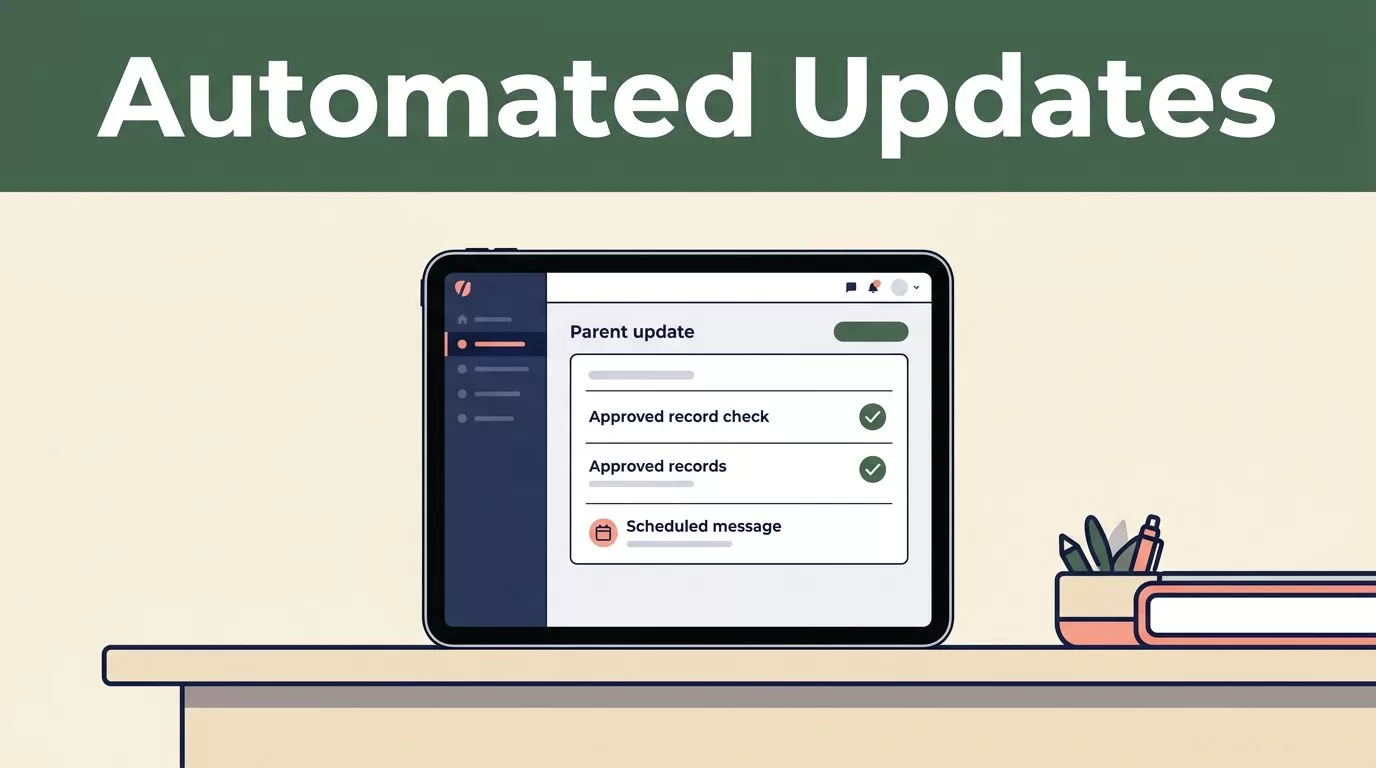
Parents don’t need more notifications. They need the right update at the right time. Automated parent updates help childcare teams share routine information without asking educators to write the same messages repeatedly.
Twin.so can support this workflow when you connect it to approved records, define clear rules, and choose when a staff member must review the message. The goal isn’t to remove educators from parent communication. The goal is to remove repetitive admin work while keeping judgment where it belongs.
The Hidden Time Cost of Manual Parent Communication
A daily update sounds small. One child eats lunch. Another joins outdoor play. A third needs a pickup reminder. Multiply those updates by 15, 30, or 100 children, and the writing quickly takes time away from supervision and classroom work.
Manual communication also creates inconsistency. One educator may send updates at noon. Another may wait until pickup. A busy staff member may record the information but forget to send it. Parents then receive different levels of detail depending on the classroom, day, or person assigned to the task.


The problem is operational, not personal. Staff already collect much of the information parents want. Attendance, meals, naps, activities, pickup times, and basic classroom notes often exist in a system or daily log. The missing step is a reliable process that turns approved information into a useful message.
Twin.so gives you a way to structure that process. You define the event, the source information, the message format, and the delivery control. The workflow then handles the repeatable parts.
Automation should reduce typing, not remove staff responsibility for what gets communicated.
How Automated Parent Updates Work in Twin.so
A useful Twin.so workflow has four parts:
- A trigger identifies when an update should be created.
- Approved source data supplies the facts.
- Twin.so formats the message using your rules.
- The message is reviewed or sent through the channel available in your setup.
The trigger could be a completed daily log, a recorded attendance event, an updated pickup time, or a scheduled end-of-day process. Use one trigger for one clear purpose. A workflow that tries to handle every type of parent communication at once is harder to test and easier to misconfigure.
The source data must also be defined. You might allow routine fields such as:
- Attendance status
- Meal or snack completion
- Nap duration
- Classroom activities
- Homework club participation
- Pickup schedule
- General supplies reminders
Avoid letting the workflow pull from every note in your database. Free-form staff notes can include incomplete details, opinions, or sensitive information that shouldn’t appear in an automatic message.
The output should use a fixed structure. For example:
“Hi [parent name]. [Child name] attended [activity] today, [meal or rest update]. Pickup is scheduled for [time]. Please contact the center if anything changes.”
The names and values should come from your approved records. The wording should stay consistent. If a required field is missing, the workflow should stop or create a draft for review instead of guessing.
Twin.so may be able to support different workflow actions depending on your account and configuration. If direct delivery through email, SMS, or a parent communication platform isn’t available in your setup, use Twin.so to prepare a ready-to-send draft for the system your center already uses.
Setting Up Twin.so for Your Childcare Program
Start with one classroom and one update type. Do not begin with every event, every child, and every communication channel. A small pilot gives you a controlled way to test accuracy and staff workload.

1. Define the update
Choose the exact message you want to automate. An end-of-day classroom summary is a practical starting point because the information is usually routine and time-bound.
Write down:
- Who receives the message
- When the workflow runs
- Which records it can use
- Which fields are required
- What happens when information is missing
- Which messages require staff approval
For example, an after-school program may create an update after attendance and activity records are complete. The message can confirm arrival, participation, and the scheduled pickup time.
2. Prepare the source information
Use consistent field names and values. “Outdoor play,” “outdoor activity,” and “outside time” may describe the same event, but inconsistent entries make automation less reliable.
Create a short approved vocabulary for common updates. Train staff to record facts in the correct fields rather than burying them inside long notes. Keep free-text notes available for internal documentation, but don’t automatically expose them to parents.
Before connecting a data source, confirm that the source contains only the information required for the workflow. This reduces unnecessary access to child records.
3. Build the message rules
Give Twin.so a clear format and clear exclusions. State the audience, tone, length, required fields, and prohibited content.
A rule might require:
- One message per child
- A short greeting
- Two or three routine updates
- No medical interpretation
- No mention of another child
- No unverified pickup change
- No invented details
- A staff review when a required field is blank
Use plain language. Parents should understand the message on a phone without opening a second system.
4. Test with recent records
Run the workflow against a small set of completed records. Compare the output with the original source information line by line.
Check names, dates, times, meal entries, attendance status, and recipient addresses. Test incomplete records too. A strong workflow handles missing data safely. It doesn’t fill gaps with plausible-sounding text.
Have at least one educator and one administrator review the test results. Educators know whether the message reflects classroom reality. Administrators can check whether the workflow follows center policy.
5. Select the sending control
Use staff approval during the pilot. A review step lets staff correct errors before a message reaches a parent.
After testing, you may choose automatic delivery for narrow, low-risk updates. Keep manual approval for incidents, injuries, health concerns, behavioral issues, schedule disputes, suspected abuse, custody matters, and any message that could be misunderstood without context.
If Twin.so creates the message but another platform sends it, test the handoff separately. Confirm that the correct parent receives the correct child’s update.
Write Parent Messages That Need Less Editing
Automation works best when the message has a defined job. Don’t ask it to write a detailed classroom story. Ask it to communicate a few verified facts.
A useful routine update could read:
“Hi Jordan’s family. Jordan joined outdoor play, ate most of lunch, and rested for 45 minutes today. Pickup is scheduled for 5:30 p.m. Please contact the center if the plan changes.”
This message is short, factual, and specific. It doesn’t claim more than the records show.
For an after-school program, the format might be:
“Hi Sam’s family. Sam checked in at 3:10 p.m. and joined homework club. No pickup change is recorded for today. Please contact the program before pickup if your plans change.”
Use conditional language when the record doesn’t confirm an outcome. “The pickup time recorded is 5:30 p.m.” is safer than “You will pick up at 5:30 p.m.” The first statement reports the system record. The second assumes the plan cannot change.
Avoid messages that sound cheerful by default. A positive tone is fine, but the workflow shouldn’t soften or conceal an important issue. When a situation needs context, create an internal alert or draft and assign it to a staff member.
Protect Sensitive Child Information
Parent communication contains personal information. Your automation process must limit what Twin.so can access, generate, and send.
Start by defining categories. Routine updates may include attendance, activities, food, rest, and supplies. Sensitive updates may include health information, injuries, medication, disability-related information, family conflict, custody restrictions, and child-protection concerns.
Do not place sensitive details in an automatic message unless your center has approved that process and the recipient, channel, and record access are verified. In many cases, the safer message is a request for direct contact:
“Please contact the center before pickup so a staff member can discuss today’s event with you.”
The message should not include the event details if the communication channel or recipient identity hasn’t been confirmed.
Restrict access to the connected workspace. Give staff only the permissions they need. Review who can change message rules, recipient mappings, source fields, and delivery settings. Keep a record of changes if your system supports it.
Also confirm how data is handled before deployment. Review Twin.so’s current privacy, security, retention, and account controls. Don’t assume that a tool’s general automation capability meets your center’s obligations. Your organization remains responsible for its policies, contracts, local requirements, and parent communication practices.
Staff training matters as much as configuration. Teach employees what belongs in a routine update, what requires review, and what should never be entered into an automation prompt or source field.
Measure the Workflow Before Expanding It
Track the pilot for two to four weeks. Use simple operational measures:
- Number of updates created
- Number sent without edits
- Number requiring correction
- Missing-data failures
- Delivery mistakes
- Staff minutes spent reviewing messages
- Parent replies caused by confusion
The most useful measure is not message volume. It is whether the workflow reduces repetitive work without increasing correction work.
Review failed messages weekly. If the same field is often missing, change the data-entry process. If staff repeatedly edit the same sentence, update the template. If parents ask what a phrase means, replace it with plain language.
Expand one workflow at a time. After end-of-day updates work reliably, consider attendance confirmations, supply reminders, or activity summaries. Keep sensitive and high-context communications under staff control.
Conclusion
Automated parent updates can give childcare teams a consistent communication process without turning educators into full-time message writers. Twin.so is most useful when it works from approved records, follows narrow rules, and stops when the information is incomplete or sensitive.
Start with one routine update. Test every field. Keep staff review for messages that require judgment, context, or safeguarding. The strongest workflow is not the one that sends the most messages. It is the one that sends accurate information while keeping children, families, and staff protected.

