How To Create A Shared Contact Directory In Google Contacts
A shared contact directory sounds simple until I try to build one in Google Contacts. Personal Gmail and Google Workspace behave very differently, and that difference decides whether I get a clean team directory or a pile of CSV files. As o...

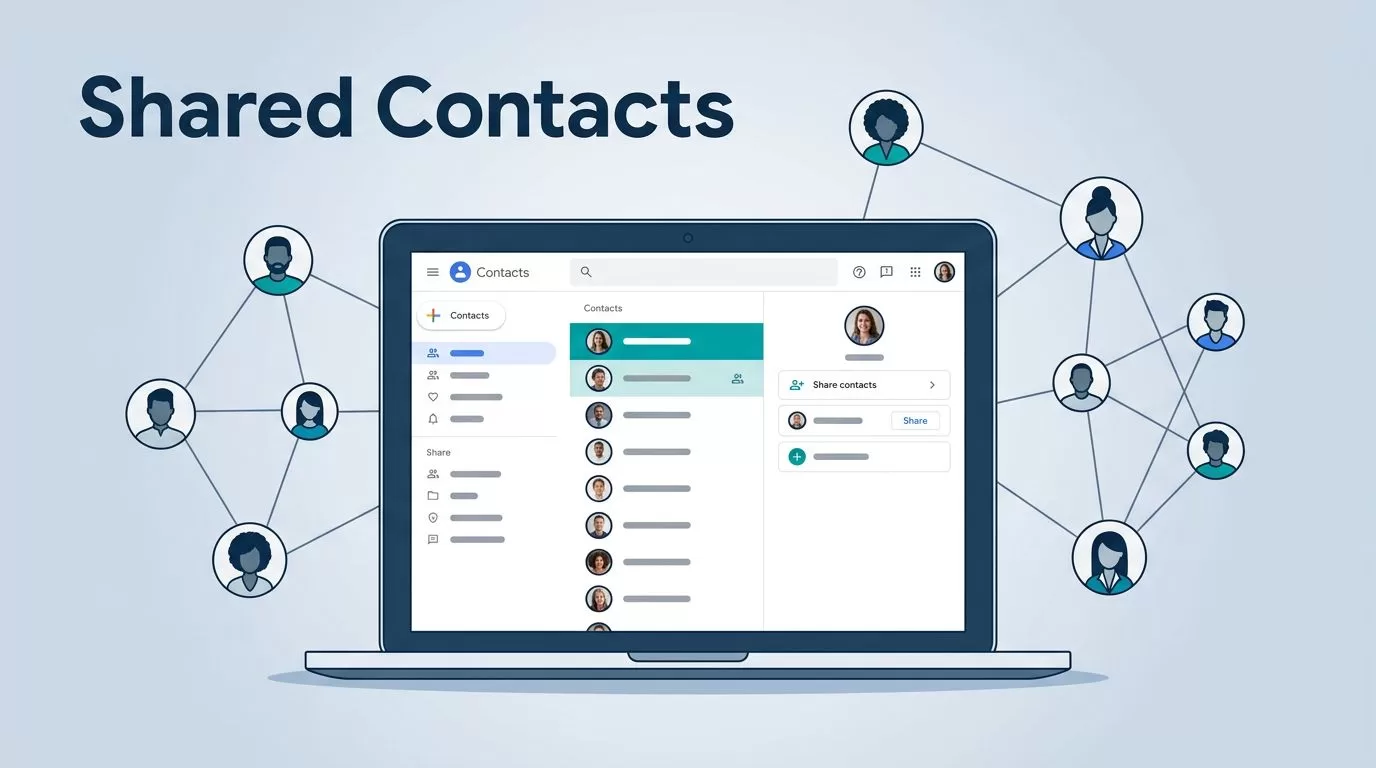
A shared contact directory sounds simple until I try to build one in Google Contacts. Personal Gmail and Google Workspace behave very differently, and that difference decides whether I get a clean team directory or a pile of CSV files.
As of April 2026, I still can’t create a true team-wide shared directory in personal Gmail. In Google Workspace, I can, but only through admin-managed tools. So I always start by matching the method to the account type, because the wrong setup wastes time fast.
What Google Contacts can and cannot do
Google Contacts looks similar across accounts, but the sharing rules are not the same. I use this quick split before I touch anything.
| Setup | What I get | Main limit |
|---|---|---|
| Personal Gmail | Export, import, and local contact lists | No native shared directory |
| Google Workspace | Admin-managed directory and shared external contacts | Needs admin access |
| API or third-party sync | Bulk updates and automation | More setup and permission checks |
The key point is simple. Personal Gmail is fine for moving contacts around, but it does not give me a live directory that updates for a whole team. Google Workspace does.
For Workspace, I lean on Google’s own documentation first. The Directory overview in Google Workspace explains how directory data shows up in Contacts and other Google services. For shared external contacts, the Google shared external contacts guide is the page I keep open.
How I set up a shared directory in Google Workspace
This is the path I use when I manage a business account. If I’m moving a team into Workspace at the same time, I keep the contact plan in step with the mail move, like I do in my Zoho to Google Workspace migration guide.


I start in the Admin console. From there, I go to Directory and look for shared external contacts or the directory tools available in my edition. Then I add each contact with the details my team needs, usually name, company, email, phone, and notes.
After I save the record, I wait for it to flow through the domain. That matters more than most people expect.
In Google Workspace, shared contacts can take up to 24 hours to appear in autocomplete, so I don’t panic if they don’t show up right away.
I also keep the list tight. A directory gets messy when every one-off vendor number gets added. I only include contacts that help people work faster, like partners, clients, support contacts, and outside coordinators.
When I need to add many entries at once, I don’t type them by hand. Instead, I use the Google shared contacts API guide as my reference for bulk publishing. That path makes more sense when I have repeat updates or a larger directory.
What I do when I only have personal Gmail
Personal Gmail still has a place, but I treat it as a manual process. I open Google Contacts, select the contacts I want to share, and use Export. Then I choose Google CSV or vCard, depending on where the file is going next.
Next, I send the file to the person who needs it, or I drop it into a secure shared folder. On the other side, the other account uses Import in Google Contacts. That copies the data, but it does not create a shared live list.

This method is useful when I only need to move contacts once. It breaks down when several people edit the same names and numbers. Then duplicates appear, old numbers stick around, and nobody knows which file is current.
For small teams, I keep one person in charge of the master file. That person updates the source file, checks for duplicates, and shares the latest version. I also protect the file, because contact lists contain personal data and business info.
Google Groups can help with email distribution, but I don’t use it as a directory. It handles mail, not a shared contact book.
When API tools or third-party sync apps make sense
I use automation when the directory has real upkeep. That happens when contacts come from a CRM, an LDAP directory, or another system that changes often. In those cases, manual import gets old fast.
Google Workspace admins can push shared contacts through the API, and Marketplace apps can add sync rules on top. Those tools are useful for multi-domain setups, sales teams, and operations teams that need the same contact data in several places. Still, I check two things before I install anything: the permissions it asks for and the direction of sync.
One-way sync is safer when I want a clean source of truth. Two-way sync sounds helpful, but it can create duplicates if people edit the same record in different places. I also test what happens when a contact is removed, because a bad delete rule can erase useful data across the team.
If a third-party tool promises instant team sharing for personal Gmail, I read the fine print. Many tools can share lists, but they still work around Google Contacts instead of changing it.
Fixing sync problems and missing contacts
When contacts don’t show up, I work through the basics in this order:
- I check whether I’m in personal Gmail or Workspace, because the rules are different.
- I confirm the contact was added in the Admin console if I’m using Workspace.
- I wait for the 24-hour directory delay before I assume something failed.
- I open Google Contacts on the web, then refresh the mobile app after that.
- I verify that Contacts sync is turned on for the Google account on each device.
- I remove duplicate imports, then import the clean file again if needed.
Most sync problems come from the file, not the platform. Bad CSV formatting, duplicate rows, and mixed account types cause most of the pain I see. If a contact appears on desktop but not on a phone, I usually sign out of the app, sign back in, and force a sync.
A shared contact directory works best when I keep one source of truth and one clear owner. That simple rule saves me from stale numbers, lost edits, and the usual contact chaos.
The approach I trust most
If I have Google Workspace, I use the Admin console and keep the directory under control. If I only have personal Gmail, I stick to export and import, because that’s the honest limit of the product.
The shared contact directory I want is the one people can trust. When the source is clean, the names are right, the numbers are current, and the sync path is clear, the whole team moves faster without guessing.

