How I Extract Tables From PDF Files Into Excel
A PDF table can look ready for Excel and still fall apart in one copy. Columns slide, dates split, and numbers land in the wrong row. When I need to extract tables from PDF files, I start with the file type, not the tool. That one check sav...

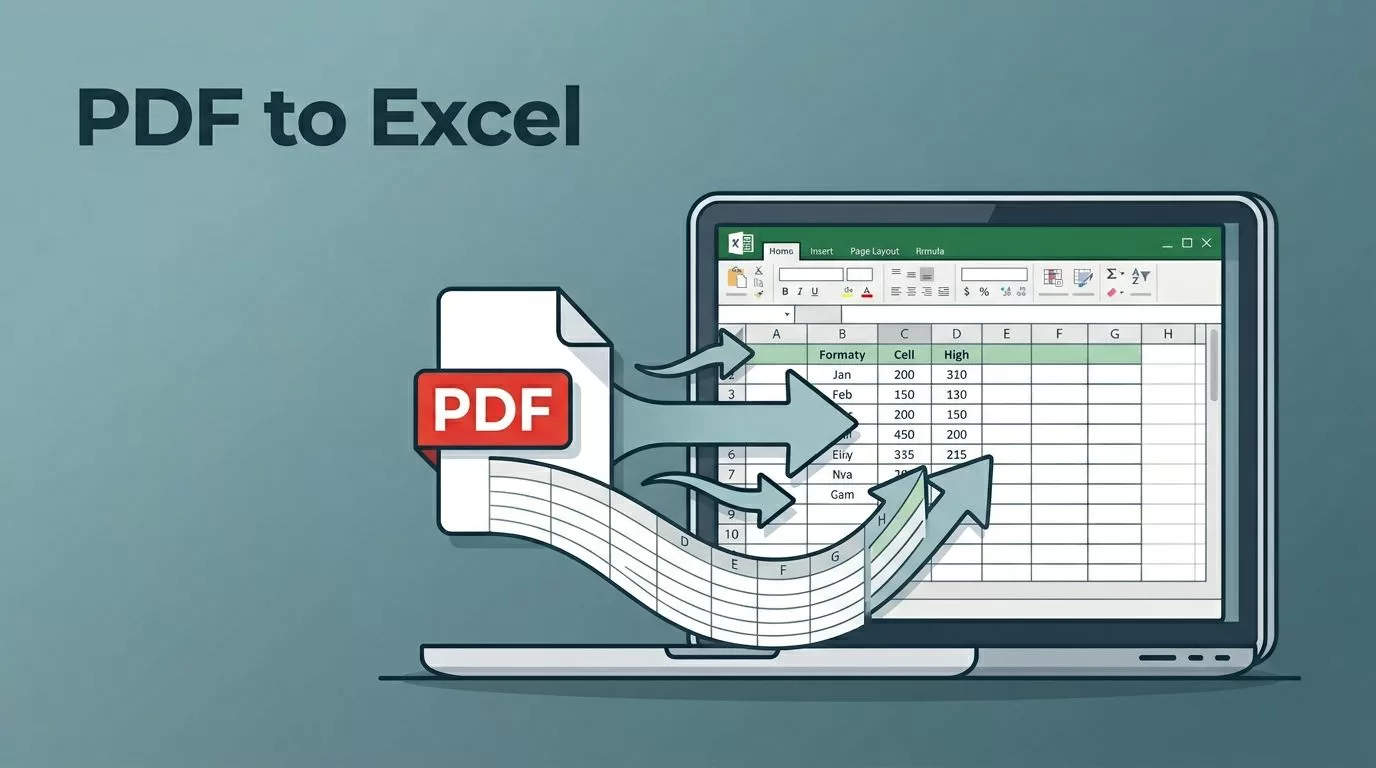
A PDF table can look ready for Excel and still fall apart in one copy. Columns slide, dates split, and numbers land in the wrong row.
When I need to extract tables from PDF files, I start with the file type, not the tool. That one check saves me from hours of cleanup later. If I choose the right method first, the table usually lands in Excel with far less repair work.
Spot Whether the PDF Holds Real Text or Just an Image
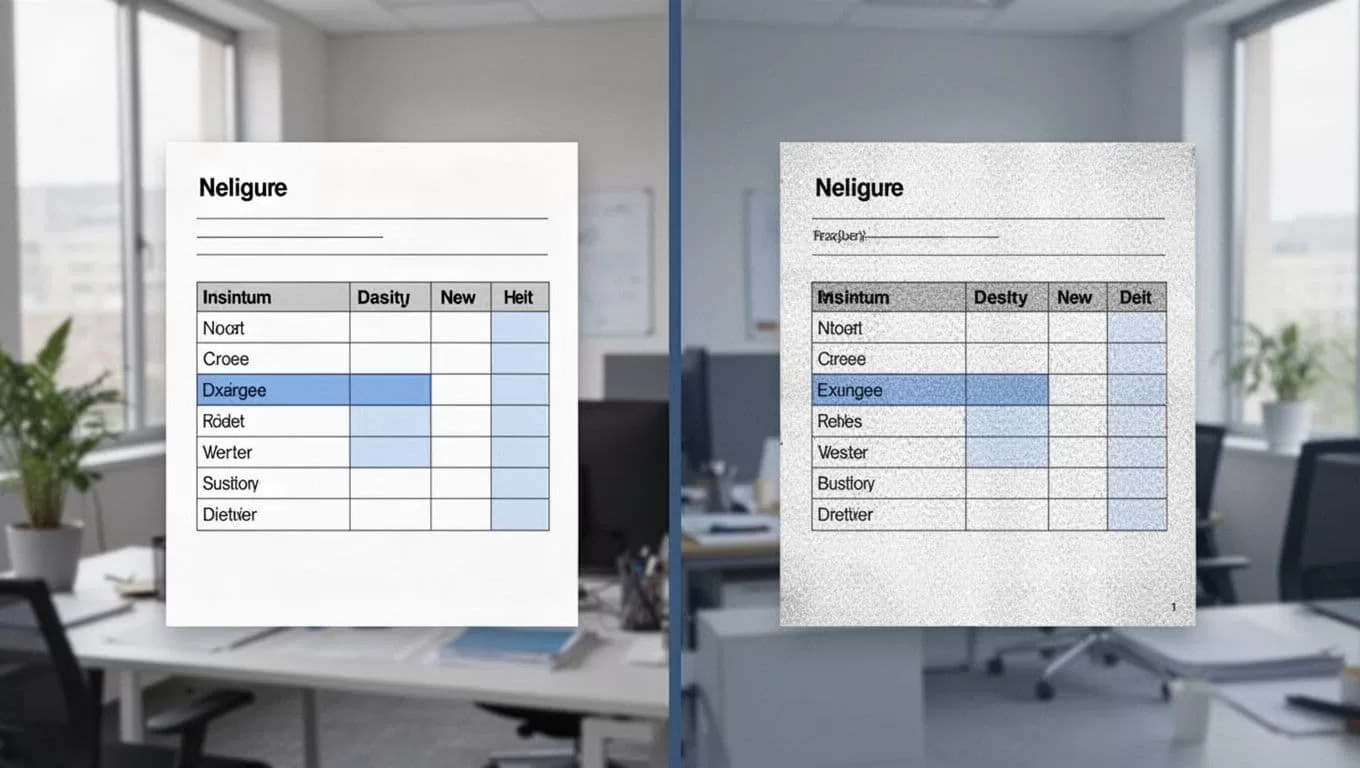
I check the file in two quick ways. First, I drag across a word and see if the text highlights. Then I search for a key term inside the PDF. If both work, I treat it as a text-based PDF.
If the page acts like a photo, I treat it as scanned. That includes files from scanners, fax archives, and phone photos. For those, Excel’s normal import often misses the point, because it sees a picture instead of table data.
If I can search the page, I start with Excel. If I can’t, I move to OCR.
The same test matters in resume parsing software, where clean text and scanned pages need different handling.

Use Excel’s Built-In Import When the Table Is Already Text
In 2026, Excel’s built-in import is still my first move for clean reports. I go to Data, then Get Data, then From File, then From PDF. Power Query opens a preview of the document, which saves me from guessing.
I follow the same flow every time:
- Pick the PDF and let Excel scan the pages.
- Choose the table that matches the data I want.
- Open Transform Data so I can fix headers and blanks.
- Remove extra rows, split messy columns, and promote the right header row.
- Load the cleaned table into a worksheet.
This works best when the PDF already has sharp text and clear rows. If the table spans several pages, I import page by page and combine the sheets after. When I want a second opinion on layout-safe exports, I compare my results with this 2026 formatting-safe guide.
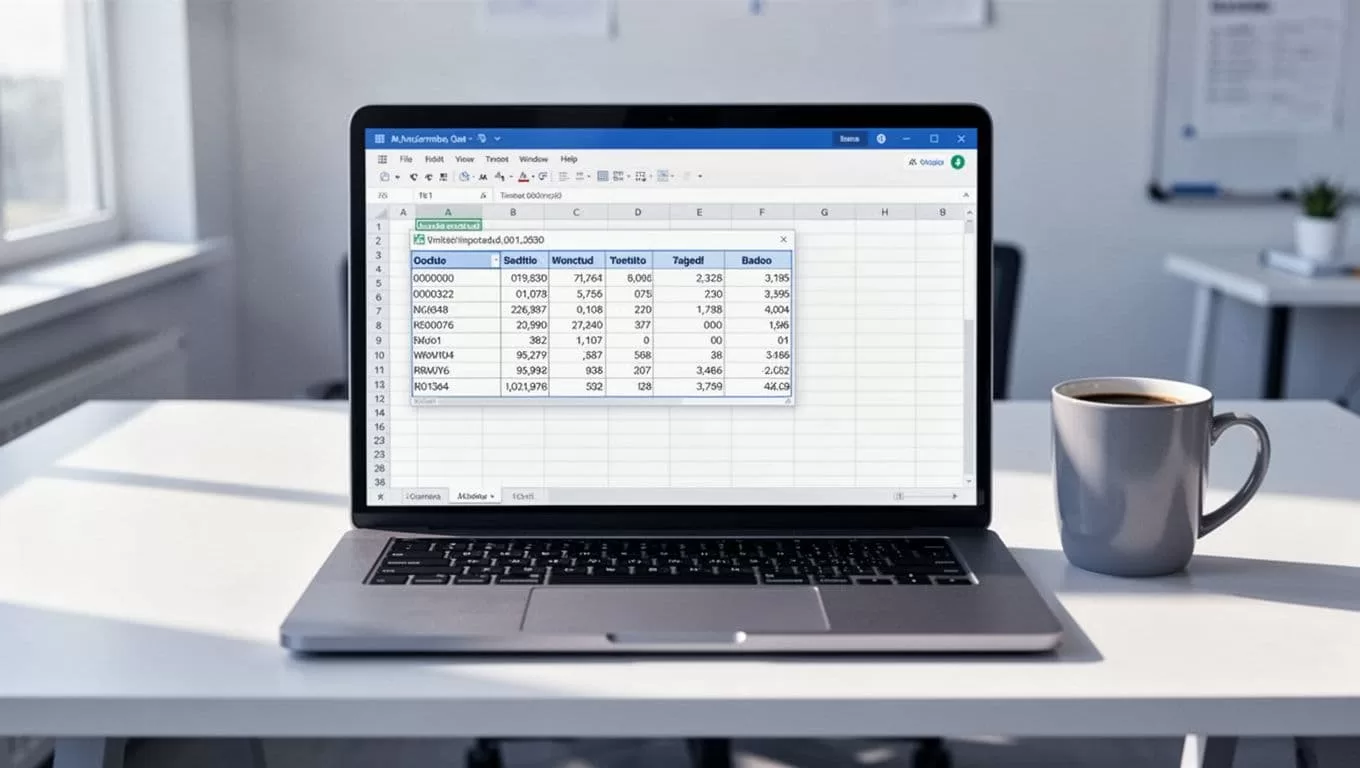
That preview step matters, because it shows me problems before they land in the sheet.
Switch to OCR or Acrobat When the Page Is Scanned
Scanned PDFs need a different path. Adobe Acrobat Pro can export many of them straight to Excel, which is a good starting point when the scan is readable. If the export still looks rough, I run OCR first and then send the result into Excel.
My steps are simple:
- Open the PDF in Acrobat or another OCR tool.
- Run text recognition on the table pages.
- Export the result to Excel or CSV.
- Check dates, totals, and merged headers line by line.
For a clean workflow, I like this PDF table extraction workflow, because it keeps the table area tight and the cleanup small. The same pattern shows up in resume parsing software, where OCR turns messy PDFs into structured fields.
The biggest win comes from the scan itself. A straight page with good contrast beats a clever tool every time. If the source is blurry, I rescan at 300 dpi before I try again.

Compare the Main Methods Before You Choose
I like to compare the method against the file, the deadline, and the level of cleanup I can handle. For batch work, I use converters only when I trust the vendor with the file. When I want a plain tradeoff view, I cross-check this four-way PDF to Excel comparison.
| Method | Best use case | Pros | Cons | Accuracy expectation |
|---|---|---|---|---|
| Excel Power Query | Text-based PDFs with clear tables | Built in, fast, easy to review | Weak on scans and merged cells | High on clean files |
| Adobe Acrobat export | Standard business PDFs | Good layout retention, simple export | Paid tool, still needs checking | High on readable PDFs |
| OCR tools | Scanned or image-based PDFs | Reads images and old paperwork | Errors rise with blur | Medium to high |
| PDF-to-Excel converters | Batch jobs or mixed files | Quick, often easy to use | Quality and privacy vary | Medium to high |
For me, the best choice depends on the source file, not the brand name. Clean text belongs in Excel. Scans need OCR first.
Fix the Problems That Break Clean Exports
Cleanup is where most table projects lose time, so I fix the file before I blame the tool.
- Misaligned columns usually mean the table boundary was too loose. I tighten the crop, re-run the import, and test one page at a time.
- Merged cells cause trouble in Excel. I split them after export and rebuild a single header row so filters work.
- Encoding issues show up as odd symbols or broken characters. I try a different converter, then re-import with the right locale or language setting.
- OCR errors get worse on blurry scans. I sharpen contrast, straighten the page, and run OCR again on a cleaner copy.
The same issues show up in invoices, bank statements, and vendor lists. A short review pass catches most of them before they spread through a workbook.
I get the cleanest result when I match the method to the file type. Text-based PDFs belong in Excel’s import path, and scanned pages belong in OCR first.
Once I make that split, the table stops fighting me. It becomes data I can trust, filter, and use.

