How I Set Up a Shared Expense Tracker in Google Sheets
Shared bills get messy fast. One dinner, one gas run, and a few missing receipts can turn into a week of text messages. I fixed that with a shared expense tracker in Google Sheets. It gave me one place to log every cost, split it cleanly, a...

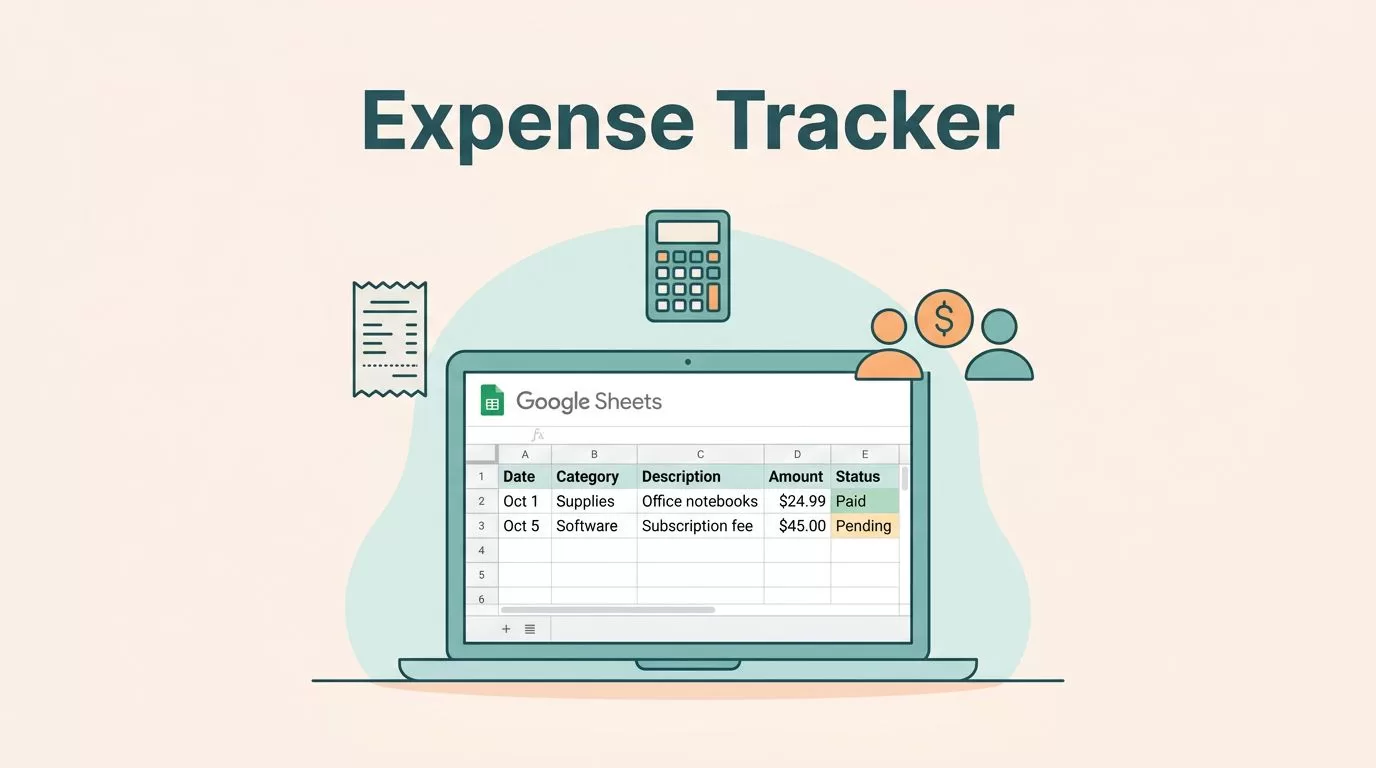
Shared bills get messy fast. One dinner, one gas run, and a few missing receipts can turn into a week of text messages.
I fixed that with a shared expense tracker in Google Sheets. It gave me one place to log every cost, split it cleanly, and see who owes what without opening another app.
I built mine for daily use, so it stays simple enough to update in under a minute.
I started with one clean expense tab
My first rule was to keep the sheet boring in the best way. I wanted one tab for entries and one tab for totals. That was it.
I looked at a few layouts, including a shared expense tracker for groups, but I kept my version tighter. Too many tabs make people stop using the file.
Here’s the structure I use for the main sheet:
| Column | Example | Why I use it |
|---|---|---|
| Date | 04/12/2026 | Sorts expenses in order |
| Description | Groceries | Makes the row easy to read |
| Category | Food | Helps me filter spending |
| Paid By | Me | Shows who fronted the cash |
| Amount | 48.26 | Feeds the balance formulas |
| Split Count | 2 | Tells Sheets how many people shared it |
| My Share | =E2/F2 | Calculates my part |
| Balance | =IF(D2="Me",E2-G2,-G2) | Shows who owes whom |
That setup works well for couples, roommates, or small groups. If the split changes later, I can swap in a percentage column. For most shared bills, though, equal splits are enough.

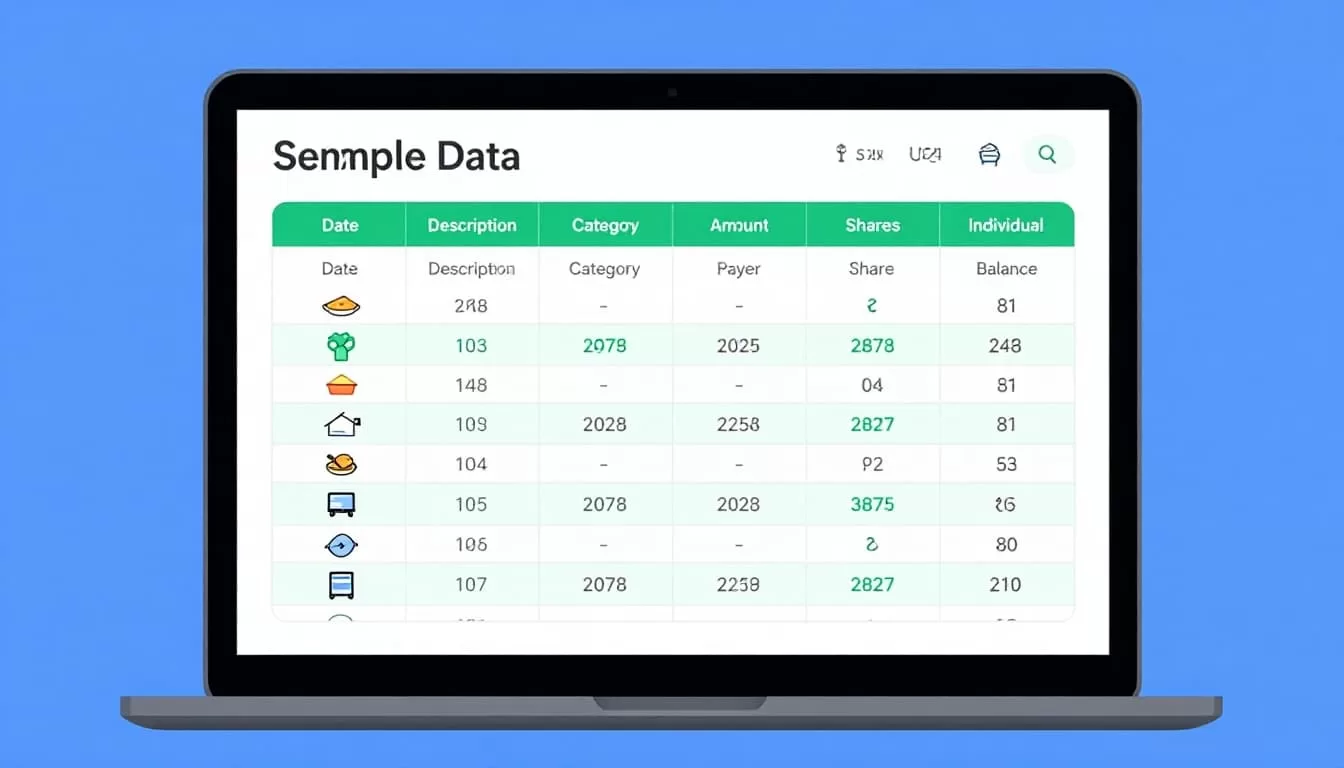
I also freeze the header row and turn on filters right away. That way, I can sort by category, month, or payer without touching the data itself.
The formulas I use to split costs
I keep the math easy to read. That matters, because a sheet only works if I trust it later.
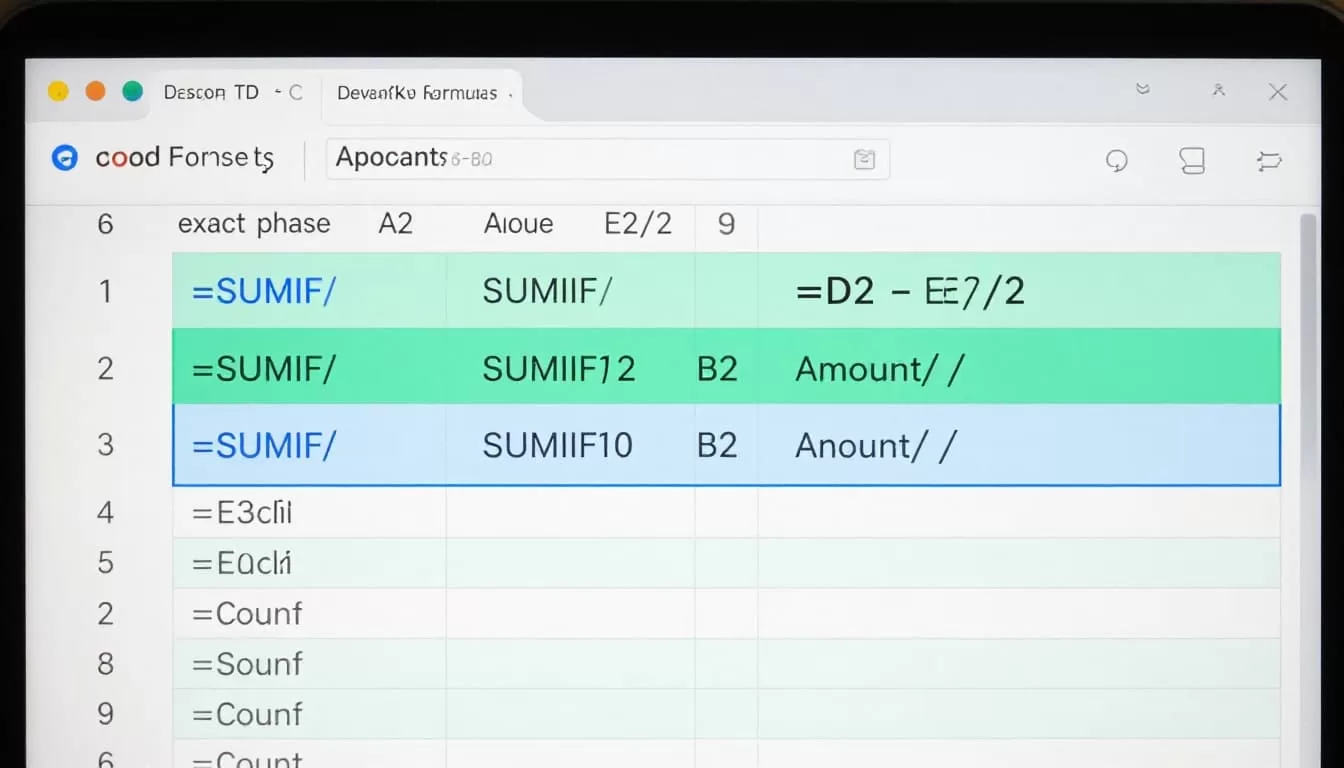
For a two-person setup, the balance formula can be very short. A row can use a simple expression like =D2-E2/2 when the layout already knows the amount paid and the split amount. In my own sheet, I use =IF(D2="Me",E2-G2,-G2) because it scales better when I log different group sizes.
The key formulas I rely on are these:
=E2/F2for my share on each row.=IF(D2="Me",E2-G2,-G2)for the row balance.=SUMIF(D:D,"Me",E:E)to total what I paid.=SUM(H:H)to see my net balance at the top of the sheet.
I keep one rule in mind, if a formula feels clever, it’s too hard to maintain.
If I need a second reference while I’m building, I compare my setup with a step-by-step Google Sheets expense tracker tutorial. It helps me sanity-check the logic before I add more rows.
I also format the Amount column as currency and the Balance column as numbers with two decimals. That tiny step makes the sheet feel calmer, especially after a week of small purchases.
Categories and cleanup rules that keep the sheet useful
A shared tracker gets messy when every row uses a different label. I solved that by keeping my categories short and consistent. I use Food, Rent, Utilities, Travel, Household, Subscriptions, and Other.
In Google Sheets, I set Category and Paid By as dropdowns with data validation. That cuts typos fast. If I type “grocceries” once, the filter gets ugly and the summary loses its shape.
I also color the Balance column. Positive numbers get a soft green fill, and negative numbers get a soft red fill. It’s a small visual cue, but it helps me see the direction of the money in seconds.
For trips, I borrow ideas from a group travel expense tracker guide, then trim the setup back down to the parts I’ll actually use. Travel gets chaotic fast, so a clean category system matters even more there.
I keep a Notes column too. It saves me when a receipt looks odd, when someone paid cash, or when a purchase belongs to a later trip. That extra line prevents a lot of back-and-forth.
I share the sheet without letting the formulas break
Sharing is where a lot of good spreadsheets fall apart. I learned that the hard way. If everyone can edit every cell, someone eventually overwrites a formula.
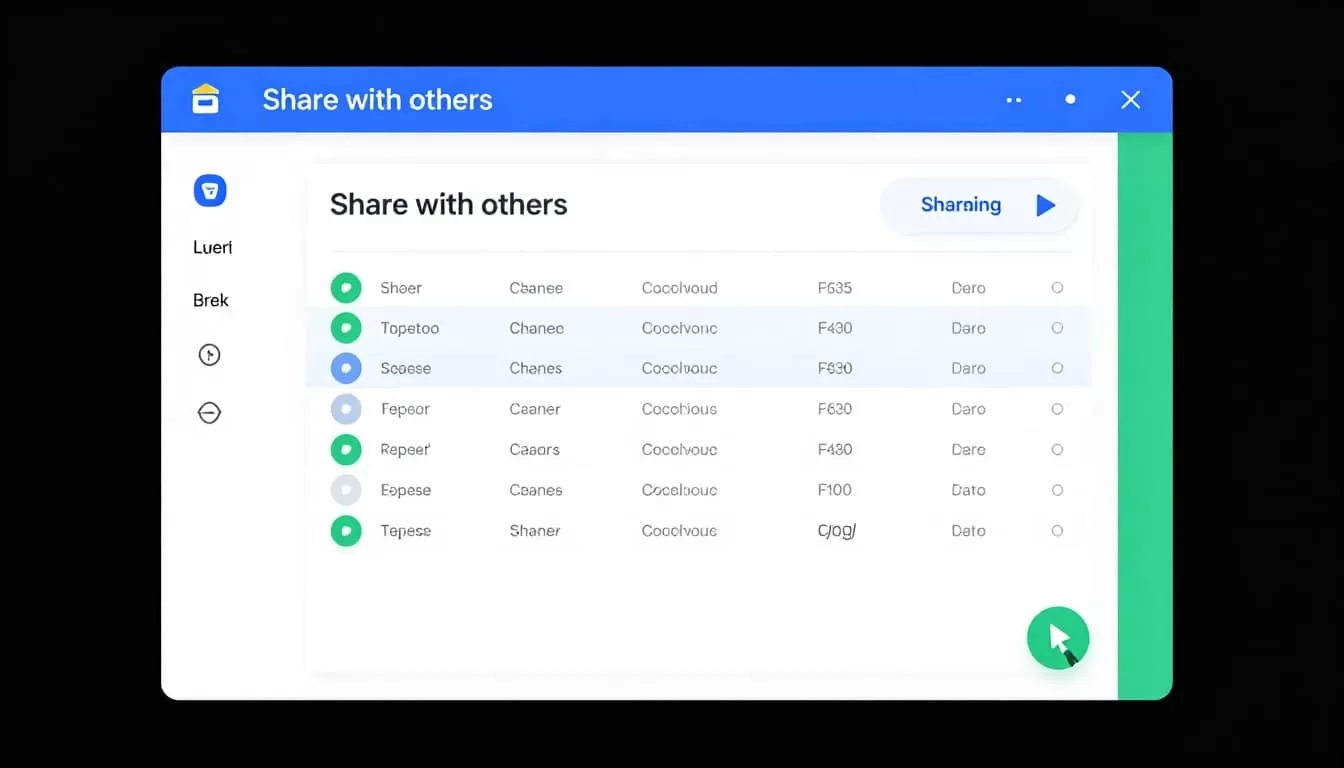
So I give edit access to the people who need to add expenses, then I protect the formula columns. That keeps the entry cells open and the calculations safe.
I also use version history. If a number changes by mistake, I can restore an earlier copy in a few clicks. Comments help too, especially when a charge needs context. A note like “shared with Alex” clears up a lot.
The mobile app works fine for quick entries, but I avoid changing formulas on my phone. It’s too easy to tap the wrong cell when I’m in a rush. For that reason, I keep the formulas in one area and the input rows in another.
Formula cells need protection. One stray edit can turn a clean tracker into a guessing game.
A shared tracker only works if people can use it without fear. Once the setup feels safe, they actually keep it updated.
A good shared expense tracker doesn’t feel fancy. It feels calm. I open one sheet, enter one row, and know exactly where the money stands.
That’s the whole point. When the math is visible, the awkward parts get smaller, and the shared bills stop running my week.

