How To Build A Shared Label System In Gmail
If I need one email workflow for support, sales, or hiring, I don’t start by adding more inboxes. I start with a label system that the whole team can follow. As of April 2026, Gmail still doesn’t offer true shared labels across...


If I need one email workflow for support, sales, or hiring, I don’t start by adding more inboxes. I start with a label system that the whole team can follow. As of April 2026, Gmail still doesn’t offer true shared labels across separate personal accounts, so I build around Google Workspace shared inboxes, delegation, and clear naming rules.
That matters because labels only help when everyone sees the same structure. I want one place for urgent mail, one place for follow-up, and one rule for where each message goes. If you’re using free Gmail, the limits are tighter. If you’re on Google Workspace, you have more options, but you still need a plan.
What Gmail can and can’t do with shared labels
In personal Gmail, labels belong to one account. Nobody else sees them unless they open that mailbox.
Google Workspace gives me more room to work. Google’s shared inbox guide shows how an admin can create a mailbox and grant access to it. Google also documents email delegation, which lets approved users read and send mail from a mailbox without using the password.
I share the inbox first. I don’t try to fake shared labels across separate accounts.
That distinction saves me a lot of confusion. A shared label system is really a shared workflow. Labels organize the same mailbox, but they don’t magically sync between personal inboxes.
Choose the right setup for support, sales, and hiring
When I’m setting up mail from scratch, I usually start with my Google Workspace email setup guide. A clean business domain makes the rest easier.
This quick view helps me choose the right model:
| Setup | Best fit | Main limit |
|---|---|---|
| Personal Gmail with filters | Solo work | Labels stay private |
| Delegated Gmail mailbox | One owner, assistant, or manager | Everyone sees the same mailbox |
| Workspace shared inbox | Support, sales, hiring teams | It works inside the shared mailbox, not across all accounts |
For a solo founder, personal Gmail with filters may be enough. For a support desk, I want a shared inbox. For a hiring team, I want a shared mailbox with a clear process for who replies, who tags, and who closes the loop.
If I’m also sorting out the business email foundation, I compare options in my Google Workspace email hosting guide. That helps me decide whether I need a simple inbox or a full team setup.

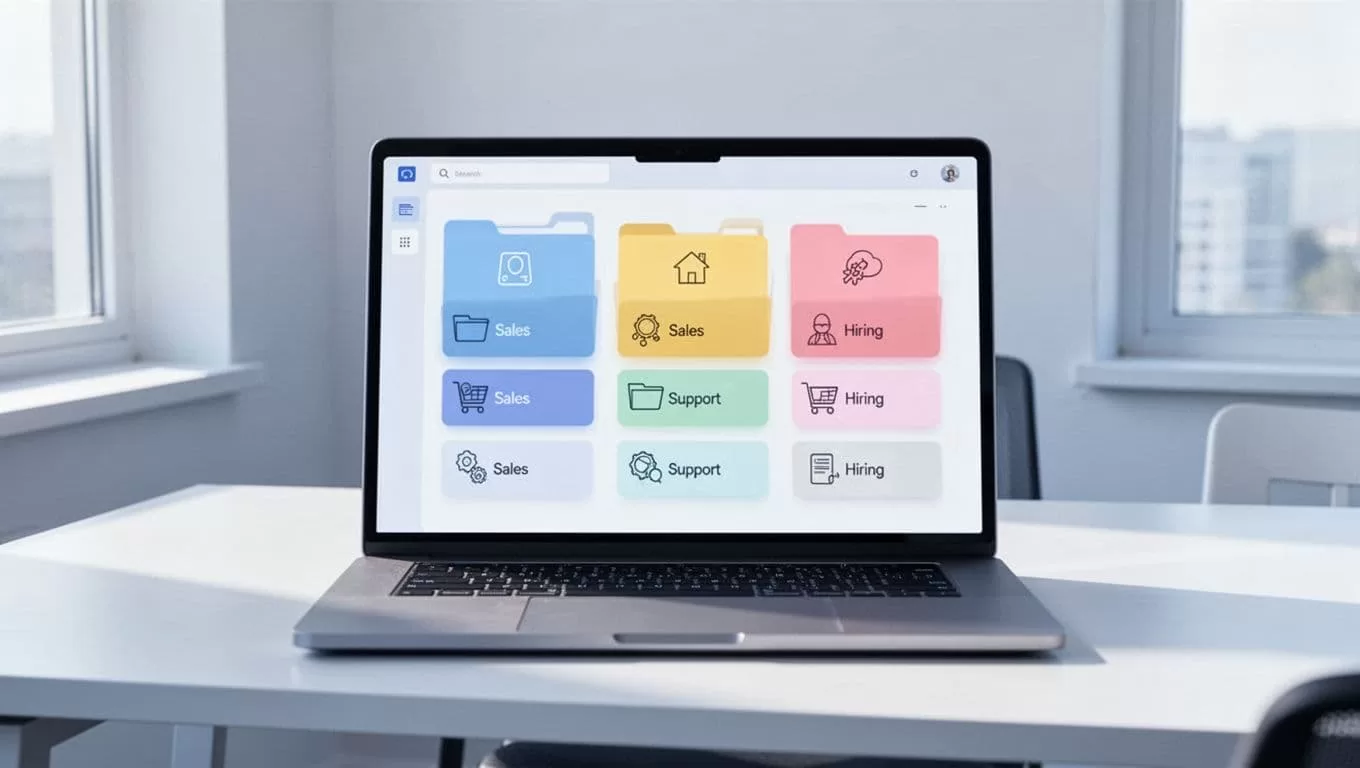
Build label names that the whole team can read fast
I keep label names short and predictable. The best systems feel boring in the best way.
For shared Gmail labels, I use one top-level label per team, then a few status labels beneath it. A pattern like this works well:
- Support/New
- Support/Waiting
- Support/Escalated
- Sales/New lead
- Sales/Follow-up
- Sales/Closed won
- Hiring/Screening
- Hiring/Interview
- Hiring/Offer
That structure gives me room to grow without turning the inbox into a maze. It also makes training easier. A new teammate can scan the names and understand them fast.
I use colors, too, but I don’t depend on them. Colors help my eyes move faster. Names do the real work. If a label only makes sense to me, I delete it.
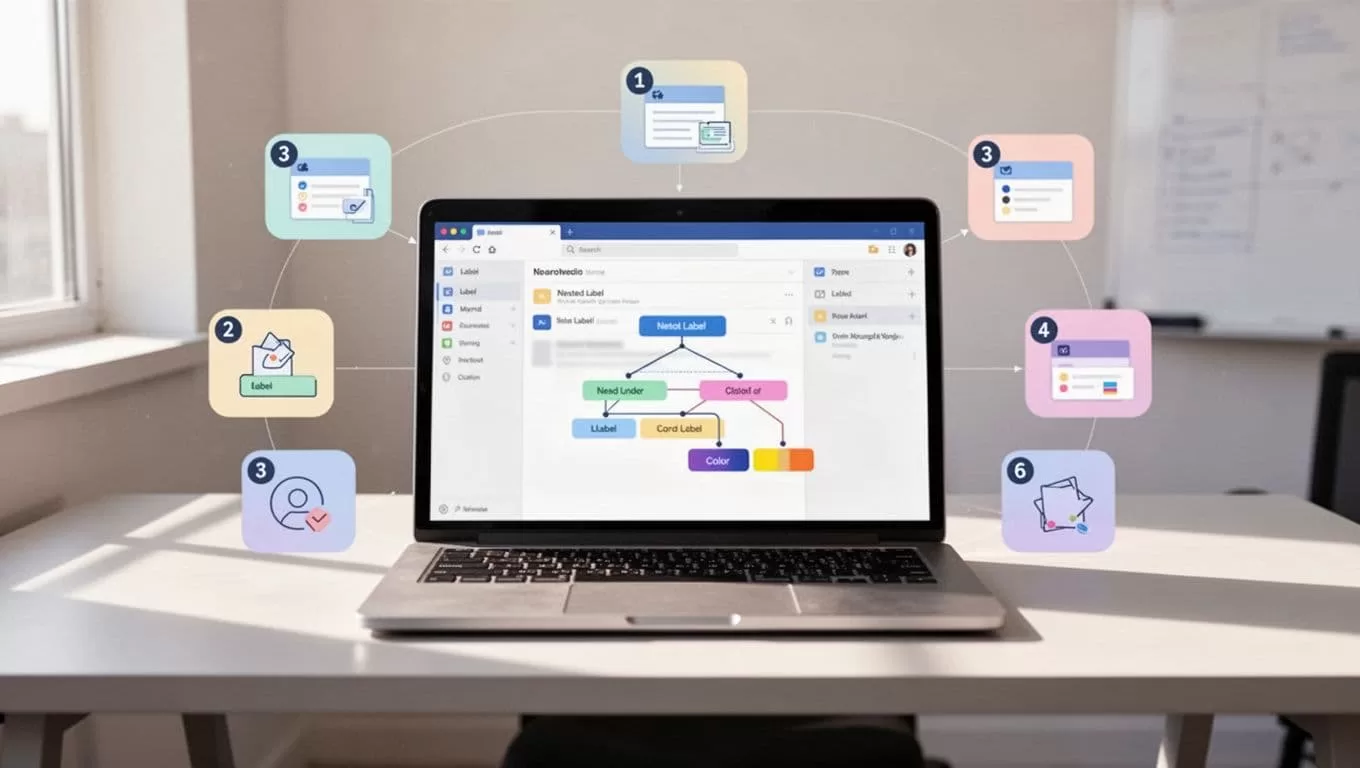
Turn labels into a working workflow
I build the label tree first, then I wire the inbox to it. In Gmail, that means using filters to route mail into the right label as soon as it arrives. If every support request from a form or help address lands in Support/New, I save time all day.
For team mailboxes, I also pay attention to access. Google’s Gmail delegation help explains how delegates can read, send, and delete messages from an account. That is useful when one person owns the inbox, but another person needs backup. Google Workspace admins can also control whether users may delegate access, which I review in the admin delegation settings guide.
Here’s how I use that in practice:
- I create the shared inbox or delegated mailbox first.
- I add the label set for the team.
- I build filters for senders, keywords, and form submissions.
- I assign one person to check each label every day.
Support inboxes work best when “New” becomes “Waiting” after the first reply. Sales inboxes work well when “New lead” moves to “Follow-up” after a call. Hiring inboxes need even tighter control, because candidates hate being left in limbo.
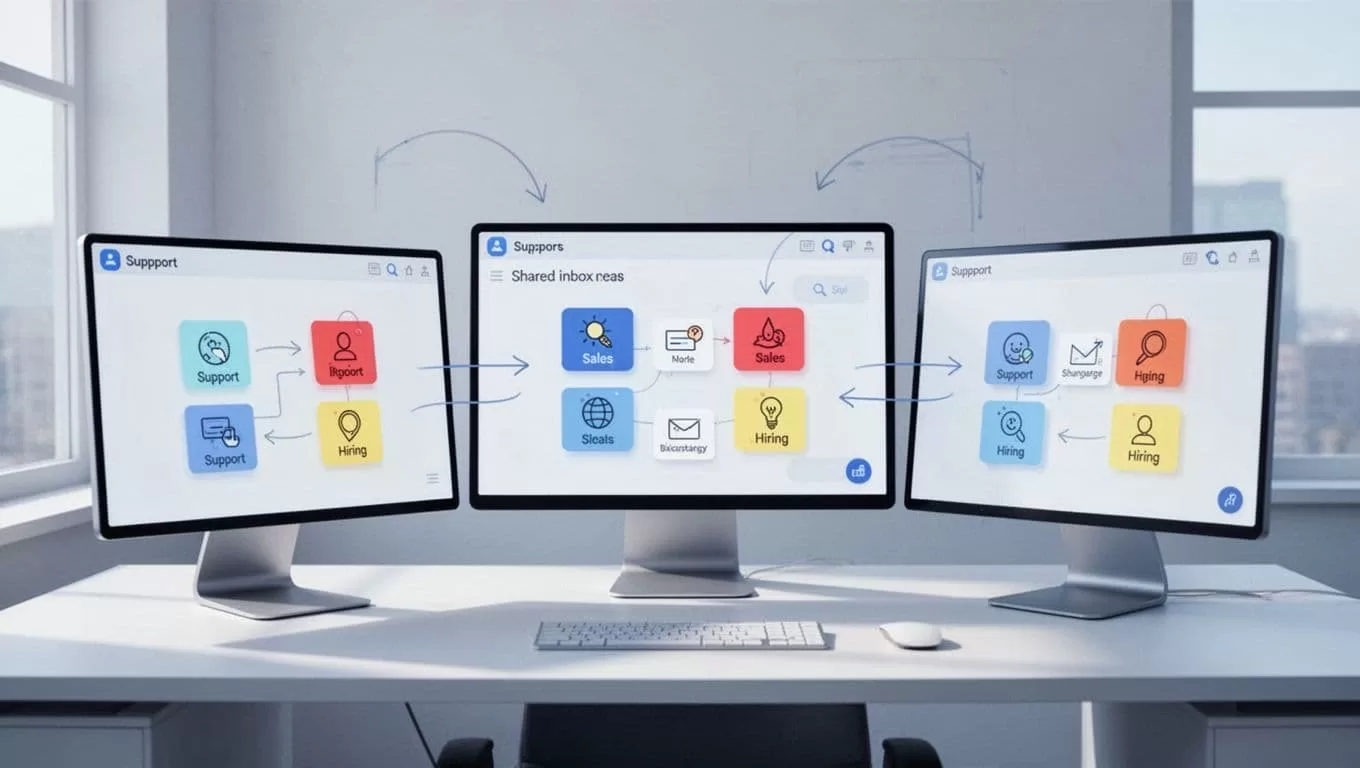
Keep the system from drifting
A shared inbox without rules turns into a shared mess.
I prevent that by writing down a few simple standards. One label family gets one owner. Old labels get reviewed once a month. Finished threads get archived instead of sitting in limbo. And when my team needs a place to store the label map, I keep it in Google Workspace shared drives so the rules don’t disappear into someone’s head.
I also keep the list small. More labels rarely help. They slow people down when they’re in a hurry. If a label hasn’t been used in weeks, I merge it or remove it.
The system works when the rules are plain
I don’t look for a magic shared label feature, because Gmail doesn’t work that way. I build a shared label system with the tools Google actually supports, then I keep the structure simple enough for real people to use.
When the inbox, labels, and ownership rules all match, support moves faster, sales stays organized, and hiring mail stops slipping through the cracks. That’s the whole point.

