How I Access the Recruit CRM Mobile App on iPhone and Android
A recruiter rarely stays at a desk all day. Calls land between meetings, candidates reply while I’m on the move, and notes pile up faster than I can park my laptop. That’s where the Recruit CRM mobile app helps me stay close to...

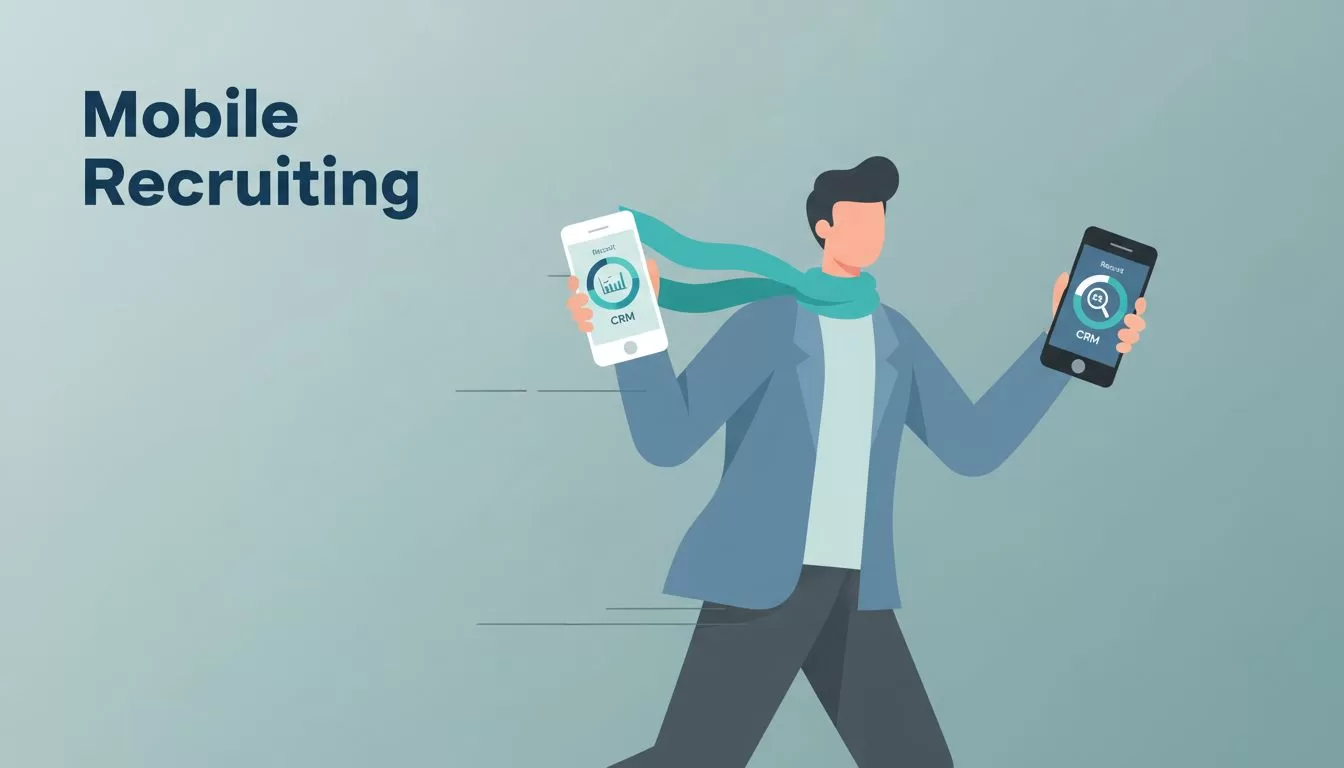
A recruiter rarely stays at a desk all day. Calls land between meetings, candidates reply while I’m on the move, and notes pile up faster than I can park my laptop.
That’s where the Recruit CRM mobile app helps me stay close to the work. I use it when I need a quick candidate update, a client note, or a task check without waiting until I’m back at my screen. If you want that same flow, the setup is simple once the basics are in place.
What I check before I install the app
I keep my setup checklist short. If these items are in order, the app is much easier to use from day one.
| What I need | Why I check it |
|---|---|
| Existing Recruit CRM account | The app uses the same workspace login |
| Correct work email | It keeps me out of the wrong account |
| Updated phone software | It lowers the chance of sign-in problems |
| Admin permission, if needed | Some teams limit mobile access by role |
If your team is still rolling out the platform, I start with quick mobile setup in Recruit CRM so I know the account is ready before I test the app on my phone.
I also make sure I can reach the account from a desktop browser first. That gives me a clean baseline. If the web login works, I know most mobile issues come from the phone, not the workspace.
How I download Recruit CRM on iPhone and Android
When I’m away from my desk, I usually begin at the store listing. I can also verify the product on Recruit CRM’s official site before I install anything.

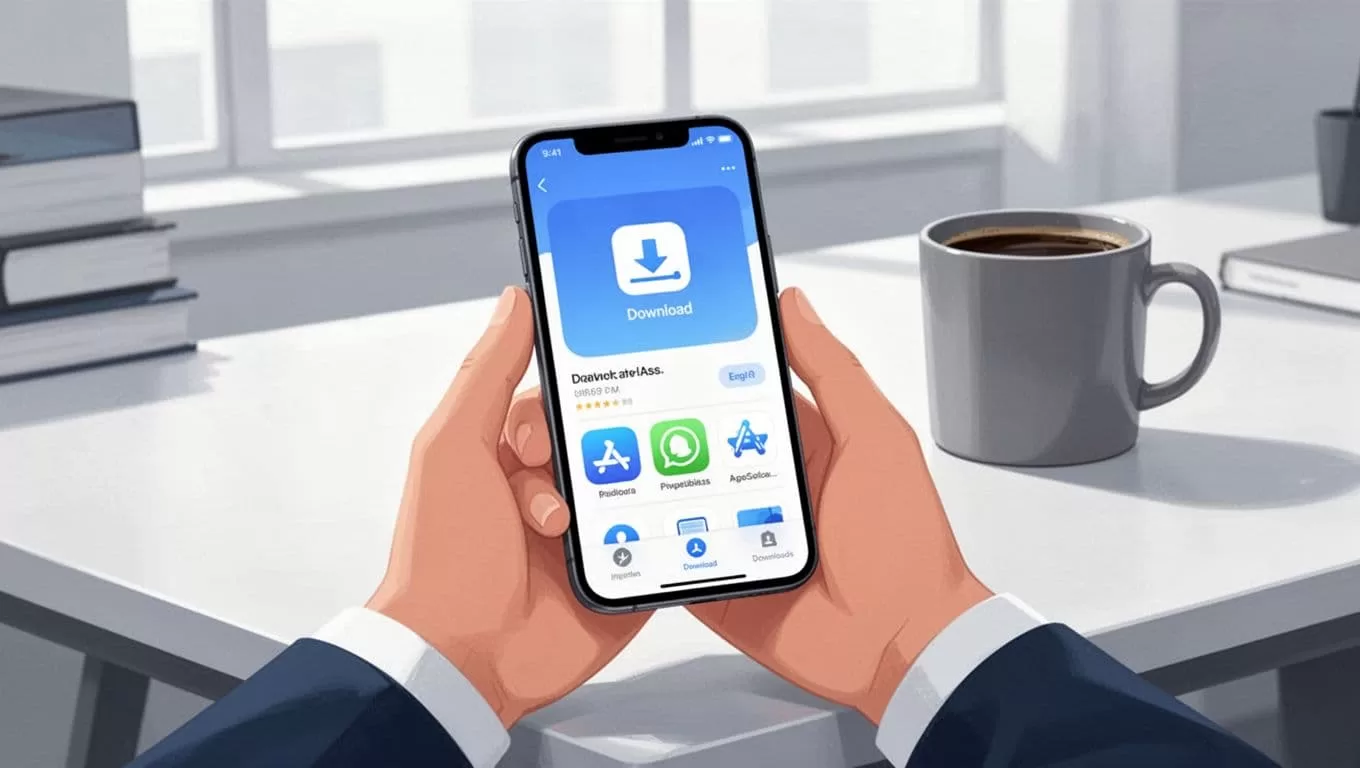
I follow the same basic path on both devices:
- I open the right store. On iPhone, I use the Recruit CRM on the App Store. On Android, I use Recruit CRM on Google Play.
- I search for Recruit CRM and check the publisher name.
- I tap install and wait for the app to finish.
- I open it and sign in with my work credentials.
- If my admin uses role-based access, I confirm I’m logging into the right workspace.
After that, I pause for a minute and check the app settings. I want notifications, contacts, camera, and microphone permissions only if my team actually uses them. That keeps the phone tidy and the app useful.
What I use the app for during the day
Once I’m in, the app becomes my pocket desk. I don’t use it to replace deep work. I use it to keep the day moving.
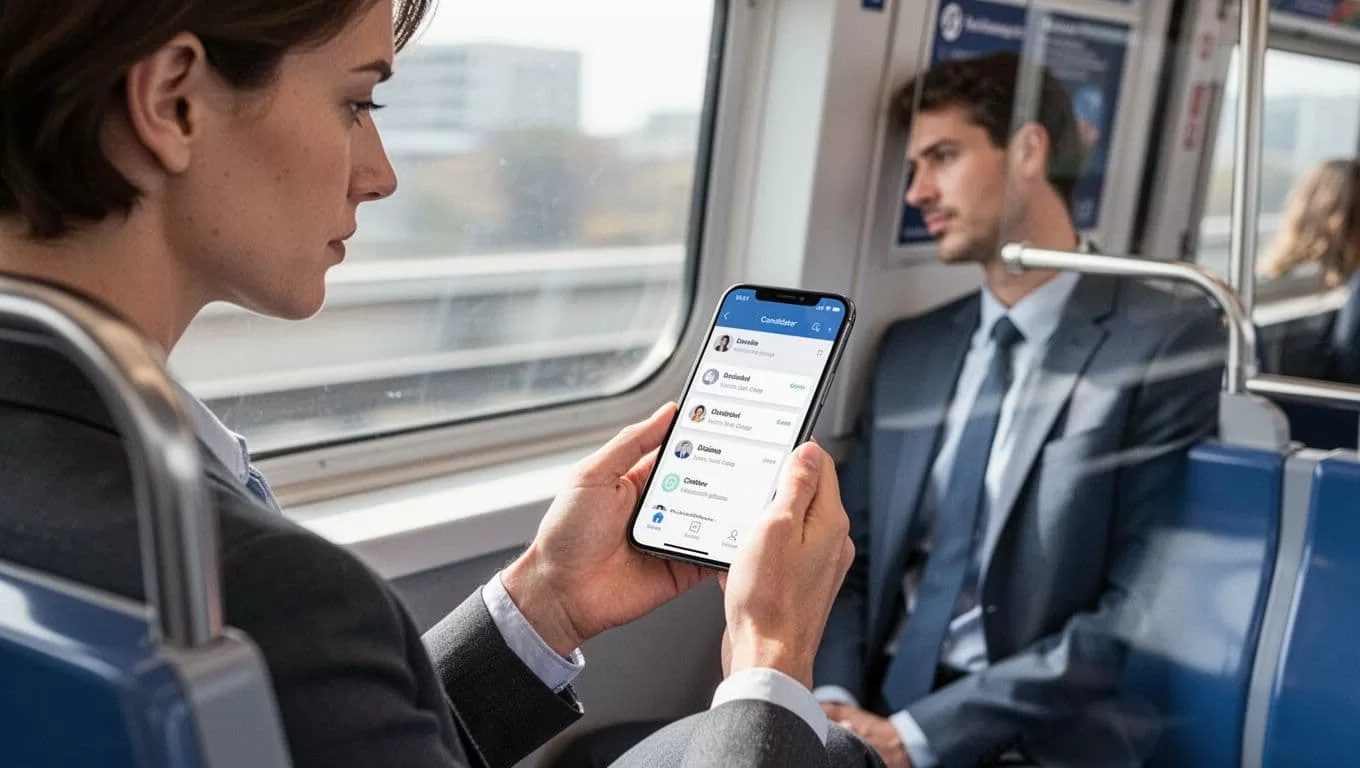
Most days, I use it for a few core tasks:
- I review candidate records after calls and add short notes while the details are fresh.
- I check client updates and follow-up tasks before I walk into the next meeting.
- I keep an eye on interview reminders so I don’t miss changes.
- I send or reply to messages when a quick answer is better than a long email thread.
For staffing teams, that small amount of access matters. If you want a wider view of mobile-first agency work, I also refer to staffing CRM with top mobile access. It helps me think about mobile work as part of the full pipeline, not a separate tool.
I also use the app when I’m handling resumes on the move. If I’m at an event or meeting and need to capture details fast, on-the-go parsing with Recruit CRM mobile is a helpful reference point. That saves me from typing the same information twice.
The best part is speed. A five-minute wait between calls turns into useful admin time. I can update a candidate stage, log a note, or confirm a client call before the moment slips away.
Troubleshooting when access doesn’t work
Mobile issues usually fall into a few buckets. I check them in the same order each time.
Most access problems come from the wrong login, an outdated app, or a permission setting that needs a second look.
- If I can’t log in, I confirm the email address first. Then I reset the password or ask my admin if the account is active.
- If the app opens but nothing syncs, I refresh, close the app, and reopen it. I also check my connection.
- If notifications or camera access fail, I review phone permissions in settings and turn on only what the team needs.
- If the app keeps crashing, I update it through the App Store or Google Play, then restart the phone.
- If nothing changes, I check whether the phone software is current. Older operating systems often cause odd behavior.
I also make sure I’m not mixing personal and work accounts. That mistake is easy to make when I move between apps fast. One wrong login can send me into the wrong workspace and waste ten minutes.
Conclusion
When I access the Recruit CRM mobile app the right way, my phone becomes more than a phone. It becomes a small control panel for candidate work, client follow-up, and daily task checks.
The key is simple, a valid account, the right store download, and a quick pass through permissions and sync settings. Once those pieces are in place, I can keep recruiting work moving even when I’m nowhere near my desk.

