Speechify as a Cloud Sync Reading App
Your reading shouldn’t stop because the document is on another device. Speechify can keep your library, reading position, and selected preferences available on your phone, tablet, browser, or computer. The setup depends on one rule: u...
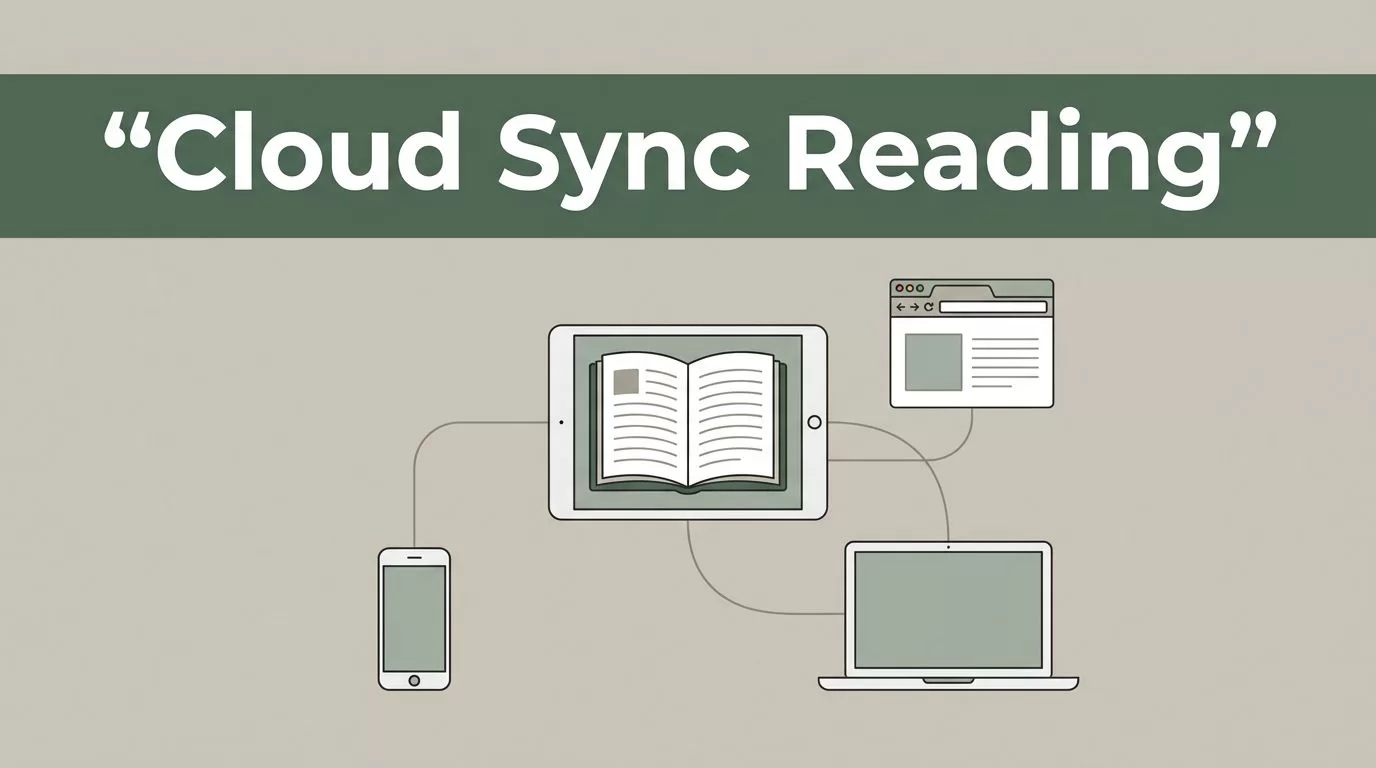
Your reading shouldn’t stop because the document is on another device. Speechify can keep your library, reading position, and selected preferences available on your phone, tablet, browser, or computer.
The setup depends on one rule: use the same Speechify account everywhere. Once that account is connected and online, you can start listening on one device and continue on another without transferring files manually.
Key Takeaways
- Speechify syncs through your account, not through your device’s local folders.
- Your library and last saved reading or playback position can appear across supported devices.
- Internet access is required for cloud changes to move between devices.
- iOS, Android, web, Chrome, Edge, Mac, and Windows may offer different controls.
- Same-account sign-in and normal app closure prevent most sync problems.
What Speechify Cloud Sync Actually Synchronizes
Speechify works as a cloud sync reading app because your library connects to your account online. You don’t need to email a PDF to yourself or upload the same document repeatedly on every device.
The current Speechify experience supports common reading content such as PDFs, Word documents, EPUBs, plain text files, web articles, and URLs. The exact import method depends on the device. A file uploaded through the web app may appear in the mobile library after the account syncs.
Speechify can also save your position. If you listen to a document on your phone, the app can record where you stopped. Open the same document on your computer, and you can continue from the last saved location.
That position is not always a live, second-by-second mirror. The app needs time to save the change and send it to the cloud. Close a document normally and keep the device connected to the internet before switching platforms.
Speechify can sync more than documents and position. Current account behavior can include:
- Text size and reading appearance settings
- Playback speed
- Selected voice preferences
- Highlights
- Notes and bookmarks
Support can vary by platform and feature rollout. Treat the synchronized library as the stable core. Check each device if you depend on a particular voice, highlight tool, or note workflow.
Apple’s Speechify App Store listing describes the library as syncing across devices. That matches the main use case, but sync only works when each device is connected to the correct account.
Set Up Speechify on Every Device
You can configure Speechify in a few minutes. Complete the setup in order so you don’t create separate libraries by accident.
1. Sign in with one account
Create a Speechify account or sign in to your existing account. Use the same email address and login method on every device.
Speechify supports account access through email, Google, or Apple. Be careful when switching methods. “Continue with Apple” can use a private relay address, which may create a different account from the one you access with Google or a normal email login.
Check the account email inside Speechify before importing documents. This step matters more than the device you use.
2. Install the correct Speechify option
Use the Speechify mobile app on an iPhone, iPad, or Android device. Use the web version on a supported browser. Chrome and Edge extensions can help you save and listen to web content.
Mac and Windows users can use the available desktop options. A browser is also useful when you need to upload work documents or manage a larger library.
Install the current version on every device. Older app versions can display different menus or delay sync behavior.
3. Add your reading material
Import a document through the option available on your device. You can upload a supported file, add a web article, or save content through a browser extension.
Use a clear file name before importing. A library with names such as “Report_Final_2” and “Report_Final_3” makes cross-device selection harder. Use practical names such as “Q3 Marketing Report” or “Operations Handbook.”
If you already added the document on another device, wait for the library to populate. Don’t upload a second copy immediately. Give the cloud library time to finish.
4. Test the sync before relying on it
Open the document on your first device. Move to a clear section or listen for several minutes. Exit the document normally, then wait while the device has an active connection.
Open Speechify on the second device. Confirm that the document appears. Open it and check the saved position.
Repeat this test with one document before you move an entire library. A small test identifies account, network, and platform problems early.
Know the Limits Across iPhone, Android, Web, and Desktop
A synced account does not make every Speechify interface identical. Each platform has its own controls, import paths, and restrictions.
The iOS and Android apps are designed for mobile listening and reading. They are useful when you want to listen during a commute, review notes away from your desk, or continue a document after leaving your computer.
The web app is useful for computer-based reading and document management. Chrome and Edge extensions focus on browser content. They can help you send articles or web pages into your Speechify library, but browser permissions and page structure can affect how content is captured.
Mac and Windows provide desktop access, but available integrations can differ. A Mac workflow may interact with applications such as Word, Adobe Acrobat, Preview, email, or Slack. Windows access may rely more heavily on the Speechify app and browser tools. Don’t assume an integration available on one operating system appears on another.
Speechify account sync also doesn’t synchronize every device setting. Voice availability, playback controls, keyboard shortcuts, and sharing options can vary by operating system, account plan, and product update.
Offline use needs separate attention. A device may retain cached content, but changes made without an internet connection may not reach your other devices immediately. Reconnect before switching devices if the reading position matters.
Cloud sync moves Speechify data through your account. It doesn’t make your local Downloads, Files, or Documents folders identical.
Speechify sync is also different from audiobook-specific systems. Services such as Audible may use their own audiobook position and purchase records. A community discussion about ebook and audiobook synchronization shows why you should test the exact content type you plan to use.
Build a Reliable Reading Workflow
A cloud sync reading app works best when you treat it as one shared workspace. Don’t open the same document on several devices while the position is still updating.
Use this workflow:
- Add the document on the device where you found or received it.
- Wait for the document to appear in the Speechify library.
- Open the document and confirm the correct text or file version.
- Read or listen on one device at a time.
- Exit the document normally when you stop.
- Keep the device online until the change has time to sync.
- Open the same item on the next device and verify the position.
Use one primary copy of each document. If you replace a PDF, remove or archive the old version before importing the new one. Otherwise, you may open the wrong copy and assume synchronization failed.
Keep the app updated on every platform. Also maintain enough free storage for cached documents, especially on mobile devices. Cloud storage doesn’t remove the need for local space when an app downloads or prepares content for use.
A shared naming system helps teams and professionals. Use the client, project, document type, and date where needed. For example, “Acme Audit Notes July 2026” is easier to identify than “Document 14.”

Fix Missing Documents or Reading Progress
Most sync failures come from account mismatch, delayed connectivity, or an incomplete save. Check those issues first.
- Confirm the account: Open the profile on both devices. Compare the email address and sign-in method.
- Check the connection: Connect to a stable Wi-Fi or mobile network. Allow a few moments for the library to refresh.
- Update Speechify: Install the latest app or extension version on each device.
- Close the document normally: Don’t force-close the app while it is saving progress.
- Check storage: Free space if the library appears but content won’t load.
- Avoid duplicate imports: Search the library before uploading the same file again.
If a document is visible but opens at the wrong location, confirm that you selected the same file version. Then reopen it on the original device, move to the intended position, exit normally, and test again.
Sign out only after confirming the account details. Signing out of the wrong account can make the problem harder to diagnose. If the issue continues across multiple networks and devices, contact Speechify support with the device type, app version, account email, and affected document format.
A public Speechify user discussion about speed and cross-device features can provide anecdotal context, but product support should remain your source for account-specific problems.
Conclusion
Speechify can replace manual file transfers with one account-based reading library. Sign in consistently, keep devices online, allow progress to save, and test each content type before depending on it for work or study.
The strongest setup is simple: one account, one current document copy, and one device editing or playing the document at a time. With those controls in place, you can start reading on your phone and pick up on your computer without losing your place.
