Master Text To Speech Pause Control With Speechify
Listening to long-form text shouldn’t feel like riding an uncontrolled freight train. When your text-to-speech engine plows through complex paragraphs without drawing breath, your brain stops absorbing the content. You lose the thread...
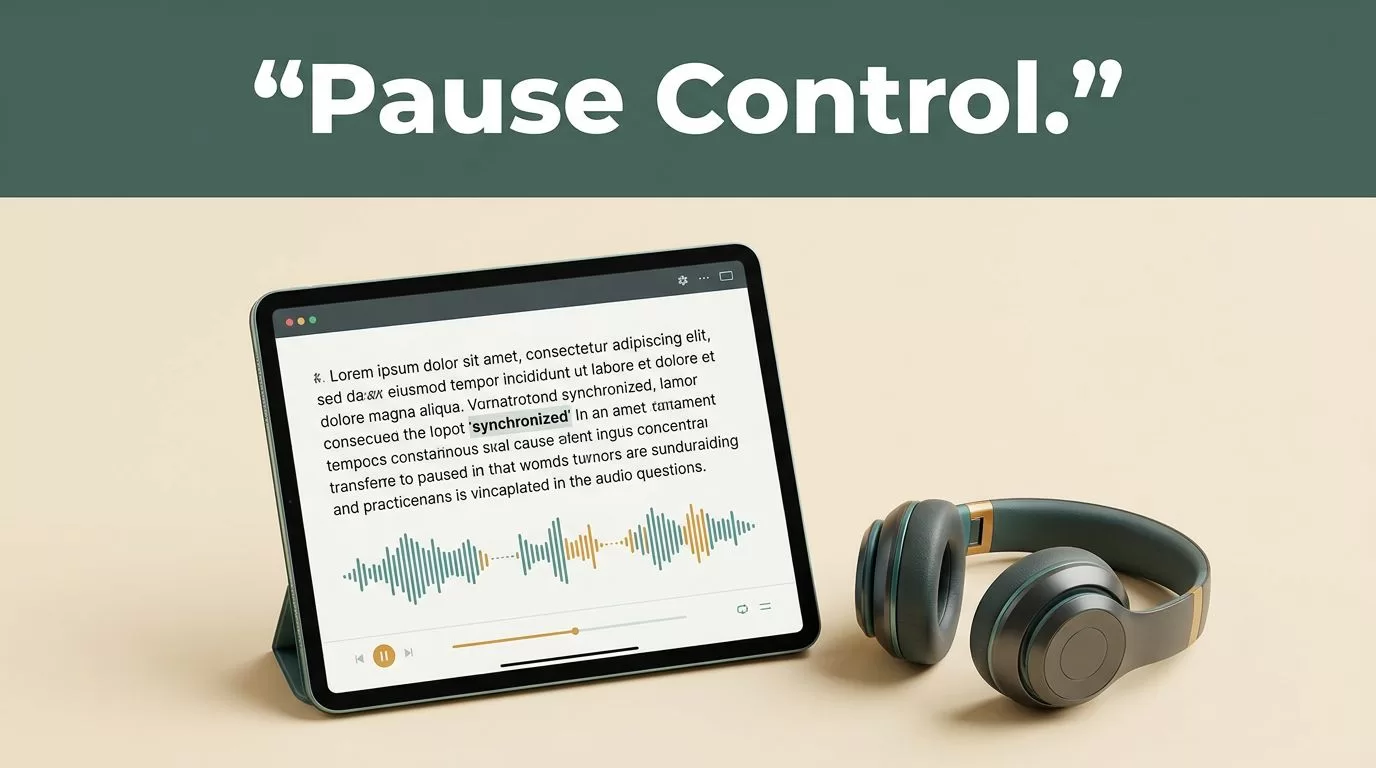
Listening to long-form text shouldn’t feel like riding an uncontrolled freight train. When your text-to-speech engine plows through complex paragraphs without drawing breath, your brain stops absorbing the content. You lose the thread, zone out, and miss vital arguments. Mastering Speechify pause control fixes that problem by letting you dictate the rhythm of your audio playback.
Key Takeaways
- Add manual pauses in Speechify Studio to break up dense sentences and mimic natural human speaking patterns.
- Pair your audio playback with synchronized word highlighting to keep your visual focus anchored to the text stream.
- Adjust your playback speed and pause durations based on material density rather than chasing vanity words-per-minute metrics.
- Utilize the platform bookmarking tools to flag complex sections for later review and citation.
Understanding Text to Speech Pacing Basics

Photo by Los Muertos Crew
Raw synthesized audio often sounds robotic because it lacks organic breathing room. Standard text parsers convert punctuation into brief micro-breaks, but those automated pauses rarely match the cadence you need for deep comprehension. When you listen to dense contracts, academic papers, or technical architecture documents, your working memory needs extra processing time.
Speechify lets you control this pacing across multiple interfaces. Whether you use the mobile app, the browser reader, or the advanced production environment, adjusting your timing transforms a wall of sound into an intelligible stream. For a deeper look at mastering these synthesis nuances, review 8×8 text to speech pause.
Speed scaling and manual pause insertions work together to solve cognitive overload. If you push playback speed past your natural processing threshold without inserting strategic breaks, retention drops sharply.
Configuring Pauses in Speechify Studio
If you create voiceovers or process complex scripts in the production workspace, you have direct control over every syllable. Speechify Studio includes dedicated timing tools that let you inject silence exactly where your script demands it. You don’t have to rely entirely on commas and periods to create breathing room.
Open your project timeline, click on the text box where you want a break, and open the right-side toolbar. Select the option to add a pause. You can pick from preset durations or enter a customized pause length in seconds.
Strategic pause control prevents cognitive fatigue by giving your working memory time to process complex clauses before the next sentence begins.
This level of control is essential when you prepare professional audio assets or study multi-layered research notes. For a complete walkthrough of these features, read the guide on how to add pauses from beginner to advanced.
Managing Playback Speed and Automatic Skips
Pauses are only one part of the timing equation. You also need to manage how fast the engine moves through clean text. In the mobile app or browser interface, tap the speed indicator to scale your listening rate from normal pacing up to faster multipliers.
Match your speed settings to the complexity of the material you consume. Industry news and general blog posts tolerate high speeds well, while legal clauses and dense technical documents require close attention and moderate pacing.
| Material Type | Recommended Speed | Primary Focus |
|---|---|---|
| Industry News | 1.5x to 2.0x | Quick intake and broad skimming |
| Research Papers | 1.25x to 1.5x | Comprehending background facts |
| Legal Contracts | 1.0x to 1.25x | Close attention to exact clauses |
You can streamline your listening queue even further by turning on enhanced skipping. This feature automatically omits citations, headers, footers, URLs, and parentheses that disrupt the natural flow of an article. Open your settings menu in the web app or mobile interface to toggle this feature on before you start listening.
Combining Pauses With Synchronized Highlighting
Audio playback moves forward continuously unless you actively step in to pause or jump backward. That forward momentum creates a specific risk for distracted readers. When words fly past your ears without a visual anchor, your mind drifts off task.
Enable synchronized text highlighting in your application settings to keep your brain anchored. Seeing words underlined on screen as the software speaks them reinforces retention, especially when you encounter unfamiliar terminology or dense theoretical arguments. Your eyes follow the visual marker while your ears process the audio cadence.
If you lose track of an argument, don’t waste time scrolling blindly. Use the built-in bookmarking feature to flag critical passages for later citation. Export your highlighted quotes and notes directly into your writing workspace to bridge the gap between listening and creating.
Conclusion
Mastering pause control turns passive listening into an active, productive workflow. By combining custom pause durations in Speechify Studio with calibrated playback speeds and synchronized highlighting, you eliminate the cognitive friction that ruins long study sessions. Set up your workspace today by loading a dense document, inserting targeted breaks where your mind normally wanders, and measuring your comprehension gains session by session.
