How to Listen to Physical Books With Speechify
A printed book doesn’t need to stay silent when your eyes are tired, busy, or unable to read comfortably. Speechify can scan physical pages, convert the text with OCR, and read the result aloud through its mobile app. The process is p...

A printed book doesn’t need to stay silent when your eyes are tired, busy, or unable to read comfortably. Speechify can scan physical pages, convert the text with OCR, and read the result aloud through its mobile app.
The process is practical, but it isn’t automatic. You need to capture the pages, check the scanned document, then configure playback. The distinction between scanning and audiobook playback matters before you start.
Key Takeaways
- Speechify scans printed pages with your phone camera and converts them into a listenable document.
- You must capture each page manually, although Book mode can capture two pages when both fit clearly in the frame.
- Scanning physical books is different from playing a professionally produced audiobook.
- Voice selection, reading speed, text highlighting, and accessibility settings help with study and daily listening.
- Long books require planning because the scanning process takes time.
What Speechify Does With Physical Books
Speechify doesn’t identify a book by its cover and download the complete text. You can’t point your camera at a novel, wait a few seconds, and receive the entire book automatically.
The mobile app uses Optical Character Recognition (OCR). OCR reads text inside an image and turns it into editable digital content. Speechify’s current OCR 4.0 system is listed with 99.8% accuracy, but the result still depends on image quality, page layout, lighting, and print clarity.
You scan a page, Speechify processes the image, and the app creates a document that its text-to-speech engine can read. You then select a voice, adjust the speed, and start playback. The result is computer-generated narration, not the same recording you would hear in a commercial audiobook.
The app supports physical books, textbooks, worksheets, printed notes, screenshots, PDFs, ebooks, emails, and web content. This makes it useful when the material exists only on paper. It also lets you keep different reading sources in one library instead of switching between a book, a scanner, and a separate audio player.
Speechify is available through its iOS and Android mobile apps. You can also upload supported digital files through the web app. For online text, the Chrome extension can read selected content without scanning anything.
The workflow is similar to other text-to-speech tools. For example, Apple’s physical-book scanning app listing describes a comparable process that captures printed pages with a device camera and converts them into audio.
The main decision is simple. Use scanning when you have printed material without a digital copy. Use file upload or direct playback when the content already exists digitally.
How to Scan and Listen to a Physical Book
Use the Speechify mobile app for this workflow. A phone camera is required because the app needs an image of each printed page.

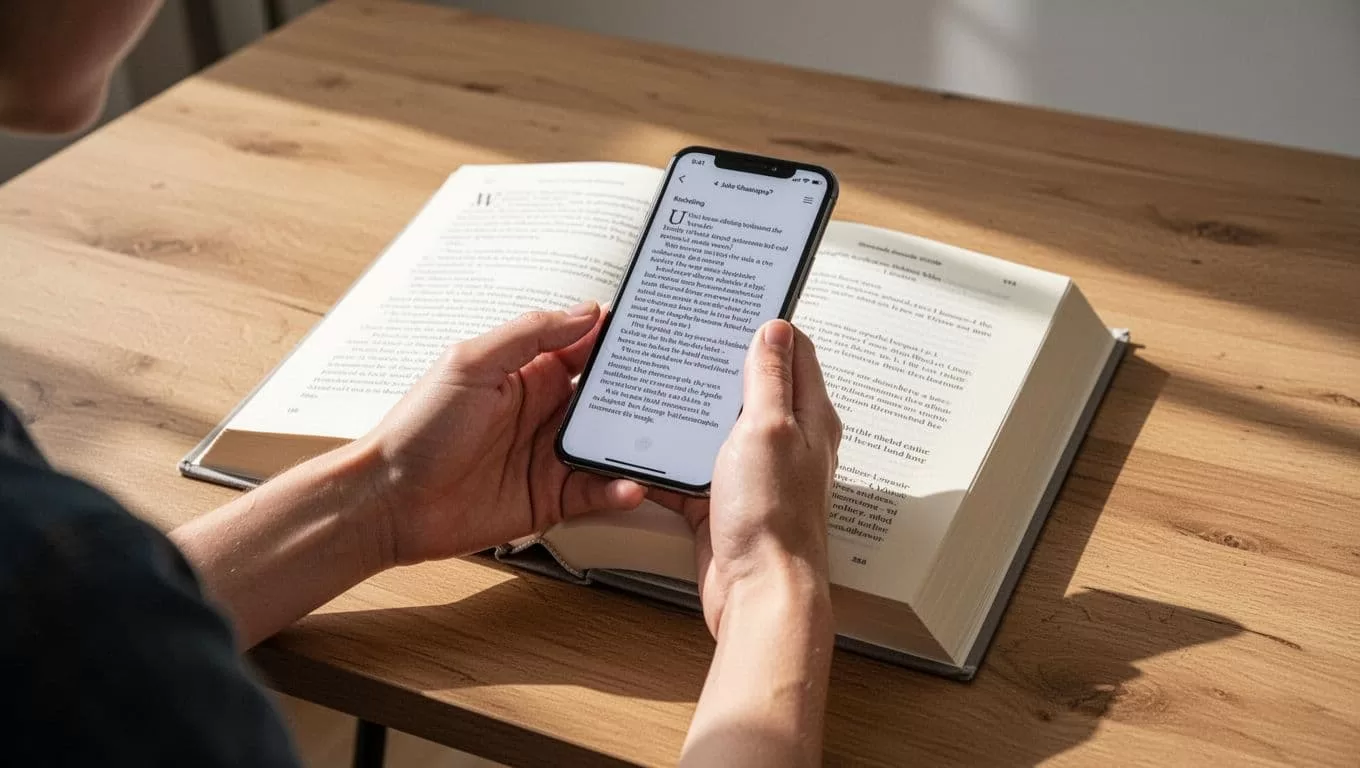
Follow these steps:
- Open Speechify and tap the plus icon.
The Add button appears in the bottom-left area of the mobile app. Use it to create a new document. - Choose “Scan Pages.”
Speechify presents scanning options for printed content. Select either Single Page or Book, depending on the material. - Select the correct capture mode.
Single Page captures one page at a time. Book mode can capture two facing pages when the phone can frame both pages clearly. A two-page capture still counts as a manual scan. It doesn’t scan the entire book in one action. - Allow camera access.
If you previously blocked the permission, open your phone’s app settings and grant Speechify access to the camera. Without that permission, the scanning tool can’t capture pages. - Place the book in good light.
Keep the page flat and hold the phone above the text. Avoid glare, dark shadows, curved pages, and fingers covering words. Crop tightly around the printed content when possible. - Tap the Scan button.
Capture the page, check the image, then repeat the process for every page you need. A 300-page novel can require hundreds of individual page captures. Book mode may reduce the number of captures, but it doesn’t remove the manual work. - Review the scanned pages.
Tap Next after capturing the pages. Speechify lets you crop images, delete bad scans, and rearrange pages by dragging them into the correct order. - Tap Done to create the document.
Speechify combines the scanned pages into one listenable document in your library. - Start playback.
Open the document and tap Listen in the top-right area. Save the document if prompted, choose a voice, set the reading speed, and tap Play.
Reviewing the document before a long listening session prevents repeated errors. OCR can misread small type, unusual fonts, page numbers, footnotes, tables, and complex columns. Good lighting and tight cropping reduce those errors, but they don’t remove the need to check the text.
For a short worksheet, the process takes only a few captures. A full textbook requires a different plan. Scan one chapter first, test the audio, then continue if the output is clear enough for your needs.
Configure Speechify for Study and Accessibility
Speechify gives you control over how the scanned text appears and sounds. Start with a speed that keeps the words understandable. Many listeners increase the speed after adjusting to the selected voice, but faster playback isn’t automatically better for technical material.
Text highlighting helps connect the spoken audio with the words on the page. This can support focus during study because your eyes have a moving reference while Speechify reads. It also makes it easier to find the point where you stopped.
Students should scan headings, paragraphs, captions, and required examples in the correct order. Don’t assume OCR will handle a textbook’s layout perfectly. Sidebars and footnotes can appear in the wrong position, especially when a page contains several columns.
Use Speechify’s accessibility settings when the visual document matters as much as the audio. The app includes a dyslexic font option and a font-size slider. These settings apply to the displayed text, while the voice and speed controls affect playback.
A reliable study setup looks like this:
- Scan one chapter or section instead of the entire textbook at once.
- Crop pages so the text area excludes desk space and unnecessary margins.
- Listen at a comfortable speed before increasing playback.
- Keep the original book nearby for diagrams, formulas, charts, and page references.
- Mark unclear pages and rescan them under better lighting.
Speechify can read printed notes and handwritten material, but handwritten recognition is less predictable than clean printed text. Treat the first audio pass as a quality test. If names, formulas, or key terms sound wrong, compare them with the original page.
You can also use Speechify for digital textbook content without scanning. Upload a supported PDF or ebook through the web app, or use the Chrome extension for selected browser text. This avoids camera capture and usually produces a cleaner document.
Physical-Book Scanning Is Not Audiobook Playback
These two workflows solve different problems.
Audiobook playback uses an existing audio recording. The publisher or narrator has already produced the file. You open the title in a compatible audiobook service or player, choose playback settings, and listen.
Physical-book scanning starts with paper. Speechify captures page images, extracts text, and generates speech from that text. You control the source material, but you also handle the scanning and quality checks.
That difference affects voice quality, setup time, and document structure. A commercial audiobook normally includes professional narration and consistent chapter organization. A scanned book uses an AI voice and may need corrections when pages contain unusual formatting.
A scan is useful when:
- The book has no audiobook edition.
- You already own a printed textbook.
- You need to listen to class handouts or work documents.
- You have reading fatigue or need a text-to-speech accessibility option.
- You want audio access without retyping the material.
A scan is less practical when a legal digital copy or audiobook already exists. Uploading a clean PDF is faster than photographing every page. Buying or borrowing an official audiobook also avoids OCR mistakes.
You can compare other text-to-speech options in an audiobook app comparison discussion, but check each app’s current device support and scanning workflow before committing to a long project.
Don’t distribute scanned books or converted files without permission. Keep the output for your own authorized use and follow the copyright terms that apply to the material.
Plan Before Scanning a Long Book
The biggest Speechify limitation is page capture time. The app doesn’t retrieve a full book from its cover, ISBN, or title. You need to photograph the pages you want to hear.
Start with the smallest useful section. A chapter, assignment, or set of lecture notes gives you a clear test without creating a large unfinished document. Check the voice, page order, pronunciation, and layout before scanning more.
Prepare the physical setup before opening the app. Use a stable desk, even lighting, a clean camera lens, and something to hold pages flat. Keep the phone at a consistent height. Moving the phone between pages creates uneven images and increases the chance of missing text.
Book mode is useful when two pages fit inside the camera frame without distortion. If the book is thick, curved, or printed near the binding, Single Page mode may produce better OCR. Clear text is more useful than fewer captures.
For a long textbook, divide the work across sessions. Name each document by chapter or unit, then check the first and last page after processing. This makes it easier to locate errors and resume listening later.
A community post about using an app to turn printed books into audio reflects the same practical use case in this reader discussion about book scanning. The important point is that physical-book audio requires a capture step before playback begins.
Conclusion
Speechify can make a physical book listenable, but the process starts with manual OCR scanning. Capture clear pages, review the document, then set the voice and speed for your needs.
For short printed documents, the workflow is quick. For textbooks and full-length books, scan in sections and test the output before committing to every page. Speechify physical books work best when you treat the app as a camera-based text-to-speech system, not as an automatic audiobook finder.

