How I Clean Messy Spreadsheet Data Before Every Import
Messy spreadsheet data can break an import before it starts. One extra space, one stale email, or one blank required field is enough to trigger bad mappings in a CRM or database. I clean files before I upload them because I want the import...

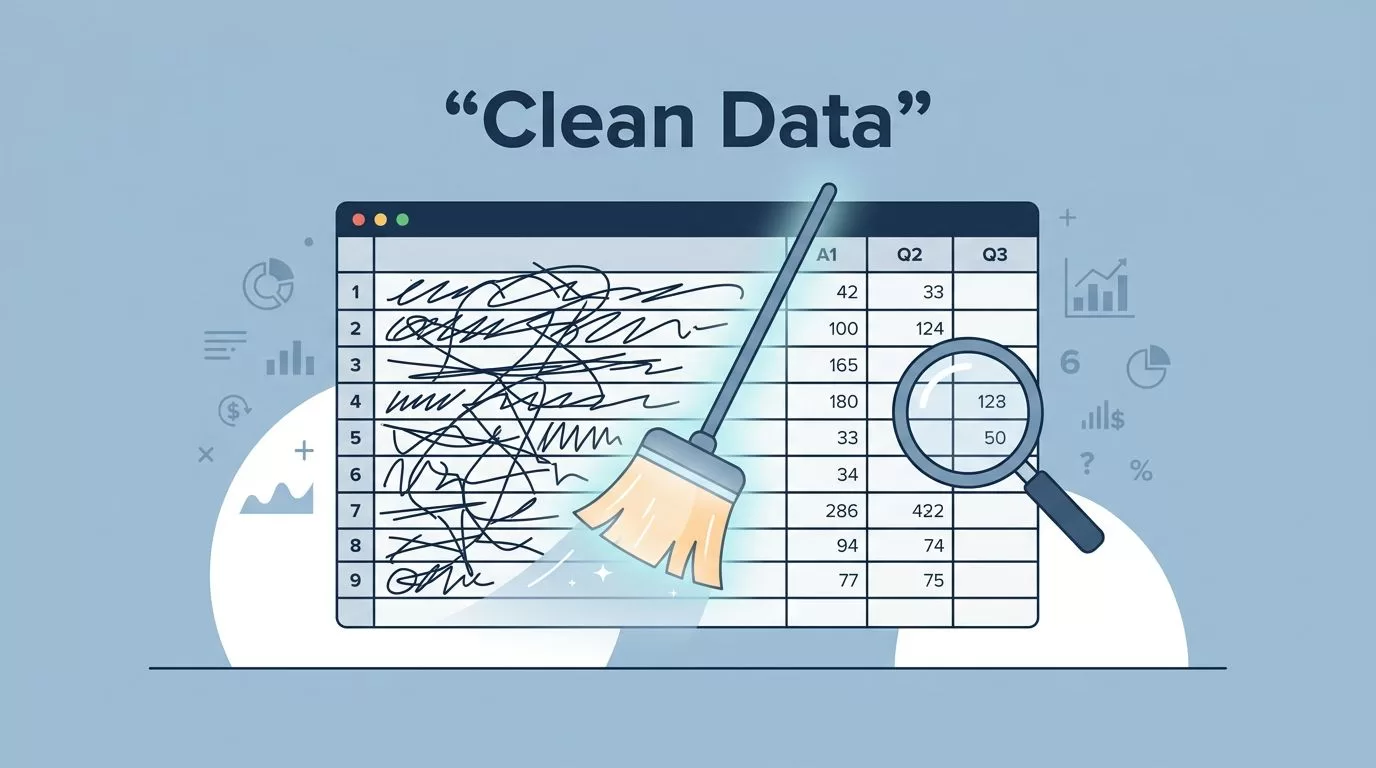
Messy spreadsheet data can break an import before it starts. One extra space, one stale email, or one blank required field is enough to trigger bad mappings in a CRM or database.
I clean files before I upload them because I want the import to tell the truth. Clean sheets also make automation behave the way I expect, which saves me from chasing duplicate records later.
The process gets easier once I treat the spreadsheet like a check-in desk, not a storage bin. I scan for obvious problems first, then I fix text, dates, duplicates, and missing fields.
I start by spotting the mess I can see fast
The first pass is never glamorous, but it saves the most time. I sort the file by each major column, then I use filters to expose weird patterns. That is where the bad data starts to show itself.
The signs are usually plain once I slow down:
- names with extra spaces or strange capitalization
- dates written in more than one format
- phone numbers with random symbols
- email addresses with hidden spaces
- blank cells in required fields
I also turn on conditional formatting to make trouble stand out. A red fill for blanks or duplicate values is more useful than staring at a gray grid. When a file is large, visual flags catch problems faster than my eyes alone.

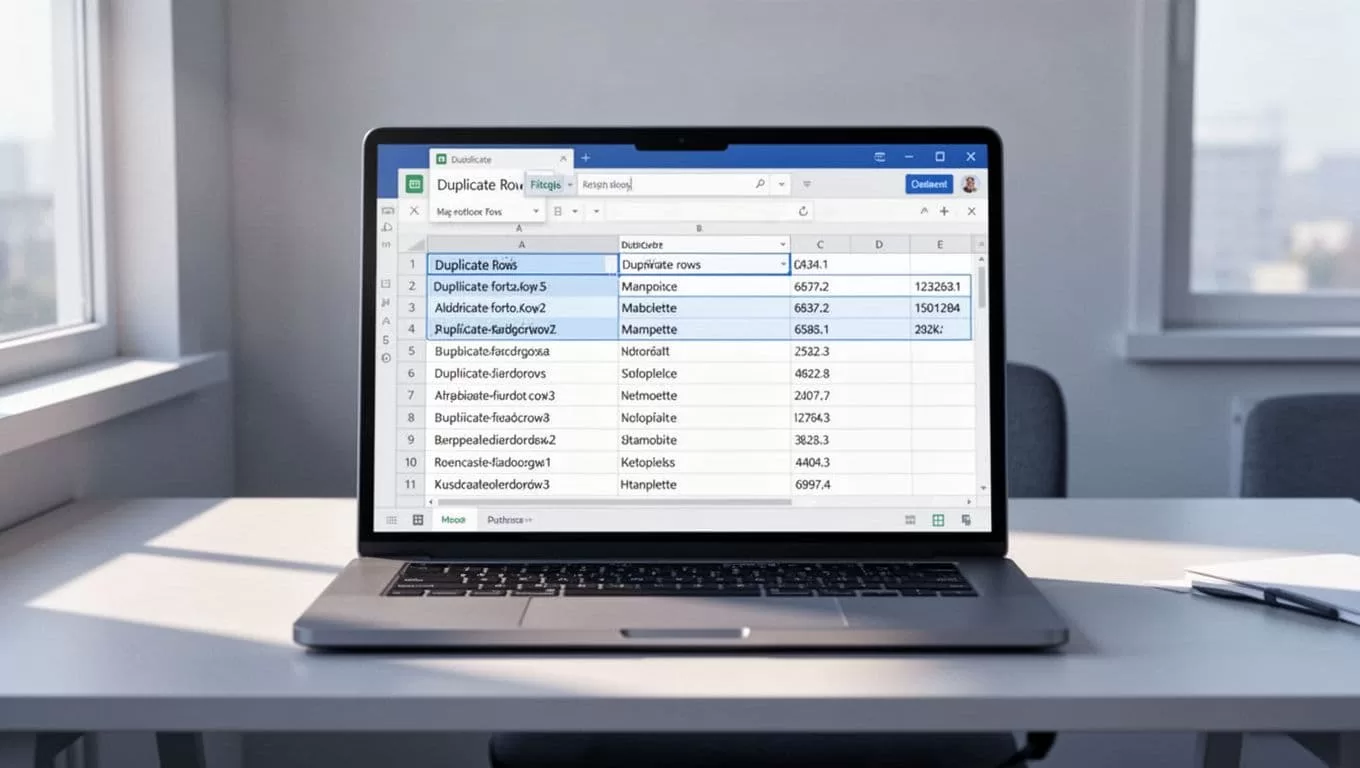
After that first scan, I know which columns need work and which rows may fail an import. That matters because CRMs and databases usually reject messy records, then leave me to sort out the leftovers.
I fix text, dates, and hidden gaps before anything else
Text cleanup takes the most patience because the flaws hide in plain sight. I use TRIM to remove extra spaces, Find and Replace to fix repeated mistakes, and Text to Columns when one cell hides more than one piece of data. If names arrive in all caps, I run PROPER or use a helper column to normalize them.
For a plain-English example of this kind of cleanup, I compare my steps with this TRIM and PROPER CRM cleanup example. It’s a good reminder that small text fixes prevent big import errors.
Dates need the same discipline. One sheet might mix 04/07/2026, 7 Apr 2026, and 2026-04-07. That looks harmless until a system reads the wrong month and puts a deal or invoice in the wrong place. I pick one format, convert everything to it, and check the cells again before export.
I do the same with numbers. If a ZIP code loses its leading zero, or a phone field turns into a scientific-looking number, the import becomes less useful. I set those columns as text when needed, then recheck the output.
If the spreadsheet holds contact data, I also keep my email list hygiene process in mind so bad addresses do not slip into a CRM. Clean contact data is the difference between a working pipeline and a noisy one.

I remove duplicates and line up the columns with the import map
Duplicates are where imports get loud. One person can become two contacts, one company can appear under three spellings, and one lead can trigger duplicate automations. I use Excel or Sheets duplicate removal tools after I decide which column is the real key, usually email, ID, or exact name plus company.
If a row needs a guess, it is not ready for import.
I also check how the sheet will map into the target tool. A CRM might want First Name, Last Name, Email, and Owner. A database might want different field names or stricter types. If I line up the columns before import, I avoid half the errors I used to create on the back end.
This is also where validation rules help. I use them to block bad values before they travel further. Dropdowns keep state names consistent. Number rules stop text from sneaking into numeric fields. Conditional formatting flags blanks in columns that must stay full.
When the file feeds recruiting data, I apply the same thinking I use in CRM resume import automation. The job is the same, turn a messy sheet into records a tool can trust.
| Messy data problem | My fix | Why it matters |
|---|---|---|
| Extra spaces in names | TRIM and a quick review | Prevents false duplicates |
| Mixed date formats | Convert to one format | Stops date errors in the target tool |
| Duplicate contacts | Remove based on a key field | Keeps reports and automations clean |
| Blank required cells | Filter and fill or drop | Avoids import rejection |
That small pass saves me a much bigger cleanup later. A clean map means the import lands where I expect it to land.
My final pre-import checklist
Before I export, I run one last check. It takes a few minutes, and it saves me from most import regrets.
- I filter each required column and look for blanks.
- I scan for duplicate records using the field that matters most.
- I confirm all text has one style, one case, and no extra spaces.
- I verify dates, phone numbers, and IDs use the right format.
- I check that every dropdown value matches the target system.
- I sample a few rows and compare them to the import map.
- I save a backup copy before I upload anything.
That final pass is boring, but it is the part I trust most. If I skip it, I usually pay for it later.
A clean file makes the whole import feel calm. More important, it gives me better reporting, cleaner automations, and fewer surprises once the data lands in a CRM or database.
That is the heart of spreadsheet data cleaning for me, I fix the file before the software has a chance to expose the mess.

