How I Track Stripe Refund Rate Each Month
Refunds can make a solid sales month look thinner than it felt while I was ringing up payments. That’s why I track my Stripe refund rate every month, like checking the waterline on a boat before a small leak turns into a problem. I ke...


Refunds can make a solid sales month look thinner than it felt while I was ringing up payments. That’s why I track my Stripe refund rate every month, like checking the waterline on a boat before a small leak turns into a problem.
I keep the process simple. First, I use Stripe’s Dashboard for a fast read. Then I export the data into a sheet. If I need deeper detail, I use Sigma. Once I set the rhythm, the number stopped feeling foggy and started telling the truth.
The two Stripe refund rate formulas I trust
I never use one refund formula by itself. I track two, because each one answers a different question.
This quick table shows the split:
| Method | Formula | What it tells me |
|---|---|---|
| Count-based refund rate | Refund count / successful payment count × 100 | How often customers end up with a refund |
| Amount-based refund rate | Refunded amount / gross successful payment volume × 100 | How much revenue I gave back |
The count-based version helps me spot customer experience issues. If the rate rises, I look for bugs, billing confusion, or product mismatch. It’s good for trend watching.
The amount-based version shows financial impact. I trust this one more when partial refunds are common. A $10 partial refund and a $500 full refund both count as one refund event, but they don’t hit the business the same way.
I never divide refunds by all payment attempts. I only use successful payments in the denominator.
That rule matters. Failed cards, retries, and duplicate attempts can muddy the picture. Stripe’s own payment KPI guide makes a similar point, and I’ve seen it firsthand.
For a practical reference, I also like this refund rate example built on Stripe data. It matches the two views I use: count and amount.
One more thing keeps my numbers clean. I log refunds by the month the refund was issued, not the month of the original sale. That way, my monthly report matches cash movement. If I need deeper accounting treatment, I handle that in a separate report.
My quick monthly check in the Stripe Dashboard
As of March 2026, Stripe still gives me a refunds view inside the Dashboard, and that’s where I start.

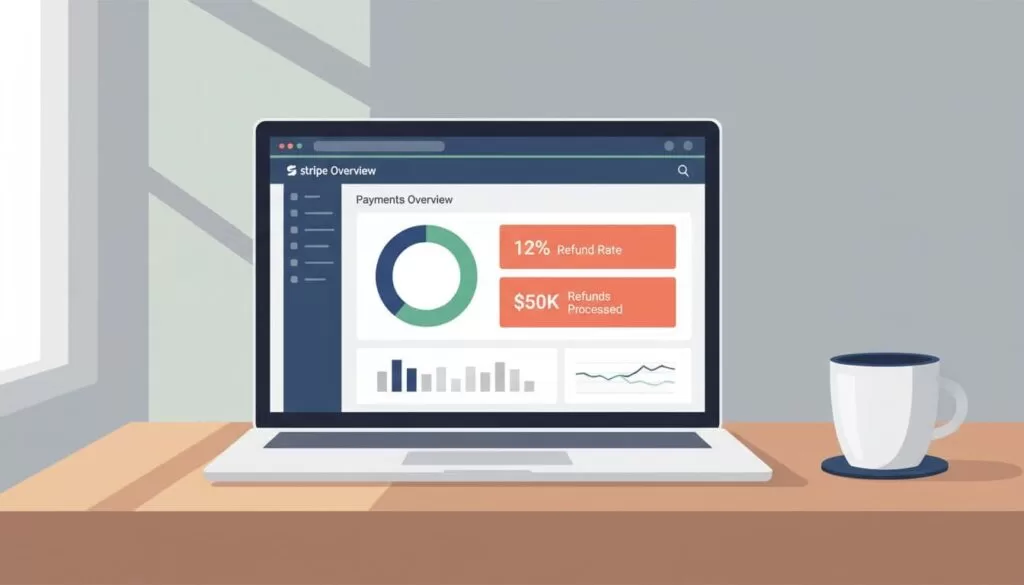
My monthly review takes about ten minutes:
- I open the Dashboard and set the date range for the month.
- I pull up the refunds view and note refund count and refunded amount.
- Then I switch to successful payments for the same date range.
- I write down payment count and gross payment volume before refunds.
From there, the math is easy. If I had 420 successful payments and 9 refunds, my count-based rate is 2.14%. If those payments totaled $18,900 and refunds totaled $615, my amount-based rate is 3.25%.
I also scan the refund list before I leave the Dashboard. That quick look often shows the pattern behind the number. Maybe one product had repeat issues. Maybe one client received a large goodwill refund. Maybe a subscription renewal hit after the customer forgot to cancel.
Partial refunds need extra care. In my count-based formula, each refund event counts as one. So, if one charge gets two separate partial refunds, I either count both events or collapse them into one original payment, but I stay consistent month to month.
Subscription renewals can twist the story too. I treat a refunded renewal like any other successful payment. Still, I add a note if the refund belongs to an earlier billing cycle, because that helps when I compare refunds with retention data later.
The spreadsheet template I update every month
After the Dashboard check, I export CSV files and drop the numbers into one sheet. That sheet is my running record. It’s simple, but it keeps me honest.
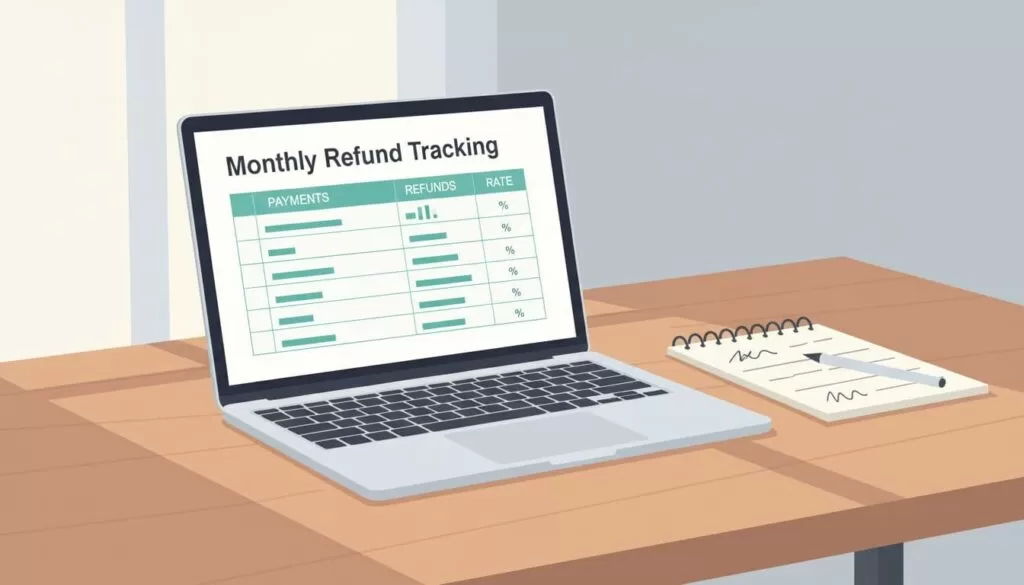
This is the template I use:
| Month | Successful payments | Gross successful payment volume | Refund count | Refunded amount | Count-based rate | Amount-based rate | Notes |
|---|---|---|---|---|---|---|---|
| March 2026 | 420 | $18,900 | 9 | $615 | 2.14% | 3.25% | 2 partial refunds, 1 annual renewal refund |
The sheet does three jobs for me.
First, it gives me a clean monthly trend line. One month alone can lie. Six months in a row rarely do.
Second, it gives context. If refund count is flat but refunded amount jumps, I know a few larger cases drove the change. On the other hand, if count jumps while amount stays low, I may have a small but widespread support problem.
Third, it helps me write better notes. I keep a short notes column for things like partial refunds, annual plan renewals, duplicate refunds reversed later, or one large customer exception. Those notes save me from staring at the sheet a month later and wondering what happened.
I never read refund rate in isolation. I compare it with tracking customer and revenue churn formulas, because refunds and churn often point to the same weak spot. A clunky onboarding flow, confusing pricing, or a poor-fit customer segment can hit both numbers at once.
When I use Stripe Sigma instead of CSV
CSV works well until the business gets busy. Once volume grows, or I need to slice refunds by plan, country, or product, I move to Sigma.

Stripe Sigma lets me query Stripe data inside the Dashboard. I use it when I want one saved report that returns monthly refund count, refunded amount, successful payment count, gross payment volume, and both refund-rate formulas.
That’s where Sigma starts to shine. I can group results by month, then filter deeper. For example, I can compare first-time payments against renewal payments, or look at refunds by product metadata if I’ve labeled charges well.
I don’t use Sigma for every review. I use it when the number moves sharply, when finance wants a repeatable report, or when I’m tired of stitching CSV files together by hand.
A fancy report isn’t the win, though. Consistency is the win. When I track the same formulas every month, the signal gets clear fast.
A refund rate isn’t only a percentage. It’s a clue. If I were starting today, I’d build one monthly row in a spreadsheet and keep both formulas side by side.
Then I’d keep going next month. That’s when the pattern starts to speak.

