How I Suspend Google Workspace Users Without Losing Data
When I need to remove someone from Google Workspace, I suspend the account first. That shuts off access, but it leaves Gmail, Drive, Calendar, and the rest of the account data in place. I delete a user only after I move ownership and check...

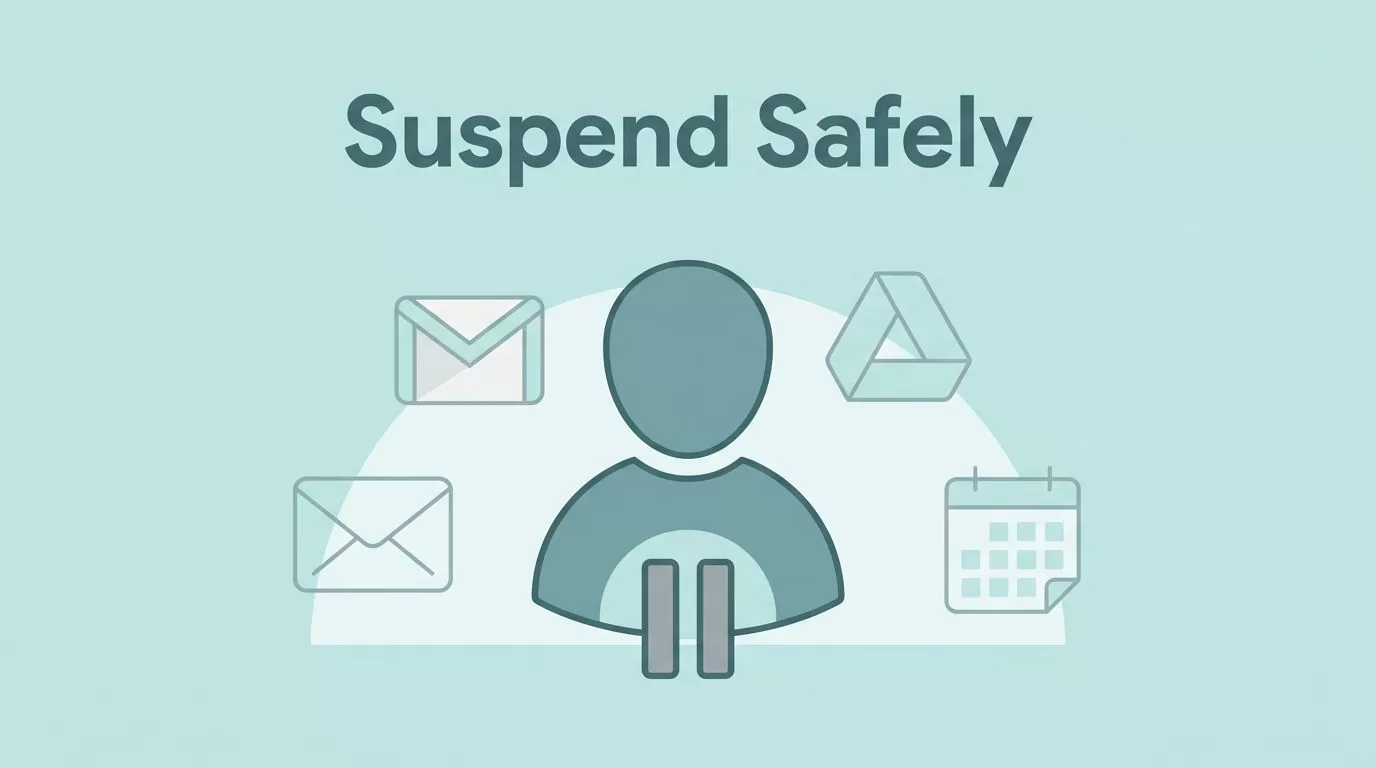
When I need to remove someone from Google Workspace, I suspend the account first. That shuts off access, but it leaves Gmail, Drive, Calendar, and the rest of the account data in place. I delete a user only after I move ownership and check retention. That order keeps me from losing files or chasing old mail later.
If you manage offboarding, leave-of-absence cases, or security incidents, this is the cleanest path. I use the same sequence every time, because one wrong click can turn account cleanup into data recovery work.
Table of contents
- Why I suspend users instead of deleting them
- How I suspend a Google Workspace user step by step
- What I check before I suspend
- What stays in place after suspension
- When I delete instead of suspend
- FAQs
- Conclusion
Why I suspend users instead of deleting them
I suspend users when I want the account closed without touching the data. Google’s suspend a user temporarily help page follows the same basic idea I use in practice.
I suspend first when I need the account closed but the data preserved.
I keep one rule in mind. Suspension preserves the account shell, while deletion removes the shell and forces me to clean up first.
| Action | What happens | When I use it |
|---|---|---|
| Suspend | The user can’t sign in, and Gmail, Drive, and other data stay in place. | Temporary removal, investigations, or a leave of absence. |
| Delete | Access ends, and I need to transfer data first if I want to keep it. | Permanent removal after ownership has moved. |
Suspension is the safer first move when I don’t want to break the paper trail. It gives me time to sort ownership, review access, and keep the mailbox intact.
How I suspend a Google Workspace user step by step
I start by protecting my own admin access. Before I touch a live tenant, I keep my admin account locked down with securing admin accounts with 2SV.
Then I follow the same path every time:
- I sign in to the Google Admin console with an admin account.
- I open Directory and then Users.
- I select the user, open More options, and choose Suspend user.
- I confirm the prompt and finish the action.
- I check the rest of the account for anything that still depends on that user.
- I record the date, reason, and next owner for any data I moved.
Google documents the same flow on its temporary suspension help page, which is useful when I want to double-check the current menu path.
The click itself takes seconds. The real work happens before and after.
What I check before I suspend
I run a quick checklist before I lock the account. That saves me from missing a file, a calendar, or a forwarded message.
- I transfer Drive files that belong to another person.
- I move important docs into a shared drive when the team still needs them.
- I review Calendar ownership and any shared events tied to the user.
- I check Gmail forwarding, delegates, and aliases.
- I remove admin roles and verify that no script depends on the account.
- I confirm whether legal hold or retention rules apply.
I also keep my admin side tight with Google Workspace account security settings, because a rushed offboarding session is no place for weak access control.
If I skip this checklist, the suspension still works, but the cleanup gets messy. Files can stay tied to a person who no longer exists in the business, and that slows everyone down.
What stays in place after suspension
Suspension closes the door, but it doesn’t clear the room. The user cannot sign in, and their access stops right away. Gmail, Drive, and other stored data remain in the account, which is the whole point.
New mail and calendar activity stop reaching the user. If I need those messages to land somewhere useful, I reroute them before I suspend the account. For the broader account life cycle, I keep my notes in managing Google Workspace email accounts, because offboarding works best when the setup was clean from the start.
I also run a short after-suspension check:
- I confirm the user can no longer sign in.
- I verify that Drive ownership moved where it should.
- I check that mail flow now reaches the right inbox or owner.
- I save the suspension date in my admin notes.
If I need a shared address after someone leaves, I set up Google Workspace email aliases instead of keeping a dead inbox alive. That gives me a place for future mail without leaving the old user active.
When I delete instead of suspend
I delete a user only when I have finished the handoff. Google’s delete or remove a user from your organization guide is the one I open after I know the account data has moved.
That usually means three things are already true:
- The employee is gone for good.
- The files and mail that matter now belong to someone else.
- Compliance or management has approved removal.
Google may keep some deleted data recoverable for a short time, but I don’t treat that as a backup plan. If I need the data later, I move it before deletion. If I need the mail flow to keep going, I use aliases or a shared inbox first, then I delete the account when nothing else depends on it.
FAQs
Does suspending a Google Workspace user delete Gmail or Drive data?
No. The account stays in place, and the data stays with it. The user loses access, but I can still transfer or review the files later.
Can a suspended user still receive mail?
Not in the normal way. The account can’t be used to sign in, and I treat the mailbox as paused. If mail still needs a home, I reroute it before I suspend the user.
Can I undo a suspension later?
Yes. I can unsuspend the account if the person returns or if I need to re-check something. The data is still there, which makes reversal simple.
Conclusion
When I suspend Google Workspace users without losing data, I treat suspension as a pause, not a purge. I move ownership first, lock the account second, and keep the records intact.
That order protects Gmail, Drive, and the rest of the account history. It also keeps me from turning a simple offboarding task into a rescue job.
If I remember one thing, it’s this: transfer what must move, then suspend. That habit keeps the data where it belongs and the account closed where it should be.

