How to Set Up a Transistor.fm Brand Kit Video
A podcast video can be technically correct and still look disconnected from your brand. The logo may be too small, the text may be hard to read, and every episode may use a different color scheme. A Transistor.fm brand kit gives your video...
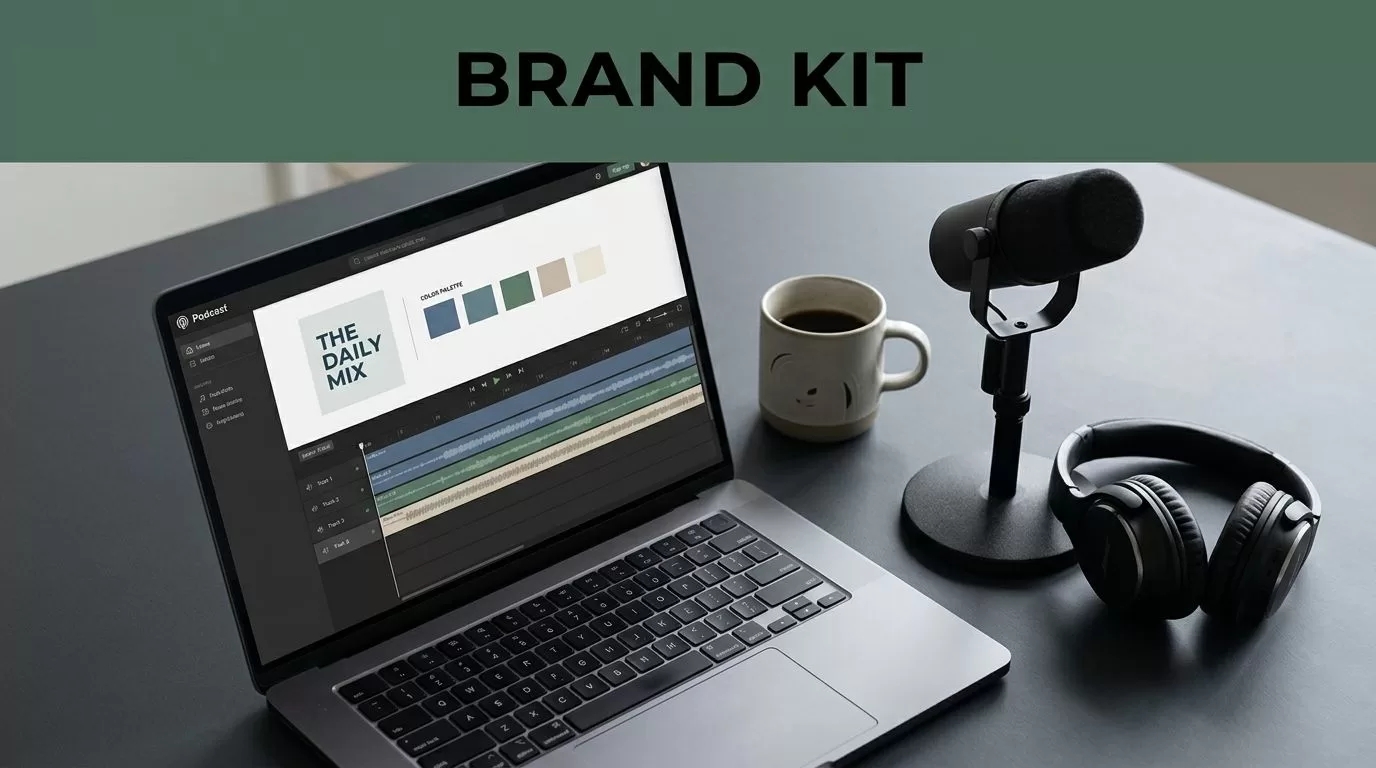
A podcast video can be technically correct and still look disconnected from your brand. The logo may be too small, the text may be hard to read, and every episode may use a different color scheme.
A Transistor.fm brand kit gives your video workflow a repeatable visual system. You set the core assets once, then apply them when creating branded video content for your show. The result is easier production and a more consistent viewer experience.
Key Takeaways
- Prepare your logo, colors, fonts, and layout rules before opening Transistor.
- Open your show, select Video, then use Brand Kit to store reusable visual settings.
- Keep branding separate from episode content. The kit controls appearance, not titles or descriptions.
- Review the finished video on mobile, desktop, and the platform where you plan to publish it.
- If Video or Brand Kit isn’t visible, check your account access and the Transistor Help Center.
Prepare Your Brand Assets Before Using Transistor
A brand kit works best when your visual decisions are already settled. Transistor can store and apply your assets, but it doesn’t replace your brand guidelines.
Collect the following files and information before you start:
- Your primary podcast or company logo
- A transparent PNG version of the logo
- Your primary and secondary brand colors
- The font names used in your website and marketing materials
- Your preferred text position
- Your standard background style
- The social platforms where you will publish the video
Use a transparent logo whenever possible. A logo with a solid white or colored box can look out of place on a video background. Keep the file large enough to remain sharp after rendering. A small logo may look acceptable in the editor but appear soft in the final export.
Record your exact brand colors. Check your website’s design system, CSS files, or design files instead of guessing from a screenshot. If your brand uses three colors, decide which one is the background, which one is used for text, and which one is reserved for accents.
Typography needs the same discipline. Use one font for headings and one for supporting text if your brand already follows that structure. Don’t add multiple typefaces because the editor makes them available. A video needs clear hierarchy, not a collection of font styles.
Your layout also depends on the destination. A design that works in a 16:9 YouTube video can fail in a vertical Short. Important text should stay away from the edges because mobile platforms may cover those areas with interface controls.
Transistor’s video podcast feature is designed to help podcasters create video versions of their content. Your brand kit makes those videos look connected to the rest of your marketing material.
Set Up the Transistor.fm Brand Kit
The platform-specific setup happens inside the show dashboard. The labels below refer to the current Transistor workflow.
1. Open the correct podcast
Sign in to Transistor and open the show that will use the branded videos. If you manage several podcasts, check the show name before changing any settings.
Brand kits apply to the selected show. A kit created under one podcast won’t automatically change the visual settings for another show in your account.
2. Open Video
Select Video in the show navigation. This opens the video workspace where you create and manage video content.
If Video isn’t visible, check that you are inside a specific show rather than an account-level screen. Access can also depend on your plan or user permissions. Confirm those details through the Transistor Help Center before rebuilding your workflow around another tool.
3. Open Brand Kit
Inside the Video workspace, select Brand Kit. Choose the option to create a new kit if your show doesn’t have one. If a kit already exists, open its name and select the edit control.
Give the kit a clear name. Use names such as “Main Show Branding” or “Interview Video Style.” Avoid names like “New Kit” or “Test 2.” A clear name matters when your team creates multiple designs later.
4. Add your logo
Upload the approved logo file and place it where it remains visible without competing with the speaker or episode title. The upper corner often works for landscape video, but the best position depends on the layout.
Don’t make the logo large enough to dominate the frame. It should identify the show without covering faces, captions, or important episode information.
Check both light and dark backgrounds. A dark logo may disappear when the video uses a dark background. If your brand has alternate logo versions, use the version with the strongest contrast.
5. Set colors and visual defaults
Add the brand colors supported by the Brand Kit panel. Use the values from your existing brand system. Keep the main background, headline color, body text color, and accent color consistent.
The exact controls available can vary by account and video workflow. Use the options shown in your dashboard. Don’t assume a missing setting is broken or that every design feature from another video editor is available in Transistor.
A useful rule is to reserve the accent color for actions and emphasis. If every element uses the accent color, nothing stands out. Backgrounds should support the content, not compete with it.
6. Save the kit
Save the brand kit before leaving the page. Reopen it and confirm that the logo, colors, and other settings remain in place.
This is also the right time to remove old assets. An outdated logo can remain in a shared workspace and get selected by mistake. Keep one approved version for regular production.
A brand kit controls repeatable design settings. It doesn’t replace an episode title, description, transcript, or podcast artwork.
Apply the Brand Kit to a Podcast Video
Creating the kit is only the first part. You still need to apply it when you create a video for an episode.
Return to Video and start the video creation workflow. Select the episode you want to convert into video content. When Transistor asks you to choose the visual style, select the saved Brand Kit instead of building the design manually.
Check the episode title before generating the video. Long titles may wrap across several lines or become difficult to read. Shorten the display title if needed, but don’t change the official episode title in your podcast feed unless that change is intentional.
Choose the layout and aspect ratio required by your destination when those controls are available. Use landscape video for standard YouTube viewing, square video for some social feeds, and vertical video for Shorts, Reels, or TikTok-style placements.
The brand kit should supply the consistent elements. The episode should supply the variable elements, such as:
- Episode title
- Guest name
- Speaker image
- Captions
- Waveform or audio visualizer
- Call to action
Don’t place every available element on the screen. A logo, title, guest name, and captions may be enough. Extra graphics can make the video harder to scan.
Generate the video after checking the preview. If Transistor offers a draft or preview stage, use it before creating the final asset. A preview catches problems with text wrapping, logo placement, and contrast before the video reaches your audience.
The brand kit affects the generated video’s visual treatment. It doesn’t automatically update your podcast website, RSS metadata, audio file, or social captions. Manage those items in their relevant Transistor sections.
Review the Video Before Publishing
A branded video needs a visual check. Don’t publish the first render without watching it.
Start with the first ten seconds. The logo should appear correctly, the opening text should be readable, and the design should identify the show without slowing down the content.
Then check the full file for these issues:
- Text clipping: Make sure titles and captions stay inside the visible frame.
- Low contrast: Test light text on dark backgrounds and dark text on light backgrounds.
- Logo collisions: Check that the logo doesn’t cover faces, captions, or platform controls.
- Long titles: Look for awkward line breaks and oversized text.
- Audio and video alignment: Confirm that the visual content follows the correct episode audio.
- Mobile readability: Watch the video on a phone at normal viewing size.
A video can look balanced on a large monitor and fail on a mobile screen. Shrink the preview or view the exported file on the target device. If a viewer needs to pause the video to read the title, reduce the amount of text.
Check the thumbnail or opening frame as well. It may be the first image people see in a feed. YouTube provides recommended upload encoding settings, but platform specifications don’t replace a readability check.
Use one approved video as your reference file. Compare future episodes against it for logo size, title position, colors, and caption treatment. This gives producers a practical standard without requiring a separate review for every design choice.
Fix Common Brand Kit Problems
If the video uses the wrong colors, open the selected Brand Kit and confirm that the video workflow is using the latest saved version. A team member may have created another kit with a similar name.
If the logo looks blurry, replace it with a larger transparent file. Increasing the size of a low-resolution logo won’t improve its quality.
If text is hard to read, fix the contrast or reduce the amount of text. Changing the font size alone may not solve the problem when the background is too busy.
If the layout looks correct in landscape but fails in vertical video, create a layout for the vertical format instead of forcing the landscape design into a narrow frame. Keep key content in the center safe area and test captions against the speaker’s face.
If a team member can’t find the Brand Kit, check the selected show and the user’s role. Account-level access doesn’t always mean the same show-level editing access. The Transistor support documentation is the right place to confirm current access rules and interface changes.
Avoid creating a new kit for every episode. Use one main kit for regular publishing and add a second kit only when the visual purpose changes, such as a live event, a limited series, or a separate show.
Conclusion
A custom Transistor.fm brand kit gives your podcast video workflow a fixed visual baseline. Set the logo, colors, and layout rules once, then apply them to each episode instead of rebuilding the design every time.
The strongest setup is simple. Use approved assets, keep episode text readable, select the correct kit in Video, and review the final file on the device your audience uses. Consistent branding starts with the kit, but quality control still belongs in the publishing process.
