Set Up AI Video Curation in Transistor.fm with Opus
Transistor.fm keeps the podcast published. Opus turns the best moments into clips. The hard part is connecting them so the handoff is clean. There is no native Transistor.fm to Opus integration in the current public setup. In 2026, the prac...

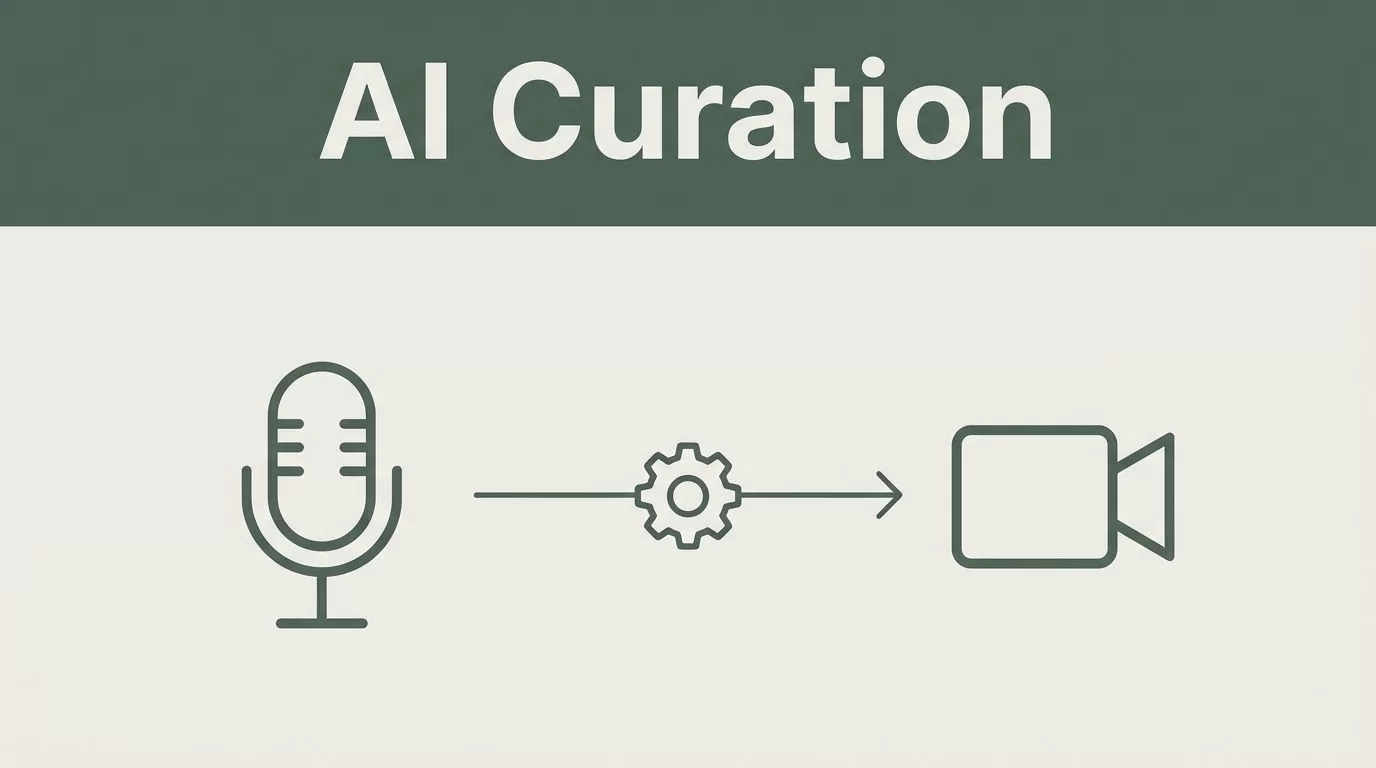
Transistor.fm keeps the podcast published. Opus turns the best moments into clips. The hard part is connecting them so the handoff is clean.
There is no native Transistor.fm to Opus integration in the current public setup. In 2026, the practical route is Make.com, plus a real video source and a strict clip rule. If you feed the workflow loose inputs, you get loose results. If you define the source, the trigger, and the output, it behaves like a production line.
Key Takeaways
- Transistor.fm is the source of truth for episode status, metadata, and publish timing.
- Opus needs a video asset, so audio-only shows need a video master first.
- Make.com is the glue that connects the Transistor.fm trigger to the Opus action.
- Send only published episodes into the scenario, not drafts or half-finished cuts.
- Pick one output format per destination, usually 9:16 for short-form clips.
How the workflow fits together
A clean Transistor.fm Opus setup starts with role separation. Transistor hosts the episode and exposes the episode data. Make.com passes that data into the next step. Opus reads the source video, finds usable moments, and returns short clips with captions and framing.
| Tool | Job in the workflow | What to check |
|---|---|---|
| Transistor.fm | Hosts the episode and fires the publish data | Use a published episode only |
| Make.com | Moves the episode data between apps | Add filters and field mapping |
| Opus | Creates and formats the clips | Feed it a real video source |
| Storage or publisher | Holds clips for review or posting | Drive, Dropbox, CMS, or queue |
For a hands-on clip-editing pass, this Opus Clip tutorial is a useful companion. The podcast clips discussion also shows how creators separate selection from formatting.
What you need before you start
The setup is simple, but only if the inputs are clean. You need a Transistor.fm account with a show that already publishes episodes, a Make.com account, and an Opus account. If you want a custom build instead of Make.com, Transistor’s API is JSON:API based, and Opus uses Bearer API keys from its dashboard.
If your show is audio-only, this workflow needs a video master before Opus can do anything useful.

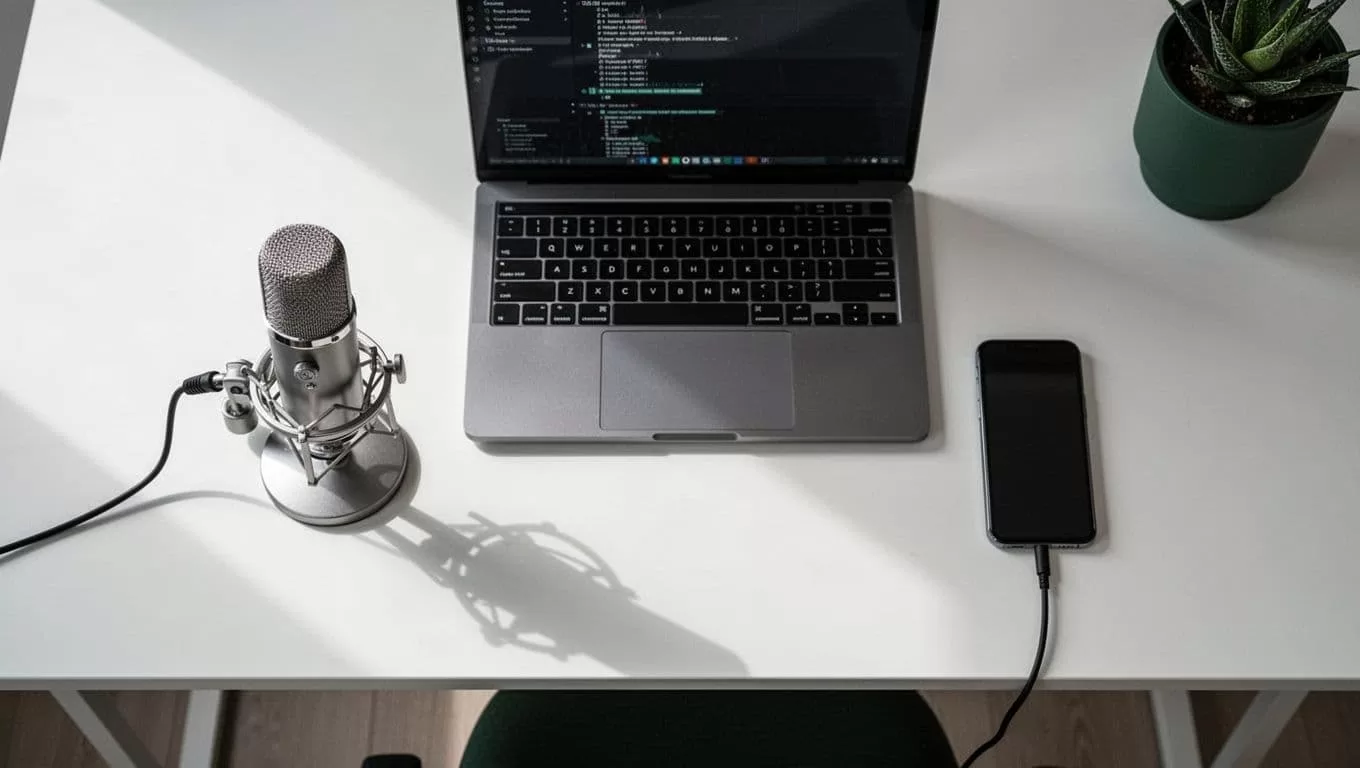
You also need a source video that Opus can read. That can be a recorded podcast session, a video export from your editing stack, or a hosted video file. Audio-only MP3s are not enough for this workflow.
Before you build the scenario, line up these inputs:
- Published episode access: Use a show that already has a predictable publish flow.
- Source video: Give Opus a full video asset, not just the RSS entry.
- Clip destination: Pick a place for review, storage, or publishing.
- Naming rules: Keep episode titles and file names consistent.
- Approval path: Decide who signs off before clips go live.
Build the Make.com scenario step by step
This is the part that matters. Build the scenario once, then reuse it for every episode.
- Create a new scenario in Make.com.
Start with Transistor.fm as the trigger app. If your account exposes an instant trigger, use it. If not, use a scheduled check for new published episodes. - Limit the trigger to published episodes.
Do not fire the workflow on drafts, test uploads, or private prep work. Use the episode ID or slug as your reference point so the same episode does not run twice. - Map the fields you actually need.
Pass the episode title, description, publish URL, and media source into the next step. If the episode is audio-only, stop and route it through your video creation step first. - Add the Opus action.
Point Opus at the video source. Set the clip job to create short-form outputs, then keep the first run simple. One source, one episode, one clip batch. - Add a storage or review step.
Send the output to Google Drive, Dropbox, or your approval folder. That gives your team a place to review the clips before they move to social or the CMS. - Run one test episode.
Use a recent published episode, not a brand-new record. Check that the clip length, caption style, and framing match the destination. - Turn on logging and dedupe logic.
Keep a note of the episode ID, run time, and output folder. That makes it easy to trace failures and block duplicate runs later.
Set clip rules that match the destination
Opus works best when you give it a clear job. Do not ask it to do everything at once. Pick a clip style for each channel and keep it stable.
| Use case | Clip rule | Output |
|---|---|---|
| Weekly interview show | 3 clips per episode, 20 to 45 seconds each | Short-form queue |
| Founder update podcast | 1 hook clip and 1 quote clip | LinkedIn or X |
| Video-first podcast | Run after the final edit lands | Review folder |
| Audio-first show with video master | Clip only after the video file is ready | Approval folder |
That split matches the way creators talk about clip production in podcast clips workflow threads. Pick the moments first, then let the tool handle the formatting.
A few settings help keep the output tight:
- Use 9:16 for Shorts, Reels, and TikTok.
- Use 16:9 only when the clip is meant to stay in a long-form frame.
- Keep captions on if the clip will be watched without sound.
- Keep brand colors fixed across episodes.
- Remove sponsor reads and long intros from the source if you can.
If you want repeatable output, treat Opus like a formatter, not a creative director. Feed it a good source file. Set the aspect ratio once. Keep the clip count low until your team trusts the quality.
Troubleshoot the common failures early
No episode reaches Opus
Check the Transistor trigger first. Most failures happen because the episode never hit the published state, or because the scenario is listening to the wrong show. Verify the episode ID, then run the scenario again.
Opus gets no usable source
This usually means the file is audio-only or the source link is wrong. Opus needs a video asset it can cut. If you only publish audio in Transistor, add a video creation step before the Opus action.
Duplicate clips keep appearing
Use the episode ID as a dedupe key. Store the last successful run in Make.com or in your database, then block any repeat run for that same episode. Duplicate clips are usually a logic problem, not an Opus problem.
Captions or crops look wrong
Clean the source before you automate. Bad transcript quality, too many speakers, or a messy frame will all show up in the clip. Re-test with one clean interview episode before you roll the workflow across the whole catalog.
The workflow is too slow
Break the scenario into smaller steps. Publish in Transistor first. Then create clips. Then move the final files to storage. A single long scenario is harder to debug and easier to break.
Conclusion
A working Transistor.fm Opus setup is not about fancy automation. It is about clean source video, one trigger, one clip rule, and one destination. Once those pieces are fixed, the workflow stops feeling fragile.
Start with one published episode and one output format. Get that run stable first. After that, you can add approval steps, more destinations, and tighter routing without rebuilding the whole system.

