Deploy a Twin.so Class Booking Bot
Class inquiries arrive at all hours, but your staff doesn’t. A Twin.so class booking bot can answer routine questions, check connected schedules, and guide customers through the next step without forcing your team to repeat the same r...

Class inquiries arrive at all hours, but your staff doesn’t. A Twin.so class booking bot can answer routine questions, check connected schedules, and guide customers through the next step without forcing your team to repeat the same replies.
The setup depends on your systems. Twin.so can provide the agent, knowledge base, tool access, and browser automation. Your booking platform, calendar, website chat channel, payment flow, and permissions still need configuration. Start with the workflow, then connect only the actions the bot can safely perform.
Define the Booking Workflow Before You Build
Don’t begin by asking the bot to “handle bookings.” That instruction is too broad. Define the exact questions it can answer, the systems it can access, and the actions it can take.
Your schedule must have one source of truth. This could be your existing class management platform, calendar, booking page, or another system with reliable availability data. A static document can explain class times, but it can’t confirm live capacity.
Write down the rules for each class:
- Class name and level
- Date, start time, duration, and timezone
- Location or meeting link
- Current capacity and waitlist rules
- Price and membership requirements
- Cancellation deadline
- Rescheduling limits
- Information required from the customer
Use this distinction when planning the workflow:
| Customer need | Bot response | Required setup |
|---|---|---|
| Ask about class times | Return published schedule details | Knowledge base or schedule connection |
| Check a live opening | Read current availability | Calendar or booking-system access |
| Request a booking | Collect details and request approval | Write-enabled integration or browser workflow |
| Cancel or reschedule | Apply the stated policy | Customer record access and permission |
| Pay for a class | Send an approved checkout path | Separate payment or booking integration |
A Twin.so class booking bot should never treat a probable opening as a confirmed reservation. The customer needs a clear answer about what happened and what they must do next.
Know What Twin.so Provides Natively
Twin.so is an AI agent platform that can use instructions, connected tools, integrations, and browser-based workflows. Its autonomous AI agent documentation describes agents that plan tasks, use tools, recover from errors, and run business workflows.
The knowledge base is useful for fixed information. You can add content through a URL or uploaded material, then attach existing knowledge items to an agent. Keep each page focused. If your cancellation policy, pricing page, and class descriptions live on separate pages, add them as separate knowledge items rather than assuming one URL covers the entire site.
Use the knowledge base for:
- Class descriptions and prerequisites
- Instructor biographies
- Studio rules
- Pricing explanations
- Cancellation and waitlist policies
- Location, parking, and equipment details
- Frequently asked questions
Treat the knowledge base as reference material, not live availability. A page that says “Tuesday yoga at 6 p.m.” doesn’t prove that Tuesday’s class has an open seat.
The public Twin product overview emphasizes Slack, Gmail, connected tools, website navigation, and business automation. Don’t assume that every Twin.so plan includes a ready-made website chat widget or a direct connection to your booking platform. Confirm the customer-facing channel and integration path for your account.
This gives you a clean operating model:
- Twin.so provides the agent logic and tool orchestration.
- Your connected systems provide current schedule data and records.
- Your website chat, messaging app, or custom interface collects customer messages.
- Your workflow decides when to answer, act, or transfer the conversation.
How to Build a Twin.so Class Booking Bot
Create the bot in small stages. Start with answers. Add live lookups next. Add write actions only after the read-only workflow works.
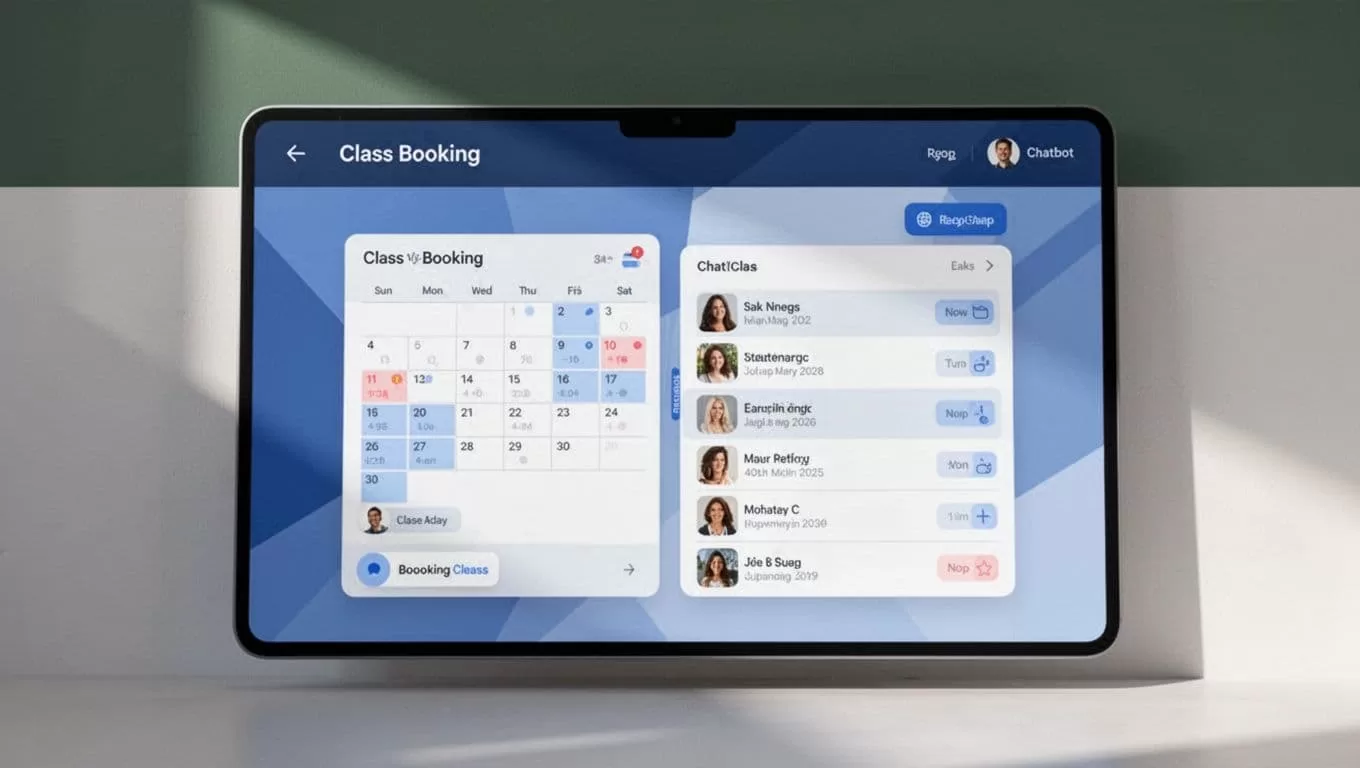
1. Create the agent and load trusted information
Create an agent for one business or location. Give it a narrow responsibility, such as answering questions and assisting with fitness-class reservations.
Add the pages and documents that contain current policies. Remove outdated schedules before you attach new material. A wrong policy in the knowledge base creates consistent wrong answers, which are harder to detect than occasional model errors.
2. Write operational instructions
Tell the agent what to do when information is missing. Also define what it must never claim.
Use instructions like these:
You are the class booking assistant for this business. Use the attached knowledge base and connected booking system as the source of truth. Ask for the class, date, time, timezone, customer name, and required contact detail. Never invent availability, prices, policies, booking references, or instructor details. Before a write action, repeat the booking details and ask for approval. Send a confirmation only after the connected tool returns a successful result. If capacity is unclear, payment is required, a tool fails, or the request falls outside policy, explain the limit and hand the conversation to staff.
The final instruction matters. A bot should not convert a failed action into a confident confirmation.
3. Add the customer-facing channel
Decide where customers will send messages. If your setup supports the needed channel directly, connect it and test the permissions. If it doesn’t, route messages through a supported third-party channel or a custom interface that can pass the conversation to Twin.so.
Keep the first version narrow. A bot that answers class questions and collects booking requests is easier to control than one that handles memberships, refunds, complaints, and account changes on launch day.
4. Separate answers from actions
Mark each workflow as read-only or write-enabled. Read-only actions include returning class times or explaining a cancellation policy. Write actions change a customer record, create a reservation, cancel a seat, or move a booking.
Your Twin.so class booking bot can assist with both types only when the required integration and permissions are configured. Native agent instructions alone don’t create access to a private booking database.
Connect Availability, Bookings, and Confirmations
Twin’s Quickstart documentation covers scheduled agents, event-driven triggers, OAuth integrations, and browser-based tasks. Use the method that matches your booking system.
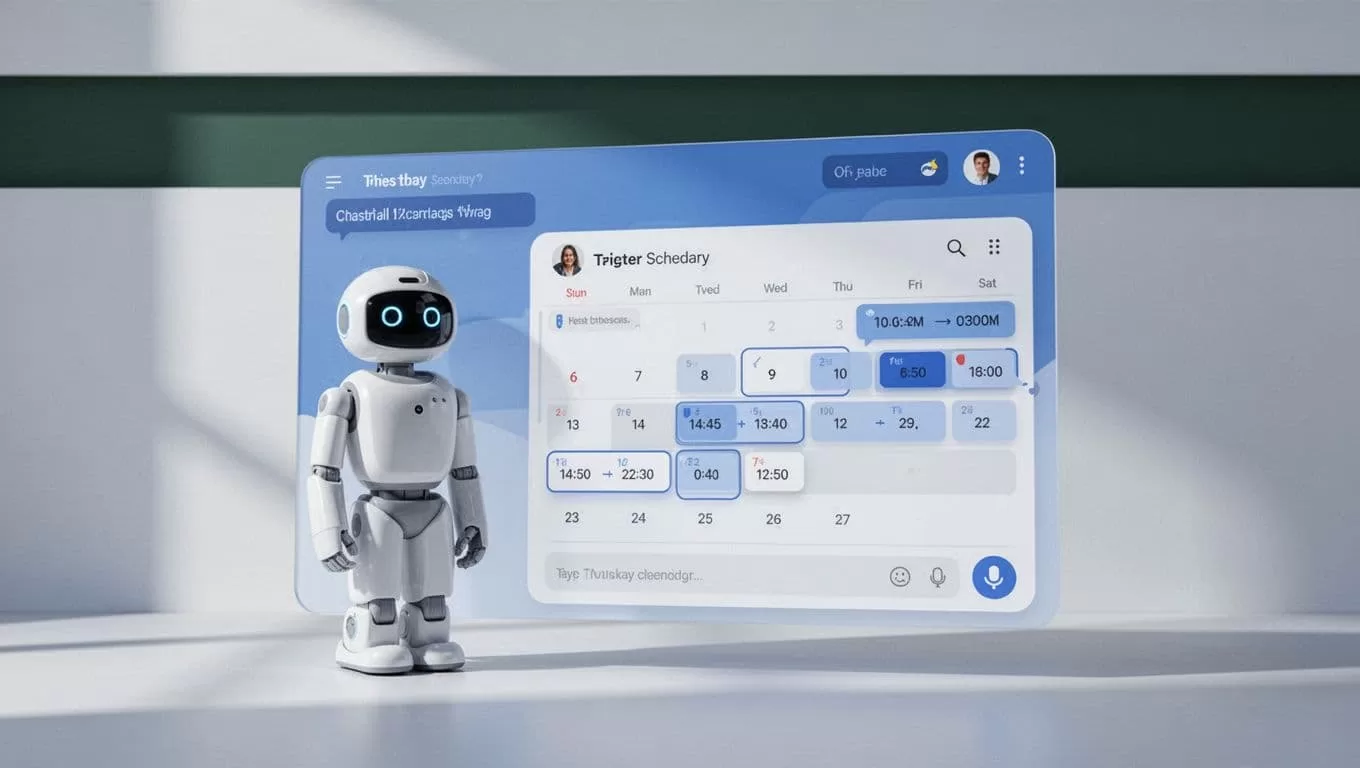
An API or OAuth integration is usually easier to validate because it returns structured fields. A browser workflow may be necessary when the booking platform has no usable API. In that case, configure a dedicated account, restrict access, and test every screen state the agent may encounter.
Availability handling needs strict rules. Ask for the date, class, and timezone when the request is unclear. Read the live schedule immediately before a booking attempt. If the system doesn’t return capacity, say that availability can’t be confirmed and offer a staff handoff.
Booking actions should follow four steps:
- Collect only the details the booking system requires.
- Repeat the class, date, time, timezone, and customer details.
- Ask for confirmation before creating the reservation.
- Check the returned status before telling the customer the booking is complete.
Don’t claim that Twin.so processes payments unless your documented setup includes a payment-capable integration. If payment is required, send the approved checkout route or transfer the conversation to staff. The bot can explain the price without handling card data.
Cancellations and rescheduling need the same discipline. Verify the minimum identity information required by your system. Check the policy before changing the record. Tell the customer whether the request was completed, rejected, or sent to staff. Never promise a refund unless the connected workflow returns that result.
A useful confirmation includes the class name, date, local time, timezone, location or link, cancellation deadline, and booking reference when one exists. If the tool returns no reference, don’t invent one.
Cover Common Customer Intents
Customers rarely use the exact phrase “book a class.” Your instructions should cover the language people actually use.
Common intents include:
- “What classes do you have tonight?”
- “Is there space in the 6 p.m. Pilates class?”
- “Book me into Saturday’s beginner session.”
- “Can I join the waitlist?”
- “I need to cancel my class.”
- “Can I move my booking to next week?”
- “How much is a drop-in session?”
- “Do I need to bring my own equipment?”
- “Is this class suitable for a first-time attendee?”
- “I need to speak with someone.”
For ambiguous requests, ask one focused question. “Which date should I check?” is better than returning a long schedule that may not answer the customer’s need.
A handoff should also be an intentional outcome. Transfer the conversation when a customer reports an injury, disputes a charge, requests a refund outside policy, asks about another person’s account, or becomes frustrated after a failed action. Pass the transcript and collected details to the staff member so the customer doesn’t need to repeat the issue.
Protect Customer Data
Keep personal data out of the knowledge base unless the workflow needs it. Class descriptions and policies belong there. Member lists, payment details, private health information, and unrestricted customer records don’t.
Use the smallest permission scope available for each integration. A schedule lookup doesn’t need permission to delete customers. A cancellation workflow shouldn’t have access to unrelated financial records.
Set clear retention rules for chat transcripts and booking details. Tell customers what information the bot needs and why. Avoid asking for sensitive information in open chat when the booking platform provides a secure form.
Review the agent’s connected sources when staff, instructors, or contractors change roles. Remove unused credentials and update policy documents when the business changes its cancellation, pricing, or waitlist rules.
Run a Testing Checklist Before Launch
Test the bot with real schedule conditions, not only successful examples.
- Ask for a class that exists and confirm the returned time and timezone.
- Ask for a class that doesn’t exist and check that the bot doesn’t invent one.
- Test a full class and verify the waitlist response.
- Submit an unclear date such as “next Friday” and confirm the bot asks for clarification.
- Start a booking, change one detail, and verify the final confirmation step.
- Simulate a failed tool call and check that no false confirmation is sent.
- Test cancellation inside and outside the stated policy.
- Test rescheduling when the new class is full.
- Confirm payment requests go to the approved checkout or staff handoff.
- Review the transcript for unnecessary personal data.
- Test the human handoff with the full context included.
- Repeat the tests after changing a schedule or policy document.
Log each result. Record the user message, expected response, actual response, and required fix. Re-test after every integration, permission, or policy change.
Conclusion
A Twin.so class booking bot works best when its scope is precise. Use Twin.so for agent instructions, trusted business knowledge, connected tools, and approved browser workflows. Use the booking system as the source of truth for capacity and reservation status.
Start with class questions and read-only availability. Add booking, cancellation, rescheduling, and payment handoffs only after each action returns a verifiable result. A bot that reports limits clearly is more useful than one that claims to have completed work it never performed.
