How I Install a White Label Podcast Player from Transistor.fm
A podcast player on my site should look like it belongs there. If it feels bolted on, visitors notice that in seconds. That’s why I use a white label podcast player when I want my brand to stay front and center. Transistor.fm gives me...

A podcast player on my site should look like it belongs there. If it feels bolted on, visitors notice that in seconds.
That’s why I use a white label podcast player when I want my brand to stay front and center. Transistor.fm gives me a clean embed, clear setup options, and enough control to match the player to the page.
I start with the embed type, then I install it, then I tune the look.
What a white label podcast player gives me
A white label player is an embedded podcast player without obvious platform branding. It lets me place episodes on my own site while keeping the design in my hands.
I usually start with Transistor’s embeddable podcast player. It supports a playlist, the latest episode, or a single episode, so I can match the player to the page goal.
That flexibility matters. If I want a homepage feature, I show the latest episode. If I want a landing page, I pin one episode. If I want a podcast archive page, I use a playlist.
On the Business plan, Transistor also lets me remove the small logo from the embed, which is the part most people mean when they say white label.
When Transistor.fm is the right fit
I reach for Transistor when I want hosting and embeds in one place. It works well for a company podcast, a client project, a paid community, or a show with more than one feed.
If I want a broader setup, I also look at my Transistor.fm podcast hosting recommendation. That page fits the same kind of workflow, hosting, publishing, and a player that feels like part of the site.
Transistor is a strong fit when I care about:
- Brand control: I want colors and layout that match my site.
- Simple publishing: I don’t want to copy audio into two different systems.
- Private or public shows: I may need member-only feeds later.
- Site embeds: I want the podcast to live on WordPress or another CMS that allows HTML.
I would not pick it if I needed an all-in-one audio editor inside the same app. I use it for hosting and embedding, not for production work.
How I install the player on my site
I keep the setup simple. First, I log in to Transistor and open my show settings, then I find the Embeds area. From there, I choose the player type I want and copy the code.
If I want a quick starting point, I open the official podcast player page and test the available embed styles there first.
Here is the kind of iframe code I paste into my site:
<iframe
  src="https://share.transistor.fm/e/YOURSHOW/playlist?color=333333&background=ffffff"
  style="height:390px;width:100%;"
  frameborder="0"
  scrolling="no">
</iframe>
I replace YOURSHOW with my podcast slug, then I swap playlist for latest or a single episode when needed. I also tweak color= and background= if I want a better match.

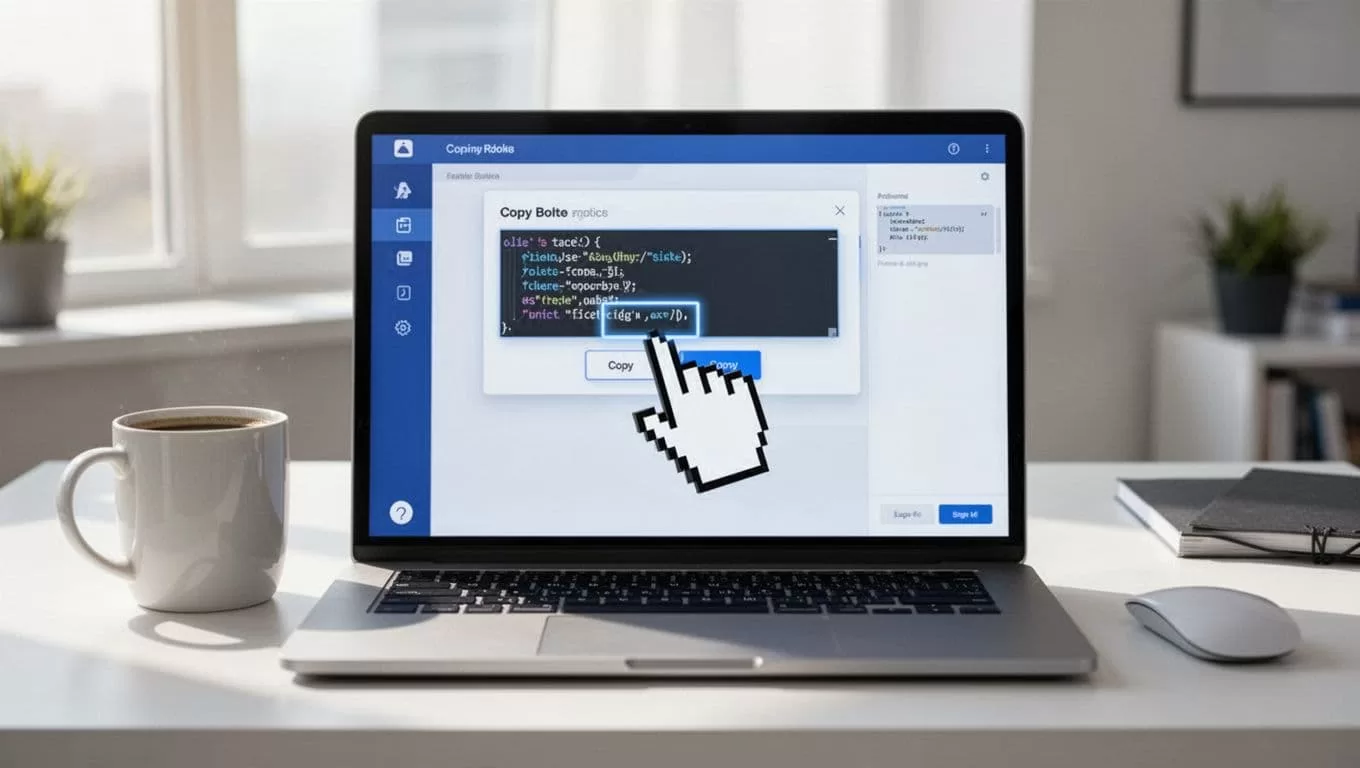
After that, I paste the iframe into a page that accepts HTML. On WordPress, that usually means a Custom HTML block. On other builders, it may be a code block or embed block.
How I make the player match my brand
Color is the first thing I adjust. A bright player on a dark page looks awkward, and a dark player on a light page can feel heavy. So I keep the palette close to the rest of the site.
Transistor lets me set defaults in show settings, and I can override colors per embed when I need to. Their color customization guide is the page I check when I want a precise match.
I treat logo removal as part of launch prep. If the player still shows Transistor branding, I know I need to check the plan or the embed settings again.
I also test the height. A player that feels cramped on desktop often looks worse on mobile. A quick test on both screens saves time later.
WordPress and other platform tips
On WordPress, I follow Transistor’s official WordPress embed guide. I paste the iframe into a Custom HTML block, then I preview the post before publishing.
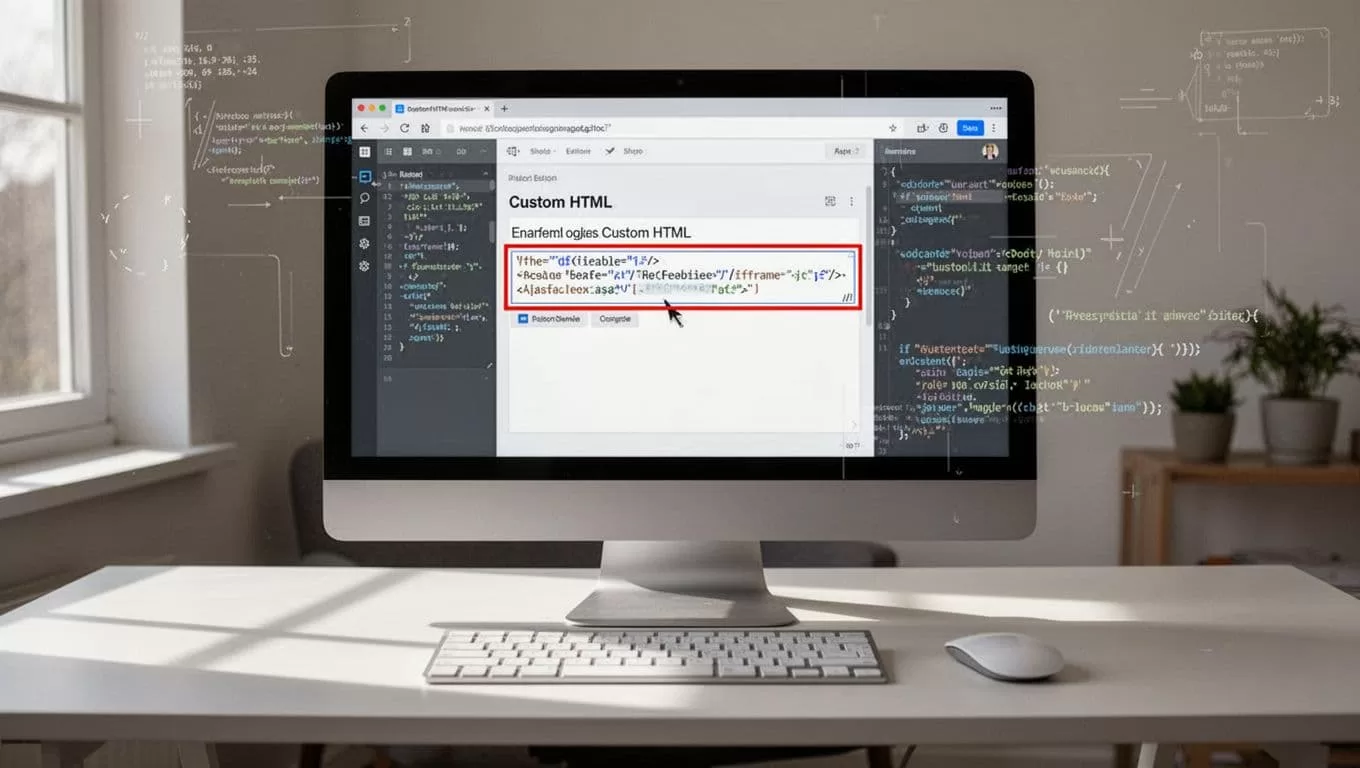
Squarespace, Wix, Webflow, and Ghost usually work the same way, as long as the page accepts raw HTML. If a builder strips the iframe, I switch to the platform’s code block or embed block.
For stricter sites, I also check firewall rules. Transistor lists the domains that may need allow-listing, including share.transistor.fm, media.transistor.fm, audio.transistor.fm, cdn.transistor.fm, assets.transistor.fm, and img.transistor.fm.
Troubleshooting when the player does not appear
When the player fails, I start with the basics.
- If the embed is blank, I check whether I pasted it into a visual block instead of an HTML block.
- If the colors look off, I recheck the
color=andbackground=values. - If Transistor branding still shows, I verify the plan and the embed settings.
- If the player loads on one browser but not another, I clear cache and test again.
- If the site sits behind a firewall, I check the allow-list domains above.
- If the latest episode does not update, I confirm the episode is published and the page is refreshed.
When I need more context on the official product behavior, I go back to Transistor’s help pages and compare the embed code with the page source on my site.
Conclusion
A white label podcast player works best when it feels invisible in the right way. It should carry my brand, load cleanly, and make the episode easy to play.
Transistor.fm makes that setup practical in 2026 because I can choose the embed type, adjust the look, and place it on the site I already use. Once I get the HTML block, color settings, and plan details right, the player feels like part of the page, not an extra widget.

