How To Send Batch Payments In Wise Business
I remember the first time I paid 50 freelancers across three countries. One by one transfers ate my afternoon. Now, I handle hundreds with Wise batch payments in minutes. This tool saves me hours each month on supplier payouts and team sala...

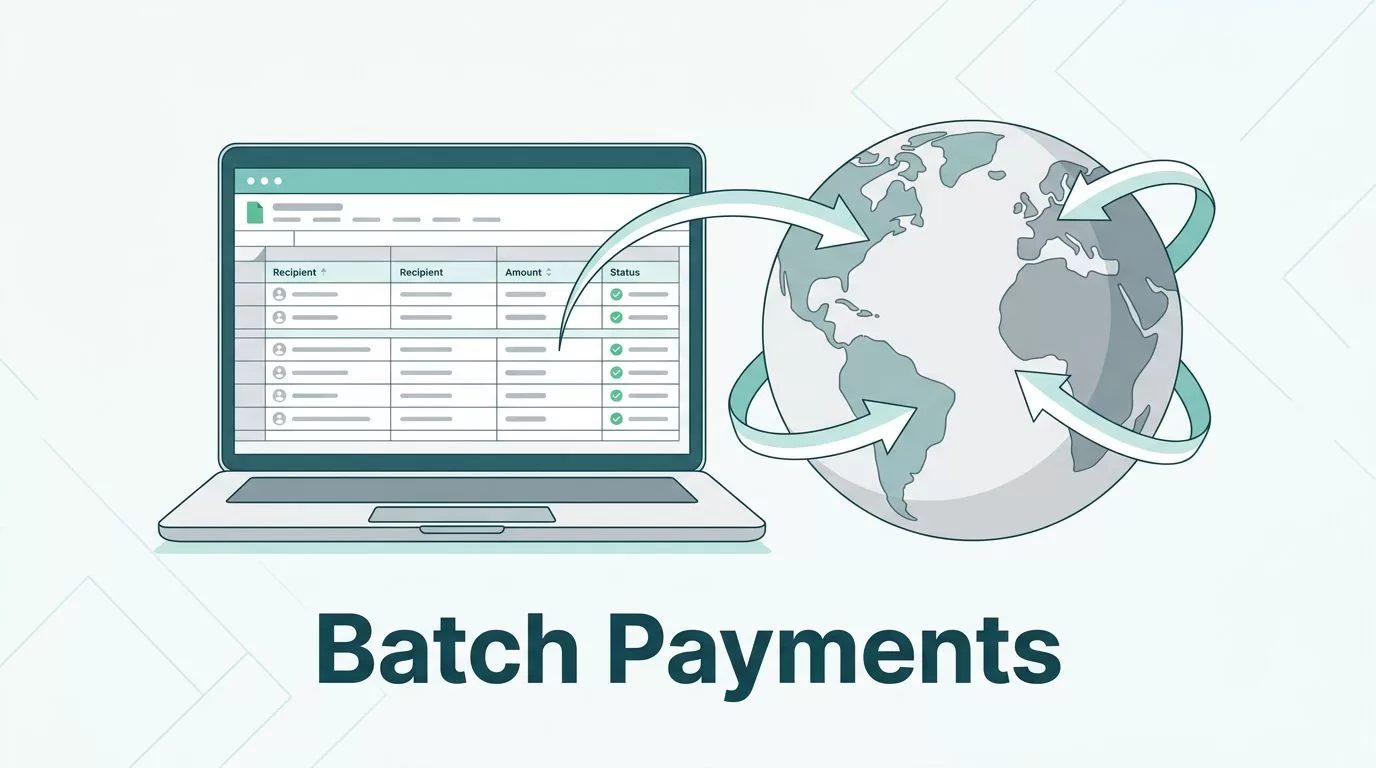
I remember the first time I paid 50 freelancers across three countries. One by one transfers ate my afternoon. Now, I handle hundreds with Wise batch payments in minutes. This tool saves me hours each month on supplier payouts and team salaries.
You run a business with global vendors or remote staff. Manual payments create errors and delays. Wise Business fixes that. It lets me send up to 1,000 transfers at once from one file. Fees stay low, like regular sends.
Follow my steps below. I’ll cover setup to tracking, based on what works in April 2026.
Table of Contents
- Prerequisites for Wise Batch Payments
- Step-by-Step Guide to Sending Wise Batch Payments
- How to Fill the Batch Payment Template
- Review, Pay, and Track Your Batch
- Wise Batch Payment Limits and Tips
- Frequently Asked Questions
Prerequisites for Wise Batch Payments
Start with a verified Wise Business account. Personal accounts won’t cut it for batches. I set mine up online in under an hour, but verification took two days.
Go to wise.com and choose Business. Enter your company details, like registration number and address. Upload ID for directors and owners with over 25% stake. Wise reviews fast if files match exactly.
Treat verification like packing for a trip. Miss one item, and you wait.
Once approved, add balances in key currencies. I hold USD, EUR, and GBP because most payouts go there. Check Wise Business fees in 2026 for costs on holds and converts.
Team access helps too. Assign payment roles so others can review. If you’re new to Wise, see my guide to verify Wise Business account fast. Menus might shift by region, so use the app as your guide.
For international reach, compare with options like Wise Business vs Payoneer for international payments. Wise wins on low FX for direct banks.
Step-by-Step Guide to Sending Wise Batch Payments
Log into wise.com on your browser. Chrome works best. Mobile skips batch for now.
Click “Send” or “Payments” in the top menu. Select “Batch” or “Batch Payments.” Download a template: CSV, XLSX, or one with saved recipients.


Open it in Excel or Google Sheets. Fill recipient details. Save and upload.
Review the preview. Fix errors like wrong currencies. Confirm with one payment from your balance or bank.
Track in real time under “Payments.” For full steps, read Wise’s guide to batch payments.
I run payroll this way monthly. It cuts my time from four hours to 20 minutes.
- Log in and navigate to Batch Payments.
- Download your template.
- Edit in spreadsheet software.
- Upload the file.
- Review each transfer.
- Pay the total batch.
- Monitor status live.
How to Fill the Batch Payment Template
Templates come in three types. Pick based on currencies and banks. Each has columns for name, amount, source currency, target currency, and bank details.
I start simple. Copy my supplier list from last month. Update amounts only.
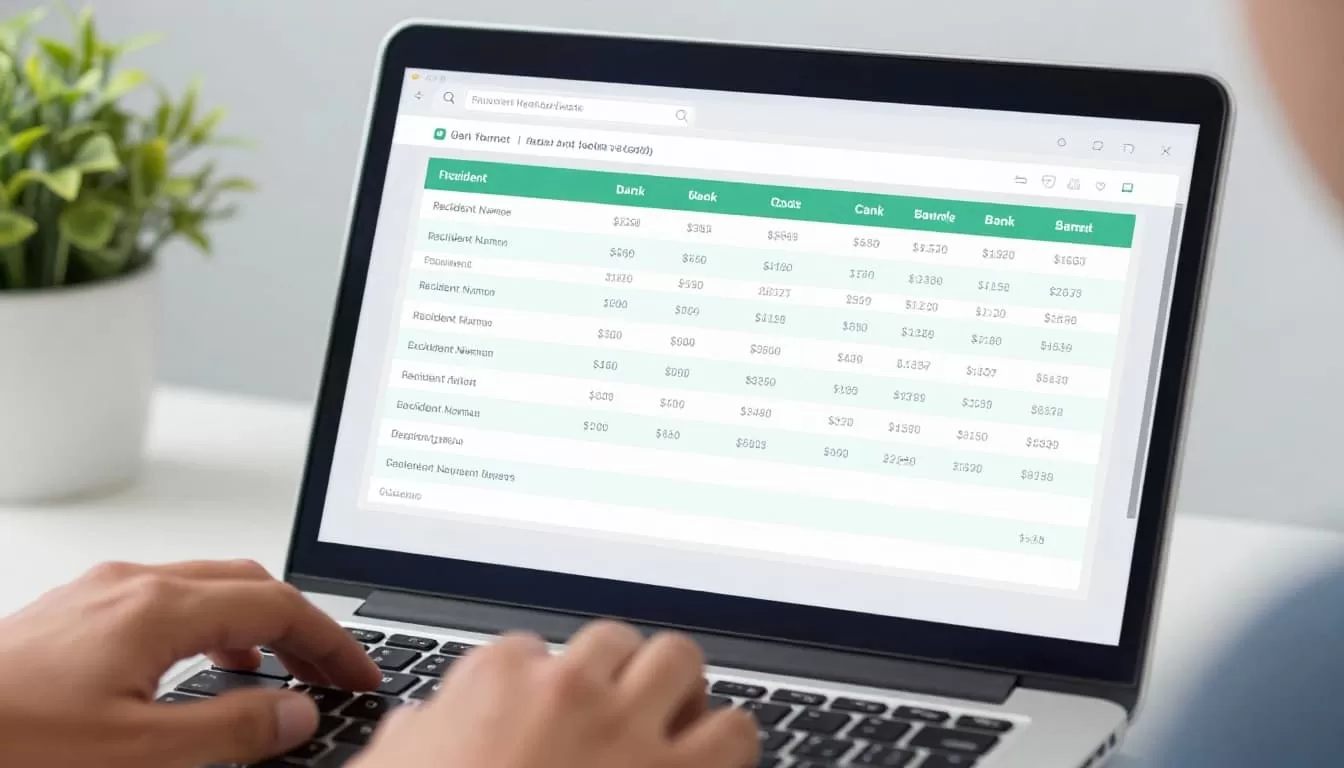
Key fields include:
| Column | What to Enter | My Tip |
|---|---|---|
| Name | Full recipient name as on bank | Match exactly to avoid holds |
| sourceCurrency | Your pay-in currency (e.g., USD) | Use your main balance |
| targetCurrency | What they receive (e.g., EUR) | Check conversion fees first |
| Amount | Numeric value only | No symbols or commas |
| Bank details | IBAN, routing, or local codes | Verify per country |
Download from Wise’s batch template guide. Save as CSV or XLSX. No extras like headers beyond defaults.
Test small first. I sent $10 to five vendors once. Caught a routing error before going live.
Review, Pay, and Track Your Batch
Upload shows a summary. Scan totals, currencies, and flags. Errors glow red; fix in the file and re-upload.
Pay with one transfer. Balances work instant. Bank needs your details; Wise gives a reference.
Team members approve if set. I get notifications on holds.
Track under “Payments.” See status: pending, sent, completed. Recipients get emails too.
For details, check how to make a batch payment.
Wise Batch Payment Limits and Tips
Caps sit at 1,000 payments per batch. Covers most needs, like my 200-vendor runs.
Supports 40+ currencies to 140+ countries. No Brazil for now. Fees match single sends: often 0.33% plus fixed.
Reuse files for payroll. Edit amounts, upload again.
Pro tip: Integrate with accounting tools. I link QuickBooks for auto-pulls.
Menus vary by account. Updates happen; check Wise first. For borders, pair with Wise CAD account setup.
Frequently Asked Questions
How many payments per Wise batch?
Up to 1,000. Perfect for suppliers or staff.
Are there extra fees for batches?
No. Just standard transfer costs.
Can teams use batch payments?
Yes, with permissions. Set roles carefully.
What if my file errors out?
Review columns. Use Wise’s batch payments blog for fixes.
Brazil businesses supported?
Not yet. Check Wise for updates.
Why I Stick with Wise Batch Payments
Batch payments turned my payment chaos into routine. I save time, cut errors, and keep costs low. Next payout, upload and done.
Try it on your next run. What payments do you batch most? Share below. For more, explore Wise vs Payoneer comparison.

