How I Use Zapier Automation to Move Data Between Work Apps
Data gets messy the moment it lands in the wrong place. A form fills up, a lead sits in a spreadsheet, or a Slack note needs to become a task. I use Zapier automation to move that data where it belongs without copying and pasting all day. T...

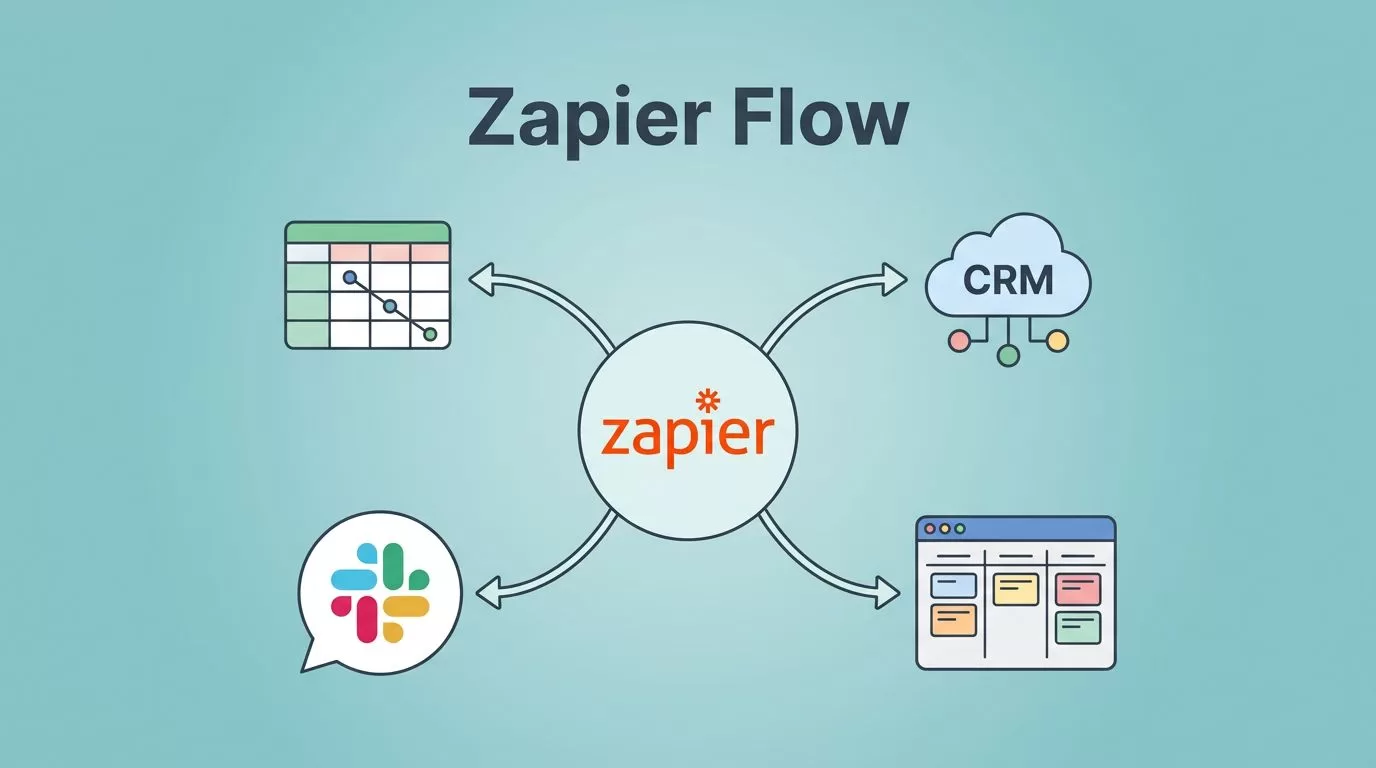
Data gets messy the moment it lands in the wrong place. A form fills up, a lead sits in a spreadsheet, or a Slack note needs to become a task. I use Zapier automation to move that data where it belongs without copying and pasting all day.
The key is simple. I keep each workflow tight, clean, and easy to trace. When a Zap has one clear job, my CRM, sheets, and project tools stay in sync, and I spend less time fixing small mistakes.
I build each Zap around one clean handoff
I start with the handoff, not the app list. A trigger starts the workflow, then an action moves the record, and a filter decides whether the record should continue.
That sounds basic, but it keeps me from building bloated Zaps. I also use Formatter steps to clean names, split phone numbers, and shape dates before they hit the next app. When a workflow needs a branch, I use Paths so one record can follow different routes.
When I want fresh ideas, I skim 16 Zapier automation ideas, but I still keep the build simple. One trigger, one clear outcome, and one cleanup step usually beats a clever chain.
I send form submissions straight into my CRM
This is the workflow I use most. A new form submission arrives from my website or lead form, then Zapier creates or updates the contact in my CRM. If the email already exists, I search first and update the record instead of making a duplicate.


I like this pattern because it catches leads while the conversation is still warm. I can also add filters, so only business emails or completed demo requests reach sales. If the form has a messy field, I clean it first with Formatter. A template like HubSpot form submissions to Google Sheets follows the same capture-and-route idea, which makes the setup easier to trust.
A small Path step helps too. If the lead is enterprise, I send it to one rep. If it is a smaller account, I route it somewhere else. That keeps handoffs tidy and cuts down on back-and-forth.
I sync spreadsheet rows into project tools
Spreadsheets still act like my intake desk. When a new row lands in Google Sheets, I often use it as the trigger for a task in Asana, Trello, or ClickUp. That works well for ops notes, content requests, bug reports, and sales follow-up.
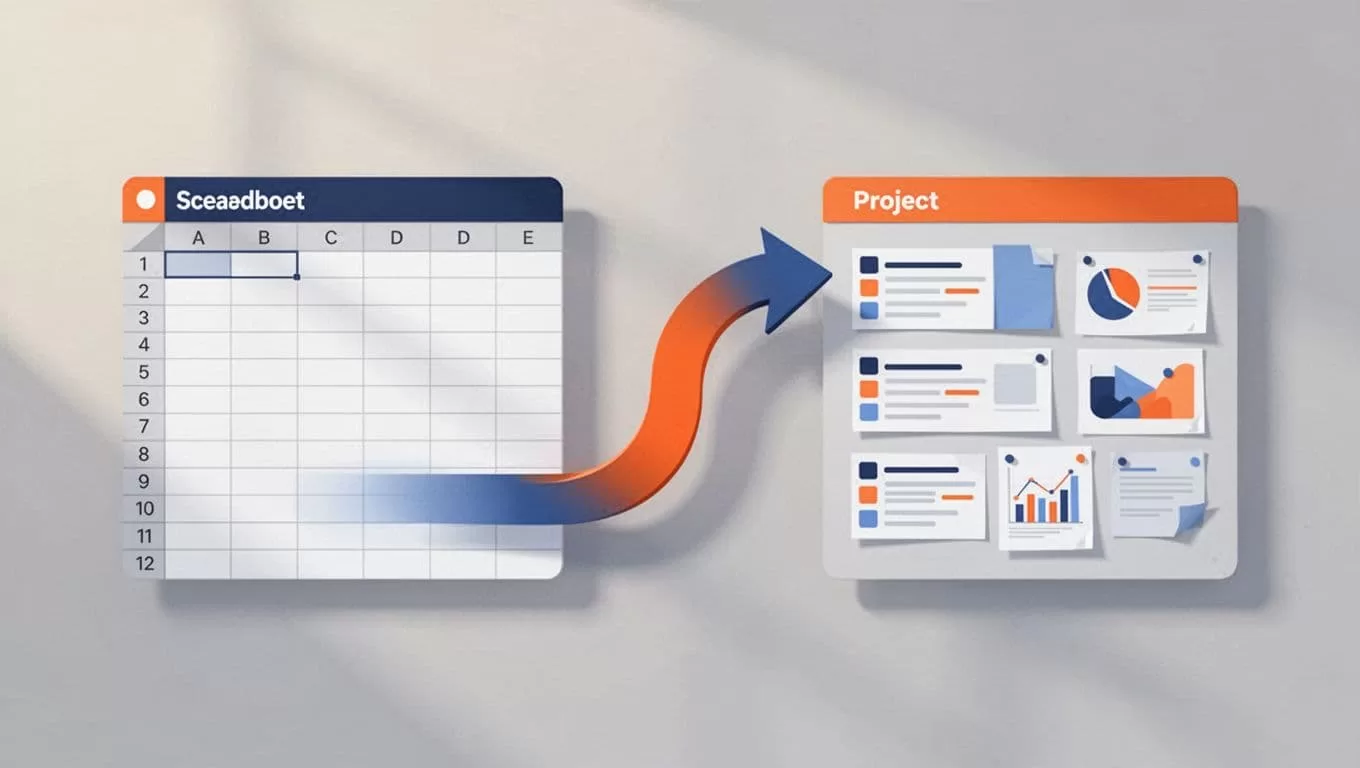
I usually add a search step before the create action. That way, if the row already produced a task, I update the old task instead of making a duplicate. I also store the row ID in a helper column, because that gives me a clean reference later.
Date formatting matters here. A project tool might want a clean due date, while the sheet has a loose note like “next Friday.” Formatter fixes that gap. If the row includes a priority flag, a filter or path can send urgent work to a hot list and everything else to the normal queue.
I turn messages into tasks before they disappear
Slack and chat apps are where work goes to hide. A good message can vanish in an hour, so I move important ones into a task board fast.
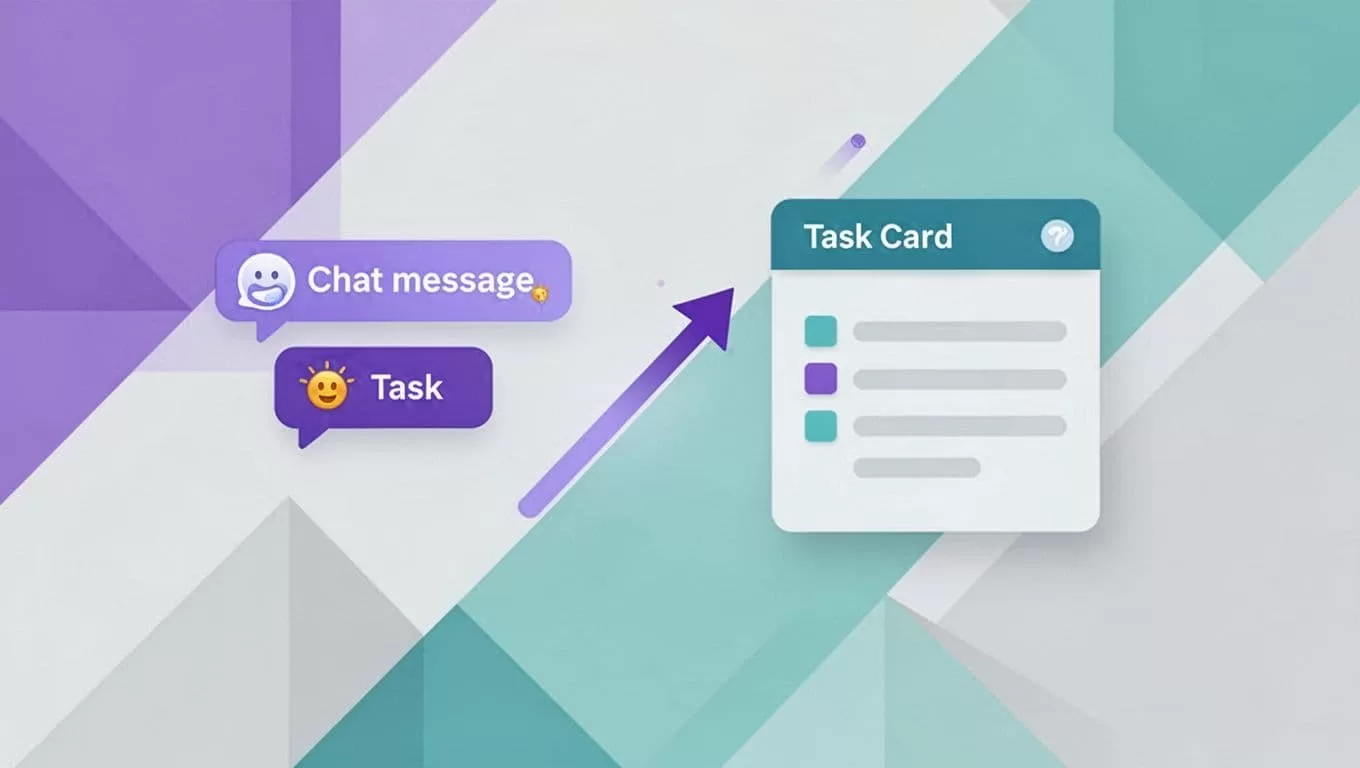
My favorite setup watches a channel for a keyword, like “follow-up” or “bug.” When that word appears, Zapier creates a task, adds the sender name, and drops the message text into the description. If the message has a date, I parse it with Formatter so the task gets a real due date.
I use filters here because chat rooms are noisy. Without them, every casual message becomes clutter. A reaction-based trigger also helps. If someone adds a specific emoji, I know the note deserves attention. That gives my team a simple way to flag work without changing tools.
I pass lead data between apps without breaking it
Lead data often starts in one place and finishes in three others. I might capture a LinkedIn lead, push it into a sheet for review, then send it to the CRM and a sales channel. The goal is to touch the data once and move on.
A template like LinkedIn Lead Gen Forms to Google Sheets fits this pattern well. I use the sheet as a checkpoint, then I decide what should happen next. If the lead is qualified, I push it to the CRM. If it needs review, I leave it in the sheet and alert the team.
That thinking matches the setup I describe in my Hunter.io workflow guide, where contact data needs to stay clean as it moves. I use the same habits here, search before create, filter out bad records, and format fields before they land in another app.
I keep my Zaps reliable with a few small habits
I do not trust a Zap until it has handled messy input. Test data is useful, but real data is better. Blank fields, odd phone numbers, and duplicate emails tell me where a workflow will break.
If a field can be blank, I handle it before the action runs.
A few habits keep my workflows stable:
- I name every step clearly, so I can debug it later.
- I test with old records and new records.
- I use filters to block weak leads early.
- I add error alerts for anything that matters.
I also check Zap history often. If a step fails, I want to know why before the problem grows. That matters more now, because app updates keep changing small details in the background.
The best data moves feel invisible
The best Zapier automation workflow is the one I stop thinking about. A form submission becomes a CRM record. A spreadsheet row becomes a task. A chat message becomes work instead of noise.
I like that because it keeps my apps honest. Each one does a small part, and the data keeps moving without extra hands on the wheel.

