Run Enterprise Video Conferencing With Google Workspace
What happens when a simple video call turns into a board review, a hiring panel, and a live town hall? Enterprise video conferencing stops being a handy app and starts acting like core infrastructure. Google Meet inside Google Workspace fit...
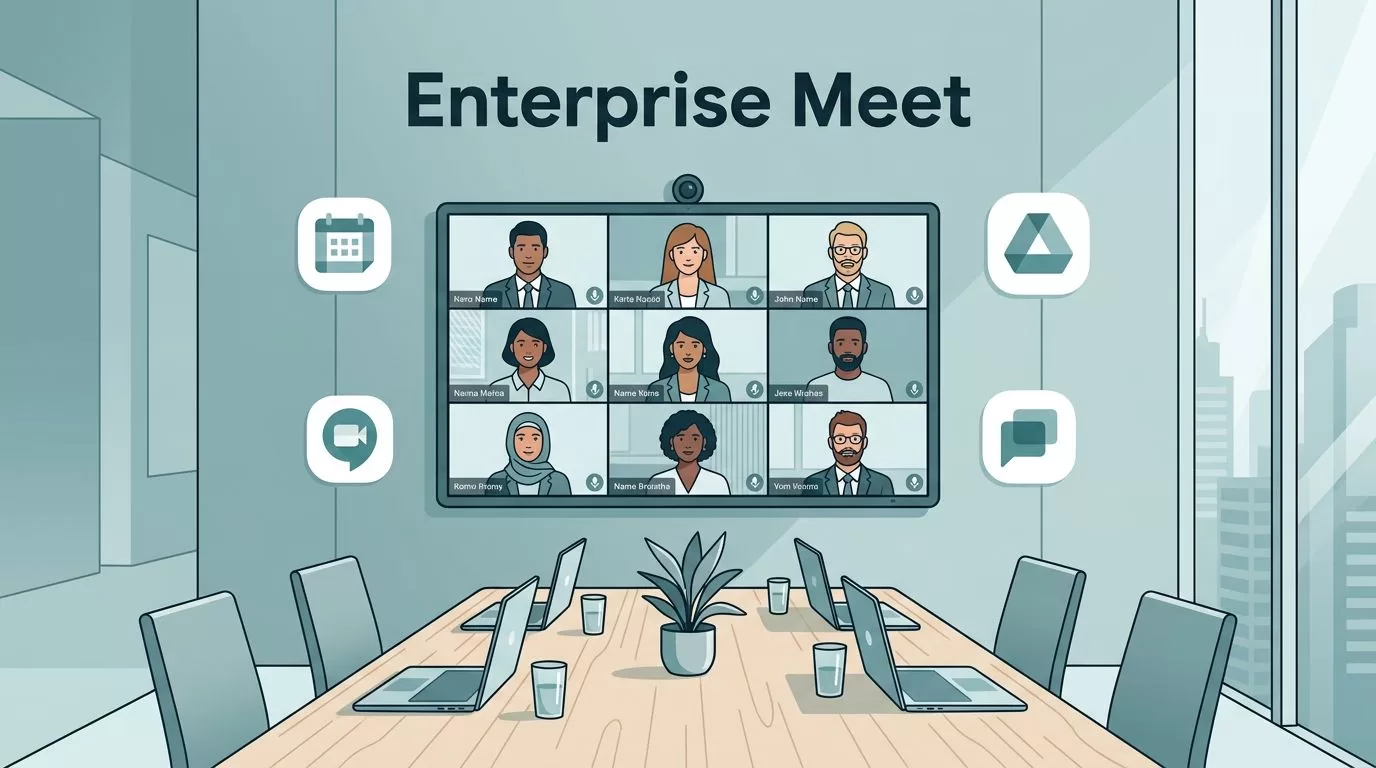
What happens when a simple video call turns into a board review, a hiring panel, and a live town hall? Enterprise video conferencing stops being a handy app and starts acting like core infrastructure.
Google Meet inside Google Workspace fits this role when you set the right edition, admin policy, and room plan. This guide covers edition limits, admin controls, security settings, room hardware, rollout steps, and the questions buyers ask most. Facts come from Google documentation checked in October 2026. Confirm details on the official pages before you buy.
Google Meet in Workspace Is Not the Free Version
Anyone with a Gmail account can start a Meet call in minutes. A company rollout is different. Finance, HR, support, and shared rooms need central admin control, managed identities, and predictable support.
Free Meet helps people talk. Workspace Meet helps an organization control how those talks happen.
Google Workspace ties Meet to Calendar, Drive, Chat, and the Admin console. Admins apply settings by organizational unit or group. Hosts work inside company policy. Security teams review logs instead of guessing.
Meet Limits by Workspace Edition
Edition choice sets participant caps and feature access. The table below uses the official Google Meet comparison for Business editions and the Workspace pricing page for Enterprise.
| Feature | Business Starter | Business Standard | Business Plus | Enterprise |
|---|---|---|---|---|
| Maximum participants | 100 | 150 | 500 | 1,000 |
| Maximum meeting length | 24 hours | 24 hours | 24 hours | Check Google comparison |
| Noise cancellation | No | Yes | Yes | Check Google comparison |
| Breakout rooms | No | Yes | Yes | Check Google comparison |
| Recording saved to Drive | No | Yes | Yes | Check Google comparison |
| Polls and Q&A | No | Yes | Yes | Check Google comparison |
| Attendance tracking | No | No | Yes | Check Google comparison |
| Maximum users per account | 300 | 300 | 300 | No limit |
Google publishes the full matrix in its Meet feature comparison. The Enterprise column above points back to the same page because the Enterprise table was not fully readable at the time of writing. Participant limits come from the Google Workspace pricing page.
Per user prices vary by plan and billing term. Enterprise pricing requires a sales contact. Review the Google Workspace Enterprise video meeting pricing view and the official pricing page before you model a full deployment.
Features in every Business edition
All three Business editions include external participants, secure meetings, presentations, screen sharing, the Android and iOS apps, dial-in, hand raising, reactions, Meet eCDN, and the Meet Media API. Dial-in runs on Google Voice. Breakout rooms and co-hosts depend on a Google Calendar limit of 200 invitees.
Set Up Admin Controls and Meeting Security
Start in the Admin console, not in the meeting window. At scale, meetings become traffic, not just conversation. Set policy by organizational unit or group before users touch the tool.

Split settings across three layers. Executives may need recording and wider guest access. HR may need tighter limits. Shared room devices need their own rules. This structure stops one global default from becoming a blunt instrument.
Control continuous meeting chat
In March 2026 Google added an admin control for continuous meeting chat. This feature lets people keep using Google Chat after a Meet call ends. Admins find the setting in Meet safety settings in the Admin console. The setting accepts Default on or Default off for an organizational unit, a configuration group, or a user. The default is Default on. Admins also decide whether hosts can change the setting for their own meetings.
Google lists compliance retention and data sprawl as common reasons to use the control. Google Chat must be enabled for the organization. Read the official update post for the edition list.
Policy checklist for admins
- Recording: Decide who can record and where files are stored.
- External access: Set rules for guests and outside domains.
- Host management: Define who can act as co-host and who can remove participants.
- Chat and screen sharing: Set defaults by team.
- Logging: Confirm security staff can review meeting activity in the Admin console.
Scale, Rooms, and Daily Collaboration
Large meetings look simple until hundreds of people join from laptops, room systems, and mixed platforms. The Workspace pricing page lists 1,000 participants on Enterprise. This cap supports town halls, global reviews, and long workshops. Business Standard and Plus add breakout rooms, polls, and Q&A, so big meetings do not feel like one way broadcasts.

Treat shared rooms as a separate project. Set device standards, camera placement, microphone coverage, and remote monitoring. Check Google documentation for supported Meet hardware from partners before you buy any room kit.
Meet works best when Calendar, Chat, and Drive share one plan. Recordings and transcripts save to Drive on editions with those features. Calendar events carry the Meet link, which cuts join friction. Business Standard and Plus also list speech translation, which helps global teams.
Pilot before full launch
- Pick one organizational unit and one or two conference rooms.
- Lock host and guest rules early, then document exceptions.
- Publish a support path so users know where to turn when a room fails to join.
- Test network paths, browser policy, and identity sync.
- Train power users before the broad launch.
A short admin guide beats a flood of help desk tickets. Stable enterprise video conferencing comes from boring preparation, not flashy demos.
Network and Device Readiness
Video quality depends on the network before the platform. Test the paths your users take every day. Office Wi-Fi, home broadband, and mobile data all behave differently under load.
- Bandwidth: Measure real throughput in meeting rooms during peak hours.
- Browsers: Standardize on supported browsers and push updates through policy.
- Firewalls: Review Google guidance on required domains and ports with the network team.
- Large events: Ask Google about Meet eCDN for sites with many viewers on one network.
- Fallback: Keep a dial-in option ready for rooms with weak connections.
Meet eCDN appears in the feature list for all three Business editions. Ask your Google contact how eCDN fits your office layout before a town hall.
Governance and Adoption After Launch
Launch day is the start of the work. Meeting policy drifts as teams change, and new features arrive each quarter. Assign an owner for Meet settings and review them on a fixed schedule.
Read the Google Workspace Updates blog each month. Google posts new admin controls there, as with the continuous meeting chat setting. Compare each new control against your policy checklist and decide whether to adopt, delay, or ignore the change.
- Quarterly review: Check settings by organizational unit and remove stale exceptions.
- Incident log: Record failed joins, audio faults, and room outages, then fix the top causes first.
- User feedback: Ask meeting hosts which settings slow them down.
- Training refresh: Update the short admin and host guides after every major feature change.
- Room audits: Test each shared room device once a month.
Good governance keeps the platform fast for users and safe for the company. Poor governance leads to shadow tools and scattered recordings.
Questions to Ask Before You Sign
A feature list does not replace a contract review. Bring these questions to the Google sales call and to your security team.
- Which Meet features does the contracted edition include today?
- How long does the platform keep recordings, transcripts, and logs?
- Who can view recordings and where do they live in Drive?
- Which support tier covers board meetings and launches?
- How do admins audit who joined a meeting and how?
- Which third party room devices does Google support for your plan?
Write the answers into your rollout plan. Revisit them each year, because editions and policies change.
Choosing the Right Edition
| Situation | Likely fit | Reason |
|---|---|---|
| Small team with basic calls | Business Starter | Up to 100 participants at the lowest tier |
| Team needing recordings and breakout rooms | Business Standard | Adds recording, breakouts, polls, Q&A |
| Team needing attendance reports | Business Plus | Adds attendance tracking and auto notes |
| Company above 300 users | Enterprise | Business editions cap at 300 users |
| Town halls up to 1,000 people | Enterprise | Lists 1,000 participants |
Verify every row against your own contract. Google changes edition features over time.
Common Mistakes in Enterprise Rollouts
- Buying an edition by price alone and learning later about the 300 user cap.
- Skipping the pilot and shipping a single global policy.
- Ignoring room hardware until launch week.
- Leaving post meeting chat on by default when compliance asks for control.
- Failing to define a support path for executives and boards.
FAQ
How many people can join a Google Meet call?
Business Starter lists 100, Business Standard 150, Business Plus 500, and Enterprise 1,000, according to the Google Workspace pricing page.
How long can a Meet call last?
Google lists a maximum meeting length of 24 hours for all three Business editions.
Which editions record meetings?
Business Standard and Business Plus record meetings and save the files to Drive. Business Starter does not.
Is attendance tracking available on every plan?
No. Google lists attendance tracking for meetings with two or more attendees on Business Plus in the Business group.
Can admins limit chat after a meeting?
Yes. The continuous meeting chat control sits in Meet safety settings and works by organizational unit, group, or user.
How many users can one Business account hold?
Business Starter, Standard, and Plus can be purchased for a maximum of 300 users. Enterprise has no user limit.
Conclusion
Judge Google Meet for the enterprise by control, scale, and fit with the rest of Google Workspace. Match the edition to your meeting size and feature needs. Pilot with one team. Set policy before launch. Confirm every limit on the official Google pages before you sign a contract.
