How I Read PDFs Aloud With Speechify In 2026
I stare at a dense 50-page report on my screen. Eyes strain after hours of scanning contracts. Then I hit play in Speechify. The AI voice flows smooth, like a colleague reading it over coffee. No more squinting. PDFs turn into podcasts. You...
I stare at a dense 50-page report on my screen. Eyes strain after hours of scanning contracts. Then I hit play in Speechify. The AI voice flows smooth, like a colleague reading it over coffee. No more squinting. PDFs turn into podcasts. You know that rush? Read PDF aloud tools like this boost my productivity. They help with dyslexia too. Or long commutes. Speechify fits my workflow perfect. Let me walk you through how I do it.
Why Speechify Beats Other PDF Readers for Me
Reports pile up in sales ops. I juggle CRMs and data sheets. Traditional readers just show text. Speechify reads it aloud. Clear voices handle technical terms. I listen at 3x speed while walking the dog. Productivity soars.
It connects to Google Drive and Dropbox. No manual uploads every time. Accessibility shines here. Folks with reading challenges absorb info faster. I tested it against built-in options. Speechify wins on natural flow. For details, check Speechify’s take on PDF readers.
Business teams love this. Review policies hands-free. Note key points without pausing. In short, it frees my eyes for visuals.
Quick Setup: Account and App Basics
Start at speechify.com. I signed up with email. Free tier kicks in right away. No credit card. Paid plans unlock more voices from $11 a month. They add speed and cloning features.
Download the Chrome extension next. Pin it to your toolbar. Works on any PDF open in browser. Apps hit iOS and Android too. Syncs my library across devices. One account rules them all.
Pro tip: Link your drives during setup. Files appear instant. No hunting folders.
Uploading and Playing Your PDF Step by Step
Click New on the dashboard. Choose Local Documents. Drag your PDF in. It loads fast, even big files.
Pick a voice from 1,000 options. Adjust speed up to 4.5x. Text highlights as it reads. Pause, rewind easy.
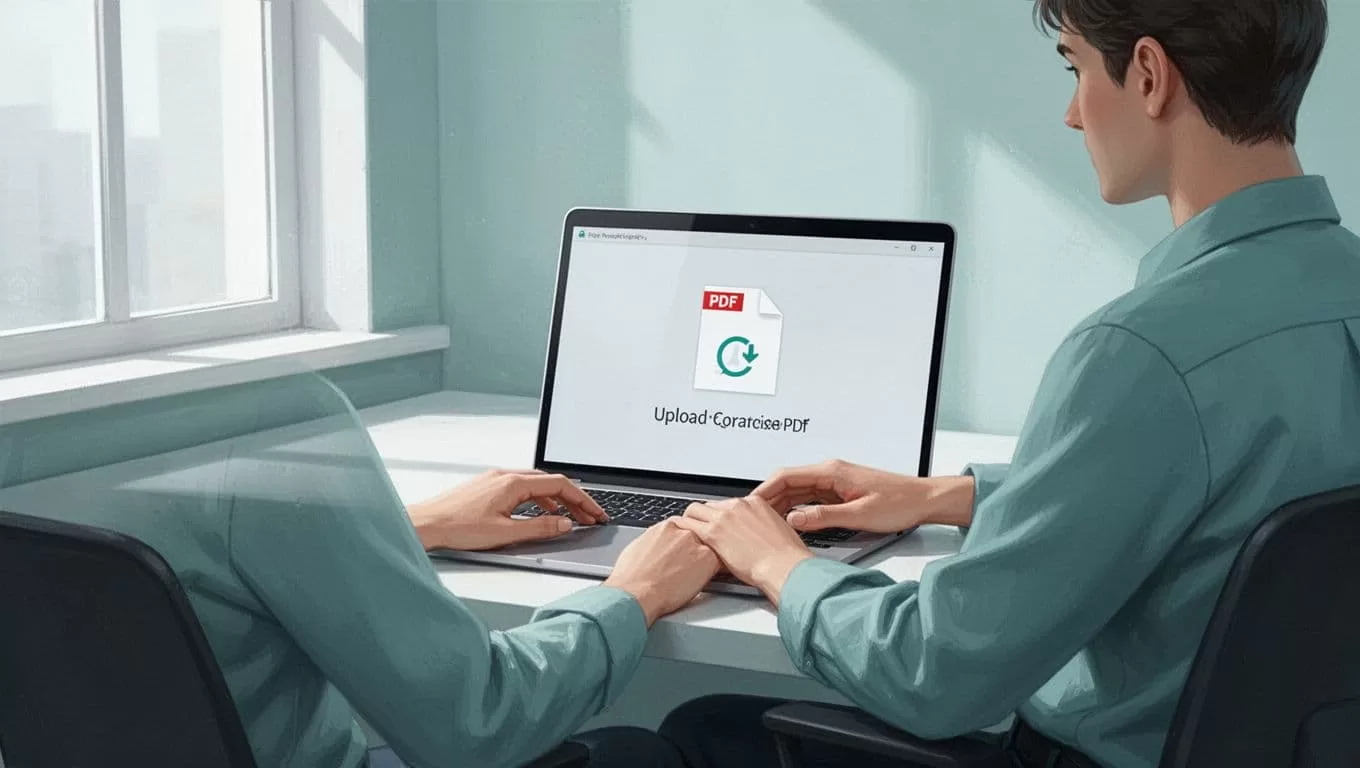
I follow these steps daily. Open report. Upload. Play. Multitask flows natural. For web PDFs, extension reads direct. Right-click text, select Speechify.
Speechify on Mobile: Listen Anywhere
Grab the app from your store. Log in. Library syncs from desktop. Upload PDFs or scan images.
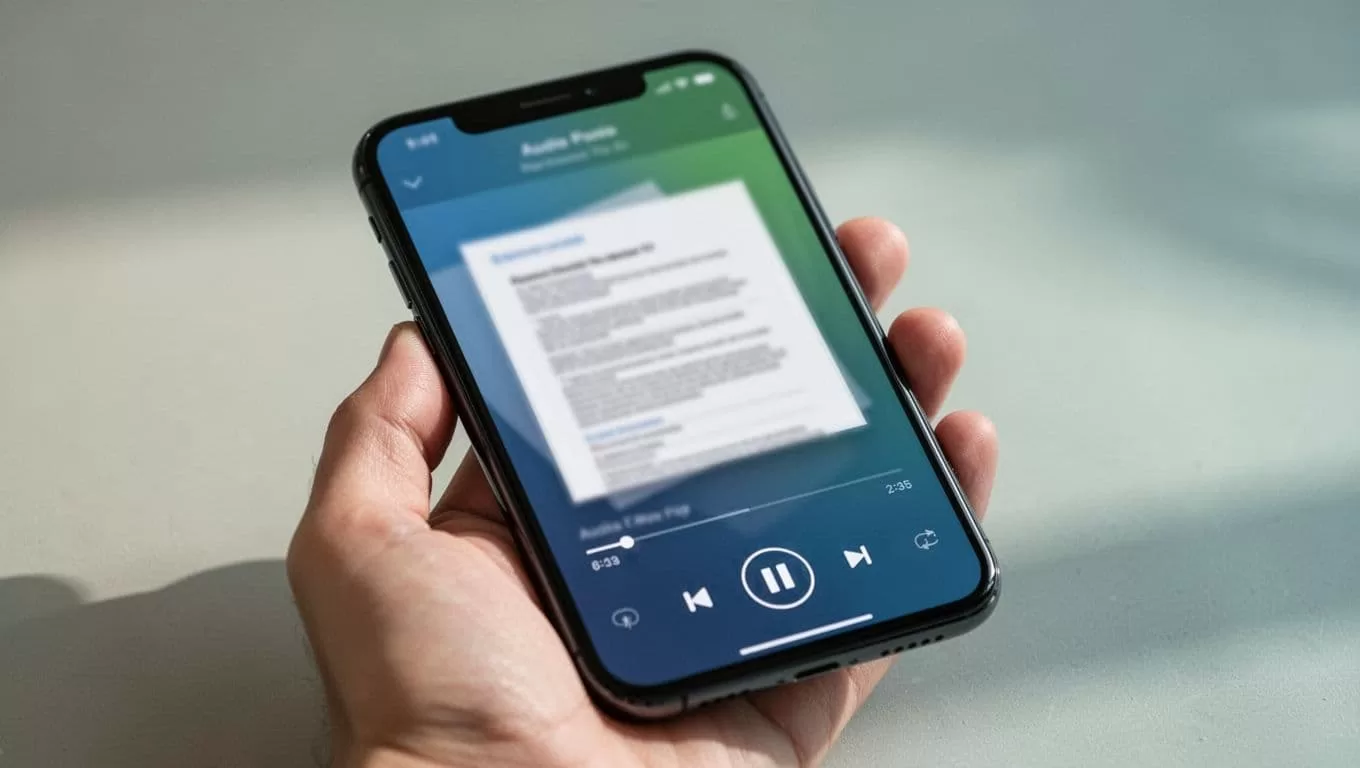
Headphones in, play starts. I pace my office during calls. Or drive with Bluetooth. Screen shows progress bar. Skip sections quick.

Battery lasts long. Offline mode caches files. Perfect for flights. Business travelers, this saves hours.
Customize Voices and Speeds to Fit Your Flow
Voices cover 60 languages. English accents vary: British, American, casual. I pick Snoop Dogg style for fun reports.
Speed ramps to 900 words per minute. Still clear. No robot garble. Tweak pitch or rate mid-play.
Free gives basics. Premium adds celebs like Gwyneth Paltrow. Clone your voice too. Personal touch for notes.
Tackling Scanned PDFs and Key Limits
Scanned docs? OCR pulls text from images. I test old contracts. Works on most. Clear scans best.
Limits hit free users. Fewer voices, speed caps. Premium removes them. No file size issues noted.
Formatting quirks skip sometimes. Tables read linear. Complex layouts need tweaks. See Speechify’s PDF aloud options for tips.
Troubleshooting PDFs That Won’t Read Right
PDF not loading? Check file size. Compress if huge. Refresh browser.
Text skips? Verify selectable. OCR fails on blurry scans. Rescan higher res.
No sound? Permissions first. Allow audio. Try different voice. Speed too high? Drop to 2x.
Extension glitches? Reinstall. Account sync off? Log out, back in. These fix 90% of snags.
Speechify transformed my PDF grind into easy listens. Eyes rest, brain absorbs. Grab the free tier today. Test a report. What PDF will you hear first?
