How to Read Your Screen Aloud With Speechify
Long articles, PDFs, emails, and reports are easier to handle when you can listen instead of staring at a screen. Speechify reads digital text aloud through mobile apps, a browser extension, and web-based tools. The setup depends on where t...

Long articles, PDFs, emails, and reports are easier to handle when you can listen instead of staring at a screen. Speechify reads digital text aloud through mobile apps, a browser extension, and web-based tools.
The setup depends on where the text lives. A webpage needs a different workflow from a scanned document or a mobile email. Use the steps below to choose the right method and avoid common reading errors.
Key Takeaways
- Speechify can read webpages, PDFs, emails, pasted text, and scanned pages.
- The Chrome extension is the fastest option for reading browser content.
- iPhone and Android users can share text, import files, paste content, or scan pages.
- OCR can misread columns, tables, names, and unusual layouts, so check important content.
- Speechify reads text content. VoiceOver, TalkBack, and Narrator handle full device navigation.
What Speechify Reads and What It Doesn’t
Speechify is a text-to-speech reader. It converts written text into spoken audio. You can use it with web articles, PDFs, emails, online documents, copied text, and some image-based content.
That makes it useful when your eyes are tired, you need to multitask, or you understand information better through audio. Students can listen to study material. Employees can review reports during a commute. People with dyslexia, low vision, or reading fatigue can adjust the reading experience to their needs.
Speechify doesn’t automatically function as a complete screen reader for every device. A screen reader identifies buttons, menus, form fields, notifications, and other interface elements. Speechify focuses mainly on the text you send to it.
Use your operating system’s built-in accessibility tool when you need full device control:
- iPhone and iPad use VoiceOver.
- Android devices use TalkBack.
- Windows PCs use Narrator.
- Mac computers use VoiceOver and Spoken Content features.
Speechify is better for turning content into continuous audio. The operating system tools are better for navigating an app or website without sight.
Supported features can vary by device, app version, region, and subscription plan. Test the exact document and device you use before depending on it for work or study.
Read Webpages Aloud on a Desktop
The Chrome extension is the most direct way to read browser content aloud. It places Speechify near the webpage you already have open, so you don’t need to copy an entire article manually.
Install the extension through Chrome, then pin it to the browser toolbar. Open the webpage you want to hear and select the extension. Speechify will process the page and provide playback controls. The exact control names can change as the extension is updated.
A practical desktop workflow looks like this:
- Open the article, email, or online document in Chrome.
- Remove pop-ups or expand the section you want to read.
- Launch Speechify from the browser toolbar.
- Select a voice and set the playback speed.
- Start listening and use pause, skip, or replay controls as needed.
You can also copy a smaller passage and paste it into Speechify when a page has complicated menus, advertisements, or unsupported formatting. This often produces cleaner audio than sending the entire page.
For a visual walkthrough, see this Speechify Chrome tutorial. Browser access can differ between Chrome profiles, managed company devices, and subscription levels.

Handle PDFs and Online Documents
Upload a PDF through the web app or desktop workflow when the document isn’t available as a normal webpage. Select the file, wait for processing, then review the first page before starting playback.
Text-based PDFs usually produce better results than scanned PDFs. A scanned PDF requires optical character recognition, or OCR, to identify the words inside each page. If the document contains two columns, footnotes, charts, or tables, listen to a short section first.
If the order sounds wrong, copy the text manually or use the document’s accessible version. This prevents a report from reading its page number, header, and footer between every sentence.
Use Speechify on iPhone and Android
Mobile devices give you several ways to send content into Speechify. You can share a webpage, import a file, paste text, or take a photo of a printed page.
Start by installing the app for your device. The Speechify iPhone and iPad app supports documents, articles, PDFs, and other reading material. Android users can install the equivalent app through Google Play. App names, permissions, and available features may vary.
For a webpage in Safari or Chrome, open the share menu and look for Speechify. Send the page to the app, wait for the text to load, then press play. If Speechify doesn’t appear in the share list, copy the article text and paste it into the app.
Use this process for a file:
- Open Speechify and choose the import or add-content option.
- Select a PDF, document, or supported file from Files, Google Drive, Dropbox, or your device storage.
- Wait for the text to process.
- Check the title and opening paragraph for extraction errors.
- Choose playback settings and start listening.
The mobile app overview can help new users understand the basic workflow across supported devices. You can watch the Speechify phone app guide before setting up a regular reading routine.

Keep the app open during the first test. Confirm that audio continues when the screen locks or when you switch apps. Background playback and offline access can depend on the operating system, app version, and plan.
For accessibility, pair Speechify with your device’s larger text, contrast, captions, or audio-routing settings. Headphones can help in shared offices, but don’t use them at a volume that blocks traffic or workplace alarms.
Scan Printed Pages with Speechify OCR
Speechify can turn a printed page into spoken audio through your phone’s camera. This is useful for book pages, paper handouts, receipts, forms, and documents that don’t have selectable text.
Place the page on a flat surface. Use bright, even lighting and keep the camera parallel to the paper. Avoid glare, shadows, folded corners, and fingers covering words.
Then open the scanning feature, point the camera at the page, and capture the image. Review the recognized text before listening. If the page has multiple columns, scan one section at a time when possible.
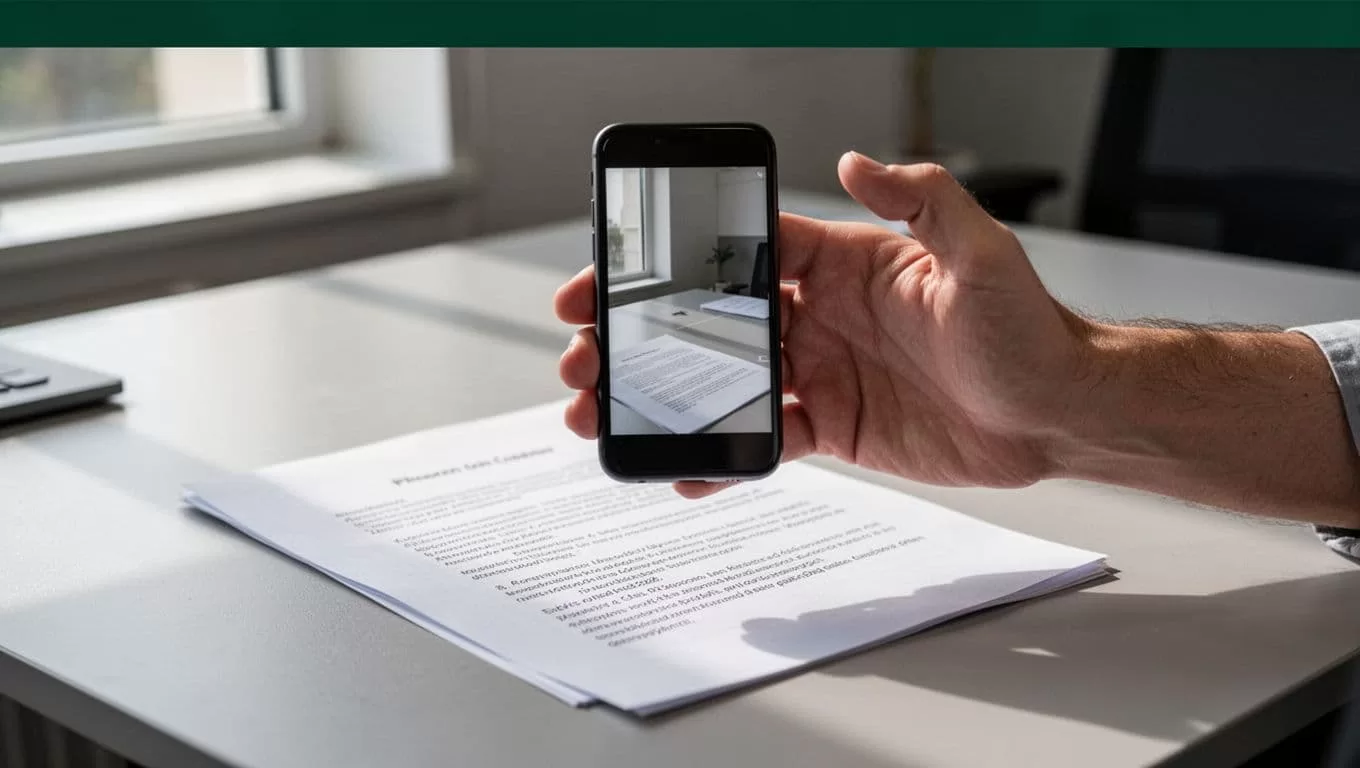
OCR is useful but not perfect. It can confuse similar characters, skip small print, or place columns in the wrong order. Tables, mathematical notation, handwriting, accents, and unusual fonts need extra review.
Listen to the first few lines before trusting the whole scan. For medical, legal, financial, or operational documents, compare the audio with the original page.
Set Speed, Voice, and Reading Controls
The right settings depend on the task. A fast voice may work for a familiar article. New technical material usually needs a slower pace.
Start at a comfortable speed and increase it after several minutes. If comprehension drops, reduce the speed instead of replaying entire sections. Many users prefer one setting for general reading and another for dense documents. Available speed ranges and voice options vary by plan and app version.
Choose a voice that makes long sessions easy to follow. A clear voice with consistent pronunciation matters more than novelty. Try a different voice when names, abbreviations, or technical terms sound incorrect.
Use pause and replay controls as part of the workflow. Stop after a major section and record a short note. When studying, replay definitions or instructions rather than increasing the speed. When reviewing business documents, keep the source open so you can verify figures and names.
Speechify may highlight words or sentences during playback, depending on the input type and device. That visual tracking can support reading development and reduce the chance of losing your place.
A simple operating pattern works well:
- Use slower playback for learning and editing.
- Use normal playback for unfamiliar reports.
- Use faster playback for routine reading.
- Pause before tables, charts, and lists.
- Verify important details against the original document.
Audio improves access to text. It doesn’t remove the need to check source material.
Check Limits, Privacy, and Plan Access
Speechify’s results depend on the quality of the source. Clean HTML and selectable PDF text usually process well. Complex layouts need more attention. Images without OCR support, charts, diagrams, and visual formatting may not translate into useful audio.
Don’t assume every visible word will be read in the correct order. Test reports with sidebars, footnotes, headers, and multi-column pages. If the output is confusing, find an accessible HTML version or paste a cleaned section into the reader.
Review permissions before importing work files. Company policies may restrict uploading customer records, internal reports, contracts, health information, or other confidential material. Use approved storage and account settings when Speechify is part of a business workflow.
Free access, premium voices, OCR, summarization, offline listening, speed limits, and file integrations can change by region and plan. Check the current offer inside the app before budgeting for a team. Also confirm whether your preferred device supports the feature you need.
Speechify is a text-to-speech tool, not a guarantee that every document will be extracted correctly.
Conclusion
Speechify gives you a practical way to read webpages, PDFs, emails, copied text, and printed pages aloud. Use the Chrome extension for browser content, the mobile share menu for articles, and OCR for physical documents.
Start with a short sample. Check the text order, adjust the voice and speed, then use the full document. For complete device navigation, use VoiceOver, TalkBack, Narrator, or another operating system screen reader. The best setup matches the tool to the type of content you need to hear.
