Download A Script Reading App From Speechify
Rehearsing dialogue, timing delivery, and reviewing production notes require absolute focus. If you’re an actor, voice talent, or presenter, reading dense pages visually can slow down your prep work. You can bypass that visual fatigue...
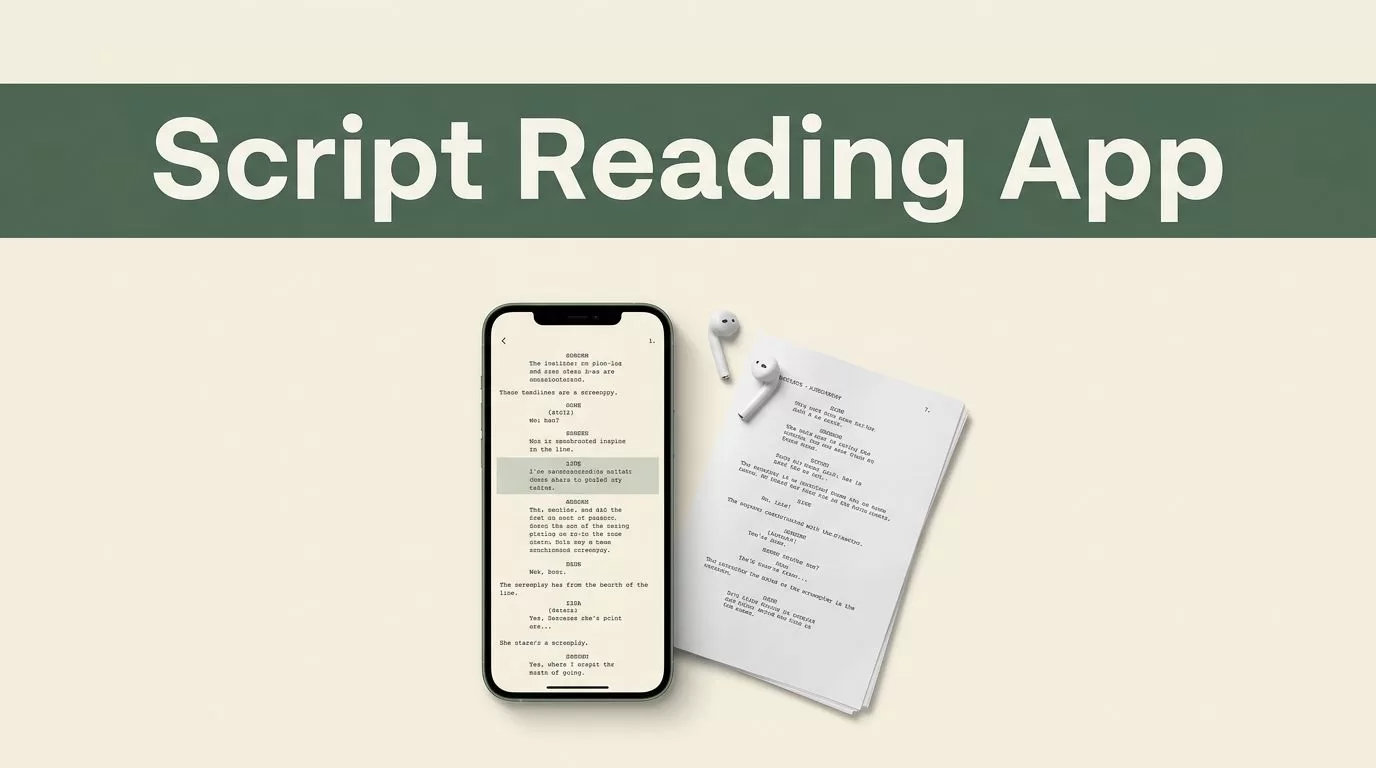
Rehearsing dialogue, timing delivery, and reviewing production notes require absolute focus. If you’re an actor, voice talent, or presenter, reading dense pages visually can slow down your prep work. You can bypass that visual fatigue by converting your text into natural audio using a dedicated script reading app.
Speechify makes it easy to listen to lines, check pacing, and track progress across devices. Whether you need a mobile tool for on-the-go practice or a browser extension for your desktop workspace, getting started takes just a few minutes.
Key Takeaways
- Download the official Speechify application directly from the Apple App Store, Google Play Store, or Chrome Web Store depending on your device.
- Organize your rehearsal materials into dedicated project folders to prevent context switching during practice sessions.
- Enable synchronized text highlighting so your eyes track along with the spoken words and reinforce retention.
- Adjust playback speed gradually, starting at normal speed before scaling upward as your auditory processing adapts.
How to Download and Install Speechify
Your installation path depends entirely on the device you plan to use for your rehearsals. Mobile users on iOS need to open the Apple App Store and search for the official client. Android users should head straight to the Google Play Store to initiate their download.
Desktop users have a few distinct options available for their workflow. If you primarily work inside a browser or need to read lines directly from web-based production management tools, install the Chrome Web Store extension. Windows and macOS users can also grab dedicated desktop installers directly from the official Speechify platform pricing and plan details to manage larger files offline.
Once your installation completes, open the app and create your account using your email, Google, or Apple ID. Logging in ensures your uploaded scripts sync automatically across your phone, tablet, and computer.
Importing and Organizing Your Rehearsal Scripts
A cluttered file queue destroys your rehearsal rhythm. Before you press play, structure your digital workspace so you can locate specific scenes or character lines without hesitation.
Create dedicated folders inside your library by project name, episode, or client. Import your script files directly into the correct folder using the main import button. The app supports a wide range of formats, including PDF documents, Word files, plain text, and web links.
+------------------+------------------------------------+
| Document Type    | Recommended Handling               |
+------------------+------------------------------------+
| PDF Scripts      | Check for clean multi-column text  |
| Web Pages        | Use browser extension to clip      |
| Plain Text Files | Instant import with no formatting  |
+------------------+------------------------------------+
Clean file preparation stops you from wasting time searching for dialogue mid-practice. Convert messy scans or complex multi-column PDFs into clean text formats before importing them to guarantee smooth sentence progression.
Calibrating Playback Settings for Dialogue Practice
Listening to dialogue at a standard pace can feel sluggish when you’re pressed for time. However, jumping straight to maximum speed leads to missed cues and poor comprehension.
Start your listening sessions at normal speed for the first few minutes to establish your baseline. Scale your playback speed upward gradually as your auditory processing catches up to the faster pacing.
| Material Type | Recommended Speed | Processing Focus |
|---|---|---|
| Standard Scripts | 1.25x to 1.5x | Natural rhythm and pacing |
| Rapid Dialogue | 1.5x to 2.0x | Quick intake and line memorization |
| Dense Monologues | 1.0x to 1.25x | Close attention to emotional delivery |
Enable synchronized text highlighting in your application settings view. Seeing words underlined on screen while the audio plays forces your eyes to track along with the spoken delivery. This visual reinforcement helps you master unfamiliar terminology, foreign accents, or dense theatrical phrasing without losing your place.
Utilizing Bookmarks and Active Notes
Passive listening leads to zoned-out rehearsal sessions where key stage directions slip past unnoticed. You can prevent comprehension loss by combining audio playback with active annotation tools.
Use the built-in bookmarking feature whenever you hit a critical emotional beat or a complex cue. These bookmarks let you jump back instantly to specific timestamps during group rehearsals. If you need to review character motivations, use the platform summarization features to generate concise scene overviews before you run the lines again.
Export your highlighted quotes and notes directly into your writing workspace or reference manager if you need to share breakdown notes with your director. This direct export pipeline turns routine listening time into actionable production data.
Avoiding Common Setup Friction and Billing Pitfalls
Even streamlined tools encounter occasional setup friction during daily use. If your imported script sounds disjointed or skips across dialogue blocks, check whether your document contains complex multi-column formatting that confuses the text parser.
Subscription trials also require careful management if you decide to upgrade from the free tier. Review your app store subscriptions or direct account settings before any promotional trial period ends to prevent automatic charges.
Web-based checkouts sometimes feature different pricing structures than mobile in-app purchases. Always check the exact renewal terms and tax additions listed on your final payment screen before confirming a plan change.
Conclusion
Upgrading your rehearsal workflow with a reliable script reading app transforms how you prepare for auditions and performances. By combining multi-device syncing, synchronized word highlighting, and adjustable audio pacing, you reclaim valuable hours from your daily schedule. Clean up your document library today, calibrate your playback speed, and run your lines with absolute confidence.
