How I Automate Attendee Registration with Twin.so
Event registration looks simple until the inbox starts filling up. Then the same name gets typed three times, confirmations slip, and the team spends the afternoon cleaning up records instead of running the event. I use Twin.so when I want...

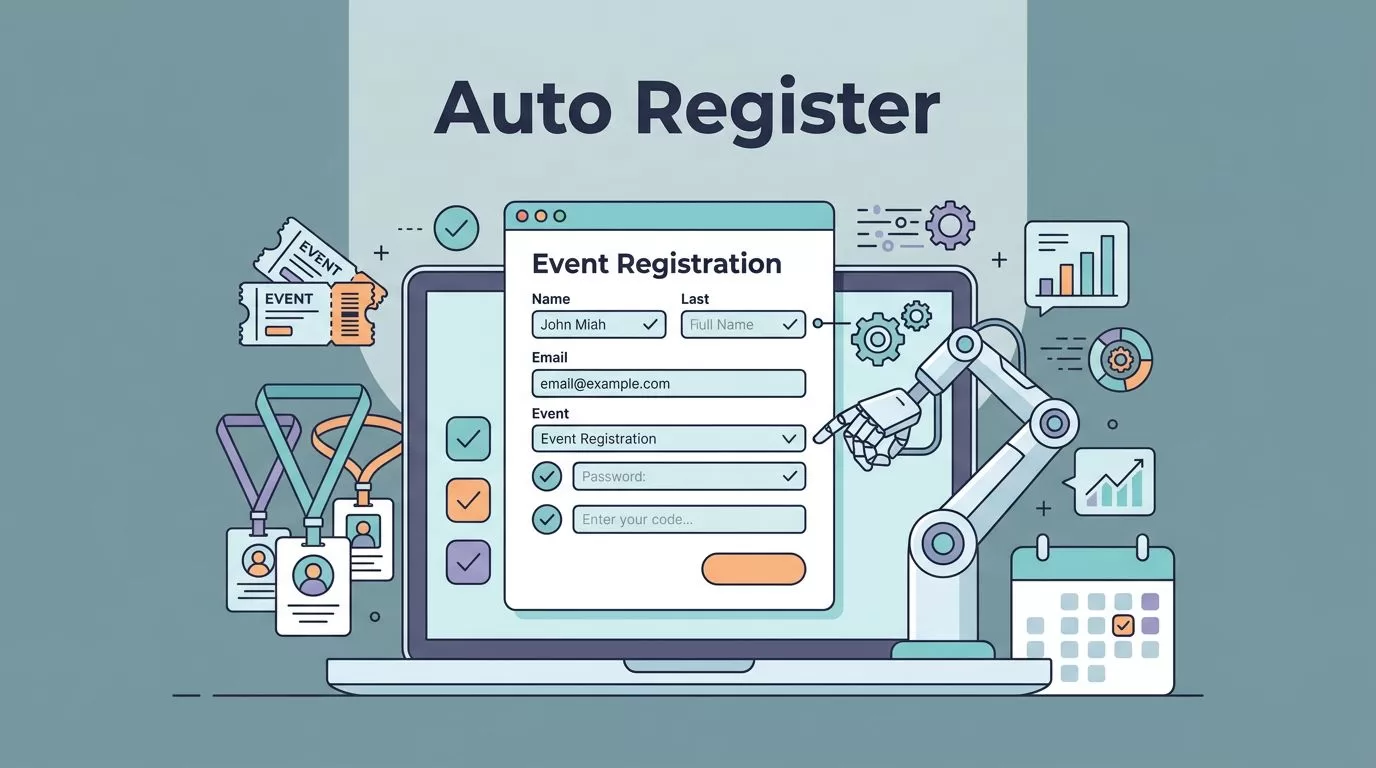
Event registration looks simple until the inbox starts filling up. Then the same name gets typed three times, confirmations slip, and the team spends the afternoon cleaning up records instead of running the event.
I use Twin.so when I want to automate attendee registration, cut manual entry, and keep the data moving without constant handoffs. Because it can work through APIs or a browser, it fits both modern stacks and the awkward tools that still need a person to click around.
The payoff is easy to feel. I get fewer errors, faster confirmations, and a better first impression for every attendee.
Why I automate attendee registration instead of typing it in
Manual registration work is small only until it repeats fifty times. One typo in an email address can break a confirmation. One missing ticket type can send the wrong badge to check-in. One delayed export can leave sales or ops working with stale data.
That is why I prefer to automate attendee registration at the point where the form is submitted. The goal is not just to save time. It is to remove the little breaks that make an event feel messy.


If you want to see what modern registration tooling can look like, Formstack’s registration automation page shows how forms, documents, and signatures can live in one flow. Twin.so can sit behind that front end and move the data where it belongs.
The cleanest registration flow is the one that answers, tags, and routes the attendee once.
I also use the same thinking I describe in my AI-powered invoice processing guide here. Collect the data once, validate it once, then stop retyping it everywhere else.
How I map the registration flow Twin.so runs
When I set up a registration workflow, I start with one simple question, where does the data enter, and where does it need to end up? That answer tells me how Twin.so should work.
Capture the right fields
I keep the form short, because long forms scare people off. Name, email, company, ticket type, session choice, and maybe one or two custom fields are usually enough. If I need dietary notes, sponsor interest, or consent, I add them only when they affect the event.
Twin.so can watch that intake step and pick up the new submission right away. If the source tool has an API, it can push data through it. If not, it can use a browser session, fill the fields, and submit the record the same way a person would.
Sync the record where the team works
Once the registration lands, I want the rest of the team to see it fast. That might mean a CRM, a spreadsheet, an email platform, or an event management system. The point is to stop the copy and paste loop.
This is where Twin.so saves the most time. It can take the attendee record and sync it to the right place without waiting for someone to export a CSV. That means sales gets the lead, ops gets the badge list, and marketing gets a clean audience segment sooner.
Enrich and route attendee data automatically
The best flows do more than copy fields. They enrich and route the record.
If someone registers from a sponsor domain, I tag them one way. If they choose a VIP session, I route them to a different list. If they come from a partner code, I can trigger a different follow-up. That small logic gives the team better context before the event day starts.
It also keeps the experience tidy. Attendees get the right message, the right confirmation, and the right next step without asking support to fix the basics.
Workflow scenarios I would set up first
I like to start with the flows that remove the most obvious pain. Those usually show value in the first week.
- Webinar signup to confirmation and CRM update: Twin.so captures the form submission, writes the contact to the CRM, and sends a confirmation email right away. If I want a ready-made pattern for reminders, I use the structure in this event reminder workflow template as a reference for the follow-up side.
- Conference registration to ops dashboard: The attendee record moves into a shared sheet or dashboard, where the team can track badge counts, meal choices, and session demand. That keeps ops from waiting on manual exports.
- VIP or sponsor registration to sales routing: Twin.so flags the record, adds a note, and sends a task to the right person. A high-value guest should never sit in a generic queue.
- Waitlist registration to review queue: If capacity is full, the workflow sends the contact into a separate list instead of dropping the lead. That lets me review overflow in batches instead of searching through a messy inbox.
These scenarios work because they reduce friction at the exact moment people expect speed. If the first confirmation email arrives late, the whole event feels late.
Implementation tips that keep the process clean
I get better results when I keep the automation simple on day one. A small flow is easier to trust, test, and fix.
- Start with one registration source.
I pick one form and one destination system first. That makes it easier to spot field-mapping mistakes. - Decide which system owns the truth.
If the CRM is the source of record, I write updates there first and let other tools follow. Otherwise, duplicate edits creep in fast. - Map every field before the workflow goes live.
Email, company, ticket type, and tags need clear matches. A tiny mismatch here can send bad data everywhere else. - Add a duplicate check.
I compare email addresses, registration IDs, or payment references before creating a second record. That keeps one person from showing up twice in the system. - Test the messy cases, not only the clean ones.
I try bad phone numbers, missing names, and duplicate submissions. Those are the cases that break real events. - Keep a fallback path for exceptions.
When something fails, I want a human review queue or alert. That way no record disappears into a silent error.
The most useful automations are boring after setup. That is the point. They do their job without asking for attention.
Where I keep humans in the loop
I do not hand every part of registration to automation. I keep people in control of anything that needs judgment.
That includes discount approvals, waiver disputes, VIP comp decisions, and last-minute group changes. Twin.so can still move the data, but a person should make the call when the rules are not clear.
I also pay close attention to privacy and access. Registration data often includes names, emails, company details, and sometimes payment-related context. I give the workflow only the permissions it needs, then I review the steps that touch sensitive records.
When registration includes forms, signatures, and extra documents, the front-end process matters too. Tools like registration automation with forms and signatures help me keep that intake clean while Twin.so handles the back-end movement.
Conclusion
When I automate attendee registration with Twin.so, I get a cleaner workflow without adding more manual steps behind the scenes. The form is captured once, the record is synced where it needs to go, and the attendee gets a faster response.
That change is small on paper, but it changes the feel of the whole event. The inbox gets quieter, the data gets cleaner, and the team stops fixing avoidable errors.
If I want a simple rule, I use this one: start with one event, one form, and one confirmation path, then expand only after the flow holds up under real use.
FAQ
Can Twin.so handle registration if my form tool has no API?
Yes. Twin.so can use a browser-based workflow when an API is not available, so it can still submit or move the registration data.
What fields should I automate first?
I start with name, email, company, ticket type, and session choice. Those fields cover the most common routing and confirmation needs.
How do I reduce duplicate registrations?
I check email addresses, registration IDs, or payment references before creating a new record. I also test duplicate submissions before launch.
Is Twin.so useful for small events too?
Yes. Small webinars, workshops, and meetups benefit from faster confirmations and fewer manual updates. The savings add up fast when the same task repeats every week.

