Bypass Executive Dysfunction Reading With Speechify
Staring at a wall of text on a screen creates immediate mental paralysis when you deal with executive dysfunction reading blocks. You need to consume essential articles, reports, or research papers, but your brain refuses to lock onto the s...
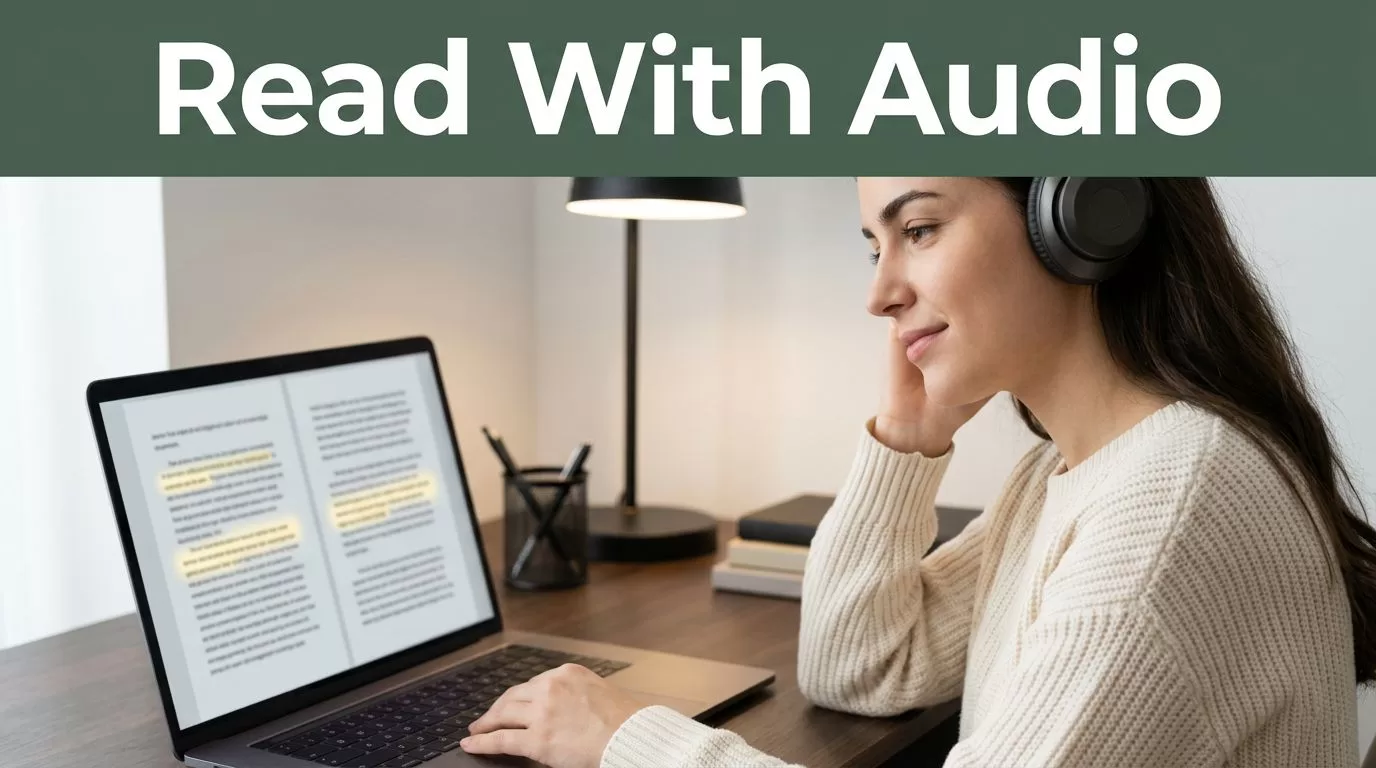
Staring at a wall of text on a screen creates immediate mental paralysis when you deal with executive dysfunction reading blocks. You need to consume essential articles, reports, or research papers, but your brain refuses to lock onto the sentences. That cognitive friction turns simple document review into an exhausting chore. You can clear those reading barriers by routing text through audio conversion software and shifting your intake channel from your eyes to your ears.
Key Takeaways
- Shift heavy reading loads from visual scanning to audio playback to bypass mental fatigue and focus blocks.
- Configure variable speed settings gradually to train your auditory processing without losing comprehension.
- Use optical character recognition to turn printed handouts and offline PDFs into portable listening files.
- Combine audio narration with synchronized text highlighting to anchor your attention during long study sessions.
- Keep manual visual review for complex data tables, source code, and equations that require close inspection.

Photo by Eren Li
How Speechify Changes Reading Workflows
Traditional reading demands sustained visual tracking, working memory, and constant mental pacing. When executive function dips, maintaining that focus feels impossible. Speechify converts dense web pages, long PDFs, emails, and ebooks into spoken audio files.
Instead of forcing your eyes to track lines across a bright screen, you listen to a natural voice model while walking, doing chores, or resting your eyes. This approach removes the startup friction that stalls complex projects. You press play, and the app drives the pacing forward. For a broader look at assistive tools, review this guide on text to speech and speech to text tools for students with ADHD.
Preparing Documents for Seamless Audio Intake
Raw files often contain structural clutter that breaks the flow of synthetic speech. Messy headers, page numbers, footnotes, and procedural watermarks cause text-to-speech engines to stutter. You need to clean up your documents before hitting play.
Remove stray citation margins and administrative footers from your PDFs and research papers. Clean imports let the audio engine move smoothly through the text without tripping over formatting artifacts. If you work with physical books or printed handouts, use the optical character recognition scanner to turn paper pages into clean digital audio files instantly.
Training Your Brain for Higher Speeds Safely
Jumping straight to maximum narration speed on your first day creates a wall of unintelligible noise. Your working memory needs time to adapt to faster auditory input. Start your listening sessions at a moderate pace to establish a stable baseline.
Once normal pacing feels comfortable, bump the rate upward in small increments during your daily reading blocks. If you notice your mind wandering or find yourself missing key arguments, dial the speed back down for a session. Always match your playback speed to the complexity of the material. Dense technical architecture documents require slower pacing than industry news or narrative articles.
| Material Type | Recommended Speed | Processing Focus |
|---|---|---|
| Industry News | 1.5x to 2.0x | Quick intake and broad skimming |
| Research Papers | 1.25x to 1.5x | Comprehending background facts |
| Legal Contracts | 1.0x to 1.25x | Close attention to exact clauses |
Keep your playback settings calibrated to the actual density of the content rather than chasing high numbers. When you want to compare different features across platforms, you can check out this breakdown of the 10 best text-to-speech tools for ADHD study.
Maintaining Focus With Synchronized Highlighting
Audio playback pushes forward continuously unless you actively pause or skip backward. That forward momentum creates a specific risk for distracted readers. It is easy to zone out during a long discussion of complex topics.
Enable synchronized text highlighting in your settings view to keep your brain anchored. Seeing words underlined on screen while you listen reinforces retention, especially when reviewing unfamiliar terminology or dense theoretical arguments. If you hit a complex paragraph that requires deeper analysis, tap the word in the document to jump directly to that point without hunting through the entire file.
Knowing When to Switch Back to Visual Reading
Text-to-speech acceleration clears your reading backlog of operational memos, articles, and research papers efficiently. However, audio listening serves as a support tool rather than a complete replacement for manual inspection. Certain information formats require deliberate visual pacing and internal reflection.
Technical source code requires precise syntax tracking where missing a single character breaks execution. Aesthetic prose depends on cadence and tonal nuance that fast narration flattens completely. Match your reading mode to your operational objective. Use audio acceleration for intake and screening, then switch back to manual reading when you need absolute retention and critical evaluation of complex figures.
Conclusion
Overcoming reading paralysis starts with changing how information enters your workflow. By routing heavy texts through an audio engine, you bypass the visual bottlenecks that trigger mental fatigue. Set up your document library today, configure your voice and speed preferences, and tackle your reading list with a reliable system.
