How I Set Up Drive Folder Templates for New Clients
A messy client folder can waste hours before a project even starts. I learned that the hard way, so I now build drive folder templates before I send the first welcome email. That gives every new client the same clean setup. It also keeps fi...


A messy client folder can waste hours before a project even starts. I learned that the hard way, so I now build drive folder templates before I send the first welcome email.
That gives every new client the same clean setup. It also keeps files easy to find when the project gets busy, which is usually when things fall apart.
I start with ownership, not pretty folder names
I used to begin with folder labels. Now I start with who owns the files and where they live.
If the work belongs to my business, I keep it in a shared space instead of a personal one. My Google Workspace Shared Drives setup explains the ownership model I rely on, and it saves me from the classic “where did the files go?” problem when a project changes hands.
That rule shapes everything else. It also keeps client work in one place, which makes handoffs smoother and cleanup easier later.
The folder tree I reuse for almost every client
I keep the top level short. Seven folders is usually enough, and that matches the practical advice in Google Drive folder structure best practices.

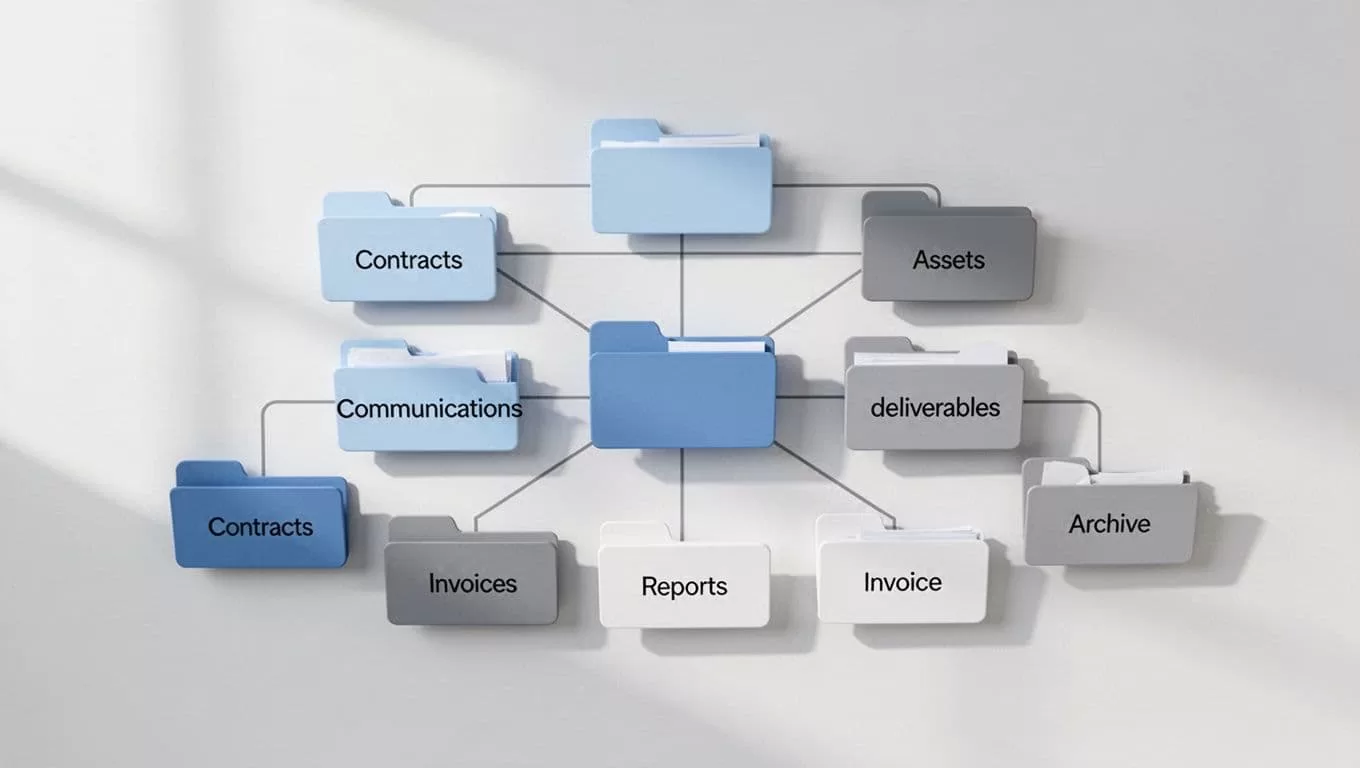
My usual top-level structure looks like this:
- 01_Admin for contract, scope, and kickoff notes
- 02_Communication for meeting notes, approvals, and recap docs
- 03_Assets for logos, brand files, and source material
- 04_Working Files for drafts and in-progress work
- 05_Deliverables for final files the client receives
- 06_Billing for estimates, invoices, and payment records
- 07_Archive for old versions and closed items
If I can’t explain a folder in one sentence, it doesn’t belong in the template.
When I need a sanity check, I like the structure ideas in this shared folder template for client files. The point is simple. I want one obvious path for every file.
My file naming rules keep searches painless
A good folder tree still breaks down if file names are sloppy. So I use one pattern across every client.
| File type | My naming pattern | Example |
|---|---|---|
| Contract | Client-Project-DocType-Date | Acme-Site-Contract-2026-04-18 |
| Notes | Client-Project-DocType-Date | Acme-Site-Kickoff-Notes-2026-04-18 |
| Draft | Client-Project-DocType-v## | Acme-Site-Homepage-Copy-v02 |
| Final | Client-Project-DocType-FINAL | Acme-Site-Homepage-Copy-FINAL |
I keep dates in YYYY-MM-DD format because it sorts cleanly. I also avoid vague names like “final final” or “new version.” Those names create confusion fast.
For a broader view of folder logic, the examples in Google Drive folder structure best practices line up well with how I work.
My onboarding flow when a new client signs
Once the template exists, I can spin up a new client folder in minutes. If I want more of that process to run on its own, I borrow ideas from a zero-touch client onboarding system.
I follow the same order each time:
- I copy the master template into a new root folder.
- I rename the root folder with the client name and project date.
- I drop in the contract, intake form, kickoff agenda, and any welcome docs.
- I set permissions before I share anything.
- I send one short note that tells the client where to upload files and where final deliverables will live.
This also fits neatly with the workflows I use in Workspace tools for file organization and team workflows. The folder should support the job, not slow it down.
Sharing and permissions stay tight on purpose

I keep most client folders view-only. Then I open edit access only where the client needs to comment or upload files.
My rule is simple. The client gets the smallest permission that still lets the work move forward. For sensitive documents, I follow the guardrails in my secure document sharing settings in Google Workspace.
A few habits help a lot:
- I use shared folders for team-owned files, not personal drives.
- I give edit access only to upload or review folders when needed.
- I remove access as soon as the project closes.
- I check sharing again before I send the first live link.
That keeps the folder useful without turning it into a free-for-all.
I keep the system clean after kickoff
A template is only the starting point. The real win comes from small habits after the project begins.
I file new items on the same day I get them. I archive old drafts instead of leaving them in working folders. I also delete duplicate versions when a final file is approved.
That matters more than people think. A tidy folder is easier to trust, so I spend less time double-checking and more time doing the work.
I change the template for different kinds of clients
Different services need different shelves. The core structure stays the same, but I adjust the middle.
| Business type | What I add or change |
|---|---|
| Agency | Strategy, creative, revisions, approvals |
| Consultant | Discovery, research, slide decks, reports |
| Ops or automation service | Requirements, build notes, QA, handoff |
| Finance or reporting service | Statements, exports, reviews, delivery files |
I still keep the root folder familiar. That way, every client feels consistent, even when the work itself is different.
The checklist I use before I hand over a client folder
- I create one root folder for the client and project.
- I add the same core subfolders every time.
- I rename files with one clear naming pattern.
- I place contracts and intake docs in the admin folder.
- I set permissions before I share the link.
- I give the client one clear place for uploads.
- I move finished work to archive instead of leaving it in drafts.
When I follow this list, new client setup feels calm instead of rushed. The folder is ready before the project starts.
The biggest change was simple. I stopped treating Drive like storage and started treating it like part of my service. That one shift makes every handoff cleaner.
A good template saves time on day one. A good habit keeps it useful on day sixty.

