How to Extract Audio From Video on Twin.so Securely
A video often contains the exact audio you need, but separating it can create a second problem: where does the file go, and who can access it? If you want to extract audio from video while keeping the workflow controlled, Twin.so can help m...

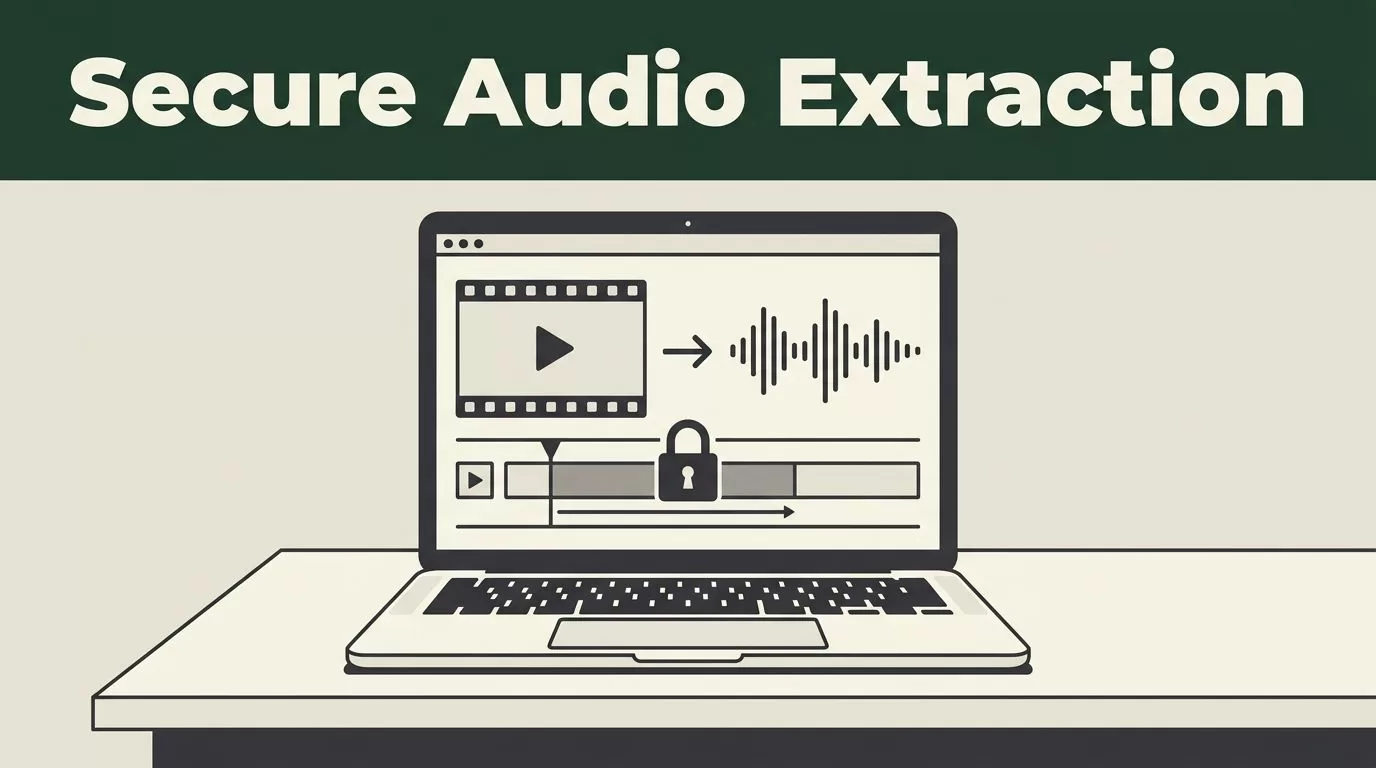
A video often contains the exact audio you need, but separating it can create a second problem: where does the file go, and who can access it? If you want to extract audio from video while keeping the workflow controlled, Twin.so can help manage the browser-based process when connected to an approved extraction service.
Twin.so is primarily a browser automation and web data extraction platform. Current public information does not confirm a dedicated native audio-extraction feature, fixed output formats, upload limits, encryption claims, or file-retention rules. Treat Twin.so as the workflow layer unless your account documentation confirms a built-in conversion action.
What Twin.so Can and Cannot Do
Twin.so combines browser agents with web scraping. Its public site describes agents that can log in to websites, interact with web apps, and retrieve structured data when an API isn’t available. That makes it useful for coordinating a video-to-audio workflow across approved websites.
It doesn’t mean every media task is a native Twin.so function. A platform that can browse a video site or create production output isn’t automatically a video converter. Audio extraction requires a separate processing step that reads the video container and creates an audio file.
This distinction matters for security and accuracy. You need to know which system receives the original video, which system processes it, and where the resulting audio is stored.

Use this operating model:
- Twin.so controls the browser workflow.
- An approved converter handles the file processing.
- Your selected storage location receives the output.
- You review the file before sharing or sending it into another automation.
If your Twin.so workspace exposes a verified audio-processing action, follow that action’s current instructions instead. Don’t assume that an action is available because an agent can open a website or manipulate a file.
For YouTube-based workflows, Twin.so can also help pull video information and manage content operations. Its YouTube automation integrations are more clearly documented than native audio conversion. That distinction helps you select the right tool for each stage.
How to Extract Audio From Video Securely With Twin.so
Start with the video source. Use a file you own, have permission to process, or are authorized to download and transform. Copyright permission applies to audio extraction just as it applies to copying the original video.
Next, identify the approved conversion service. If your company has a preferred vendor, use that service instead of sending business footage to an unknown website. For public, non-sensitive media, a browser-based extractor may be acceptable. For client recordings, internal meetings, interviews, or customer data, confirm the service with your security or operations team first.
A practical Twin.so workflow looks like this:
- Create a narrow task. Tell the agent which approved website to open and which video file to process. Include the required output location. Don’t ask it to search broadly for a converter.
- Use a separate working folder. Store the original video and extracted audio in a project folder with restricted access. Use clear file names such as
client-interview-sourceandclient-interview-audio. - Avoid placing secrets in the task description. Never paste passwords, API keys, private access tokens, or customer information into an agent prompt. Twin-related integration documentation describes vault-based credential handling for supported logins, but your account configuration determines which features are available.
- Review the upload step. Confirm the source file, destination website, and account before the agent submits anything. A wrong file can expose unrelated material.
- Check the result manually. Open the converted file in a trusted media player. Confirm that the expected speaker, duration, and audio quality are present.
- Remove unnecessary copies. Delete temporary uploads or browser downloads when your approved retention process allows it. Don’t claim that a third-party service deletes files unless its current policy confirms that point.
The most important control is scope. A task that says “convert this video” is safer than one that gives an agent permission to browse personal folders, search for files, and upload anything it finds.
Restream’s online audio extractor lists common video inputs such as MP4, MOV, MKV, WEBM, and AVI, with MP3 extraction. Use that information as a reference for evaluating a conversion service, not as proof that Twin.so supports every listed format.
Security Checks Before You Upload a Video
Video files often contain more information than expected. A screen recording may show account numbers. A podcast interview may include private names. A marketing shoot may include unreleased product details.
Review the source before sending it through any browser workflow. Watch the first and last few minutes. Check the file name. Confirm that no unrelated clips sit in the same folder. If the video contains confidential information, use an approved internal process instead of a public converter.
Twin’s broader platform information includes credential controls and vault-based handling for supported website logins. That can reduce the need to expose passwords in task instructions. It doesn’t remove the need to configure account permissions correctly.
Give the agent the smallest access level required. A conversion task usually shouldn’t need access to your entire cloud drive, customer database, or team workspace. Restrict the source and destination folders where the connected services allow it.

Before processing, check these points:
- The video has an approved business or personal use.
- The converter’s privacy policy matches the sensitivity of the file.
- The account uses a unique password and available multi-factor authentication.
- The Twin.so task does not contain credentials or unnecessary personal data.
- The output folder has the correct access permissions.
- Temporary copies have a defined cleanup step.
Don’t treat the word “secure” on a tool’s landing page as a technical guarantee. Look for current documentation about access controls, storage, processing, and deletion. If the provider doesn’t explain how files are handled, don’t use it for confidential footage.
Twin.so public materials also describe browser agents that can interact with login-protected sites. That capability increases the need for access reviews. A logged-in browser can reach more information than an unauthenticated visitor, so every connected account should have a clear purpose.
Select the Right Audio Output for the Job
The correct output depends on what happens after extraction. Don’t choose a format based only on the smallest file size.
For quick review, voice notes, social clips, or transcript preparation, a compressed audio file may be enough. For editing, mixing, or post-production, preserve more source quality when the approved converter supports that option. Your editor, podcast host, or transcription service may also require a specific format.
Twin.so’s current public information doesn’t confirm a universal set of audio output options. Check the conversion action or provider interface before building an automated workflow around MP3, WAV, AAC, or another format.
Use this simple decision process:
- Choose the format required by the next tool.
- Keep the original video until you verify the audio.
- Use a descriptive output name with the project and version.
- Compare the audio duration with the original video.
- Listen for missing sections, silence, clipping, or unexpected background noise.
Audio extraction doesn’t improve poor source audio. If the video has low volume, heavy echo, or overlapping speakers, the extracted file will carry those problems forward. Noise reduction and voice isolation are separate processing tasks.
The same rule applies to transcripts. An extracted audio file is not a transcript. If you need searchable text, send the verified audio to an approved transcription workflow after conversion.
Turn Extracted Audio Into a Repeatable Content Workflow
Creators and marketers often extract audio because the next step is content reuse. A podcast video can produce an audio episode. A webinar can produce a transcript. A product demo can provide material for short-form scripts.
Keep those tasks separate. First verify the audio. Then transcribe or summarize it. Finally, send the reviewed text into your content workflow.
Twin.so has a documented use case for transcribing and repurposing videos. That workflow connects video sources with Google Docs and AI-generated content. It is relevant after extraction, but it should not be treated as evidence that Twin.so itself converts every video into an audio file.
A reliable production sequence is:
- Extract the audio through an approved action or service.
- Confirm the file opens and matches the source duration.
- Store the verified file in the project folder.
- Transcribe the audio with an approved tool.
- Review names, numbers, product terms, and speaker changes.
- Generate drafts only after the transcript passes review.
Use human review for customer quotes, legal statements, financial figures, and technical claims. Automated transcription can mishear a product name or turn a decimal into a different number. Those errors spread quickly when an agent creates multiple posts from one transcript.
Troubleshoot Common Twin.so Audio Workflows
If the agent cannot find the file, check the folder permission and file name first. Keep names short and use common characters. A browser agent may also fail if the source website requires a manual security challenge, unsupported login step, or device verification.
If the converter rejects the upload, check the video’s actual file type rather than relying on its extension. A file named .mp4 may have been exported with unusual encoding or incomplete metadata. Test the file in a local player before sending it through the workflow.
If the output is silent, compare it with the original video. Some videos contain multiple audio tracks or rely on unusual codecs. The converter may process the wrong track or fail to decode the audio correctly.
If a task repeats an action or uploads the wrong file, stop the run. Review the task instructions, account permissions, and destination path. Automation should reduce manual work, not remove human control from a sensitive upload.
Conclusion
You can use Twin.so to coordinate a controlled video-to-audio workflow, but current public information doesn’t confirm a dedicated native audio extractor. Treat Twin.so as the browser and automation layer unless your account documentation states otherwise.
The safe process is direct: use an approved converter, restrict file access, keep credentials out of prompts, verify the output, and delete temporary copies under your retention policy. When the audio is correct, move it into transcription or content repurposing as a separate reviewed step. Secure extraction starts with knowing exactly which system handles the file.

