How I Password Protect PDFs Before Sending Them Safely
A PDF can hold contracts, bank details, or client notes in one neat file. I treat it like a sealed envelope. When I password protect PDF files, I don’t stop at the lock icon. I check the encryption, test the file, and send the passwor...

A PDF can hold contracts, bank details, or client notes in one neat file. I treat it like a sealed envelope.
When I password protect PDF files, I don’t stop at the lock icon. I check the encryption, test the file, and send the password through a separate channel.
That habit still matters in 2026. The safest method depends on the document, so I start with the level of risk. A wrong setting can leave the door open even when the file looks locked.
I Start With the Right Kind of Protection
Before I touch the file, I decide what needs to be blocked. An open password stops strangers from opening the PDF. A permissions password still lets people read it, but limits printing, copying, or editing.
A quick table helps me pick the right one.
| If I need… | I choose… |
|---|---|
| Someone to open the file | an open password |
| Read-only access with limits | a permissions password |
| Later revocation or expiration | secure file sharing |
For a plain-language explanation of those two layers, I like a clear PDF protection guide. When I need the exact Adobe steps, I check Adobe’s password encryption instructions.
If the document is sensitive enough that I may need to revoke access later, I stop and think harder. A passworded attachment is permanent once it lands in an inbox. I don’t trust a lock I can’t describe in plain language.
I Password Protect the PDF on Desktop
Desktop software is where I feel most comfortable with private files. The file stays local until I’m done, which gives me more control.

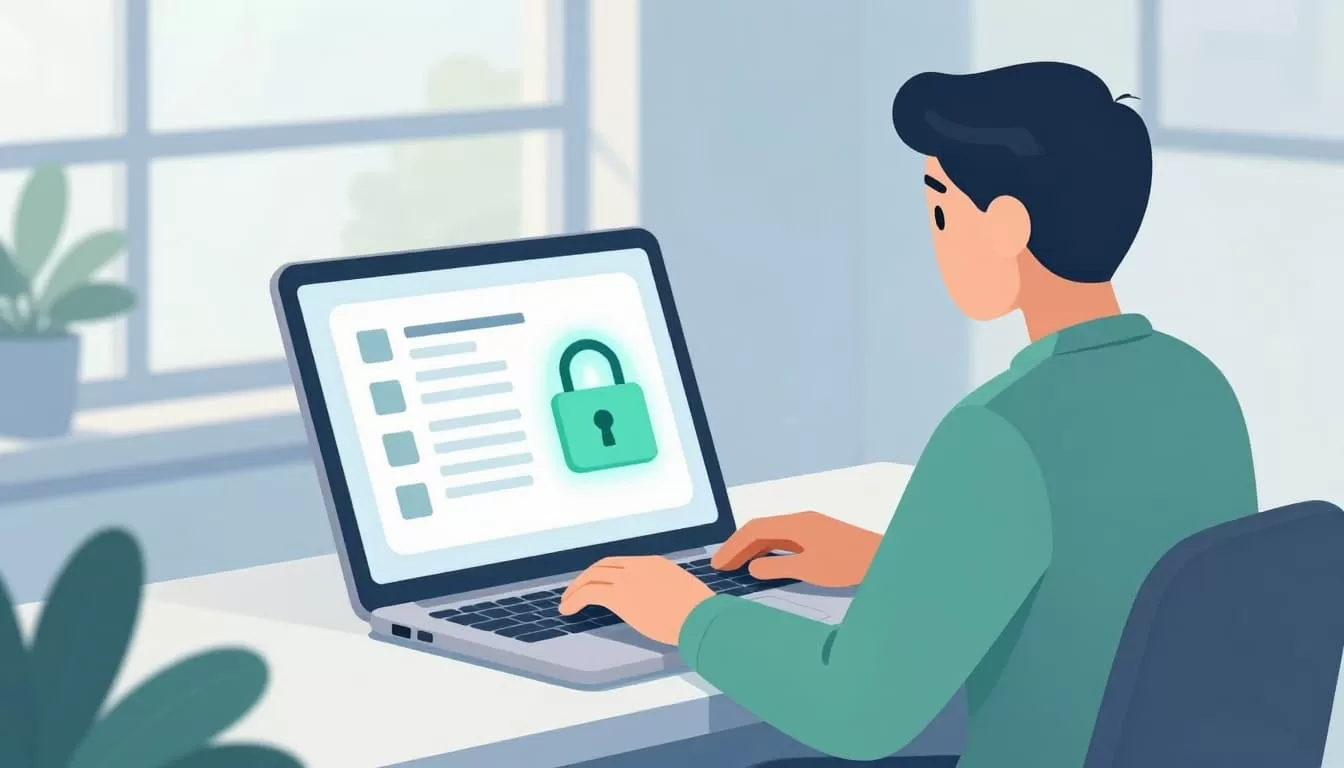
In Adobe Acrobat, I open the PDF, go to Protect, and choose Encrypt with Password. Other editors hide the same choice under File, Security, or Export. The menu name matters less than the result.
Then I follow a simple order:
- I save a clean copy of the PDF before I change anything.
- I set an open password if I want the whole file locked.
- I add permissions only when the recipient should read, but not print or edit.
- I choose the strongest encryption the app offers, then I confirm that it applies.
- I save the file under a new name so I don’t overwrite the original.
- I reopen the file myself and make sure the password prompt appears.
I choose a password I have not used anywhere else. Longer beats clever, so I use a passphrase that is hard to guess but easy for me to remember. I also avoid names, project titles, and invoice numbers.
If I work with a client draft, I keep one master copy untouched. Then I create a protected version for delivery. That way I don’t trap the only clean copy behind a password. When the file matters, I also open it once on a second device I control.
That final test matters. If the file opens without prompting me, I fix the settings before I send anything.
I Handle Mobile and Online Tools With Care
Sometimes I only have a phone, and I still need to lock a PDF. In that case, I use the app from a known vendor and keep the task simple.
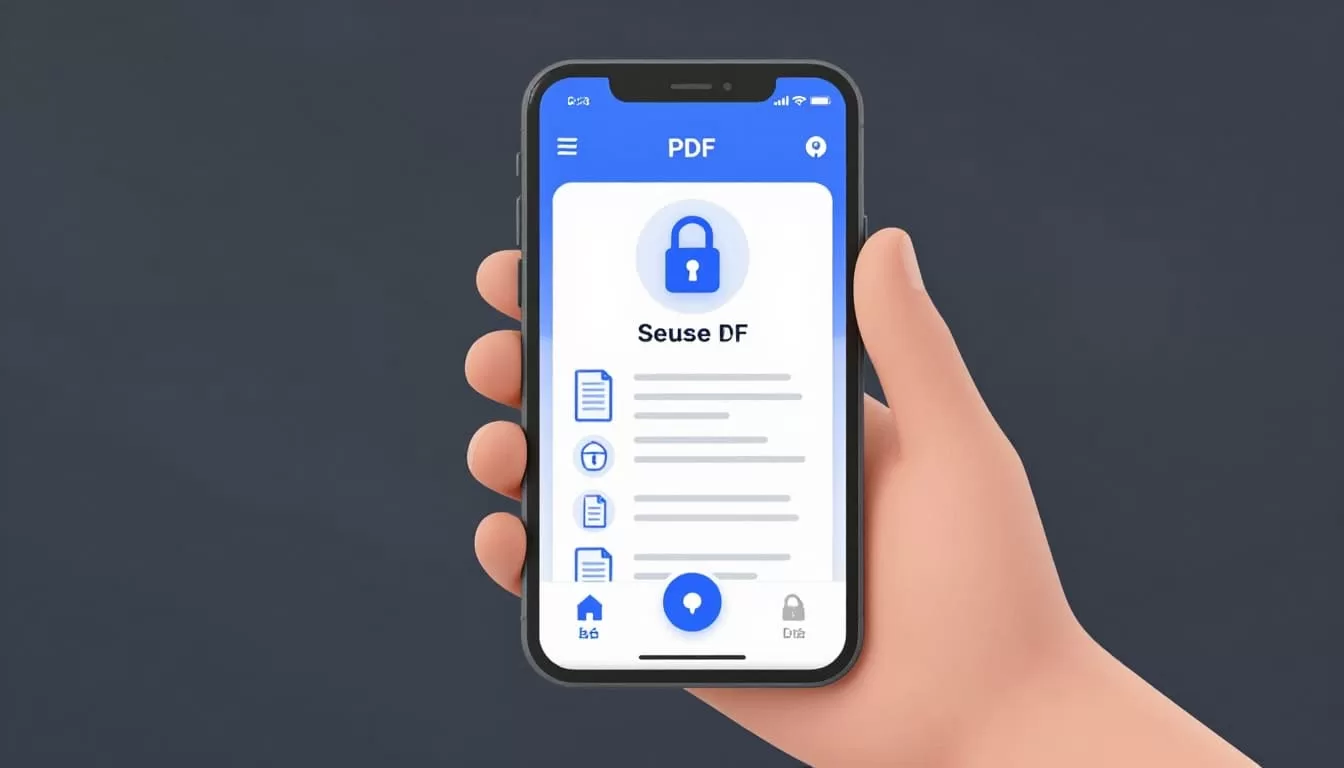
Mobile tools are fine for routine files. I avoid them for HR records, legal files, and financial documents unless I know how the app stores data.
If a service uploads the PDF to its servers, I treat it like cloud storage, not a quick edit.
That rule keeps me honest. I read the privacy policy, check retention terms, and look for automatic deletion before I trust an online tool. On my phone, I also delete temporary exports after I send them, and I avoid leaving protected files in loose downloads or shared photo folders.
My Sending Checklist Before I Hit Send
Protecting the PDF is only half the job. The password needs a separate path.
I never send the password in the same message as the PDF.
My sending routine is simple:
- I send the PDF through email, chat, or a file share.
- I send the password in a different channel, like text or a phone call.
- I keep the password out of the same thread, inbox, or attachment.
- I use a strong unique password, not one I already reused somewhere else.
- I set an expiration date or remove access later when the tool allows it.
- I test the file after download, because copy-paste mistakes happen.
That last step matters because access should expire with the work. If the file no longer needs to move around, I stop sharing it.
When I Use Secure Sharing Instead
Some PDFs are too sensitive for a passworded attachment. When I need control after delivery, I use a restricted link instead.
Attachments work when one person needs a copy and the file won’t change. They break down when I need to turn access off later or keep one version in circulation. Then a share link is cleaner.
For team files, I use restricted document access in Workspace so I can remove access later. If the file belongs to a department, shared drives in Google Workspace keep ownership with the business.
I also think about the account sending the file. A protected PDF helps only if the mailbox stays safe, so I keep my login methods tight and my recovery options current.
That approach works better for decks, contracts, and files that may change after I send them. It gives me a cleaner exit when the project ends.
The Safest Send-Off Leaves No Loose Ends
Password protection works best when it stays part of a bigger routine. I choose the right lock, save a tested copy, and keep the password off the same wire as the PDF.
If the file is truly sensitive, I don’t force an attachment. I switch to controlled sharing, because the safest document is the one I can still manage after it leaves my inbox.

