How I Build a Knowledge Base in Google Sites for a Small Team
When I need to stop the same question from bouncing around a team, I build a Google Sites knowledge base. It gives me one shared place for SOPs, FAQs, onboarding, and policy notes. I keep source docs in Google Workspace shared drives so the...


When I need to stop the same question from bouncing around a team, I build a Google Sites knowledge base. It gives me one shared place for SOPs, FAQs, onboarding, and policy notes.
I keep source docs in Google Workspace shared drives so the content stays owned by the team. That matters, because a knowledge base falls apart when files live in personal folders.
Google Sites works well for internal documentation, but it starts to feel thin when I need advanced search, article analytics, or customer support tools. So I build it with a clear job in mind.
Start with the job it needs to do
I ask one question before I touch the editor, who will use this site? If the answer is a small team, a department, or a new-hire group, Google Sites is a strong fit.
| Need | Google Sites | Dedicated knowledge base software |
|---|---|---|
| Internal SOPs | Strong fit | Strong fit |
| Onboarding hub | Strong fit | Strong fit |
| Team FAQs | Strong fit | Strong fit |
| Customer-facing help center | Limited | Strong fit |
| Search analytics and ticket deflection | Limited | Strong fit |
| Approval workflows and automation | Limited | Strong fit |
That table usually makes the choice clear. I use Google Sites when I want a clean internal binder. I pick dedicated software when I need support workflows, deeper reporting, or stronger automation.
If I want a second opinion on more automated tools, I look at how to create a knowledge base with AI. It helps me see where a lightweight site ends and a full platform begins.
Plan the structure before I open Sites
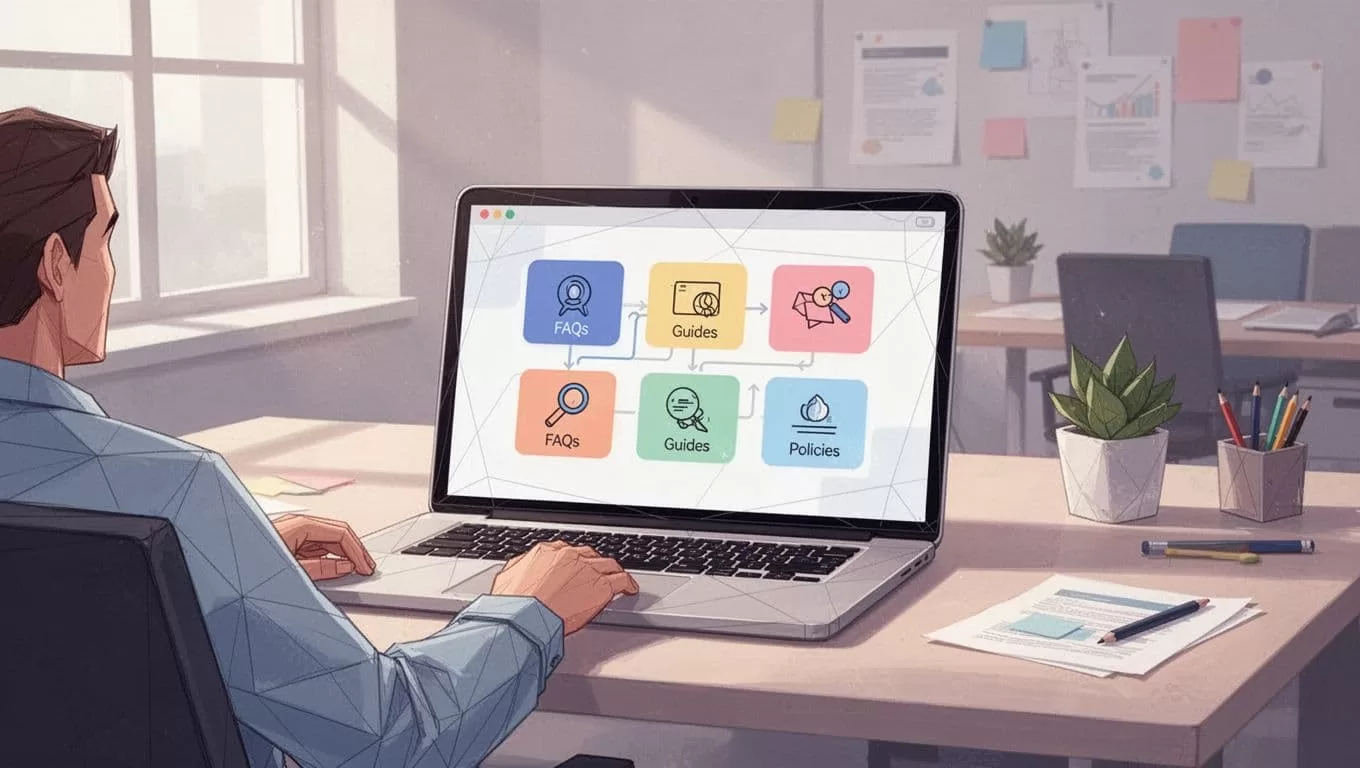
I start with a small map. For a beginner-friendly site, I keep the top menu short and predictable. My usual pages are Start Here, FAQs, Guides, Policies, and Requests.
When the team works across locations, I pair the site with Google Workspace collaboration tools for distributed teams. That keeps the docs, chats, and decisions closer together.
Before I build, I do four things:
- I gather the source files and trim out anything old.
- I decide which pages are for the whole team and which need tighter access.
- I write page titles in plain language.
- I assign one owner to each major section.
If a page needs a lot of links, I split it. Long pages turn into junk drawers fast. For drafts and review notes, I keep the workflow in secure document sharing in Google Workspace so changes stay controlled.

Build the site inside Google Sites
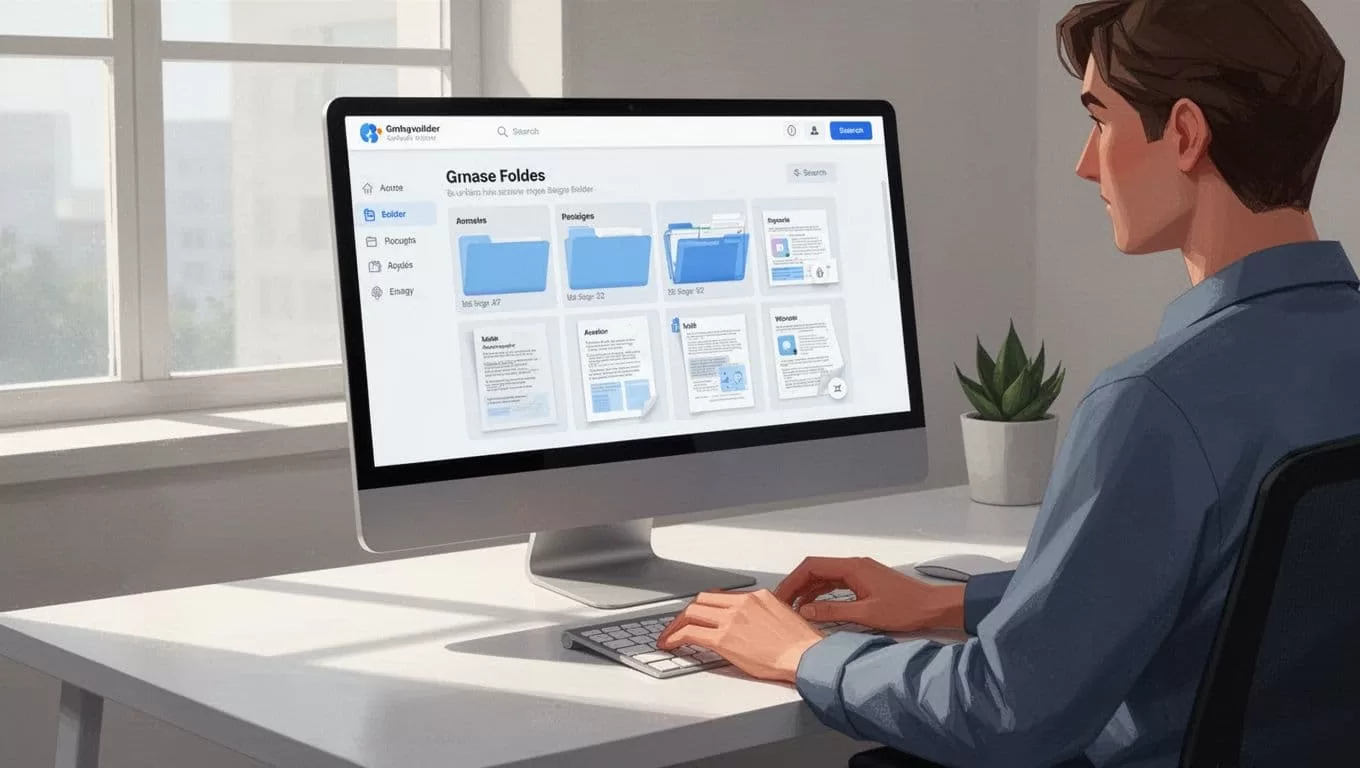
I go to sites.google.com, click the plus icon for a blank site, or start from a simple template. Then I rename the site, add a short description, and choose a theme that matches the team.
The main tools I use are easy to spot, the Pages panel, the Insert panel, and Themes. I use Pages to create the site map, Insert to add content, and Themes to keep the look steady. That workflow makes Google Sites friendly for beginners.
I usually build the site in this order:
- Create the top-level pages first.
- Add subpages only when a topic needs depth.
- Drop in text boxes, collapsible text, buttons, Docs, Sheets, or a Google Form.
- Add a table of contents on longer pages.
- Preview the site on desktop and mobile, then publish.
For layout ideas, I sometimes compare my draft with this Google Sites wiki template. It helps me keep the site simple instead of stuffing it with extra sections.
A good site feels calm. The pages load like labeled folders, not a pile of sticky notes.
Make navigation feel obvious
If readers have to hunt, they stop trusting the site. I keep labels short and plain. “How to request access” beats a vague title with internal jargon.
If a page needs three clicks, I split it.
I also use a few habits that make the site easier to scan:
- I put the most used pages first.
- I keep one page for one job.
- I use subpages for long topics.
- I add a request page for new questions and updates.
- I place buttons on the home page for the top tasks.
For long explanations, I add collapsible text blocks or a table of contents. That keeps the page readable on a phone, which matters because Google Sites is responsive, but long pages still feel cramped on small screens.
Know where Google Sites falls short
Google Sites is quick to launch, but I don’t use it for every documentation job. The limits show up when the site needs to behave like a true help desk.
| Area | Google Sites | Dedicated knowledge base software |
|---|---|---|
| Search | Basic page navigation and Workspace search | Strong article search and suggestions |
| Analytics | Limited | Detailed article and search reports |
| Workflows | Manual edits and reviews | Built-in approval flows |
| Customer support | Basic pages only | Ticketing and self-service flows |
| Customization | Simple themes and layouts | More branding and control |
The tradeoff is simple. Google Sites wins on speed and low setup friction. Dedicated software wins when I need support metrics, article suggestions, or customer-facing service features.
When I want a more polished public help center, I move beyond Google Sites. When I only need an internal wiki for SOPs and FAQs, Google Sites is usually enough.
Keep it updated without letting it rot
I treat updates like a routine task, not a rescue mission. I put a monthly review on a shared team calendar, then I check the pages that matter most.

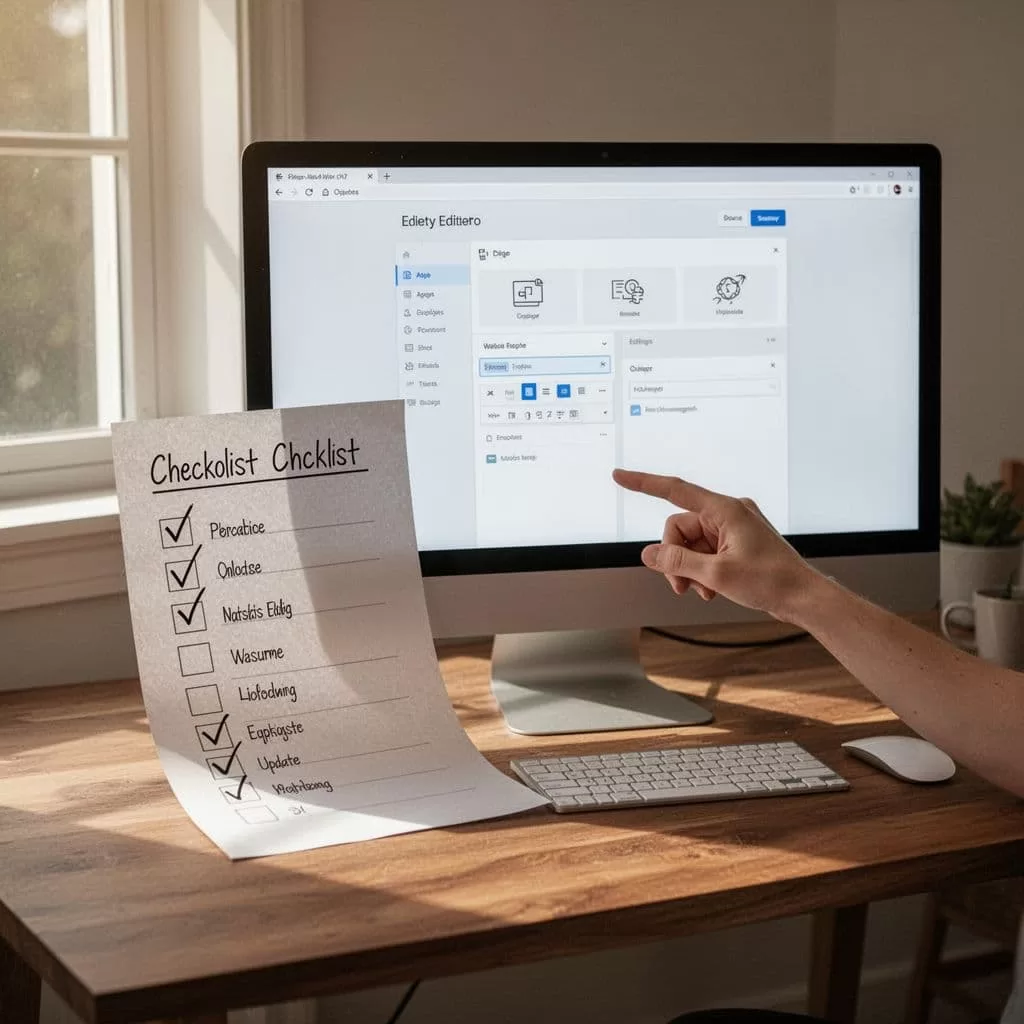
My maintenance checklist stays short:
- I assign one owner per page or section.
- I review top pages every month.
- I remove duplicate answers.
- I replace old screenshots and steps.
- I check links and permissions after team changes.
- I move retired content to an archive page.
I also keep a simple request form on the site so people can report broken steps or missing topics. That turns the knowledge base into a living system, not a static folder.
When Google Sites is enough
When I build a knowledge base in Google Sites, I keep the scope tight, the labels plain, and the ownership clear. That is what makes the site useful.
If I need heavy search, support workflows, or deeper reporting, I move to dedicated software. If I only need a reliable internal hub for SOPs and FAQs, Google Sites does the job with less fuss. That tradeoff is easy for me to live with.

