Google Workspace Backup: How I Set Up a Plan That Works
I don’t trust cloud apps to save me from every mistake. Google Workspace can feel safe, until one delete, one sync loop, or one rushed offboarding step removes the file I need most. As of April 2026, I still see the same threats, rans...


I don’t trust cloud apps to save me from every mistake. Google Workspace can feel safe, until one delete, one sync loop, or one rushed offboarding step removes the file I need most.
As of April 2026, I still see the same threats, ransomware, malicious insiders, accidental deletion, and retention gaps. A solid Google Workspace backup gives me a separate copy, a recovery target, and proof that I can restore data fast.
I start by sorting out what backup really means, then I build the plan around recovery, not hope.
Why backup is different from retention and archiving
I separate these jobs before I buy any tool. Backup protects data for recovery. Archiving preserves records for long-term access. Retention keeps content for a set time or policy window. Disaster recovery gets services back after an outage.
Google’s own backup plan guidance is useful here because it ties scheduling to recovery goals. That matches how I work. I don’t set jobs by habit. I set them by the business loss I can tolerate.
For context on restore behavior in Workspace, I also like this practical Google Workspace backup overview. It reinforces a point I keep seeing in the field, built-in tools help, but they don’t replace a true backup copy.
Here’s the clean way I think about it:
| Layer | What I use it for | What it cannot replace |
|---|---|---|
| Backup | Independent copies and point-in-time recovery | Native retention settings |
| Archiving | Long-term records and search | Fast user recovery |
| Retention | Holding data for a set period | Full-object restore |
| Disaster recovery | Bringing systems back after an outage | File-by-file recovery |
When I treat those layers as one bucket, I miss gaps. Retention may keep a record, but backup lets me put the data back where users expect it. If I’m still sorting out ownership and Shared Drives, I keep my Google Workspace file storage best practices close, because recovery works better when storage is clean from the start.
If I can’t restore a single file, a mailbox item, and a Shared Drive with the right permissions, I don’t have a finished backup plan yet.
How I choose a Google Workspace backup tool

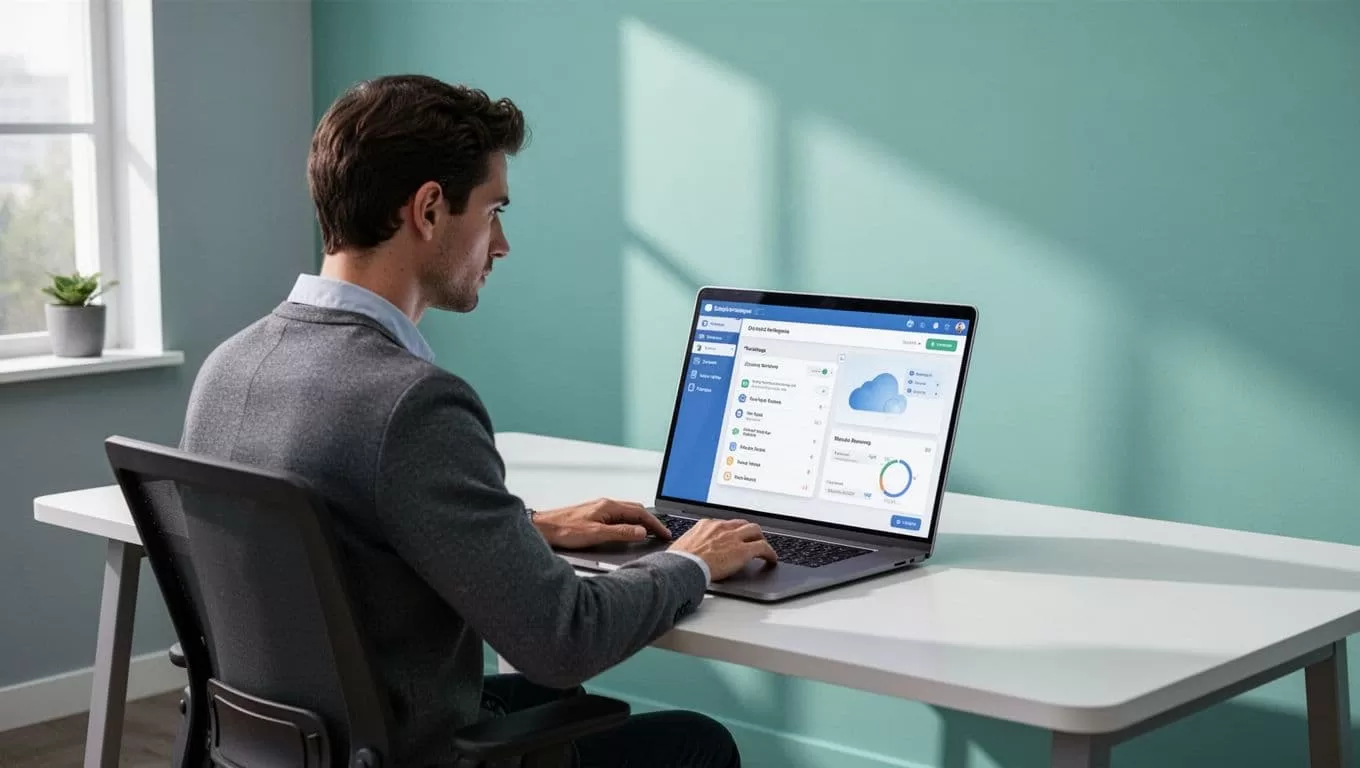
I start with coverage. Gmail, Drive, Shared Drives, Calendar, Contacts, and Chat should all be in scope if my business uses them. If a tool skips one of those, I keep looking.
Restore depth matters just as much. I want single-message recovery, single-file recovery, folder-level recovery, and full-user recovery. In a real incident, I rarely need everything. I usually need one thing back, right now.
I also check these points before I commit:
- I verify security controls. I want MFA, least privilege, encryption, and a separate backup admin path.
- I look at compliance support. Audit logs, retention controls, and export options save time during reviews.
- I compare the pricing model. Per-user, per-GB, and usage-based billing can look cheap at first, then shift fast.
- I confirm storage location. Region choice and residency rules matter for some clients and industries.
- I test alerts and logs. Failed jobs, skipped objects, and restore events need to be visible without a hunt.
- I judge ease of recovery. If the restore path feels clumsy, my team will avoid it under pressure.
If I need a plan-level decision first, I use my Google Workspace Standard vs Plus comparison to see whether native retention features are enough or whether I need more control. That keeps me from buying a bigger plan just for one feature I may never use.
My step-by-step setup framework
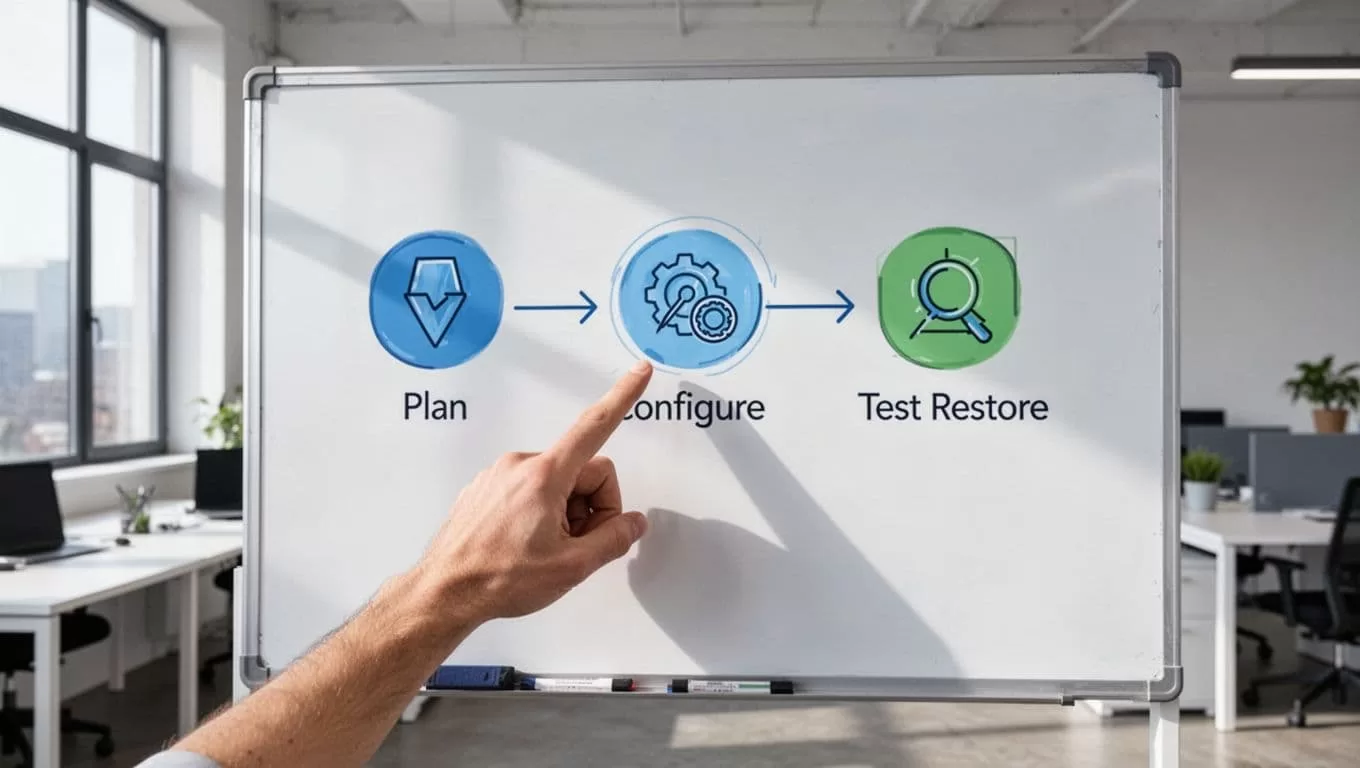
I keep the setup simple. A backup plan fails when it grows fuzzy.
- I define what matters first. I list mailboxes, Shared Drives, calendars, contacts, Chat, and any Workspace-connected data that affects the business.
- I set RPO and RTO in plain numbers. If my finance team can lose only 15 minutes of work, I build around that. If I need data back within one hour, I design for that too.
- I choose backup frequency around change rate. High-traffic teams need more frequent jobs. Slower teams can often use daily runs, but I still check how much data moves between backups.
- I set retention with a purpose. I cover user error, legal needs, and investigation windows. I also make sure old copies don’t disappear before they should.
- I lock down service accounts and admin access. I separate backup admins from Workspace super admins, store credentials in a password vault, and restrict policy changes to a small group.
- I turn on alerts and document the runbook. I want failed jobs, storage issues, and restore errors to reach me quickly. I also want a clear path for who approves a restore.
That setup only works when I treat ownership as part of the design. Shared Drives, group access, and file placement affect how fast I can recover. If ownership is messy, recovery gets messy too.
How I test restores before I trust them

I don’t trust a backup job until I test restores. A green dashboard only tells me data copied somewhere. It doesn’t tell me I can use it again.
My restore checklist stays short and practical:
| Restore test | What I verify |
|---|---|
| Single file | The latest version opens and permissions match |
| Mailbox item | The message, labels, and attachments come back cleanly |
| Shared Drive folder | The folder tree and access stay intact |
| Calendar item | Shared events and invites appear where expected |
| Full-user restore | Mail, Drive, and calendar data return together |
I also time each test. Speed matters, because a slow restore can turn a small issue into a long outage. After that, I record what failed, what worked, and who signed off.
I run one test after setup, then I repeat it on a schedule. If my data, staff, or policies change, I test again sooner. Backup plans age fast when nobody checks them.
The plan I trust is the one I can restore
I treat Google Workspace as a work system, not a safety net. That means I protect it with a separate backup copy, clear recovery targets, and regular restore tests.
When I define backup, retention, archiving, and disaster recovery as different jobs, the plan gets easier to run. It also gets easier to explain, audit, and defend when something goes wrong.
The cloud keeps work moving. A tested Google Workspace backup plan decides whether I can get that work back.

