How I Create Google Workspace Email Aliases for Teams in 2026
You run a small team, and emails pile up under scattered addresses. One person handles sales queries, another support tickets, but everything funnels to main inboxes. Chaos builds fast. I fix this with Google Workspace email aliases. They l...


You run a small team, and emails pile up under scattered addresses. One person handles sales queries, another support tickets, but everything funnels to main inboxes. Chaos builds fast.
I fix this with Google Workspace email aliases. They let a single inbox catch mail from multiple addresses like sales@ or support@. No extra accounts needed. Teams stay organized without confusion.
This guide walks you through my exact process. I cover types, steps, pitfalls, and fixes based on setups I’ve done this year.
Email Aliases Keep My Team’s Inboxes Sane
Aliases act like side doors to a main mailbox. Mail sent to support@yourdomain.com lands in john@yourdomain.com‘s inbox. John reads and replies as usual.
I use them for roles that shift. A marketer becomes sales lead? Add sales@ to their account. No forwarding rules or extra logins.
Google caps user aliases at 30 per person. That’s plenty for most teams. Cost stays zero beyond your Workspace plan.
Primary benefits show in daily flow. Clients reach info@ without hunting emails. Staff focus on work, not sorting.
I check Google’s official steps for adding alternate email addresses when menus shift. Interfaces update, but core paths hold.
User Aliases, Groups, and Domain Aliases: Pick the Right One
Three main options fit different needs. I match them to team size and setup.
User aliases tie extra addresses to one person’s inbox. Perfect for solo roles.
Groups create shared inboxes. Multiple people access team@ emails.
Domain aliases mirror your primary domain across another. User@newdomain.com auto-forwards to user@primary.com.

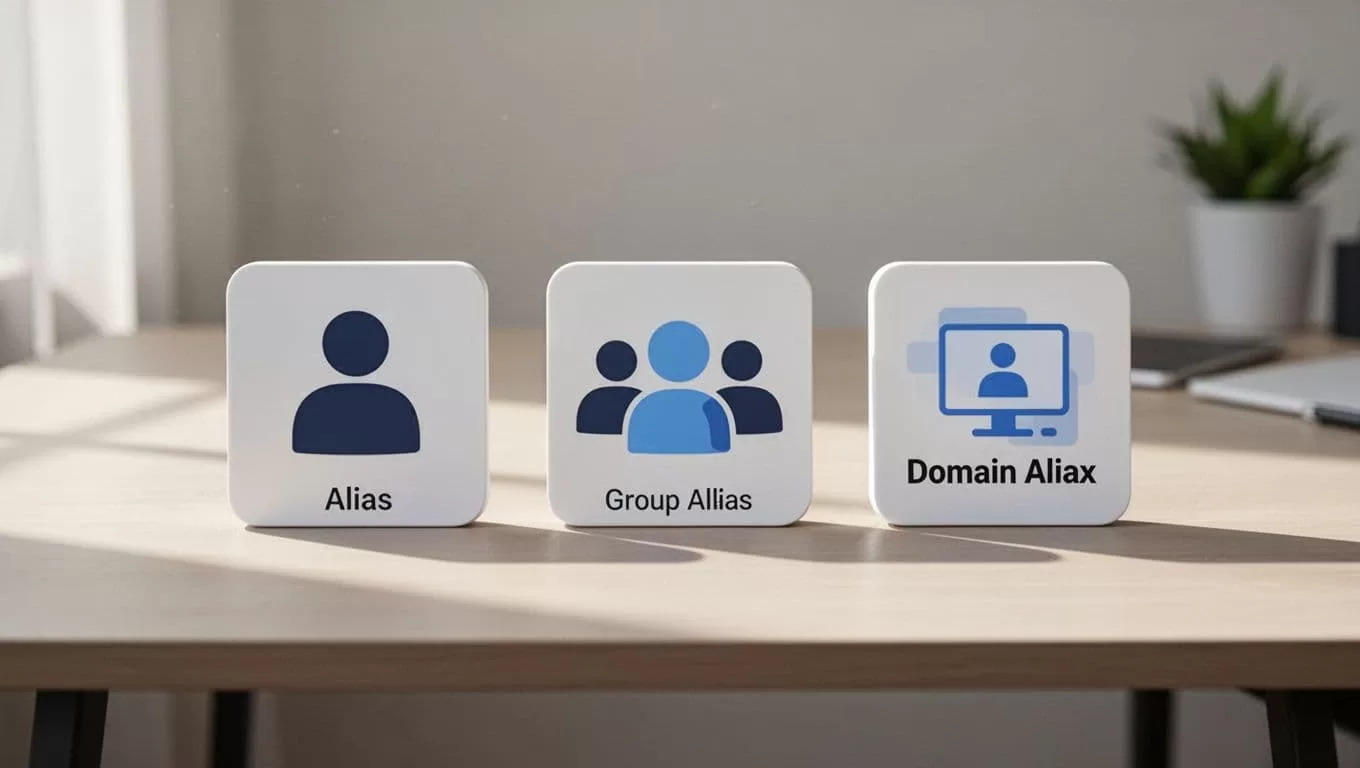
Here’s how they stack up in practice:
| Type | Best For | Mail Flow | Max Limit |
|---|---|---|---|
| User Alias | Single owner roles | All to one inbox | 30 per user |
| Group | Team access | Shared by members | Unlimited members |
| Domain Alias | Brand expansions | Auto-matches primaries | Per domain setup |
User aliases suit quick fixes. Groups handle collaboration. Domain aliases scale for mergers. I start with user aliases, then layer others.
For deeper delegation options beyond aliases, I follow my Gmail delegation setup guide.
Step-by-Step: Creating a User Alias as Admin
Log in first. I use admin.google.com with super admin rights. Others like User Management Admin work too.
Go to Directory, then Users. Search the person, say john@yourdomain.com.
Click their name. Scroll to User information. Look for Add Alternate Emails or Email aliases.

Enter the alias name before the @. Pick domain from the list. Save changes.
Test right away. Send mail from outside to the new alias. It hits John’s inbox in minutes.
Menus vary by edition. Business Starter shows simpler views than Enterprise. If no Add button appears, check your domain status.
I tie this into full Google Workspace email setup for new domains.
Build Group Addresses for Team Inboxes
Groups shine for shared work. Create support@yourdomain.com so five people check it.
From admin console, search Groups or go Apps > Google Workspace > Groups for all groups.
Click Create group. Name it Support Team. Set email as support@yourdomain.com.
Add members. They get access via Gmail or the group settings page.
Unlike user aliases, groups let replies come from the group address. Each member adds it in their Gmail Send mail as section.
Propagation takes 1-5 minutes. Members see the group in their directory fast.
Set Up Domain Aliases for Extra Domains
I add domains for rebrands or old sites. All @olddomain.com mail routes to matching @primary.com.
In admin console, go Account > Domains > Manage domains.
Click Add a domain. Enter the new one. Choose User alias domain.
Verify ownership with DNS TXT or HTML file upload. Google checks in hours.
Once active, john@olddomain.com auto-lands in john@primary.com. No per-user work.
Domains need MX records pointed to Google first. I confirm SPF and DKIM too.
Enable Sending from Aliases in Gmail
Receiving works out of box. Sending needs one more step per user.
In Gmail, click gear icon. Choose See all settings. Go to Accounts and Import.
Under Send mail as, click Add another email address.
Enter the alias. Check Treat as an alias. Name it for the From dropdown, like “Support Team”.
Google sends a code. Enter it. Done.
Users now pick the alias when composing. Replies stay clean, no extra headers.
Uncheck Treat as alias only for tests. It keeps threads tidy otherwise.
Mail Flow Times: What Delays to Watch
Changes propagate fast. User aliases activate in 1-5 minutes.
Groups match that. Domain verifications take up to 48 hours if DNS lags.
I send test mails from personal Gmail. Check spam too. Full sync hits in 24 hours max.
External senders see it quicker. Internal might cache old views.
Patience pays. Rushed tests mislead.
Troubleshooting Common Alias Issues
Errors pop up. Alias already exists blocks adds. Search Directory for duplicates first.
No mail arrives? Wait propagation. Check junk folders. Verify domain alias status.
Can’t send? Re-add in Gmail settings. Confirm verification code went through.
Over 30 aliases? Route extras via Gmail routing rules.

| Issue | Quick Fix |
|---|---|
| Duplicate alias | Delete old in Directory |
| No receive | Test external send, check spam |
| Send fails | Re-verify in Gmail Accounts |
| Domain delay | Confirm DNS propagation |
Logs in Admin audit help track. I review Reports > Audit > Admin weekly.
For hosting tweaks, see my Google Workspace email hosting management.
Security Rules I Follow for Aliases
Aliases tie to primary accounts. No new logins created.
Limit to trusted users. Groups need member approval workflows.
Turn on 2-Step Verification everywhere. Monitor login alerts.
Audit alias adds monthly. Revoke on offboarding.
External forwards risk spam. Keep aliases internal.
Gmail blocks suspicious sends. Verify all to avoid flags.
Conclusion
Google Workspace email aliases streamline my team’s mail without extra tools. User types handle solo tasks, groups share loads, domains scale brands.
I create them in minutes via admin console. Tests confirm flow. Users send cleanly after Gmail tweaks.
Strong setups avoid most issues. Propagation settles, security holds.
Teams run smoother. Clients connect easy. That’s the win.
(Word count: 1487)

