When I set up cloud storage for a business, I don’t start with folders. I start with ownership, access, and risk. That’s why Google Workspace file storage works best when I treat Google Drive and Shared Drives as a company system, not just extra online space.
The goal sounds simple, because it is. Teams want files that are easy to find, safe to share, and still there when someone leaves. Below, I’ll show how I plan storage, roll out Shared Drives, manage access, support devices, and prepare for backup and migration without turning Drive into a junk drawer.
Pick the right storage model before rollout
As of March 2026, Google Workspace business storage is still pooled by plan, and Shared Drives use that same pool. So, I choose a plan only after I map user count, file types, and growth. A legal office storing PDFs behaves very differently from a video team pushing large media files every day.
This quick snapshot helps me size the rollout:
| Plan | Pooled storage |
|---|---|
| Business Starter | 30 GB per user |
| Business Standard | 2 TB per user |
| Business Plus | 5 TB per user |
| Enterprise Starter | 1 TB per user |
| Enterprise Standard/Plus | 5 TB per user, with more possible for 5+ users on request |
The takeaway is simple: Shared Drives don’t get a separate storage bucket. Also, users still face a 750 GB daily upload limit, and Google Drive supports files up to 5 TB. Google has tightened storage enforcement, so I don’t treat quota planning as optional.
A Shared Drive is a team filing room. When a user leaves, the files stay with the business.
That ownership model is what makes Shared Drives so useful. For a deeper look at the concept, I like this shared drive benefits overview.
Set up Google Drive and Shared Drives in the right order
Once the plan is set, I build the structure before users start uploading everything into My Drive. That saves cleanup later and keeps ownership clear from day one.
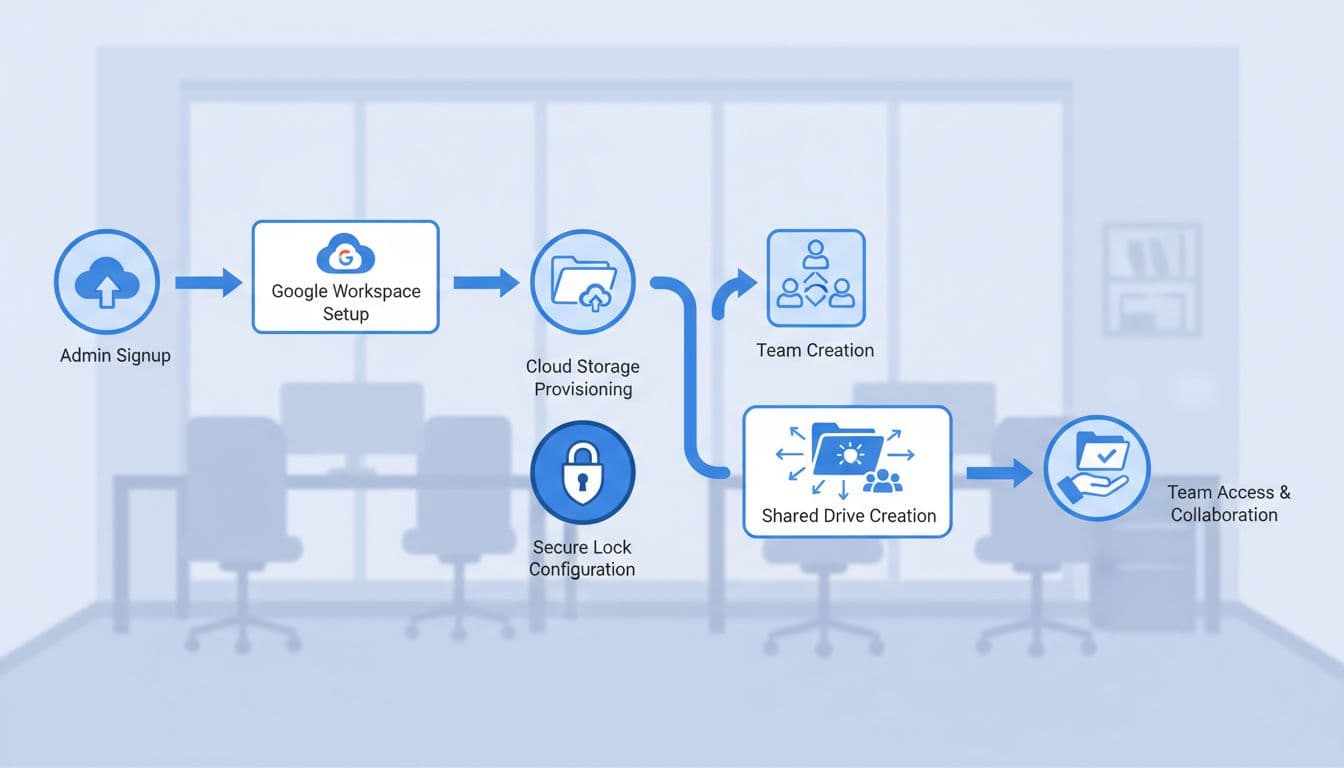
- Create groups first: I assign access to groups like Finance, Sales, and HR, not to each person one by one.
- Turn on Shared Drives and set naming rules: I keep names short and stable, like “Finance Ops” or “Client Projects.”
- Create drives by function: I separate finance, HR, operations, and project work instead of making one giant company drive.
- Assign roles carefully: I keep Manager rights rare and give most staff Contributor or Content manager access.
- Pilot the admin workflow: Google’s help on how to create a shared drive and move company content into shared drives is useful during setup.
- Train users on one rule: If the business owns the file, it belongs in a Shared Drive.
For a seven-person agency, two or three drives may be enough. For a 60-person company, I usually add department drives plus a project model. The point is to start simple, then expand with intent.
Control identity, access, and devices before users improvise
Permissions drift fast once people start sending open links. So, I build identity and access management into the rollout. Groups map to departments, managers approve membership, and admin roles stay narrow. I also require 2-Step Verification, because a weak account can undo a perfect folder tree.

For sharing, I pick a default and defend it. Many small businesses do well with domain-only sharing, then allow exceptions for vendors or clients. A growing team may need tighter rules for HR and finance than for sales or account service. Some advanced controls, and some storage limits, vary by plan, so I confirm those details before rollout.
Devices matter just as much. On managed company laptops, I’m comfortable with Drive for desktop when offline work matters. On personal devices, I prefer browser access, screen-lock rules, and limited sync. If pooled storage starts shrinking fast, I use admin-set storage caps to keep one team from swallowing the whole allowance.
Don’t skip backup, recovery, and migration planning
Google Drive has version history and admin recovery options, but I still treat backup as a separate control. A mistaken delete, bad sync, or ransomware-style lockup can spread fast. If the files matter, I want an independent backup and a written restore plan.
Migration needs the same care. I review old file shares, remove stale folders, flag sensitive data, and assign owners before I move anything. Then I migrate in waves. A 10-person firm can often move current work first and archive older material later. A 100-person team should test file paths, permissions, sync behavior, and user training before a broad cutover. If I skip that step, I usually pay for it later in support tickets and access complaints.
A calm rollout beats a rushed one
Cloud storage shouldn’t feel like a junk drawer in the sky. When I deploy Google Workspace with clear ownership, tight access rules, device guardrails, and a backup plan, collaboration gets easier and risk drops. Start with one pilot team, fix permissions early, and let Shared Drives hold the business record. That’s how control turns into calm.