Health Tracking Automation With Twin.so: A Setup Guide
Health data becomes difficult to use when every wearable, check-in form, and follow-up sits in a separate system. Health tracking automation gives you one repeatable path for collecting records, checking quality, and routing the next action...

Health data becomes difficult to use when every wearable, check-in form, and follow-up sits in a separate system. Health tracking automation gives you one repeatable path for collecting records, checking quality, and routing the next action.
With Twin.so, you can build health tracking automation around scheduled agents, event-based triggers, app connections, and browser steps. Twin.so is a general workflow automation platform. It isn’t a medical monitoring product, and it doesn’t replace clinical judgment.
That boundary matters. Use Twin.so to manage data and operations, not to diagnose conditions or make treatment decisions. Start with the workflow structure before you connect any source.
How Twin.so Supports Health Tracking Automation
Twin.so describes its agents as tools that can read, write, and automate tasks across apps and websites. Its integrations page lists 41,706 apps, although the available health-data connections should be checked during implementation.
The platform supports scheduled agents, event-driven triggers, OAuth connections, and browser automation. These capabilities are documented in the Twin.so quickstart guide. A scheduled agent can check a source at a defined time. A trigger can start a task when a new submission or event arrives. Browser automation can help when a required portal lacks a usable API.
The Orchestrator provides a central workspace for managing agents, runs, and schedules. You can use it to create or update workflows with natural-language instructions. That gives operations teams a practical control layer without requiring every workflow to be custom-developed.
A health-data workflow usually has four parts:
- Collect data from approved wearable sources, forms, exports, or portals.
- Normalize values, timestamps, units, and record identifiers.
- Route missing data, exceptions, or follow-up tasks to the right person.
- Write validated results into a table, dashboard, document, Slack channel, or email report.
Twin.so is separate from Twin Health. Twin.so is an automation platform. Twin Health is a separate health company and app. Confirm the product name before you create an account, connect data, or evaluate security requirements.
Design the Data Pipeline Before Connecting Sources
Don’t begin with a broad instruction such as “monitor everyone’s health data.” That task is difficult to audit and leaves too much room for inconsistent output.
Define the source list and the record structure first. A useful schema can include a pseudonymous member ID, collection date and time, timezone, metric name, value, unit, source system, sync status, consent status, and follow-up status. Add the source URL and collection date when the workflow reads web pages or portals.
Keep missing fields blank. Never ask the agent to guess a value from nearby text. If a source reports a range, preserve the range or split it into approved fields. Don’t convert units unless the conversion rule is documented.
Wearable data may arrive through direct APIs, an aggregation service, CSV files, or a connected platform. Research teams often use API and SDK connections for repeatable syncing, while wellness programs may rely on forms or scheduled exports. See these wearable data integration use cases before choosing the intake path. A wearable API integration overview can also help you compare direct connections with multi-device services.
Keep raw intake separate from the cleaned table. The raw copy gives you an audit record when a value looks wrong. The normalized table feeds your dashboard and reports.
Use one consistent row structure. For example, store one row per member, metric, and measurement time. Add a source record ID when available. That combination helps you detect duplicates and prevents the same reading from being counted twice.
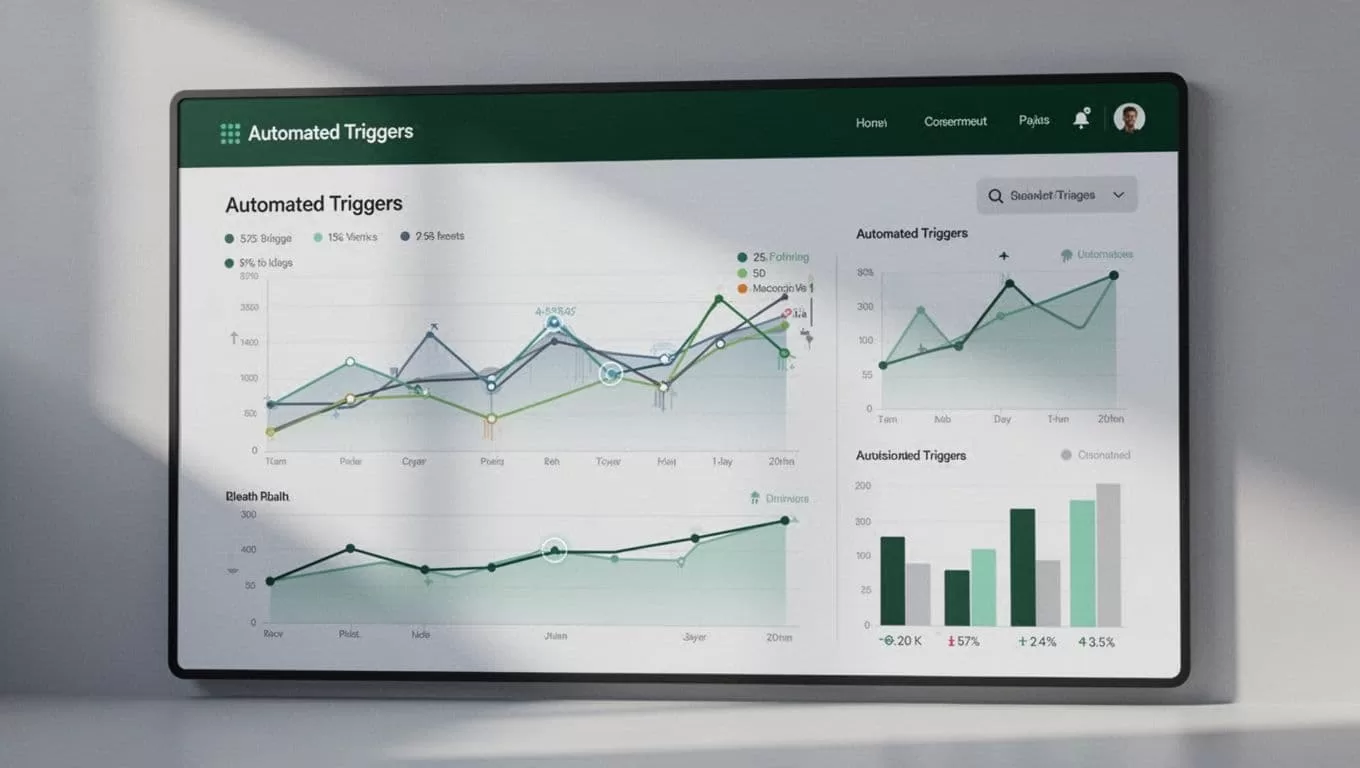
A central table can feed a dashboard that shows collection coverage, recent readings, missing records, and open follow-ups. Twin.so can write outputs to tools such as Google Sheets, Google Docs, Slack, and email. Use the table as the operational source instead of treating a generated summary as the database.
Build Collection and Quality Checks in Twin.so
Once the schema is ready, configure a narrow workflow. The first version should handle one source and a small record set. Expand only after the output matches your expected fields.
A practical build sequence looks like this:
- Set a schedule or event trigger. Run a daily collection job, or start the workflow when a form submission arrives.
- Read only the approved source. Restrict the workflow to named pages, files, accounts, or records.
- Validate the response. Check required fields, timestamps, units, duplicate IDs, and stale sync times.
- Write the result to the raw table and normalized table. Keep the original response available for review.
- Route exceptions. Send incomplete records to an operations queue instead of forcing the workflow to finish silently.
Twin.so’s trigger documentation covers scheduled and event-based workflow starts. Use a schedule for routine collection. Use an event trigger when delays would create unnecessary manual work.
Write the agent instructions in clear sections. Include the workflow purpose, database or table location, starting checks, step order, and permitted tools. Twin.so’s instruction guide describes this type of structured setup.
Add retry rules for temporary failures, but don’t retry forever. A broken login, changed page layout, or expired authorization should create an exception with the source, timestamp, and error details. The workflow needs an owner who can fix the problem.
Test five to ten records before scaling. Review whether the agent captured the correct value, retained the original unit, handled missing fields, and avoided duplicate rows. Save the raw output before you clean or summarize it.
Configure Alerts and Follow-Ups Without Diagnosing
Health tracking automation can identify an operational condition. It shouldn’t decide what that condition means medically.
A missing check-in is an operational event. A failed wearable sync is a data-quality event. A measurement outside a pre-approved range may require review, but the workflow should not label it as a disease, risk state, or diagnosis.
Set the thresholds with the responsible health, wellness, or clinical team. Route sensitive cases to a qualified reviewer. Keep the automated message factual and limited to the next approved action.
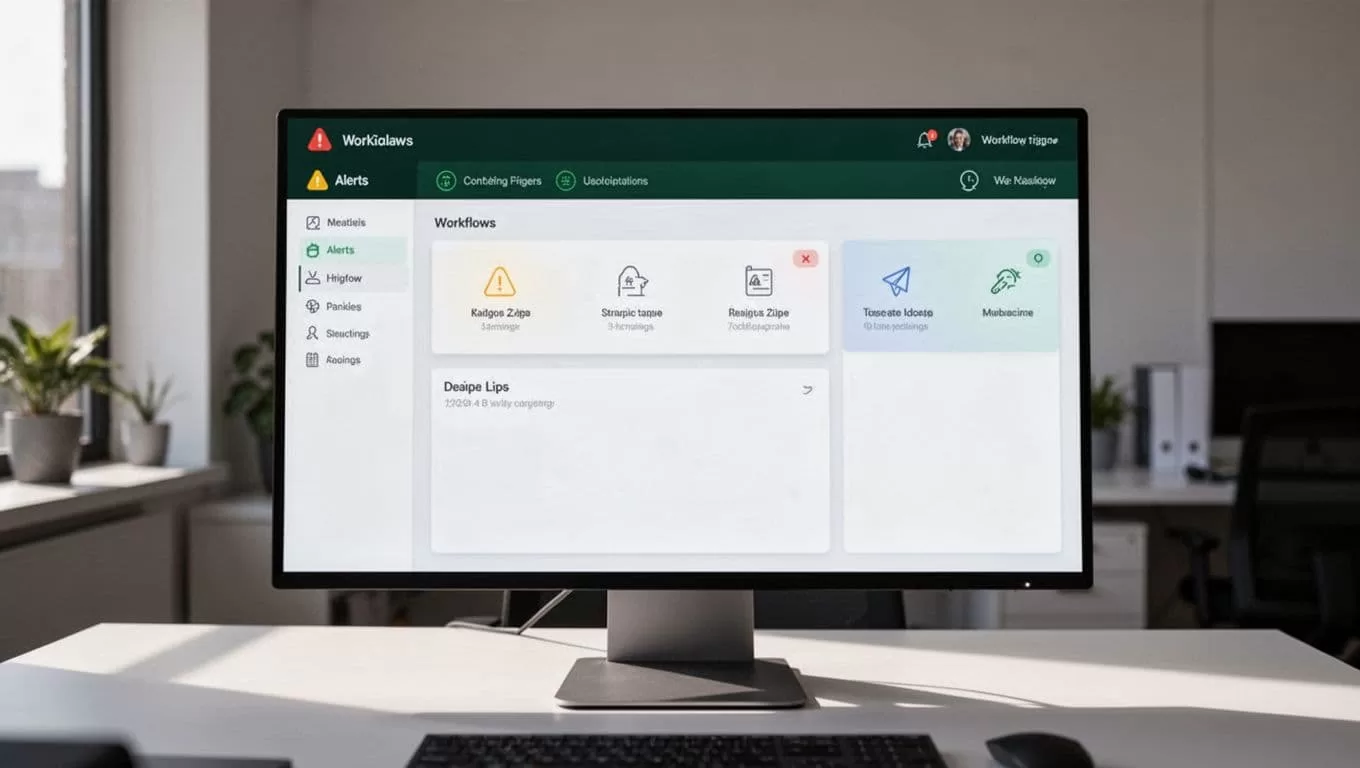
| Workflow condition | Automated action | Review owner |
|---|---|---|
| A scheduled check-in is missing | Send an approved reminder or create a follow-up task | Program coordinator |
| A wearable sync is older than the allowed interval | Flag the record and request a connection check | Operations owner |
| A value falls outside a pre-approved range | Create a review task with the source and timestamp | Qualified health reviewer |
| Weekly adherence falls below the program target | Add the member to the follow-up report | Coach or care team |
Each alert should include the record ID, source, measurement time, rule that fired, and recommended next step. Avoid placing unnecessary health details in broad Slack channels. Send sensitive information only to approved recipients.
A follow-up workflow can also manage the response. If a member completes a form after the reminder, Twin.so can update the status and close the task. If there is no response after the approved period, it can escalate the task to a coordinator.
Don’t send an alert for every small change. High-volume notifications cause teams to ignore the queue. Use separate rules for missing data, technical failures, and human review. Each rule needs a different owner.
Generate Reports That Support Decisions
A report should show what the workflow collected, what it couldn’t collect, and what someone needs to do next. It shouldn’t hide data-quality gaps behind a polished summary.
Use a daily report for operations and a weekly report for program review. Include the reporting period, collection coverage, missing records, failed syncs, open follow-ups, completed actions, and links to the underlying rows. Add trend descriptions only when the data has passed validation.
A useful Twin.so instruction could read:
Every Monday, review the previous seven days of approved health-data records. Report collection coverage, missing fields, failed syncs, open follow-ups, and completed actions. Include source timestamps for exceptions. Write the report to Google Docs and update the summary table in Google Sheets. Do not diagnose conditions or provide medical advice.
The report should identify the data source and collection time. This matters when a provider updates a record after the first run or when a wearable sends delayed data.
For research or multi-device programs, a unified API can reduce the number of source-specific workflows. Resources covering wearable APIs for large-scale research explain why a consistent data layer matters when many devices produce different formats.
Keep the report template stable. Change the workflow when the business process changes, not because one week’s results look unusual. A consistent format makes missing information easier to spot.
Secure the Workflow Before Scaling
Health data requires tighter controls than ordinary business records. Connect only approved sources. Use the minimum fields needed for the workflow. Restrict workspace access by role, and separate raw records from broad operational summaries.
Confirm the permissions for every connected app. An authorized login doesn’t automatically grant permission to automate a portal. Review the source’s terms, access controls, rate limits, and automation rules before using browser steps.
Don’t place diagnosis, treatment, or emergency response inside a general workflow agent. Twin.so can route an exception to the right person, but a person or approved clinical system must handle medical interpretation.
Keep an audit trail for each run. Store the trigger time, source, records processed, changes made, output location, and exception status. Assign ownership for failed runs and expired connections.
Run the workflow in parallel with the current manual process during the pilot. Compare source records against Twin.so output. Check duplicate handling, timezone conversion, missing values, notification routing, and report accuracy. Stop the rollout if the source changes or the workflow produces unexplained results.
Twin.so is a strong fit when your team needs recurring collection, cross-app updates, browser-based checks, alerts, and reports. It is not a substitute for a regulated device-data platform, a clinical decision system, or an emergency alert service.
Conclusion
Health tracking automation with Twin.so works best as an operations layer. Define the sources, schema, triggers, thresholds, owners, and review steps before you connect sensitive data.
Use Twin.so to collect approved records, consolidate them in a dashboard, trigger factual follow-ups, and generate repeatable reports. Keep diagnosis and treatment decisions outside the automation workflow.
Review the Twin.so quickstart documentation and explore Twin.so with one small, auditable workflow before expanding across your health or wellness operation.
