Hunter.io Email Finder and Domain Search: My Daily Prospecting Tools
An email finder helps you identify a likely professional email address for a person. Hunter’s Email Finder uses a person’s name and company domain to return a work address when it can. It may also show a verification status, a c...
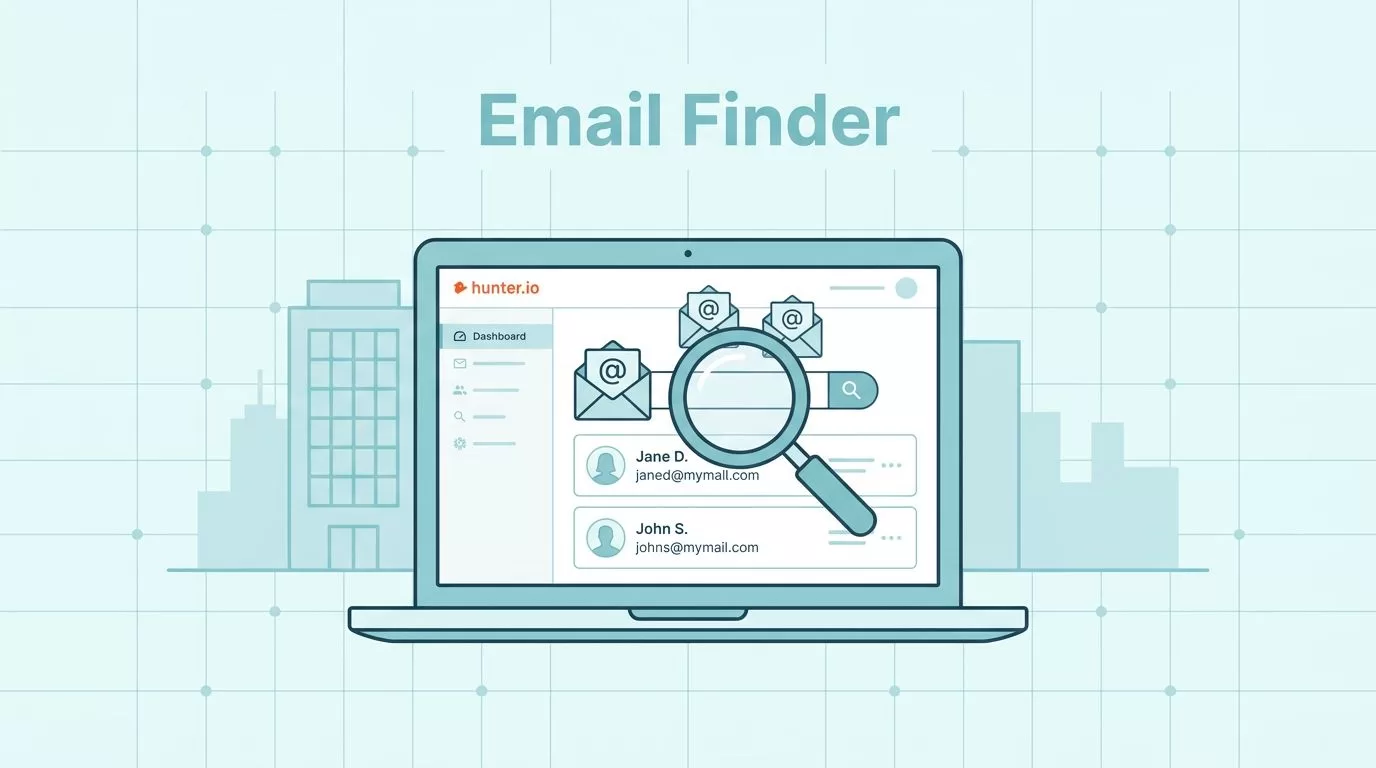
An email finder helps you identify a likely professional email address for a person. Hunter’s Email Finder uses a person’s name and company domain to return a work address when it can. It may also show a verification status, a confidence score, and public sources. These signals help you assess a result, but they do not promise that a message will reach an inbox or get a reply.
Hunter has several tools for different jobs. Email Finder looks for one person’s address. Domain Search finds addresses associated with a company domain. Bulk Email Finder processes a list, while the browser extension and API let you search from other workflows. This guide explains what to enter, how to read the results, what to do when a match is missing or uncertain, and what the free plan includes.
Use contact data thoughtfully. Before outreach, check the rules that apply to your location, your recipient’s location, and your message. A data tool cannot make your outreach compliant on its own.
What is an email finder?
An email finder searches for a likely email address linked to a specific person and organization. In Hunter’s individual Email Finder, the usual inputs are the person’s full name and the company’s website domain, such as a first and last name plus example.com. Hunter compares those details with information and address patterns it has available for that domain. Depending on the result, it may return an address, verification information, a confidence score, or source links.
This differs from two related tools. Domain Search starts with a company domain and looks for email addresses associated with it. An email permutator simply creates possible formats, such as firstname.lastname@example.com or firstinitiallastname@example.com. It does not establish that a format belongs to a person or that the address can receive mail. A generated possibility needs checking.
Hunter’s Email Finder is useful when you know who you want to contact and can identify the right company domain. If all you know is the company, start with Domain Search. If you already have a spreadsheet of people and companies, Bulk Email Finder may save repetitive entry.
How Hunter Email Finder works
Open Email Finder, enter the person’s name and company domain, then run the search. Check that the domain belongs to the person’s current employer. A name alone can match several people, and a familiar brand name may use a different domain for its email. Hunter may also accept a LinkedIn handle in some API workflows. Check the current tool instructions for supported inputs in the specific interface you use.
If Hunter finds a likely address, review the result rather than copying it straight into a campaign. Look for the email address, verification status, confidence score if shown, and any source information. Hunter’s help center explains that some results are labeled Inferred when the address is based on a domain’s pattern rather than a direct public source. An inferred result is a lead to review, not a confirmed address.

When the search returns no address, first recheck spelling, the person’s current role, and the domain. Try the person’s full name if you entered a shortened name. If the company recently changed its name or email domain, confirm the new domain from the company’s own website. You can then try Domain Search, check an official staff page, or wait and search again later. Do not treat a guessed pattern as a found address.
A missing result does not prove that the person has no work email. Hunter’s available information may not cover every business, employee, region, or address. A result can also become outdated when someone changes jobs or an organization changes its email setup.
Confidence score and verification status are different
A confidence score and a verification status answer different questions. The confidence score indicates how likely Hunter considers an address to be correct based on available signals. The verification status reports what the verification process could determine about the address and its ability to receive email. Neither is a guarantee of delivery, inbox placement, or engagement.
Hunter’s documented verification labels include statuses such as Valid, Accept all, Invalid, Disposable, and Unknown. The exact status shown depends on the result and the product view. A Valid result is a positive verification signal, not a promise that the mailbox is still active when you send. An Accept all domain accepts mail at the domain level in a way that makes it hard to confirm a specific mailbox. Treat it as uncertain, not as proof that the address works. Unknown means Hunter could not reach a clear conclusion.
For Domain Search, Hunter may show a green Verified indicator for recently validated addresses. Other addresses can appear with a confidence score instead. The score is not the same thing as a verification label. Open Hunter’s current verification status guide and verification instructions if you need to interpret a particular result.
Use the signals as a review step. For important outreach, confirm the person’s role and company from a reliable source, and avoid sending to addresses marked Invalid. Be cautious with Accept all and Unknown results. Recheck them later, use another legitimate source, or leave them out if the risk is not worth it.
Choose the right Hunter search method
These tools overlap, but they do not take the same inputs or solve the same problem. Start with the simplest method that matches the information you already have.
| Tool | Best for | Typical input | What to review |
|---|---|---|---|
| Email Finder | Finding one known person’s work address | Person’s name and company domain | Address, status, confidence, and sources if shown |
| Domain Search | Finding contacts associated with a company | Company website domain | Names, roles, sources, verification labels, and scores |
| Bulk Email Finder | Processing many known people and companies | A prepared list with names and company domains | Matched addresses, statuses, and rows with no match |
| Chrome extension | Searching while viewing a company site or using the extension’s search tools | A domain, or a name and company details, depending on the action | Same result signals as the web app; export only what you need |
| API | Adding lookups to an approved internal workflow or application | API request with a name and domain, or another documented input | Response fields, errors, credit use, and your own data controls |
Email Finder for an individual contact
Use the individual finder when you have a specific person in mind. Confirm the name and employer first, then enter the domain that the organization uses for work email. Review the returned status and source details. If the result is inferred or uncertain, do not describe it as a verified address.
Domain Search for a company-wide view
Use Domain Search when you have a company domain but need to identify relevant people. Depending on the available data, results can include names, job titles, departments, sources, and email information. Filters can help narrow a list, but they do not confirm that each person is the right contact for your purpose. Check role and employer before outreach.
Bulk Email Finder for a prepared list
Bulk Email Finder is for lists, not for searching an entire market without a plan. Prepare a CSV or other file format accepted by the current product. Include the person’s first and last name and the company domain for each row, and follow Hunter’s current upload template for exact column names and file limits. Clean up duplicates, blank rows, misspelled names, and old domains before uploading. Better inputs make it easier to review the output.
After processing, inspect the result file and its statuses. Hunter’s bulk workflow can automatically validate found addresses, but validation still has limits, especially for Accept all and Unknown results. Keep a copy of the original list so you can match output rows back to the right person. Export or download the processed results, then import only the records you have reviewed into your CRM or outreach system. See Hunter’s current Bulk Email Finder instructions for file requirements and output fields.
Chrome extension for in-context research
The Hunter extension can help you search while visiting a company website and can also support name-based lookups, bulk actions, and CSV export as described in its current listing. It uses your Hunter account and credits, so check the extension’s credit meter before running a large batch. A browser result still needs the same checks as a result from the web app. Install the extension from Hunter’s official listing and review its permissions and data handling before use.
API for a repeatable workflow
The API suits teams that need to send documented lookup requests from their own software. Hunter’s Email Finder API documentation describes the required fields and returned data. Build in checks for errors, missing matches, verification results, and credit use. Store only the fields your workflow needs, restrict access to API credentials, and avoid sending personal data to systems that are not approved for it. Review the Hunter API documentation before building an integration, because endpoints, inputs, and plan access can change.
A careful workflow from search to outreach
1. Find a relevant person
Start with a reason to contact the person. Define the role, company type, or business need that makes the contact relevant. Use Email Finder for a known person or Domain Search when you need to identify people at an organization. Do not collect a large list just because a tool can produce one.
2. Check the match and the source
Confirm that the person still works at the company and that the domain is current. Review any public source attached to the result. A source can help you understand where an address appeared, but it does not replace checking the person’s current role or the context in which you plan to contact them.
3. Verify and sort uncertain results
Use Hunter’s verifier or the verification information supplied with a finder result. Separate clearly positive statuses from Invalid, Accept all, and Unknown. Do not turn a confidence score into a guarantee or treat all rows as equally safe. If your team uses a risk threshold, document it and apply it consistently. Our Hunter email verification workflow and catch-all email verification guide cover related review steps.
4. Store only useful, reviewed records
Export a CSV or use a direct connection only if it is currently supported for your account. The sources reviewed for this article confirm CSV export for moving results into a CRM or outreach workflow, but do not establish a current, complete list of named CRM connectors. Check Hunter’s official integrations page or your account before relying on a specific connection. Map columns carefully, keep verification status with the address, and remove duplicate or irrelevant contacts.
5. Contact people with a relevant message
Write a short message that explains why you are contacting that person. Follow the marketing and privacy rules that apply to you. Make it easy to opt out where required, and honor opt-outs across your systems. A technically valid email is not permission to send any message or any volume of messages.
Hunter pricing and free credits
Hunter’s Free plan includes 50 credits per month. Hunter lists credits for Email Finder, Email Verifier, and Domain Search. The exact credit use depends on the action and plan rules, so check the pricing page and your account’s credit display before a large search. A search that does not find an address may not use a credit in some workflows, but confirm the current rule in Hunter’s product documentation rather than assuming every action is free when it returns no result.
The table below reflects Hunter’s official pricing page checked on September 23, 2026. Prices and plan details can change. Annual billing is shown as the monthly equivalent, billed yearly. The annual credit total is the listed yearly allowance, not extra monthly credits on top of the monthly allowance.
| Plan | Monthly billing | Annual billing, monthly equivalent | Credits per month | Credits per year |
|---|---|---|---|---|
| Free | $0 | $0 | 50 | 600 |
| Starter | $49 | $34 | 2,000 | 24,000 |
| Growth | $149 | $104 | 10,000 | 120,000 |
| Scale | $299 | $209 | 25,000 | 300,000 |
| Enterprise | Custom | Custom | Custom | Custom |
The Free plan can help you test individual searches and verification, but 50 monthly credits are limited for ongoing list work. Paid plans add more credits, and available features or account limits can vary by plan. Check Hunter’s current pricing page for included features, credit-pack options, and any limits that matter to your workflow. Do not assume that a feature or credit rule from an older article still applies.
How current and complete are the results?
Email coverage depends on what information Hunter can access and associate with a person or domain. No finder can guarantee a result for every employee or every business. Hunter’s public product and help pages describe sources and verification signals, but this article does not rely on a database-size or update-frequency claim that could not be confirmed in the current documentation. Treat any size, accuracy, or freshness figure published by a vendor as a vendor-reported figure, not an independent guarantee.
Addresses can go stale when someone changes jobs, a company changes domains, or a mailbox is closed. Verification is a snapshot of available signals, not a promise about a future send. For a time-sensitive campaign, review the data close to the send date and remove addresses that no longer fit. Keep bounce and opt-out records so you do not repeat avoidable mistakes.

When Hunter is a good fit, and when to compare options
Hunter can fit a workflow when you have a person’s name and company domain, need a domain-based list, want to process a prepared CSV, or need API access. Its confidence and verification details can help you decide which records need review. You can also compare how its extension, exports, and current plan limits match your team’s process.
Compare other tools if your team needs a different input, a specific confirmed CRM connector, deeper coverage in a particular region or industry, or a different verification workflow. Test the same small set of contacts in each product. Compare whether it finds a result, what evidence and status it returns, how it handles uncertain addresses, what bulk fields it accepts, and how much the workflow costs at your expected volume. Avoid choosing based only on a vendor’s accuracy percentage or a list of claimed database records.
An email permutator is a narrower option if you only need to generate possible address formats. It does not find or verify a person’s address by itself. Use it only as a way to form a hypothesis, then confirm the address through a legitimate source and verification process before considering outreach.
Privacy and compliance require your judgment
A tool cannot make a contact list or campaign automatically compliant. Public availability does not remove your responsibilities. Before collecting or using business contact information, confirm that you have a lawful basis where required, follow the privacy and marketing rules that apply to you and the recipient, limit collection to what you need, protect the data, and respect opt-outs. Rules differ by location and use case, so seek qualified advice when needed.
Review Hunter’s current terms, privacy information, and product documentation before using the service, especially if you handle sensitive or regulated data. Keep an internal record of where contacts came from, why you contacted them, and whether they asked not to hear from you. This is practical data stewardship, not a legal guarantee.
For a broader process, see our guide to planning a Hunter outbound email workflow and choose a prospecting method that supports relevant, respectful communication.
Frequently asked questions
What information do I need to find a person’s professional email?
For Hunter’s standard Email Finder workflow, start with the person’s full name and the company’s email domain. Check that the person and domain are current. Some API workflows support a LinkedIn handle, but input options can vary by tool.
Is a confidence score the same as a verified result?
No. A confidence score estimates how likely the address is to be correct. A verification status reports what the verification checks could determine. Review both when available, and remember that neither guarantees delivery or a response.
Can I find emails in bulk?
Yes. Bulk Email Finder is designed for a prepared list of people and company domains. Follow Hunter’s current template, check the processed statuses, and export or transfer only reviewed records. Confirm the latest upload requirements and credit rules before processing a large file.
Does Hunter have a free email finder?
Hunter lists a Free plan with 50 monthly credits. Email Finder, Email Verifier, and Domain Search use credits under the plan’s rules. Check the current pricing page for how credits apply to each action and which features are included.
What should I do if Hunter finds no address?
Check the name and domain, confirm the person’s current employer, and try Domain Search or a reliable company source. If there is still no result, do not invent an address from a pattern and treat it as confirmed. Missing data is a normal limitation of email lookup tools.
Conclusion
Hunter’s Email Finder looks for a likely address using a person’s name and company domain. Domain Search starts with a company and finds associated addresses. Bulk Email Finder, the browser extension, and API provide other ways to work with those searches. Choose based on the information you have and the size of your task.
Before outreach, review the source, confidence score, and verification status separately. Check uncertain matches, confirm that the person and domain are current, and follow applicable privacy and marketing rules. A lookup can support your research, but it cannot guarantee a current address, successful delivery, or a positive reply.
Official references: Hunter pricing, Email Finder help, Domain Search, Bulk Email Finder, and the API documentation. Pricing checked September 23, 2026.
For related reading, explore our sales prospecting tools for startups.
