How I Import LinkedIn Profiles into Recruit CRM
I remember sifting through dozens of LinkedIn profiles each day. Copying names, jobs, and skills into my CRM ate hours. Candidates went cold while I typed. Recruit CRM changed that for me. Its tools let me grab profiles fast and accurate. N...
I remember sifting through dozens of LinkedIn profiles each day. Copying names, jobs, and skills into my CRM ate hours. Candidates went cold while I typed.
Recruit CRM changed that for me. Its tools let me grab profiles fast and accurate. No more manual drudgery.
You face the same rush in staffing. Let’s walk through how I pull those profiles right into my database.
Why Direct LinkedIn Imports Save Me Time
Recruiters juggle hundreds of profiles weekly. Manual entry creates errors and slows outreach. I switched to Recruit CRM because it grabs data with one click.
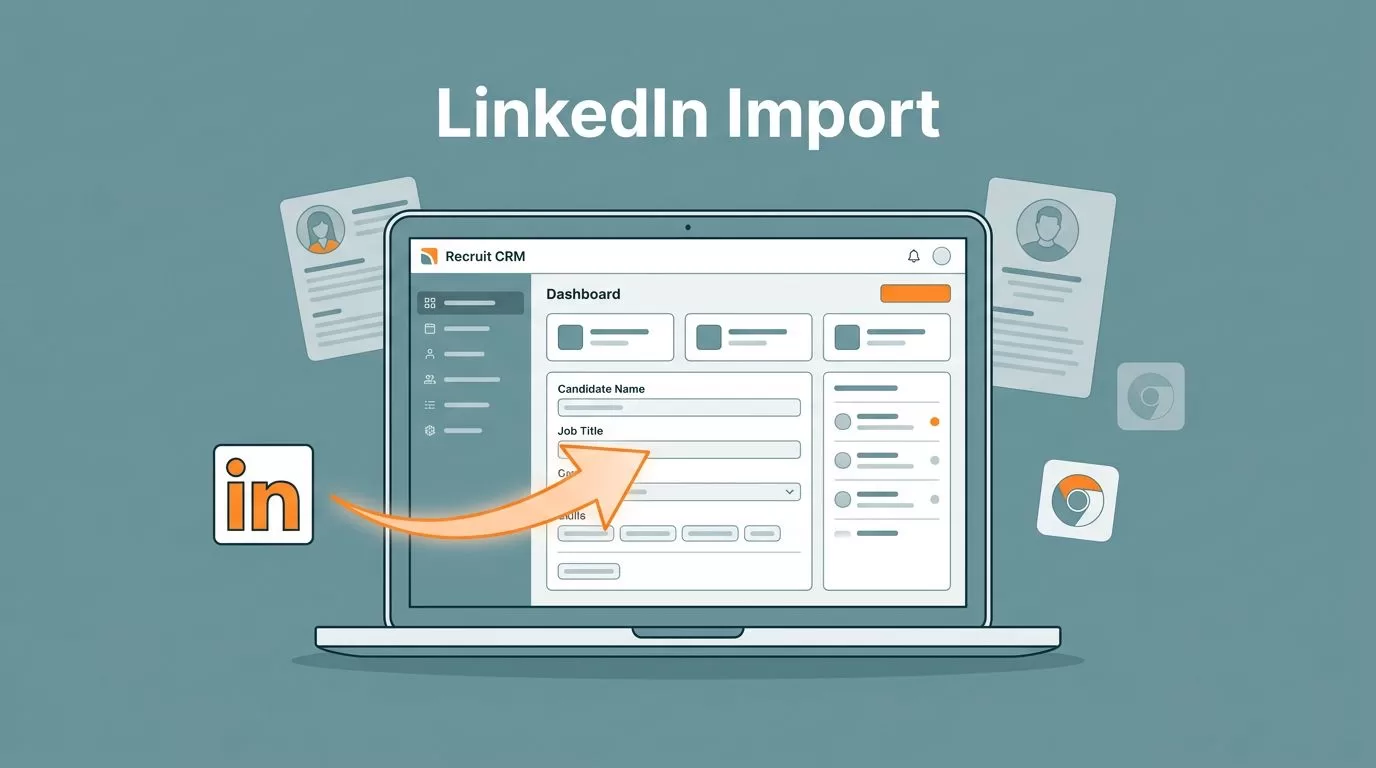
The Chrome extension pulls full details: name, experience, skills, even LinkedIn URLs. Data lands clean in candidate records. I source from LinkedIn, Sales Navigator, or Indeed without leaving my browser.
This fits my workflow perfectly. I spot talent on LinkedIn. A quick save builds my pipeline. For teams, it scales because everyone uses the same clean data.
Bulk options handle lists too. I export searches as CSV and import them. Duplicates merge by email or phone, so my database stays tidy.
Set Up the Chrome Extension in Minutes
Start simple. Log into your Recruit CRM dashboard. Head to settings and find the extensions tab.
Click install for the Chrome sourcing tool. It lives in the Google Web Store. Pin it to your toolbar once added. Now it’s ready on any profile page.
I test it right away. Open a LinkedIn profile. The ‘R’ icon pops up. Click it, and fields fill automatically.
Grant permissions once. Recruit CRM needs access to read pages, like any extension. It mimics normal browsing, so LinkedIn stays happy.
For details on Recruit CRM setup, check my guide. It boosted my placements 30%.
Quick Import with the Chrome Extension
This method shines for single profiles. I browse LinkedIn for software engineers. A strong match appears.
Click the extension icon. It captures basics instantly. I add notes, drag a resume PDF, or tag skills like “Python expert.”
Choose your pipeline stage. Save as candidate or contact. Hit submit, and it syncs to Recruit CRM.

The profile opens in my dashboard. Full view with timeline, tasks, and messaging. I reply to InMails from there too.
For steps, see Recruit CRM’s Chrome extension guide. It covers extras like hotlists.
Bulk Import for High-Volume Sourcing
Need dozens at once? Export LinkedIn searches to CSV. Include columns for name, LinkedIn URL, email if available.
In Recruit CRM, go to Candidates. Click the dropdown by “Add Candidate.” Pick Import CSV.
Upload your file. Map fields: LinkedIn URL dedupes automatically. Choose merge duplicates or not.
Opt for merge on email or LinkedIn URL. It combines records smartly. Companies link too if URLs match.
Check bulk importing docs for exact fields. Phone numbers help too.
I run this weekly for agency pipelines. It populates stages fast. No retyping skills or histories.
Benefits for Your Recruiting Workflow
Clean imports mean accurate data. Skills match jobs better, so placements rise. I cut sourcing time by half.
Teams collaborate easier. Shared profiles show notes and stages. No one duplicates outreach.
Productivity jumps because I focus on calls, not clicks. One agency owner I know filled roles 30% faster after this.

It ties into my staffing agency CRM switch. Recruit CRM handles it all.
Stay Compliant During Imports
LinkedIn rules matter. Use the official extension; it avoids scraping flags. Get consent before messaging.
Mark sourced candidates as “In-CRM” to track outreach. Dupe checks prevent spam.
For agencies, GDPR fits because data stays controlled. I audit imports monthly.
Bulk files need clean sources. No public scrapes. Stick to your searches or Recruiter exports.
Key Takeaways
Direct imports from LinkedIn to Recruit CRM speed my days. The extension grabs singles fast; bulk CSV handles volumes.
Data stays accurate, pipelines fill, and teams win more placements. I rely on it daily.
Try it on your next search. You’ll wonder how you managed without.
