Maintenance Log Automation With Twin.so, Without Losing Control
Maintenance log automation can reduce data entry, missed reminders, and scattered records. It can also create unsafe work if an agent writes unverified readings into a system or closes a job without technician approval. Twin.so can support...
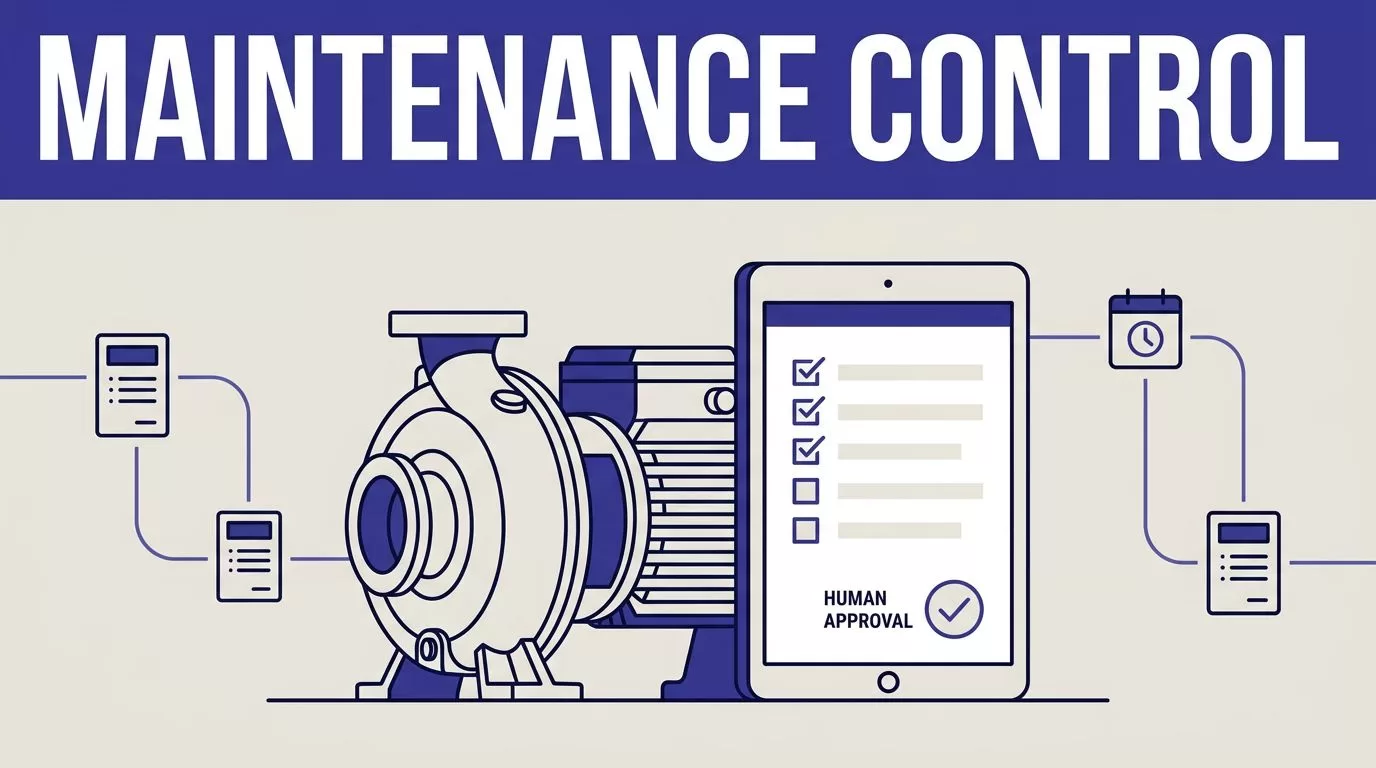
Maintenance log automation can reduce data entry, missed reminders, and scattered records. It can also create unsafe work if an agent writes unverified readings into a system or closes a job without technician approval.
Twin.so can support the repetitive parts of the process, including data capture, categorization, summaries, routing, and scheduled follow-ups. It shouldn’t replace inspections, qualified technicians, emergency procedures, or regulatory controls. Start with a narrow workflow, define every field, and keep safety decisions with a human reviewer.
What Twin.so Can Do for Maintenance Records
Twin.so describes its platform through AI agents, connectors, workflows, runs, browser agents, and automation artefacts. Its operations material says agents can read tables, watch logs, sync records, route data, and run workflows on a schedule. Users can also require approval before sensitive steps. The Twin.so operations page describes a live dashboard that shows run status, cost, and output.
That makes Twin.so a possible workflow layer for maintenance documentation. It isn’t the same as a certified maintenance record system.
The public product material doesn’t document a dedicated maintenance-log module, universal CMMS schema, or regulatory records-management feature. Treat the maintenance use case as an implementation built around Twin.so’s general automation tools. Confirm that your CMMS, EAM, form system, spreadsheet, ticketing platform, or file store has the connector and write actions you need. Twin’s integration directory is the right place to check current app coverage.
Use APIs before browser automation
A maintenance workflow may pull data from a mobile form, update a work-order system, read an email attachment, and notify a supervisor. Use an approved API for stable, repeatable fields when one exists.
Use browser automation for an authorized system that lacks a usable API or requires several page steps. Twin’s browser-agent guidance supports this mixed approach. Give the agent the approved tools and let it use built-in integrations before forcing browser actions.
Don’t place passwords, session tokens, or payment details inside prompts, spreadsheets, or run instructions. Store credentials in the approved vault or connection method. Give each workflow access to one account, one site, or one tenant when possible.

Build Maintenance Log Automation Around a Defined Record
A broad instruction such as “keep maintenance records updated” is too vague. It doesn’t define the source, fields, approval point, or response to missing data.
Write the target record before you build the agent. A useful schema may include:
- Asset ID and location
- Work-order or inspection ID
- Technician identity
- Date, time, and time zone
- Inspection type and readings
- Units and accepted value ranges
- Parts used and work performed
- Status, reviewer, and approval date
- Source link, attachment reference, and exception reason
Keep the original value beside any normalized value. If a source says “pass,” preserve that source status. Map it to your internal status separately. This gives a reviewer evidence instead of a clean-looking value with no history.
Capture and validate the source data
Start with one approved source. This could be a digital inspection form, a shared inbox, a service portal, or a connected work-order application.
Tell Twin.so where to look, which records to process, and which fields to return. Define what it must skip, such as duplicate submissions, incomplete drafts, unrelated attachments, and records outside the date range.
Validation should happen before any write action. Reject a record when the asset ID is missing, the timestamp is impossible, the unit is absent, or the reading falls outside the expected range. A failed validation should create an exception for review. It shouldn’t trigger an automatic correction.
Run the first batch in report-only mode. Compare proposed records with the original forms and work orders. Review enough examples to find missing fields, duplicate handling problems, and incorrect date or time-zone conversions.
Categorize, remind, summarize, and route
After validation, Twin.so can classify records using fixed categories such as preventive maintenance, corrective work, inspection finding, lubrication, calibration, or safety observation. Keep the category list closed. Don’t allow the agent to invent new labels during a production run.
A schedule can check for overdue inspections or work orders. It can create a reminder for the assigned owner and send a status summary to the maintenance manager. A summary should link to the underlying records. It shouldn’t hide missing evidence or unresolved readings inside a short message.
Route exceptions by rule:
- A missing signature goes to the technician or supervisor.
- An out-of-range reading goes to the qualified reviewer.
- A duplicate work order goes to the planner.
- A failed browser step goes to the workflow owner.
- A suspected safety issue follows the existing incident or emergency procedure.
The agent can move information and create follow-up tasks. A qualified person decides whether equipment is safe to operate.
Keep People in Charge of Safety Decisions
Automation is useful when the next action is administrative. It needs stronger controls when the action affects equipment status, worker safety, environmental release, or regulatory reporting.
A completed Twin.so run only shows that the workflow executed. It doesn’t prove that the technician inspected the asset correctly or that the extracted value is accurate.
A successful automation run is not the same as a correct maintenance record.
Add approval gates before high-impact actions
Require human approval before Twin.so can:
- Close or reopen a safety-related work order
- Change an asset from out of service to available
- Approve a return-to-service decision
- Alter a critical inspection reading
- Create a regulatory submission
- Order a part when the quantity or specification is uncertain
- Send an external message about an incident
The agent can prepare the proposed update. The reviewer should see the source record, extracted fields, confidence or validation result, and proposed destination change.
Public Twin.so material says approval can be required before sensitive steps. It doesn’t fully describe every possible approval setting, such as whether controls apply by role, step, environment, or connector. Test that behavior in your account before relying on it.
Handle exceptions as work, not noise
Don’t send every failed run to a generic inbox. Create an exception queue with an owner, priority, due time, source record, and reason for failure.
For example, a pump inspection may contain a vibration reading but no unit. The agent should mark the unit as missing and stop the write action. It shouldn’t infer millimeters per second from the asset’s previous record.
A browser session can also complete while returning incomplete data. Check record counts, required fields, duplicate IDs, stale timestamps, and unexpected page behavior. Set an alert when those measures move outside normal limits.
Protect the Audit Trail, Privacy, and Backups
Maintenance records often contain employee names, site information, equipment identifiers, photos, and notes about incidents. Access should match the work.
Twin.so’s privacy policy describes role-based permissions, least-privilege production access, multi-factor authentication for personnel, access logging, and periodic access review. Those controls help, but your team still needs to configure the workflow correctly.
Restrict access and protect sensitive fields
Create separate connections for development, testing, and production. Give the agent read access first. Add write access only after the output passes validation.
Limit the workflow to the sites, asset groups, folders, channels, and date ranges it needs. Exclude medical information, personal contact details, credentials, and unrelated employee notes unless the process requires them.
Review every connected system’s permission scope. A person having access to a maintenance portal doesn’t automatically authorize an automated agent to collect and export everything visible there.
Define retention before launch. Twin’s public privacy information describes deletion periods for certain automation artefacts, security logs, and backups. Those periods don’t automatically become your maintenance-record policy. Ask how your connector data, exported records, screenshots, and failed runs are handled.
Track every change and preserve evidence
Use a stable record ID, source URL, collection timestamp, workflow version, run ID, and reviewer identity. Store the original submission beside the normalized record. Record whether the agent created, updated, skipped, or proposed the change.
Twin.so says its platform generates structured audit logs for agent actions and can export them for SIEM or internal compliance workflows. Review the details in its audit-log guidance. Confirm that the information available for your workflow meets your audit needs.
Don’t treat Twin.so’s run log as the only copy of the official maintenance record. Export approved records to the system your organization uses for work orders, retention, backup, legal hold, and controlled access. Public product pages don’t establish immutable storage, WORM protection, or regulatory certification for your records.
Document the workflow’s purpose, data sources, permissions, validation rules, approval points, retention period, backup location, and failure procedure. Have safety, compliance, privacy, and IT owners review it before production use.
Use a Cautious Implementation Checklist
Build one workflow for one site or asset group. Don’t start with every facility, every form, and every historical record.
Test the smallest useful process
Use a known sample of completed maintenance records. Run the workflow manually before adding a schedule. Run the same batch twice and check that the second run doesn’t create duplicate records, alerts, or work orders.
Measure:
- Required-field accuracy
- Duplicate rate
- Missing-field rate
- Validation failures
- Human review time
- Failed browser steps
- Credits used per approved record
- Records routed without rework
Calculate cost per accepted, reviewed record. A workflow that runs cheaply but creates corrections can increase total cost.
Complete these checks before wider deployment
- Confirm each source and destination is approved.
- Verify the exact permissions for every connection.
- Define the record schema and accepted status values.
- Add validation rules for IDs, dates, units, ranges, and duplicates.
- Set human approval before safety-critical writes.
- Create named paths for success, failure, and exception records.
- Test stale data, missing fields, duplicate submissions, and unavailable systems.
- Export approved records to the correct system of record.
- Document retention, deletion, backups, and access reviews.
- Train technicians and supervisors on what automation does not approve.
If the workflow spans several sites or systems, Book A Call to map permissions, fields, approval points, and exception paths before committing to a larger rollout.
Conclusion
Twin.so can reduce repetitive maintenance documentation work when the workflow has clear inputs, defined fields, controlled permissions, and human review. Use it to capture approved data, validate records, send reminders, prepare summaries, and route exceptions.
Keep inspections, technical decisions, emergency actions, and regulatory responsibility with qualified people. The safest maintenance log automation process is not the one that removes every human step. It’s the one that makes every automated step visible, reviewable, and easy to correct.
