How I Sync MemberSpace Tags to ActiveCampaign
A member can sign up in one system and disappear in another if the tags are sloppy. That is why I keep MemberSpace ActiveCampaign tags clean, short, and tied to real membership states. I use MemberSpace for access and ActiveCampaign for fol...

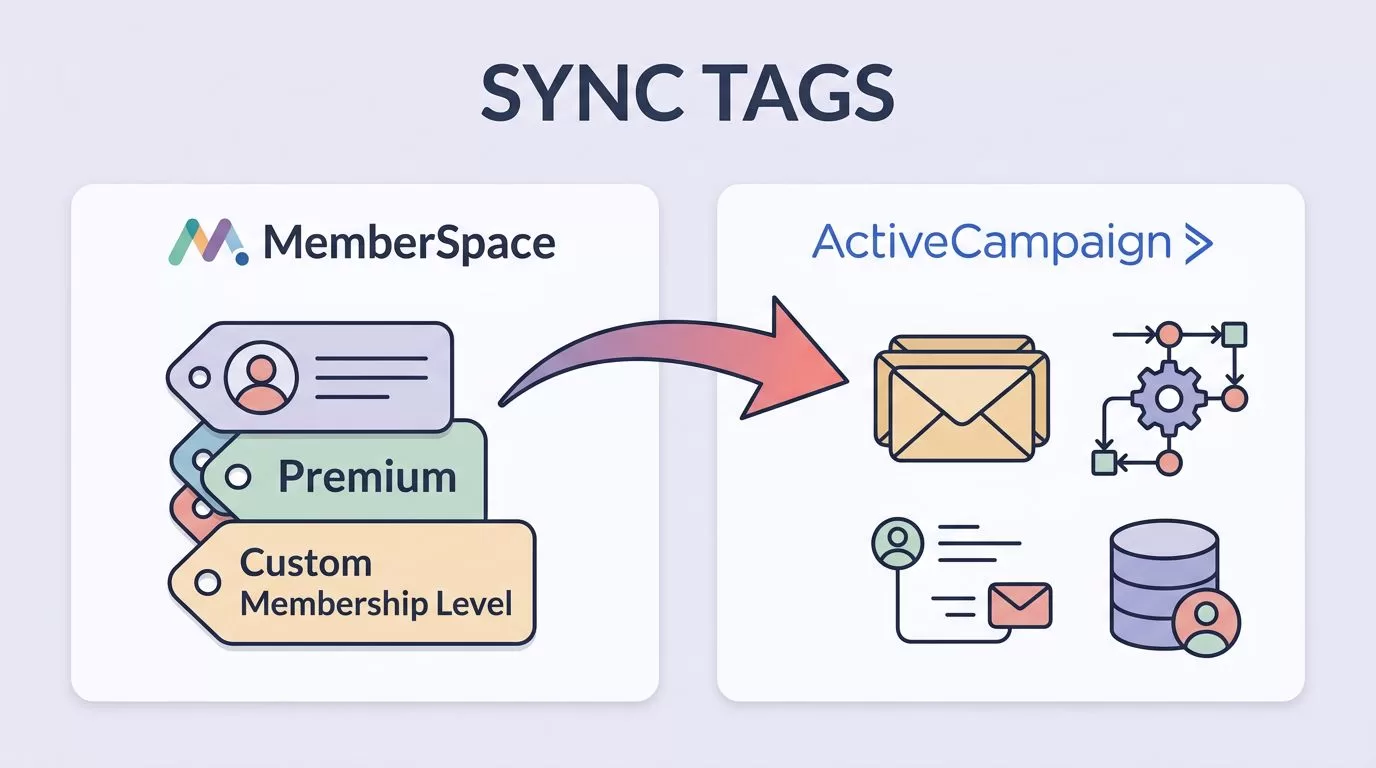
A member can sign up in one system and disappear in another if the tags are sloppy. That is why I keep MemberSpace ActiveCampaign tags clean, short, and tied to real membership states.
I use MemberSpace for access and ActiveCampaign for follow-up. Once those two agree on who is active, canceled, expired, or stuck on payment, my automations stay useful instead of noisy.


What I set up before I touch the integration
I start by naming the outcome, not the tool. If I want a welcome flow, a save sequence, or a billing rescue path, I decide that first. Then I build the tags around that plan.
As of June 2026, MemberSpace still fits best when it owns access and status, while ActiveCampaign handles the messages that follow. MemberSpace also documents a path for automatic list adds through Zapier in its help center, which is useful when I need a fallback. For the direct route, I check the MemberSpace integration in ActiveCampaign and keep ActiveCampaign’s guide to tags and segments close by.
Before I connect anything, I make sure I have:
- An ActiveCampaign account with permission to build tags and automations.
- A live MemberSpace site with memberships already set up.
- A short tag naming rule, such as
ms-activeorms-cancelled. - One clear idea for each tag, so I do not create junk labels.
I treat MemberSpace as the access layer and ActiveCampaign as the follow-up layer.
That split keeps me out of trouble later. If I mix access control, email nurture, and billing logic in one tag, I lose track of what fired and why.
The tag map I use for clean member data
I keep my mapping simple because simple maps are easier to debug. A tag should tell me the member state at a glance, not force me to decode a puzzle.
| MemberSpace event | ActiveCampaign tag | What I do next |
|---|---|---|
| New approved member | ms-approved | Start onboarding and first-login emails |
| Active member | ms-active | Keep them in the member-only nurture flow |
| Canceled member | ms-cancelled | Move them into a save or exit survey flow |
| Expired or payment failed | ms-payment-failed | Send billing help and pause premium nudges |
This setup works because each tag has one job. If a contact moves from ms-active to ms-cancelled, I know the membership changed. If the contact also gets ms-payment-failed, I know the issue is financial and not just a voluntary cancel.
I avoid vague tags like customer or member1. Those labels age badly. A month later, they do not tell me what action to take.
My step-by-step MemberSpace and ActiveCampaign setup
I set this up in a fixed order so I do not chase errors later.
- Create the tags in ActiveCampaign first.
I add every tag I plan to sync before I connect MemberSpace. That way, I do not end up with missing or misspelled labels. - Decide which membership states matter.
I usually start with active, approved, canceled, expired, and payment failed. Those five cover most member journeys without clutter. - Connect MemberSpace to ActiveCampaign.
I use the native integration path first. The whole point is to let MemberSpace send member status changes into ActiveCampaign without extra moving parts. - Map each state to a tag.
I assign one status to one tag. I do not reuse the same tag for two different moments. That keeps the automation tree readable. - Choose whether tags should add, remove, or do both.
When someone becomes active, I addms-active. When they cancel, I removems-activeand addms-cancelled. That swap matters because old tags can keep bad automations alive. - Test with one account.
I change the member state, wait a bit, and check the contact record in ActiveCampaign. If the tag lands, I know the path works. - Build automations around the tag.
A tag alone does nothing. The automation is where the work starts.
I usually test one path at a time. A fresh approved member is the easiest first test because the flow is clean. If that works, I move on to cancel, expiry, and failed payment.
I also keep my onboarding content split from access control. If I want the welcome sequence to feel polished, I write that in ActiveCampaign, then I let MemberSpace only trigger the right door opening. My MemberSpace onboarding emails guide covers that division cleanly.
The automations I build after tags start flowing
Once the sync works, the tags become signals. That is where the real value shows up.
For example, I use ms-active to start a welcome series that does three things. It explains where to start, points to the member area, and sends a quick win on day one. That first week matters because a new member who understands the product stays engaged longer.
I use ms-cancelled in a different way. Instead of sending a sales-heavy blast, I move the contact into a short exit flow. I ask why they left, offer a final help link, and stop the stream if they want a break.
ms-payment-failed gets its own lane. I do not mix it with a normal cancel path because the fix is different. Payment issues need a billing nudge, not a generic goodbye email.
Here are the segments I build most often:
- New members:
ms-approvedand noms-activeyet. - Current members:
ms-activewith no cancellation tag. - At-risk members:
ms-payment-failedplus an active plan. - Lapsed members:
ms-cancelledand not active anymore.
This is where tags help me think clearly. I do not need one giant list. I can split people by state and send the right message at the right time.
If I need a more complex path, I sometimes layer in a second tool. My MemberSpace Zapier automation guide shows how I handle that when the built-in sync is not enough.
When I need more than the built-in sync
MemberSpace and ActiveCampaign cover the common cases well. Still, I run into situations where the native setup is too simple.
That happens when I want tags based on plan tier, course completion, or a custom signup field. In those cases, I add another automation layer, often through Zapier or the ActiveCampaign API. MemberSpace’s own Zapier email list article is a good reference when I need that kind of handoff.
I use the built-in sync for status. I use middleware for richer logic.
That split keeps the core setup stable. It also makes troubleshooting much easier because I know which layer owns the event.
Troubleshooting when tags do not land
Most tag problems come from a short list of mistakes. I check them in the same order every time.
- The tag does not appear: I confirm the contact email matches in both systems. If the email differs, the sync has nowhere to land.
- The sync feels delayed: I wait a few minutes and refresh the contact record. Then I recheck the membership status change in MemberSpace.
- The wrong tag appears: I look at the mapping again. One swapped label can send the contact into the wrong automation path.
- A tag never triggers an automation: I inspect the trigger in ActiveCampaign. Sometimes the automation watches for the wrong tag name or the wrong event type.
- Old tags keep firing: I remove stale tags from the contact record and tighten the add and remove rules.
If I suspect the setup itself is the issue, I disconnect the integration, reconnect it, and run one clean test. That usually shows me whether the problem is the mapping, the contact record, or the status change.
A tag only helps if both tools agree on the same email address.
I also keep a notes field beside each test contact. That saves me later when I wonder whether a tag came from a real member event or from my own test.
Conclusion
When I sync MemberSpace tags to ActiveCampaign, I keep the system small on purpose. MemberSpace owns access, ActiveCampaign owns follow-up, and the tags carry the meaning between them.
That setup works best when each tag maps to one clear membership state. If I can read the tag and know what happened, my automations stay sharp and my segments stay useful.
The cleanest member systems are the ones that leave the fewest mysteries behind.

