Connect a MemberSpace Payment Gateway for Courses
Setting up a MemberSpace payment gateway for your courses can appear straightforward, but problems often arise when you encounter a failed card, an incorrect price, or a misconfigured access rule. I aim to ensure that the revenue flow for y...

Setting up a MemberSpace payment gateway for your courses can appear straightforward, but problems often arise when you encounter a failed card, an incorrect price, or a misconfigured access rule. I aim to ensure that the revenue flow for your digital products and the user login process are perfectly synchronized from day one, as that is where most launch complications begin.
As of June 2026, MemberSpace uses Stripe exclusively for processing transactions. Because of this, I do not factor PayPal or Square into the strategy. I focus my planning entirely on Stripe, then I allow MemberSpace to handle the specific permissions regarding who gains entry, what content they can view, and when their access level changes.
Key Takeaways
- Stripe Integration: MemberSpace relies exclusively on Stripe for payment processing, requiring you to manage financial operations like taxes and payouts in Stripe while handling content access rules directly within MemberSpace.
- Division of Responsibility: Treat your setup as two distinct layers: Stripe acts as the financial engine for transactions and subscriptions, while MemberSpace functions as the digital gatekeeper that enforces access based on payment status.
- Essential Pre-Launch Testing: Never skip a full-scale test run, which must include a live transaction (that you later refund) to verify that payment capture, access granting, and automated renewal paths function correctly across devices.
- Strategic Labeling: Use clear, descriptive names for your member plans and products to simplify financial reporting and avoid administrative confusion when managing subscriptions or refunds later.
- Systematic Setup: Before connecting your systems, ensure your course structure, pricing model (one-time vs. recurring), and cancellation policies are clearly defined to avoid configuration errors that break the checkout funnel.
What MemberSpace needs from Stripe in 2026
My MemberSpace setup begins with a fundamental requirement: Stripe serves as the primary engine for payment processing. MemberSpace emphasizes this role in its documentation, including its online course setup guide and its resources regarding a Squarespace Payments alternative.
This structure works because each tool manages a distinct layer of the business. Stripe handles the financial layer, including credit cards, digital wallets, automated receipts, refunds, tax collection, and final payouts. Meanwhile, MemberSpace manages the access layer, controlling protected pages, member status, and course enrollment.
Stripe integration also provides several checkout options that help buyers complete their purchases more efficiently. In a typical configuration, I can accept major credit cards, Apple Pay and Google Pay, and Stripe Link when the customer’s device supports these methods. I can also sell my courses in multiple currencies, provided my Stripe account settings are configured correctly.
If Stripe is not available in your country, you will not be able to utilize MemberSpace for your course payments.
I also keep the total cost structure clear before I launch. In 2026, MemberSpace adds a 4% transaction fee on top of the standard Stripe processing fees, which are typically 2.9% plus $0.30 per sale in the US. I always factor these transaction fees into my profit margin calculations early on so there are no surprises once I go live.
What I prepare before I connect anything
Before I touch the dashboard, I want the offer itself to be clear. A course checkout is much easier to manage when I know whether I am selling a one-time course, a recurring subscription, or various membership tiers. If I am still deciding between a straight course and a community model, I compare it with my paid community billing pattern first, because pricing shape changes the whole setup for selling digital products.
My prelaunch checklist is simple:
- I have a Stripe account in a supported country.
- I can log in to the exact site where MemberSpace will protect content.
- My course pages already exist, even if the content is not public yet.
- I know which pages are free, which pages are gated content, and which page starts the checkout process.
- I have bank and tax details ready inside Stripe.
- I know whether I need monthly billing, annual billing, or specific member plans to handle the billing logic.
- I have written the cancellation and refund rules I want to use.
I also decide how I want to label the offer. A clean name in Stripe and MemberSpace saves me later when I am scanning reports. “Course,” “Pro membership,” and “Annual access” all work better than vague product names that I forget a month later.
If I am building on WordPress, I keep the course pages and the checkout page separate. If I am on Squarespace or Webflow, I still follow the same idea, as the public sales page should lead cleanly into a protected member area. The platform can change, but the payment logic for your digital products should stay boring.
How I connect Stripe and MemberSpace
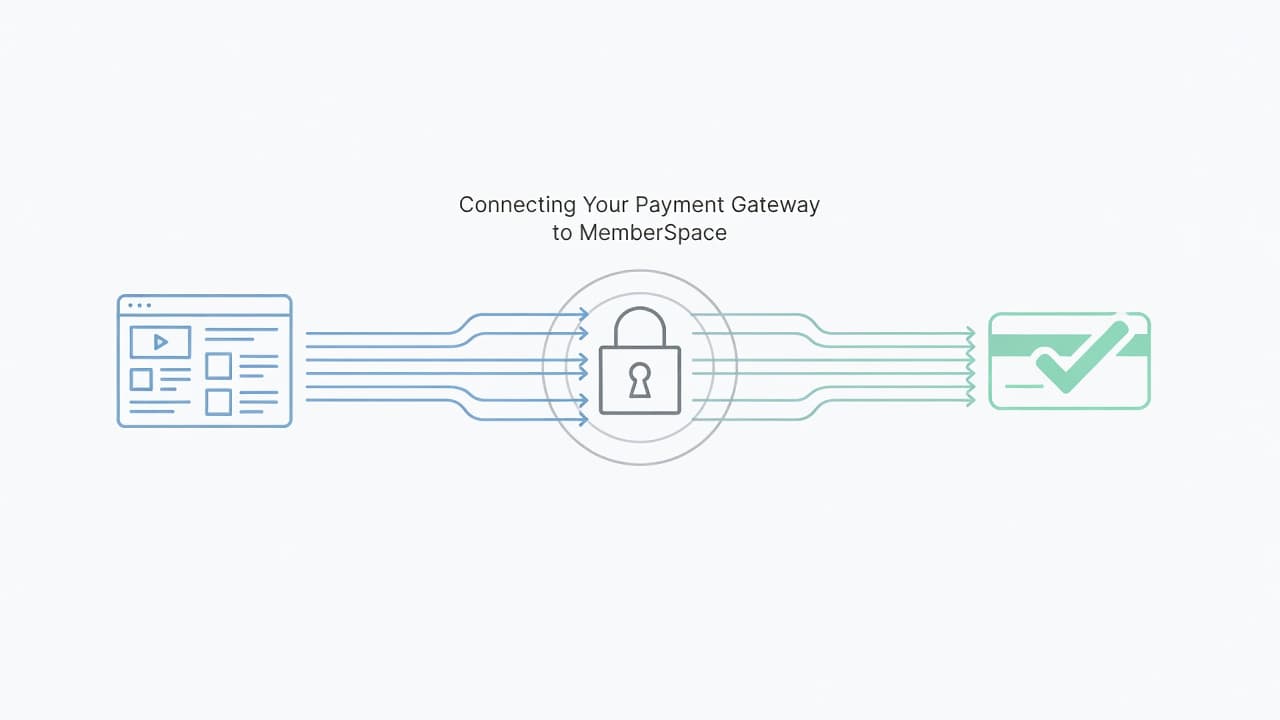
I start in Stripe, not because it is fancier, but because it owns the payment account. I finish in MemberSpace, because that is where I lock the content.
- I create or open my account in the Stripe dashboard and confirm the business profile.
- I finish identity, bank, and tax setup inside Stripe to ensure everything is ready for operation.
- I log in to MemberSpace and open the payment or billing area.
- I establish a direct Stripe connection when prompted and approve the necessary account access.
- I create the member plans for the course or membership inside the platform.
- I attach those plans to the pages or content I want to protect.
- I run a test checkout before I invite any real buyers.
The important part is not the button order. The important part is knowing which tool owns which job. Stripe handles the heavy lifting of payment processing. MemberSpace listens for those payment events and updates access accordingly.
I also make sure the price inside MemberSpace matches the price inside Stripe. A mismatch here creates confusing receipts, strange subscription records, and support emails that waste time. When a course has a monthly plan and an annual plan, I give each one its own clear label to keep my member plans organized and easy for customers to understand.
How payments and access work together
Once the connection is live, the flow should feel predictable. A buyer lands on the checkout page, completes the purchase through the Stripe-powered checkout experience, and automatically receives the access rule that I set in MemberSpace.
| Job | Stripe handles | MemberSpace handles |
|---|---|---|
| Payment capture | Cards, wallets, Link, currency, receipts | Checkout flow and plan trigger |
| Recurring payments | Subscription management, retries, invoices | Access tied to active status |
| Refunds | Processing the refund and payment record | Membership state after the refund |
| Failed payments | Retry logic and billing events | Access changes based on my rules |
| Customer state | Payouts, disputes, payment history | Member list and protected content |
This division of labor keeps everything organized. Stripe acts as the financial ledger, while MemberSpace acts as the digital lock for your content.
For course creators, the real win is the automated billing that ensures I do not have to hand-grant access after every sale. If the payment succeeds, MemberSpace opens the course instantly. If the subscription ends, access closes automatically according to the specific plan rules I have established.
I still keep a close eye on refunds and failed payments after launch. I compare refunds against successful transactions rather than every failed attempt, because card declines and automated retries can distort the data. When a few large refunds land in the same month, the total amount matters more than the count. However, when many small refunds show up, I look for signs of user confusion, broken onboarding, or a potential course mismatch.
Platform-specific details I check before launch
MemberSpace works across different site builders, but I do not treat every site the same. On WordPress, I keep the checkout page and the lesson pages separate so I can test both cleanly. On Squarespace, I confirm the protected page is published and not stuck in draft. On Webflow, I verify that the live URL is the one MemberSpace protects, not a staging copy.
The site builder also changes how I think about navigation. I keep the sales page public, but I avoid putting members-only content in obvious menus. The fewer accidental entry points I create, the easier it is to manage access.
I also check mobile behavior. A lot of buyers will complete checkout on a phone, so I want the form fields, button spacing, and member login path to feel normal on a small screen. If I have to pinch and zoom during testing, my buyers will too. Ensuring a seamless mobile checkout experience is vital to keeping your conversion rates high.
What I test before I go live
I never launch a course payment flow without at least one full test run. A clean test saves me from support messages that start with “I paid, but I can’t get in.”
My test pass includes:
- I complete a Stripe test payment, then confirm the member record appears in MemberSpace.
- I log in as the new member and open every page the plan should unlock.
- I try a page I did not pay for, and I confirm it stays blocked.
- I check the welcome email, receipt, and any onboarding message.
- I test the refund path to see how access changes when I need to refund customers.
- I test a failed payment or expired card scenario, or how a member transitions after their free trials end, if my billing setup uses recurring plans.
- I confirm the pricing page shows the right amount for all member plans on both desktop and mobile.
I also do one live test with a card I control when the setup is close to final. Then I refund it right away. That tells me the real payment path, not just the sandbox path, is working.
Security gets the same treatment. I turn on Stripe two-factor authentication to ensure secure payments. I use strong admin passwords and keep MemberSpace access limited to the people who need it. I also check that the checkout page uses HTTPS and that my public pages do not reveal hidden lesson URLs.
Common mistakes that break course checkout
Most failed setups fail in the same few ways. I view these as basic wiring mistakes rather than complex strategy problems, and they often come down to how you handle your membership management.
One common mistake is expecting MemberSpace to support a payment processor other than Stripe. It does not support alternatives in 2026. If I want to use MemberSpace, I must use Stripe to process my transactions.
Another mistake is mixing test and live settings. That can make a checkout look dead when it is actually pointing at the wrong account. I always check my environment settings twice before I blame the platform for a lack of connectivity.
A third mistake is protecting the wrong content. If I accidentally gate the sales page instead of the lesson page, the entire funnel dies. Likewise, if I forget to protect a specific lesson folder, buyers can wander into premium content they have not paid for yet.
I also avoid using vague labels for my member plans. A label like Premium tells me nothing six months later. Using descriptive names like Course Monthly, Course Annual, and Founders Plan makes ongoing membership management faster and keeps my financial reports much cleaner.
The last mistake is skipping the process to cancel member plans and handle refunds. A sustainable course business needs a clear plan for both. If I do not know exactly what happens when a buyer chooses to cancel their member plans, my payment flow is not truly finished.
Frequently Asked Questions
Can I use a payment processor other than Stripe with MemberSpace?
No, as of 2026, MemberSpace exclusively supports Stripe for all payment processing. You must have a valid Stripe account in a supported country to utilize MemberSpace’s gated content and subscription features.
How do I ensure customers automatically lose access after a failed payment?
MemberSpace monitors the payment events sent by Stripe. When a subscription expires or a recurring payment fails repeatedly according to your Stripe settings, MemberSpace automatically updates the member’s status and revokes access to the protected content based on the rules you defined in your plan settings.
Is it necessary to perform a live payment test before launching?
Yes, it is highly recommended to perform at least one live test using a card you control, followed by a manual refund. While sandbox testing is helpful, a live test confirms that the real-world connection between your bank, Stripe, and MemberSpace is active and correctly configured.
What happens if my Stripe price and MemberSpace plan price do not match?
If these prices do not match, it can lead to incorrect invoice data, confusing subscription records, and potential customer support issues. Always ensure that the pricing, billing frequency, and product labels are synchronized across both platforms to maintain accurate financial reporting.
Conclusion
A MemberSpace payment gateway works best when I treat my Stripe integration and access control as two separate jobs. Stripe handles the movement of money, and MemberSpace determines exactly who gets through the door.
That simple split keeps the setup easier to test, easier to support, and easier to fix when something goes wrong. Before I go live, I want one clean test payment, one clean access check, and one clear refund path.
Once those three pieces work together, the rest feels calm. The checkout page successfully sells the course, the member area protects the content, and my automated billing systems keep my support inbox quiet.
